> For the complete documentation index, see [llms.txt](https://docs.nexthink.com/platform/llms.txt). Markdown versions of documentation pages are available by appending `.md` to page URLs; this page is available as [Markdown](https://docs.nexthink.com/platform/user-guide/using-finder-classic/monitoring-it-custom-metrics-with-finder-classic/finding-the-visuals-of-a-metric-with-finder-classic.md).
# Finding the visuals of a metric with Finder (classic)
## Overview
Right after you add a metric to a widget in a dashboard, the link between the metric and its visual components in the web interface —widget and dashboard— is clear for you. After adding multiple metrics to several widgets in different dashboards though, it is easy to lose track of which metrics relate to which widgets and dashboards.
Learn how to navigate from a metric in Finder to the dashboards that hold the metric in the web interface and find out which of the widgets within a dashboard display the values of the metric.
## Finding the dashboards and widgets linked to a metric
To find out which of the dashboards and widgets are making use of a particular metric:
1. Log in to Finder.
2. In the **Metrics** section, right-click the name of the desired metric.
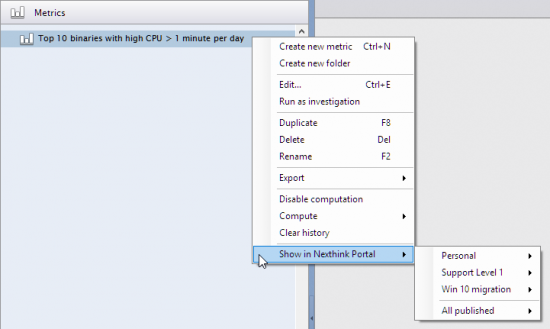
3. Select **Show in Nexthink Portal** from the menu.
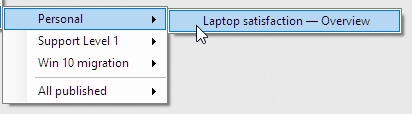
* Select **Personal** to look for the metric on dashboards that you’ve created yourself, located under **DASHBOARDS→My content→PERSONAL** in the web interface.
* Select the name of a module (if any available) that is part of your roles to look for the metric on dashboards included in the module. In the example above, you can find the modules **Support Level 1** and **Windows 10 migration**, for instance.
* Select **All published** to look for the metric on dashboards that you have the right see under **DASHBOARDS→All published** in the web interface.
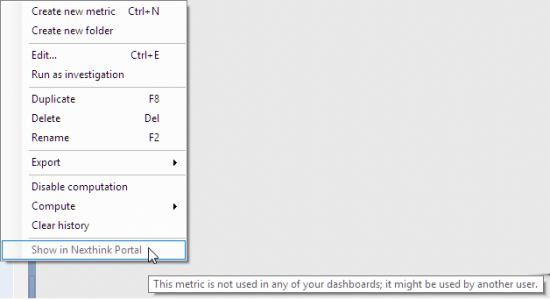
* If the metric is not used on any dashboard that you have the right to see in the web interface, the option to show it in the web interface is disabled. Even if you are an administrator with access to all published dashboards, be aware that this does not necessarily imply that the metric is not used in the web interface at all, because it may be linked to an unpublished Personal dashboard of another user. The tooltip message clearly indicates this fact: **This metric is not used in any of your dashboards; it might be used by another user**
4. Click any of the listed dashboards to open the dashboard in the web interface. Finder opens a new tab in your default browser to show the dashboard.
* If you are not logged in yet, the web interface asks you to log in first.
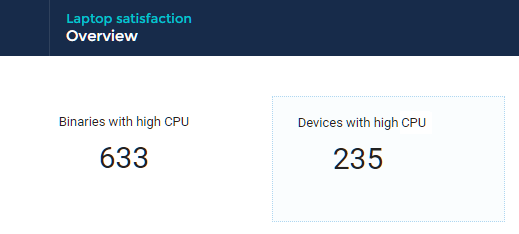
5. Once the dashboard is open in the web interface, find the widgets that use the metric thanks to the distinctive dotted blue border that highlights them. For instance, in the dashboard below, only the widget **Devices with high CPU** contains the metric of interest:
---
# Agent Instructions
This documentation is published with GitBook. GitBook is the documentation platform designed so that both humans and AI agents can read, navigate, and reason over technical content effectively. Learn more at gitbook.com.
## Querying This Documentation
If you need additional information that is not directly available in this page, you can query the documentation by asking a question.
Perform an HTTP GET request on the following URL with the `ask` and `goal` query parameters:
```
GET https://docs.nexthink.com/platform/user-guide/using-finder-classic/monitoring-it-custom-metrics-with-finder-classic/finding-the-visuals-of-a-metric-with-finder-classic.md?ask=&goal=
```
`ask` is the immediate question: it should be specific, self-contained, and written in natural language.
`goal` is what the user is ultimately trying to achieve, the reason they need the answer. Sharing it helps GitBook give you a better, more relevant answer. A goal is most helpful when it describes the outcome the user wants rather than restating the question. For example, with `ask=how do I create an API token`, a goal like `automate deployments from our CI pipeline` lets GitBook tailor the answer to that use case.
The response will contain a direct answer to the question and relevant excerpts and sources from the documentation.
Use this mechanism when the answer is not explicitly present in the current page, you need clarification or additional context, or you want to retrieve related documentation sections.