> For the complete documentation index, see [llms.txt](https://docs.nexthink.com/llms.txt). Markdown versions of documentation pages are available by appending `.md` to page URLs; this page is available as [Markdown](https://docs.nexthink.com/library-packs/collaboration-and-productivity-applications/workflow-call-quality-troubleshooting/configuration-guide-call-quality-troubleshooting.md).
# Configuration guide: Call Quality troubleshooting
{% hint style="warning" %}
The configuration options on this page are only accessible to [administrators](https://docs.nexthink.com/platform/user-guide/administration/account-management/roles#roles-administration).
Refer to the [Usage guide template: Call quality troubleshooting](/library-packs/collaboration-and-productivity-applications/workflow-call-quality-troubleshooting/usage-guide-call-quality-troubleshooting.md) to use library content as a standard user.
{% endhint %}
## **Prerequisites**
This library pack contains content from the following required [expansion products](https://docs.nexthink.com/platform/overview/products):
* [Flow](https://docs.nexthink.com/platform/overview/products#products-flow)
* [Employee Engagement - Campaigns](https://docs.nexthink.com/platform/user-guide/campaigns)
{% hint style="info" %}
Some of these products offer default access to their respective content and can still be used without [expansion products](https://docs.nexthink.com/platform/overview/products).
Refer to the [Nexthink Infinity thresholds and limits overview](https://edocs.nexthink.com/nexthink-infinity/infinity-specifications/nexthink-infinity-default-thresholds-overview) documentation for more information about default thresholds for expansion products.
{% endhint %}
## **Included content and dependencies**
This library pack contains the following content and dependencies:
| Content type | Name | Description |
| ------------- | ---------------------------------------------------- | ---------------------------------------------------------------------------------------------------------------------------------------------------------------------- |
| Workflow | Call quality troubleshooting | A step by step troubleshooting of device and application issues that could be affecting call quality on MS Teams or Zoom |
| Remote action | Get network speed | Gets information about the speed of the network by measuring the Web RTT against an external URL and a business URL. |
| Remote action | Get Microsoft Teams client status | Identifies when Microsoft Teams is not installed on a device. Where Teams is installed on a device the number of months since Microsoft Teams was updated is supplied. |
| Remote action | Clear Microsoft Teams cache | Closes Microsoft Teams if it is open and deletes the cache files. |
| Remote action | Reinstall MS Teams Windows | Reinstalls Microsoft Teams to avoid version disparity, or broken installed versions |
| Remote action | Reinstall MS Teams macOS | Reinstalls Microsoft Teams to avoid version disparity, or broken installed versions |
| Remote action | Invoke Zoom reinstall | Performs a reinstallation of Zoom on an employee's device. Where Zoom is already installed and up-to-date, the current version is reported. |
| Remote action | Invoke Zoom reinstall macOS | Performs a reinstallation of Zoom on an employee's device. Where Zoom is already installed and up-to-date, the current version is reported. |
| Campaign | Network connection issues detected - Workflow invoke | Suggestion to a Wi-Fi connected office based employee to move location to improve their Wi-Fi reception |
| Campaign | Home router restart - Workflow invoke | Suggestion to an ethernet connected remote based employee to restart their internet router, if they have access to it. |
| Campaign | Wi-Fi self help - Workflow invoke | Range of suggestions to a Wi-Fi connected remote based employee on how to improve their Wi-Fi reception. |
## **Configuring "Call quality troubleshooting pack"**
Follow these steps to install and configure content:
* Before configuration - Install library pack content from [Nexthink Library](https://docs.nexthink.com/platform/user-guide/nexthink-library)
* [Step 1 - Configure remote action(s)](#configuring-remote-action-s)
* [Step 2 - Edit campaigns](#documentation-step3-editcampaigns)
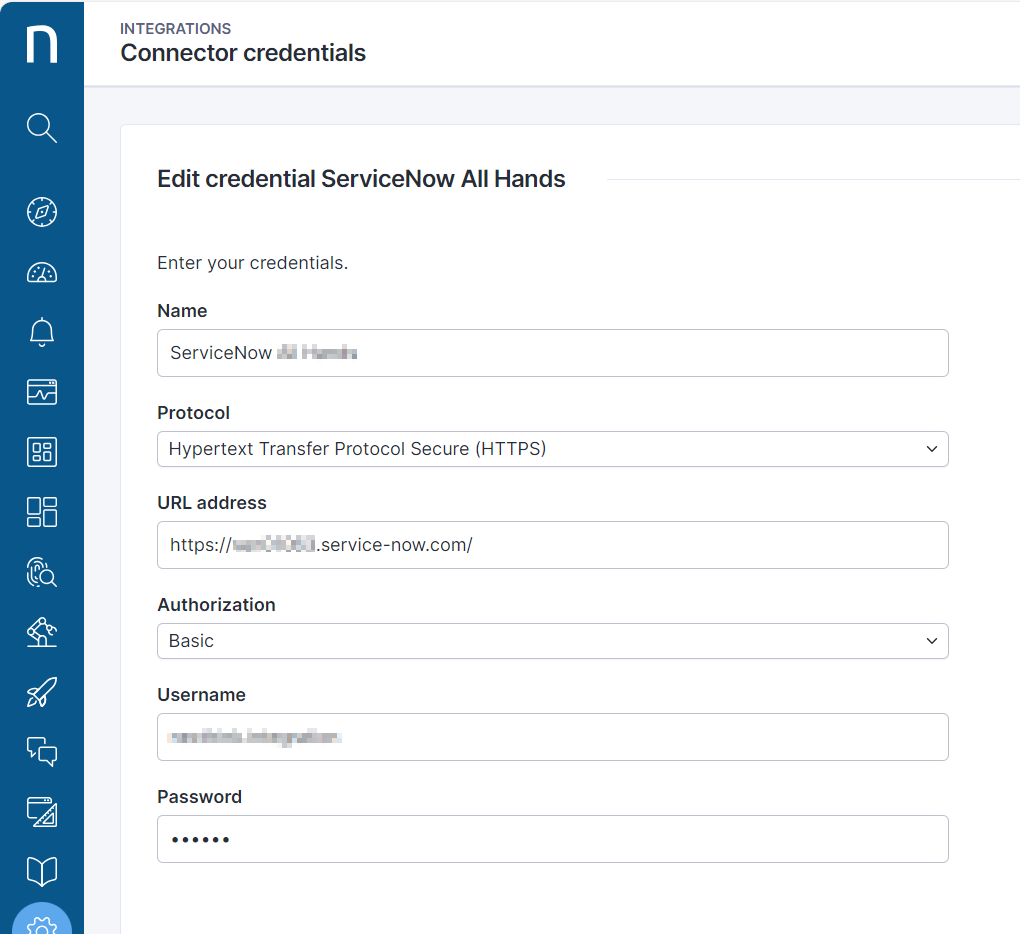
* [Step 3 - Configure ITSM API connector credentials](#configurationguide-batteryreplacementscheduling-step2-configureitsmapiconnectorcredentials)
* [Step 4 - Configure global parameters in the workflow](#configurationguide-batteryreplacementscheduling-step3-configureglobalparameters)
### **Step 1 - Configure remote action(s)**
1. From the main menu, navigate to the **Remote Actions** > [Manage remote action ](https://docs.nexthink.com/platform/user-guide/remote-actions/managing-remote-actions)page.
2. Review and edit your remote actions.
Nexthink recommends the following configurations for these remote actions:
| Name | Trigger schedule | Parameters to edit |
| --------------------------- | --------------------------------------------------------------------------- | ------------------------------------------------------------------------------------------------------------------------------------------------ |
| Get network speed | API trigger should be enabled so that it can be triggered from the Workflow |
The following parameters must be configured:
ExternalURL
WebRTTThreshold
|
| Get Teams status | API trigger should be enabled so that it can be triggered from the Workflow | |
| Clear MS Teams cache | API trigger should be enabled so that it can be triggered from the Workflow |
The following parameters must be configured:
CampaignId
OperationCompletedCampaignID
|
| Reinstall MS Teams Windows | API trigger should be enabled so that it can be triggered from the Workflow |
The following parameters must be configured:
CampaignId
OperationCompletedCampaignID
|
| Reinstall MS Teams macOS | API trigger should be enabled so that it can be triggered from the Workflow |
The following parameters must be configured:
CampaignId
OperationCompletedCampaignID
|
| Invoke Zoom reinstall | API trigger should be enabled so that it can be triggered from the Workflow |
The following parameters must be configured:
CampaignId
OperationCompletedCampaignID
ZoomRequiredVersion
|
| Invoke Zoom reinstall macOS | API trigger should be enabled so that it can be triggered from the Workflow |
The following parameters must be configured:
CampaignId
OperationCompletedCampaignID
ZoomRequiredVersio
|
### **Step 2 - Edit campaigns**
1. From the main menu, navigate to the **Campaings** > [Manage Campaigns](https://docs.nexthink.com/platform/user-guide/campaigns/managing-campaigns) page.
2. Review and edit your campaigns. For each installed campaign:
* Customize the sender name and image.
* Review and adjust questions.
* Publish the campaign when you are ready to use it.
Nexthink recommends the following configurations for these campaigns:
| Name | Trigger | Priority |
| ---------------------------------------------------- | ------------------------------------------------------------------------------- | -------- |
| Network connection issues detected - Workflow invoke | Worflow trigger should be enabled so that it can be triggered from the Workflow | Urgent |
| Home router restart - Workflow invoke | Worflow trigger should be enabled so that it can be triggered from the Workflow | Urgent |
| Wi-Fi self help - Workflow invoke | Worflow trigger should be enabled so that it can be triggered from the Workflow | Urgent |
### Step 3 - Configure ITSM API connector credentials
The configuration of [connector credentials](https://docs.nexthink.com/platform/integrations/outbound-connectors/connector-credentials) is essential for enabling API calls.
1. From the main menu, navigate to the **Administration** > [Connector credentials](https://docs.nexthink.com/platform/integrations/outbound-connectors/connector-credentials) page.
2. Choose the **HTTPS** option from the **Protocol** drop-down.
3. Paste the root `https://` of the ITSM into the **URL address** field.
4. Choose the **Basic** option from the **Authorization** drop-down.
5. Enter a **Username** and **Password** to connect to the third-party tool.
6. **Save** the credential.
After configuring the connector credential for the ITSM API:
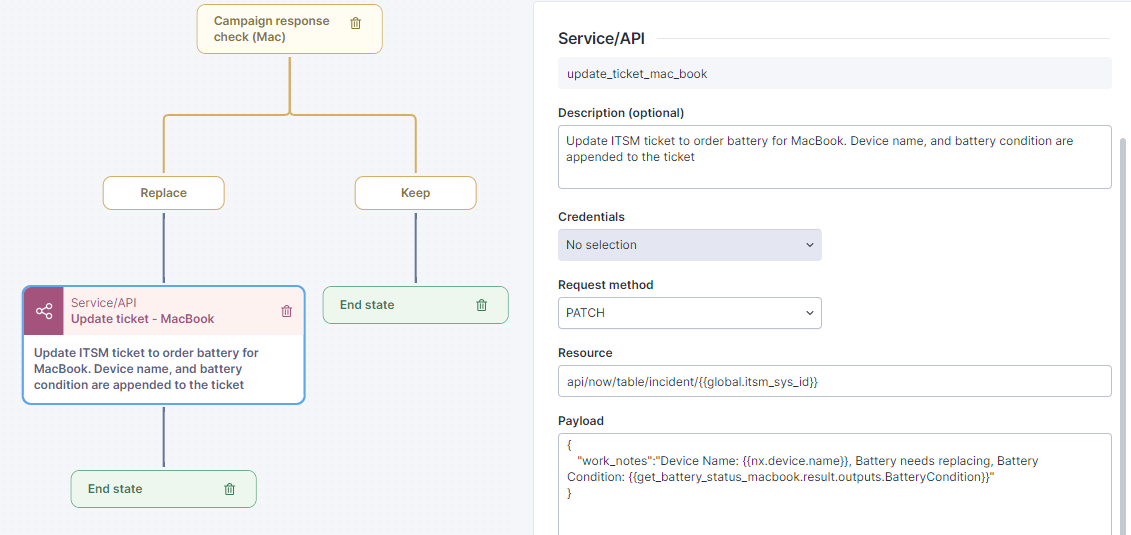
7. From the specific workflow, fill in each **Service/API** thinklet dropdown field for **Credentials**.
* When the workflow is installed or copied from the Library, this field will be blank as it is a local setup of each environment and is not included in the Library.
### Step 4 - Configure global parameters in the workflow
There are two global parameters in this workflow:
* `Incident number`- the user friendly reference for an ITSM ticket created before running the workflow.
* `Collaboration tool`- a binary choice between MS Teams and Zoom that will be used in the workflow to determine which application to troubleshoot.
Before running the workflow, a ticket should be logged in ITSM for a call quality issue. The ticket reference, the `Incident number` for ServiceNow, can then be added to the workflow as a global parameter.
The first step in the workflow is to use this `Incident number` to determine the `sys_id`of the ticket that was raised. This `sys_id` will then be used as the workflow progresses and work notes are appended to the ITSM ticket if problems are discovered, and whether or not they are fixed automatically.
***
RELATED TOPICS:
* [Overview page: Call quality troubleshooting](/library-packs/collaboration-and-productivity-applications/workflow-call-quality-troubleshooting.md)
* [Usage guide: Call quality troubleshooting](/library-packs/collaboration-and-productivity-applications/workflow-call-quality-troubleshooting/usage-guide-call-quality-troubleshooting.md)
---
# Agent Instructions
This documentation is published with GitBook. GitBook is the documentation platform designed so that both humans and AI agents can read, navigate, and reason over technical content effectively. Learn more at gitbook.com.
## Querying This Documentation
If you need additional information that is not directly available in this page, you can query the documentation by asking a question.
Perform an HTTP GET request on the following URL with the `ask` and `goal` query parameters:
```
GET https://docs.nexthink.com/library-packs/collaboration-and-productivity-applications/workflow-call-quality-troubleshooting/configuration-guide-call-quality-troubleshooting.md?ask=&goal=
```
`ask` is the immediate question: it should be specific, self-contained, and written in natural language.
`goal` is what the user is ultimately trying to achieve, the reason they need the answer. Sharing it helps GitBook give you a better, more relevant answer. A goal is most helpful when it describes the outcome the user wants rather than restating the question. For example, with `ask=how do I create an API token`, a goal like `automate deployments from our CI pipeline` lets GitBook tailor the answer to that use case.
The response will contain a direct answer to the question and relevant excerpts and sources from the documentation.
Use this mechanism when the answer is not explicitly present in the current page, you need clarification or additional context, or you want to retrieve related documentation sections.