> For the complete documentation index, see [llms.txt](https://docs.nexthink.com/llms.txt). Markdown versions of documentation pages are available by appending `.md` to page URLs; this page is available as [Markdown](https://docs.nexthink.com/user-guide/live-dashboards/widget-types/multi-metric-gauge-chart.md).
# Multi-metric gauge chart
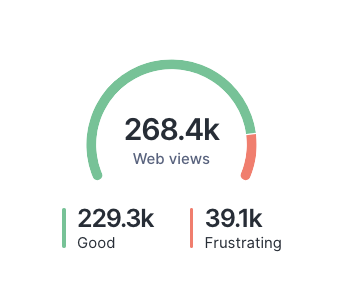
Create a multi-metric gauge chart to display a ratio of the good state and the bad state of devices, users, or events.
## Data shape
`, `
## NQL structure
{% hint style="info" %}
Refer to the [Live Dashboards NQL examples](/user-guide/live-dashboards/live-dashboards-nql-examples.md#livedashboardsnqlexamples-multi-metricgaugechart) documentation for query examples of multiple-metric gauge widgets.
{% endhint %}
The NQL structure depends on the variable state comparison you set for the multi-metric gauge—good values versus bad values.
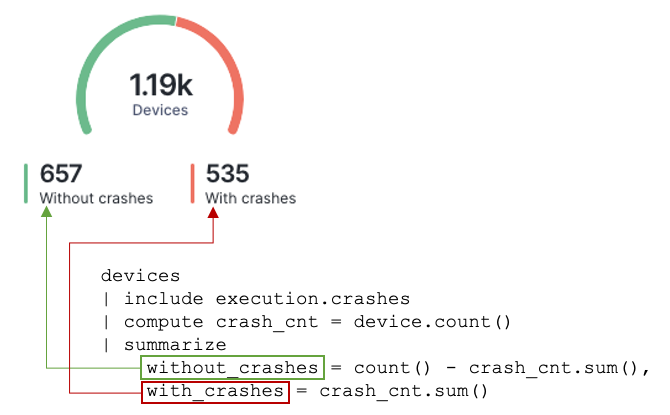
For example, the NQL structure below returns the ratio of devices or users with bad events against objects without bad events.
```
| include
| compute temp_bad_number = .count()
| summarize
= count() - temp_bad_number.sum(),
= temp_bad_number.sum()
```
The image below displays a gauge using the NQL structure referenced above. The legend labels for good and bad values, come from their corresponding variable names in the NQL query.
The variable names are formatted with the following heuristic:
* Underscores are replaced with spaces.
* The first character of the variable is changed to upper-case.
## Configuring visualization fields specific to multi-metric gauges
{% hint style="info" %}
Refer to the [Managing Live Dashboards](/user-guide/live-dashboards/managing-live-dashboards.md#filling-in-widget-visualization-fields) documentation to learn how to fill in the remaining configuration fields that are not specific to this widget.
{% endhint %}
After selecting the **Multi metric gauge chart** option from the **Chart type** dropdown in the [Add widget](/user-guide/live-dashboards/managing-live-dashboards.md#adding-widgets)/[Edit a widget](/user-guide/live-dashboards/managing-live-dashboards.md#managing-widgets) pop-up:
1. Use the **Label (optional)** field to create the visible name of the main gauge.
* The text can contain special characters. There is a 50-character limit on the **Label** field.
* See the image in the [NQL structure](#multi-metricgaugechart-nqlstructure) to understand how to define the legend labels for the good and bad values in the query.
2. Enter a **Widget description (optional)** to explain, for example, how the metric should be interpreted, calculated, or any subtleties to the metric.
* The widget description appears by hovering over the info icon next to the multi-metric gauge widget in the dashboard.
***
RELATED TOPIC
* [KPI](/user-guide/live-dashboards/widget-types/kpi.md)
* [Line chart](/user-guide/live-dashboards/widget-types/line-chart.md)
* [Bar chart](/user-guide/live-dashboards/widget-types/bar-chart.md)
* [Single-metric gauge chart](/user-guide/live-dashboards/widget-types/single-metric-gauge-chart.md)
* [Table](/user-guide/live-dashboards/widget-types/table.md)
* [Heading](/user-guide/live-dashboards/widget-types/heading.md)
* [Filter widget](/user-guide/live-dashboards/widget-types/filter-widget.md)
* [Timeframe picker](/user-guide/live-dashboards/widget-types/timeframe-picker.md)
---
# Agent Instructions
This documentation is published with GitBook. GitBook is the documentation platform designed so that both humans and AI agents can read, navigate, and reason over technical content effectively. Learn more at gitbook.com.
## Querying This Documentation
If you need additional information that is not directly available in this page, you can query the documentation by asking a question.
Perform an HTTP GET request on the following URL with the `ask` and `goal` query parameters:
```
GET https://docs.nexthink.com/user-guide/live-dashboards/widget-types/multi-metric-gauge-chart.md?ask=&goal=
```
`ask` is the immediate question: it should be specific, self-contained, and written in natural language.
`goal` is what the user is ultimately trying to achieve, the reason they need the answer. Sharing it helps GitBook give you a better, more relevant answer. A goal is most helpful when it describes the outcome the user wants rather than restating the question. For example, with `ask=how do I create an API token`, a goal like `automate deployments from our CI pipeline` lets GitBook tailor the answer to that use case.
The response will contain a direct answer to the question and relevant excerpts and sources from the documentation.
Use this mechanism when the answer is not explicitly present in the current page, you need clarification or additional context, or you want to retrieve related documentation sections.