> For the complete documentation index, see [llms.txt](https://docs.nexthink.com/llms.txt). Markdown versions of documentation pages are available by appending `.md` to page URLs; this page is available as [Markdown](https://docs.nexthink.com/user-guide/workflows/monitoring-workflows-dashboard/troubleshooting-workflows.md).
# Troubleshooting Workflows
Quickly troubleshoot workflow executions to pinpoint issues, assess the necessary changes, and get the workflow up and running again.
To troubleshoot workflows, follow these steps:
{% stepper %}
{% step %}
## Access the execution dashboard of a specific workflow
From the navigation panel, select the specific workflow of interest listed under **Workflows**.
Additionally, you can also access the workflows overview dashboard by:
1. Go to **Workflows** > **Manage workflows.**
2. Open the action menu for the workflow of interest and click **Details** to go to the **Workflow overview** page.
{% endstep %}
{% step %}
## Check the workflow execution outcomes
At the top of the dashboard, under the workflow **Outcome summary**:
* The **Outcomes** tab displays how many workflow executions reached one of the possible end results: `action_taken`, `no_action_taken`, `failed`, or `other`.
* The **Details** tab includes user-defined result details determined by `{dynamic values}` collected during the workflow execution. Refer to [Configuring flow controls](/user-guide/workflows/creating-workflows/configuring-flow-controls.md#designer-endblock) to learn how to configure the outcome details.
Additionally, identify the total number of **Executions** along with their **Completion status**: **Success**, **Failed**, **In progress**, **Cancelled**, **Expired**. Visualize these workflow executions using the chart for the configured dashboard timeframe.
{% endstep %}
{% step %}
## Determine the completion status of workflow executions
Review the table with workflow execution details:
* **Request time**: The date and time when the workflow execution was triggered.
* **Completion status**: The current status of the workflow execution—**Success**, **Failed**, **In progress**, **Cancelled**, **Expired**.
* **Outcome:** The workflow execution reached one of the possible end results: `action_taken`, `no_action_taken`, `failed`, or `other`.
* **Device** → **Name**: The name of the device as recognized by the operating system for local network identification.
* **Username**: The user account name on the local device.
* **Trigger method:** Manual, Schedule, API, Events. Refer to [Triggering workflows](/user-guide/workflows/triggering-workflows.md) for more information on workflow trigger types.
* **Execution Duration**: The time duration from execution start to completion.
A **Completion status** of **Success** indicates the workflow reached its **End state**. That is, the complete execution path.
However, successful workflow executions do not mean that every thinklet within the workflow achieved its intended outcome, as errors in thinklets do not necessarily stop workflow execution.
{% hint style="info" %}
Add **End state** flow controls to your workflow to track and report specific thinklet failures. Refer to [Configuring flow controls](/user-guide/workflows/creating-workflows/configuring-flow-controls.md#designer-endblock) to configure these outcome checkpoints.
{% endhint %}
{% endstep %}
{% step %}
## Troubleshoot workflow executions using the timeline
From the table, select a specific workflow execution of interest to open the execution timeline in the right-side panel. This way you can track the chronological evolution of execution events and actions.
The latest workflow steps always appear at the top of the timeline. Pinpoint where the workflow deviated from expected results.
{% hint style="warning" %}
The execution timeline is only available 3 days after the workflow execution ended.
{% endhint %}
The workflow execution timeline shows whether a step was executed, but does not indicate the **Completion status** of third-party systems involved.
For example, when a workflow **Service\API** thinklet calls a third-party system and receives a `200` (OK) response, the workflow marks the execution as successful, even if the response contains an internal third-party error.
### Inspecting workflow action details
Click on a specific action in the execution timeline to further investigate the status of a particular action. A pop-up appears with more details.
The system displays execution details depending on the workflow thinklet associated with the action or event registered in the workflow timeline.
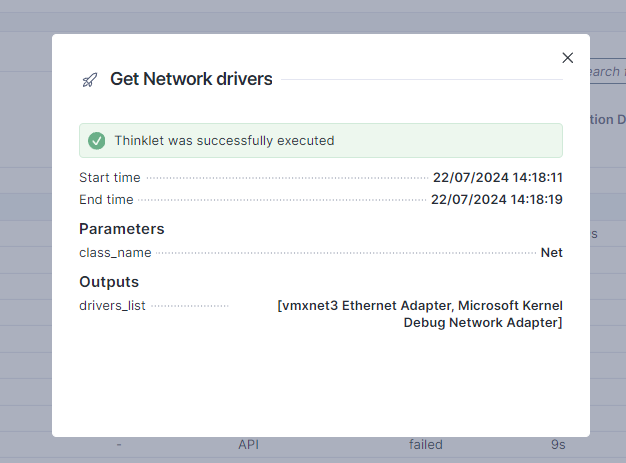
Execution details for Remote action thinklets
When reviewing the details for a remote action Thinklet, the following information is available.
* **Start time:** The date and time when the system began processing the Thinklet.
* **End time:** The date and time when the system finished processing the Thinklet.
* **Status details:** Displayed only when an error has occurred and contains the message describing the fault that has occurred with the remote action.
* **Parameters:** Displayed when parameters have been used with this remote action. The contents of the parameters are shown here.
* **Outputs:** Displayed when there are outputs that have been captured by the remote action. The contents of the outputs are shown here.
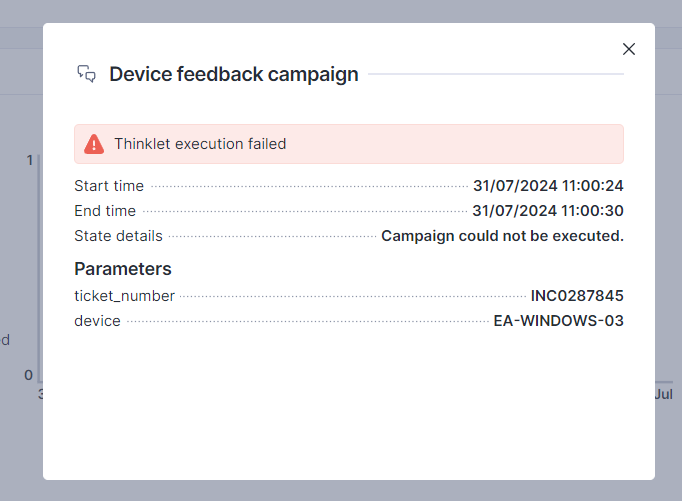
Execution details for Campaign thinklets
When reviewing the details for a campaign Thinklet, the following information is available.
* **Start time:** The date and time when the system began processing the Thinklet.
* **End time:** The date and time when the system finished processing the Thinklet.
* **State details:** Displayed only when an error has occurred and contains the message back from the campaign that may describe the fault.
* **Parameters:** Displayed when parameters have been used with this campaign. The contents of the parameters are shown here.
* **Outputs:** Displayed where there are collected responses for the campaign. The contents of the outputs are shown here.
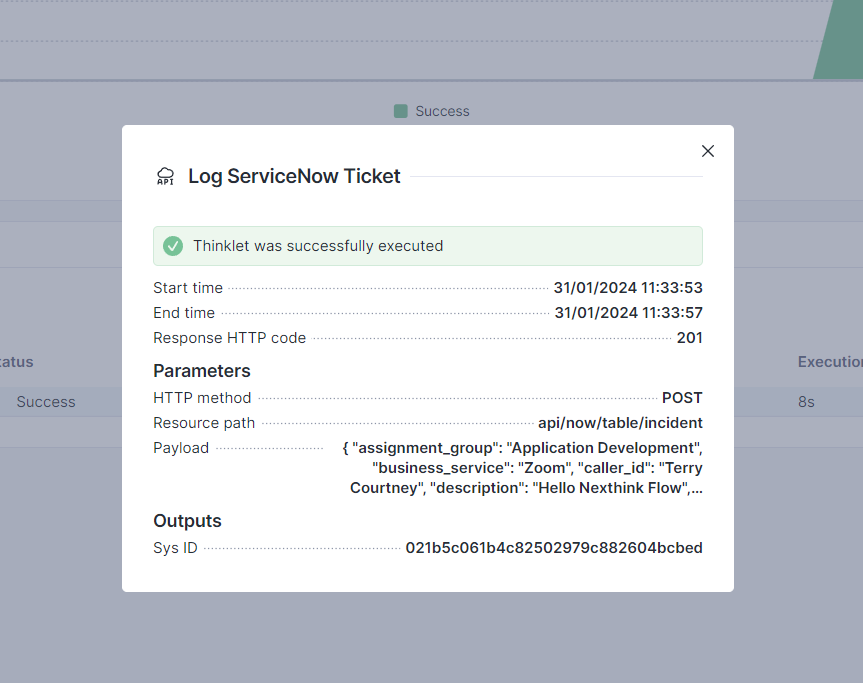
Execution details for Service\API thinklets
When reviewing the details for a Service\API Thinklet action, the following information is available.
* **Start time:** The date and time when the system began processing the Thinklet.
* **End time:** The date and time when the system finished processing the Thinklet.
* **Response HTTP code:** The response received from the 3rd party API.
* **HTTP method:** The HTTP method used by the 3rd party API.
* **Resource path:** The resource path endpoint on the 3rd party API that the call is sent to.
* **Payload:** The body of the call that the system made to the 3rd party API.
* In the case of large payloads, hover over the payload to display a tooltip with the full dataset.
* **Outputs:** If you have configured the outputs for this Thinklet, the collected data in these outputs is displayed here.
Execution details for Connector thinklets
When reviewing the details for a Connector Thinklet action, the following information is available which gives the details of the API response used for the Connector:
* **Start time:** The date and time when the system began processing the Thinklet.
* **End time:** The date and time when the system finished processing the Thinklet.
* **Response HTTP code:** The response received from the 3rd party API.
* **HTTP method:** The HTTP method used by the 3rd party API.
* **Resource path:** The resource path endpoint on the 3rd party API that the call is sent to.
* **Payload:** The body of the call that the system made to the third-party API.
* In the case of large payloads, hover over the payload to display a tooltip with the full dataset.
* **Outputs:** If you have configured the outputs for this Thinklet, the collected data in these outputs is displayed here.
Execution details for Update custom fields thinklets
When reviewing the outcome of an **Update custom fields** thinklet in the workflow monitoring timeline, the following details are available:
* **Status**: Indicates whether the thinklet execution succeeded or failed.
* **Time**: The date and time when the thinklet was executed.
* **Object**: The object type selected in the thinklet configuration: **Device** or **User**.
* **Target**: The specific user or device identifier involved in the update. For example, device ID).
* **Updated**: Lists the custom fields that were successfully updated:
* **Custom field name**: The name of the updated field.
* **Value**: The value written to the custom field.
* **Not updated—**only shown in case of failure:
* **Custom field name**: The custom field that failed to update.
* **Value**: The value that was intended to be written.
* **Error**: The reason for the failure. For example, *Failed to update custom fields.*
{% hint style="info" %}
Add **End state** flow controls to your workflow to track and report specific thinklet failures. Refer to [Configuring flow controls](/user-guide/workflows/creating-workflows/configuring-flow-controls.md#designer-endblock) to configure these outcome checkpoints.
{% endhint %}
{% endstep %}
{% endstepper %}
***
## F.A.Q about workflow troubleshooting
Clear common questions about workflow troubleshooting.
Why does the system mark the workflow execution as Success even though some workflow steps failed?
The system marks a workflow execution as **Success** when the workflow reaches its **End state**—the complete execution path. However, successful executions do not mean that every workflow thinklet achieved its intended outcome. Some thinklet errors do not stop workflow execution, allowing the workflow to continue till completion.
To identify and report such failures, add **End state** flow controls within the workflow to capture and expose thinklet-specific outcomes. Refer to [Configuring flow controls](/user-guide/workflows/creating-workflows/configuring-flow-controls.md#designer-endblock) to configure these outcome checkpoints.
---
# Agent Instructions
This documentation is published with GitBook. GitBook is the documentation platform designed so that both humans and AI agents can read, navigate, and reason over technical content effectively. Learn more at gitbook.com.
## Querying This Documentation
If you need additional information that is not directly available in this page, you can query the documentation by asking a question.
Perform an HTTP GET request on the following URL with the `ask` and `goal` query parameters:
```
GET https://docs.nexthink.com/user-guide/workflows/monitoring-workflows-dashboard/troubleshooting-workflows.md?ask=&goal=
```
`ask` is the immediate question: it should be specific, self-contained, and written in natural language.
`goal` is what the user is ultimately trying to achieve, the reason they need the answer. Sharing it helps GitBook give you a better, more relevant answer. A goal is most helpful when it describes the outcome the user wants rather than restating the question. For example, with `ask=how do I create an API token`, a goal like `automate deployments from our CI pipeline` lets GitBook tailor the answer to that use case.
The response will contain a direct answer to the question and relevant excerpts and sources from the documentation.
Use this mechanism when the answer is not explicitly present in the current page, you need clarification or additional context, or you want to retrieve related documentation sections.