> For the complete documentation index, see [llms.txt](https://docs.nexthink.com/llms.txt). Markdown versions of documentation pages are available by appending `.md` to page URLs; this page is available as [Markdown](https://docs.nexthink.com/library-packs/l1-support/workflow-lock-macos-device/usage-guide-lock-macos-device.md).
# Usage guide: Lock macOS device
{% hint style="warning" %}
This page outlines various ways to use the pack, including use case examples. Administrators can refer to the [Configuration guide](/library-packs/l1-support/workflow-proactive-password-reset-1/configuration-guide-proactive-password-reset.md) to set up and customize the installed content.
{% endhint %}
The **Workflow: Lock macOS device** library pack enables EUC teams to:
* Accelerate response time to secure lost or stolen macOS devices, minimizing security risks and potential data breaches.
* Reduce the manual workload and potential for human error associated with locking down lost or stolen devices, ensuring greater reliability and consistency in incident handling.
## Library pack uses
Use the library pack content for the following purposes.
### **Visibility**
This library pack focuses on the **Lock macOS device** [workflow](/user-guide/workflows.md). It enables L1 agents to quickly and effectively lock lost or stolen macOS corporate devices managed through Jamf Pro.
An ITSM ticket is updated at each step of this process.
### Workflow triggering
This workflow is intended to be launched on a specific device during a call with an employee or in response to an issue raised by an employee with a stolen or lost corporate macOS device. This can be achieved using [device view](/user-guide/device-view.md) (as shown below) or from [Amplify](/configuring_nexthink/bringing-data-into-your-nexthink-instance/deploying-nexthink-in-non-vdi-environment/configure-amplify.md). The workflow uses the **Incident number** parameter to track progress.
An ITSM ticket should be raised before launching the workflow, as it will be updated during its operation.
**Workflow parameter:** This workflow has two parameters, **Incident number** and **Lock PIN number**.
* **Incident number:** This ITSM ticket reference will be used throughout the workflow as information is added. It should be entered manually when the workflow is executed.
* **Lock PIN number:** The value of this parameter is used to set a 6-digit PIN code required to unlock a device locked by this workflow. It should be entered manually when running the workflow.
### Predefined workflow structure and steps
The **Lock macOS device** workflow is structured in these main steps:
1. [The workflow collects the required details - ticket sys\_id and affected device details from this ticket.](#the-workflow-collects-the-required-details-ticket-sys_id-and-affected-device-details-from-this-ticke)
1. The following workflow parameters need to be defined:
1. Incident number that represents an ITSM ticket created by an L1 agent or employee.
2. Lock PIN number, which is used to set a 6-digit PIN code required to unlock a device locked by this workflow.
2. [The workflow sends the lock command to the specified device.](#the-workflow-sends-the-lock-command-to-the-specified-device)
3. [The workflow checks whether the target device has received and acknowledged the lock command and updates the ticket accordingly.](#the-workflow-checks-whether-the-target-device-has-received-and-acknowledged-the-lock-command-and-upd)
### The workflow collects the required details - ticket sys\_id and affected device details
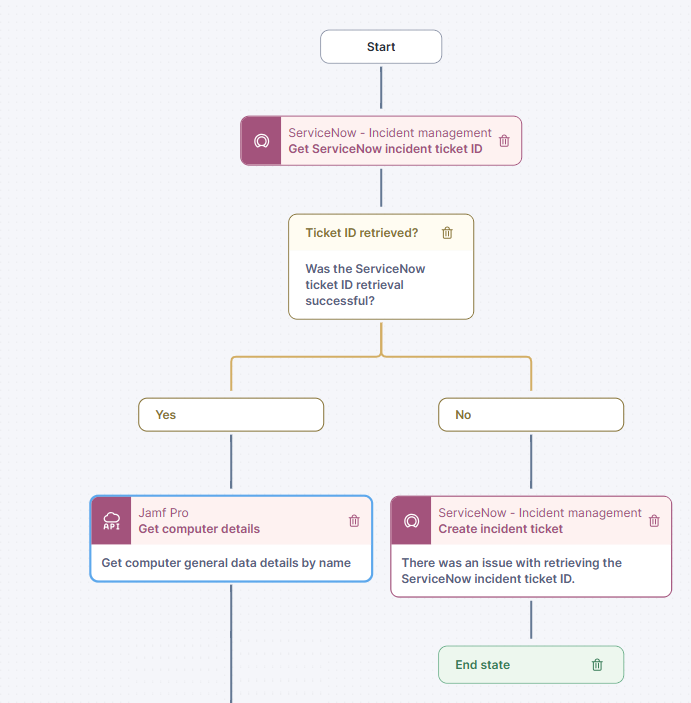
The workflow starts by retrieving the ITSM ticket `sys_id`based on the provided Incident Ticket Number and validates the result of this retrieval. If the ticket `sys_id` cannot be retrieved, the workflow is terminated. In case of successful retrieval, the workflow retrieves the affected device details from Jamf Pro and validates the result. In case of failure to retrieve the device details, the workflow terminates. The results of both actions are logged in an ITSM ticket.
### The workflow sends the lock command to the specified device
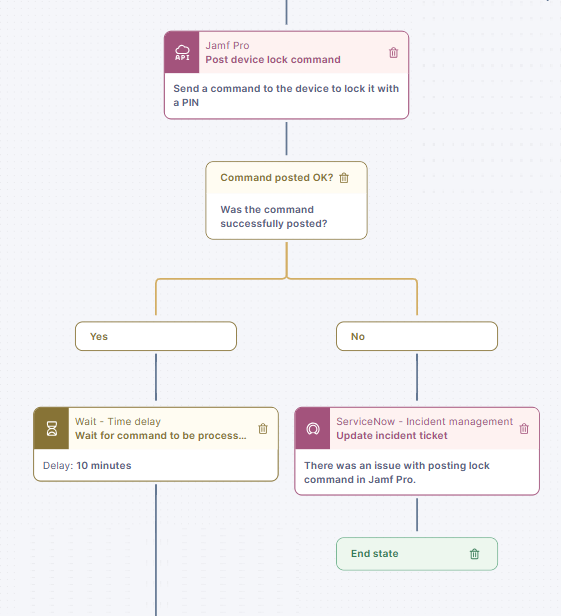
If the previous step was successfully completed, the workflow proceeds to issue the lock command to the target device using the Jamf Pro agent via the Jamf Pro API. The workflow then pauses for 10 minutes before proceeding to the next step.
### The workflow checks whether the target device has received and acknowledged the lock command and updates the ticket accordingly
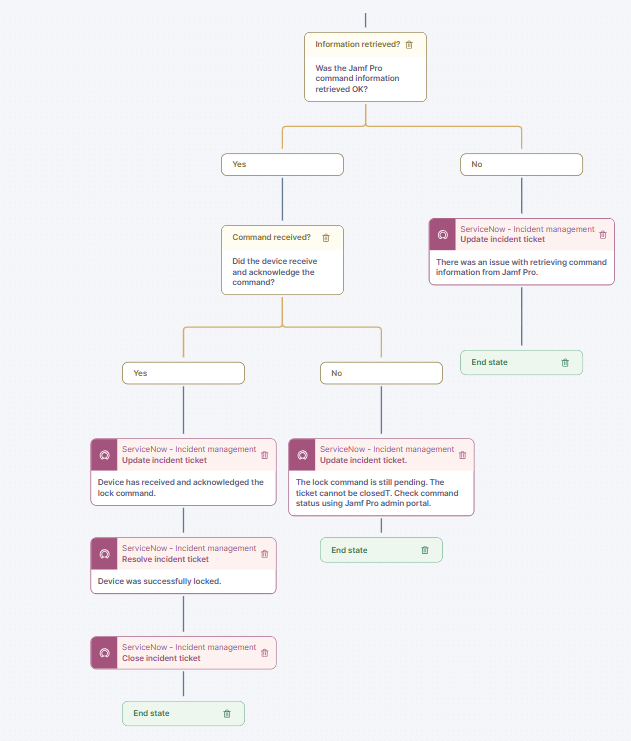
Finally, the workflow attempts to retrieve the applied command details and checks if the retrieval was successful. If not, the workflow updates the ticket and exits. Otherwise, it checks the command details to confirm that the device has received and acknowledged the command, meaning that the target device has been locked. The workflow then updates the ticket with the results of these checks and exits.
***
RELATED TOPICS
* [Workflow: Lock macOS device](/library-packs/l1-support/workflow-lock-macos-device.md)
* [Configuration guide: Lock macOS device](/library-packs/l1-support/workflow-lock-macos-device/configuration-guide-lock-macos-device.md)
* [Manage Workflows](https://docs.nexthink.com/platform/user-guide/workflows/managing-workflows)
---
# Agent Instructions
This documentation is published with GitBook. GitBook is the documentation platform designed so that both humans and AI agents can read, navigate, and reason over technical content effectively. Learn more at gitbook.com.
## Querying This Documentation
If you need additional information that is not directly available in this page, you can query the documentation by asking a question.
Perform an HTTP GET request on the following URL with the `ask` and `goal` query parameters:
```
GET https://docs.nexthink.com/library-packs/l1-support/workflow-lock-macos-device/usage-guide-lock-macos-device.md?ask=&goal=
```
`ask` is the immediate question: it should be specific, self-contained, and written in natural language.
`goal` is what the user is ultimately trying to achieve, the reason they need the answer. Sharing it helps GitBook give you a better, more relevant answer. A goal is most helpful when it describes the outcome the user wants rather than restating the question. For example, with `ask=how do I create an API token`, a goal like `automate deployments from our CI pipeline` lets GitBook tailor the answer to that use case.
The response will contain a direct answer to the question and relevant excerpts and sources from the documentation.
Use this mechanism when the answer is not explicitly present in the current page, you need clarification or additional context, or you want to retrieve related documentation sections.