> For the complete documentation index, see [llms.txt](https://docs.nexthink.com/platform/llms.txt). Markdown versions of documentation pages are available by appending `.md` to page URLs; this page is available as [Markdown](https://docs.nexthink.com/platform/library-packs/it-operations/binary-overview/usage-guide-binary-overview.md).
# Usage guide: Binary overview
{% hint style="warning" %}
This page outlines various ways to use the pack, including use case examples.
Administrators can refer to the [Configuration guide: Binary overview](/platform/library-packs/it-operations/binary-overview/configuration-guide-binary-overview.md) to set up and customize the installed content.
{% endhint %}
The **Binary overview** library pack enables EUC teams to:
* Simplify and accelerate the troubleshooting process by providing a consolidated view of binary and application impacts without requiring prior configuration in **Application Experience**.
* Quickly investigate performance, stability, and connectivity issues using intuitive filters to focus on specific binaries, devices, or business areas.
* Reduce time to resolution by providing key insights into resource usage, crashes, and freezes across devices.
* Ensure operational efficiency by identifying and addressing issues with high-impact applications or binaries affecting critical business areas.
In addition, this dashboard empowers IT teams to uncover and address other troubleshooting scenarios specific to their environment.
## Use cases
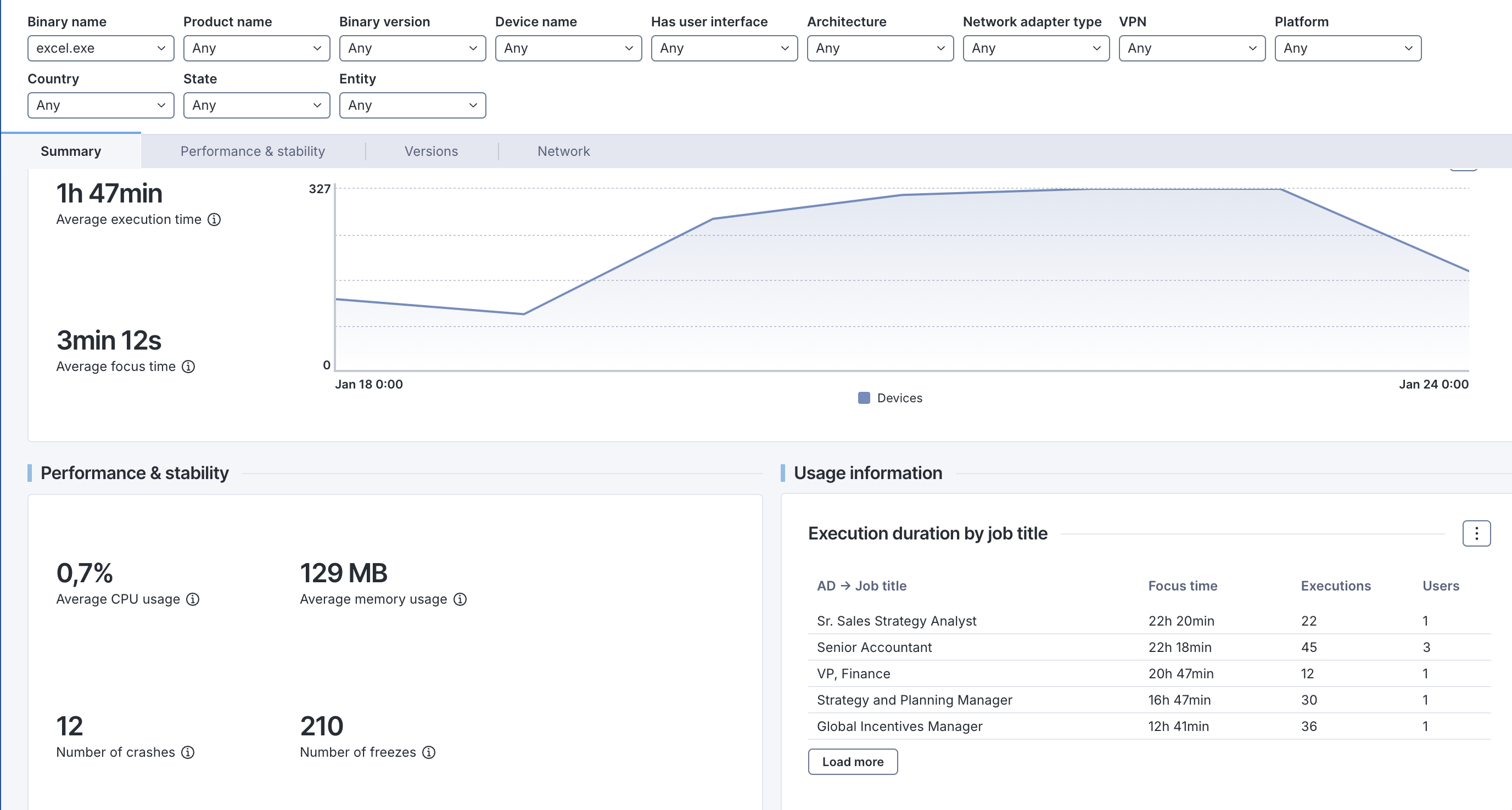
The **Binary Overview** dashboard offers a quick and consolidated view of how specific binaries or applications affect devices in your organization. It eliminates the need for **Application Experience** configuration, enabling users to assess performance, stability, and connectivity metrics without additional setup.
In addition to the relevant use cases covered below, you may uncover other troubleshooting scenarios specific to your environment.
### **Analyzing binary impact across devices**
Using the **Binary Overview** dashboard, you can analyze the impact of specific binaries or applications on devices by selecting filters such as **binary name**, **application**, or **device group**. This helps you quickly identify performance or stability issues without predefining applications in **Application Experience**.
* Use the **filters** to narrow your view to the binaries, devices, or business areas of interest. For example, focus on a specific binary version to understand its behavior across devices.
* This enables teams to proactively address issues before they escalate, improving overall device performance and user satisfaction.
### **Investigating performance issues**
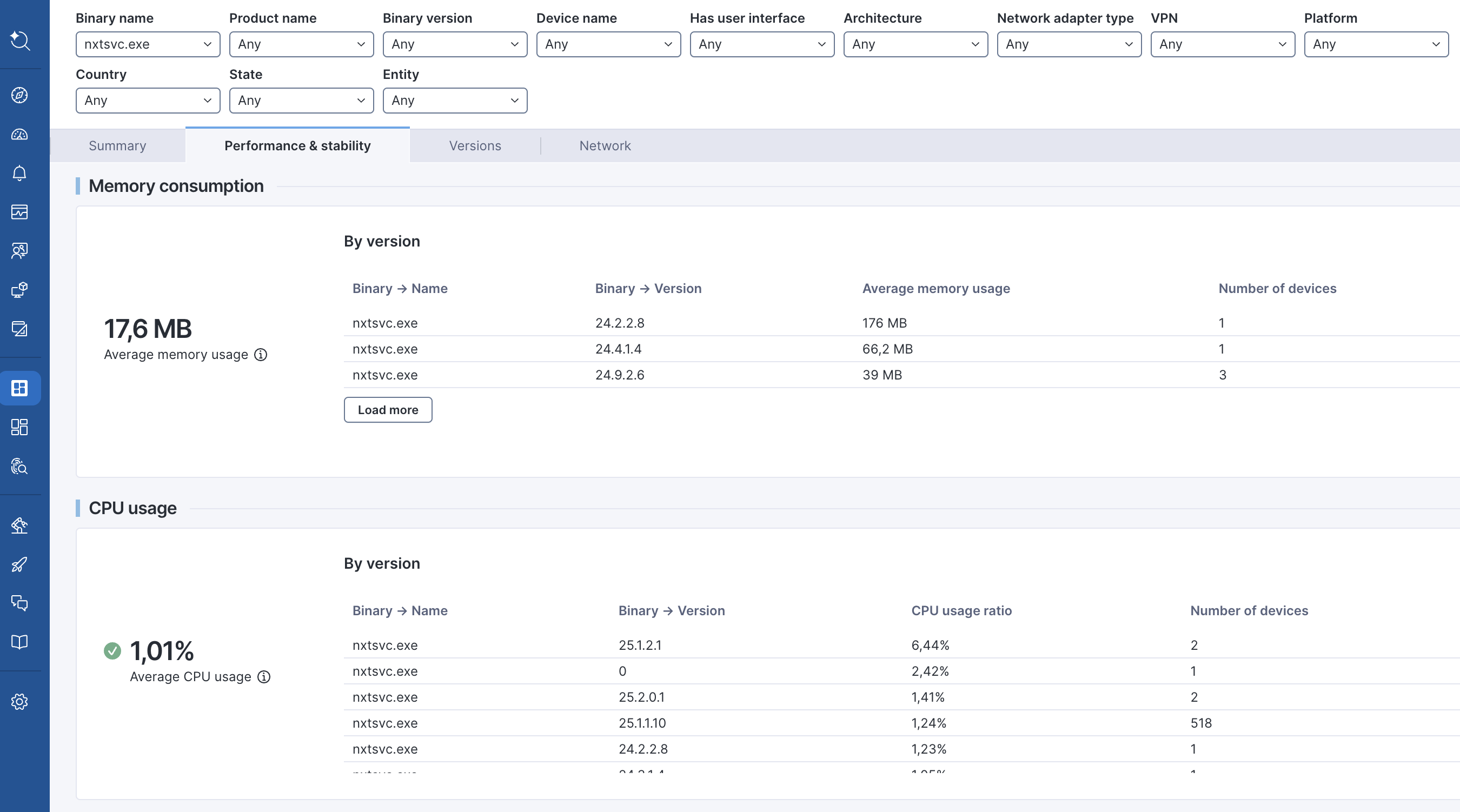
The dashboard provides insights into **CPU and memory usage** for specific binaries or applications, allowing you to pinpoint resource-intensive processes.
* Select the **performance metrics** section and use filters to identify binaries consuming excessive resources.
* Optimizing performance by identifying and addressing problematic binaries can improve device reliability and reduce complaints.
### **Troubleshooting stability problems**
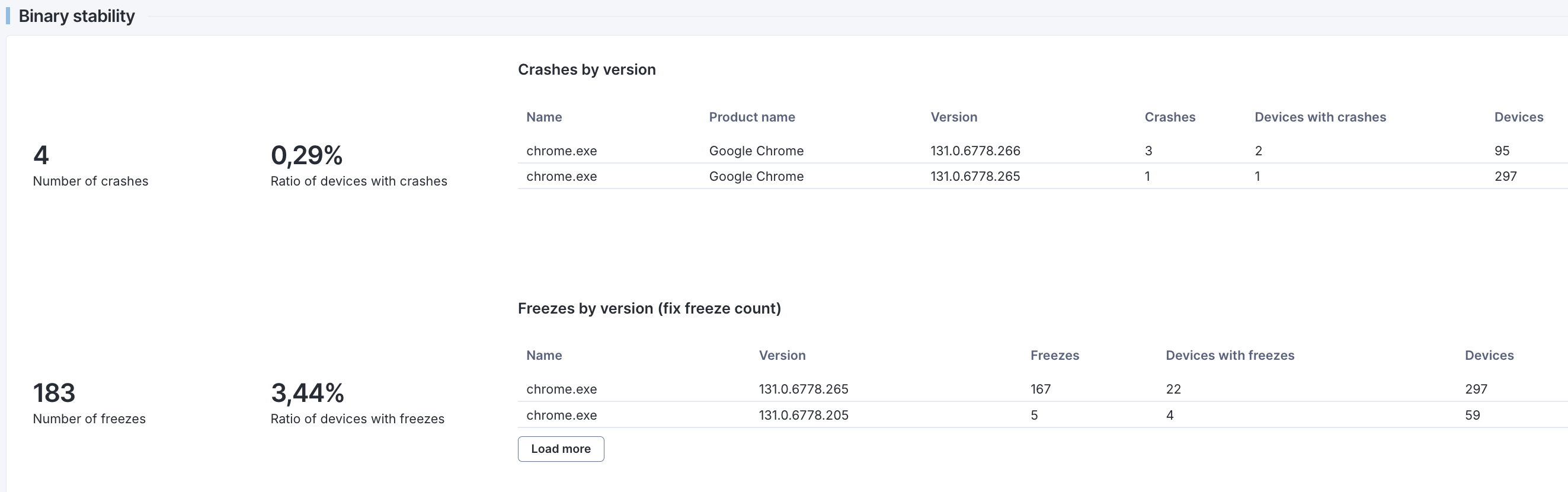
Quickly investigate and resolve stability issues such as **crashes** or **freezes** by analyzing the associated binaries or applications.
* Leverage the **stability metrics** to identify binaries with frequent crashes or freezes and drill down into specific device details for root cause analysis.
* Resolving stability issues reduces downtime, efficiently addresses stability concerns and ensures a smoother end-user experience.
### **Focusing on critical business areas**
Filter the dashboard by **business area** to understand the impact of binaries or applications on key operational processes.
* Use the **business area** filter to correlate binary performance and stability metrics with specific business units.
* This ensures business-critical applications are performing optimally, minimizing disruptions in key areas of the organization.
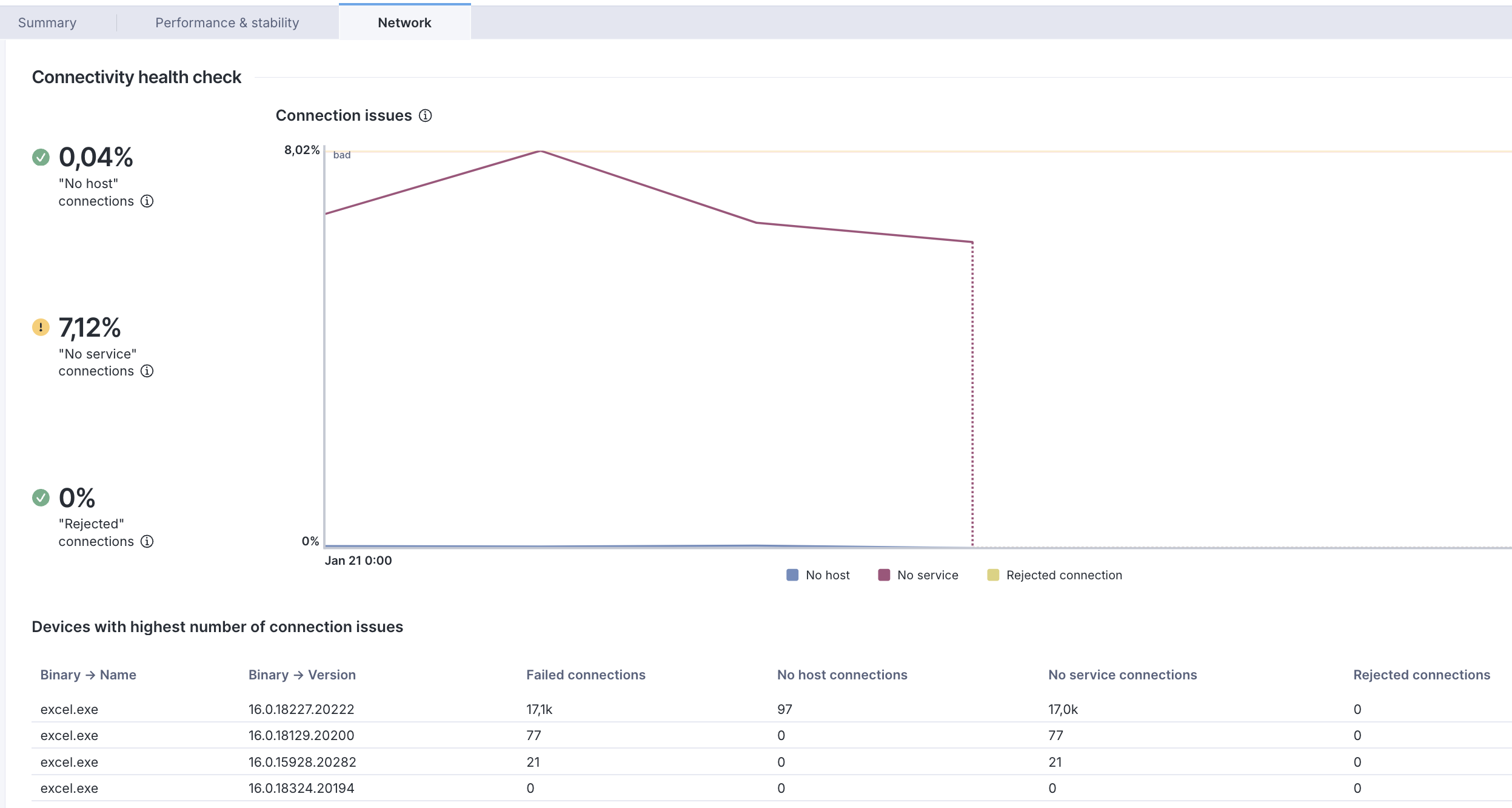
### **Ensuring Connectivity Health**
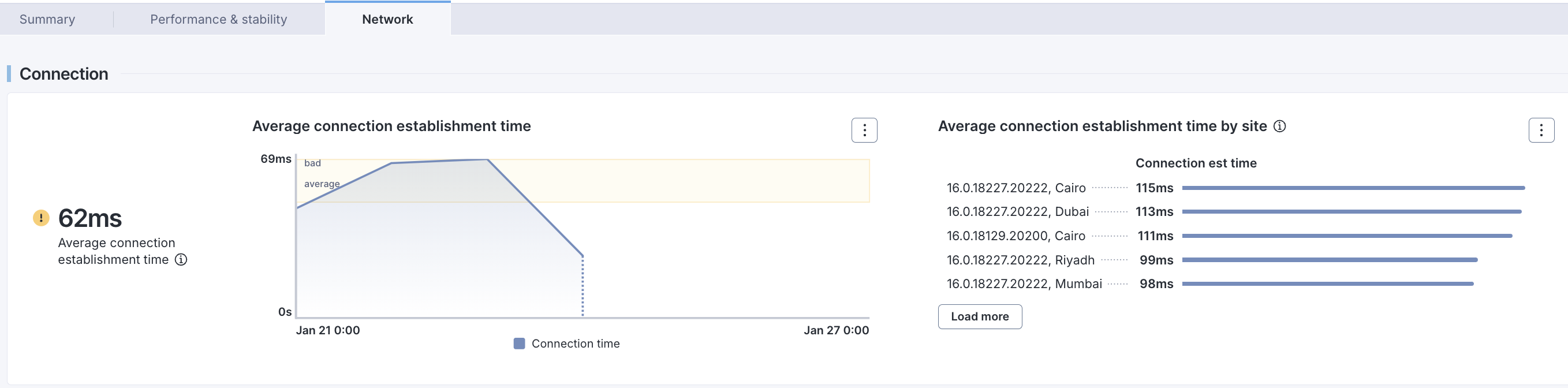
Monitor and diagnose connectivity issues to maintain seamless device performance.
* Use the connectivity health dashboard to identify where issues originate and the type of connectivity errors impacting performance.
* This widget accelerates the resolution of connectivity incidents, reducing downtime and improving the overall reliability of products or binaries.
***
RELATED TOPICS
* [Manage live dashboards](https://nexthink.gitbook.io/opd/user-guide/live-dashboards/managing-live-dashboards)
* [Configuration guide: Binary overview](/platform/library-packs/it-operations/binary-overview/configuration-guide-binary-overview.md)
---
# Agent Instructions
This documentation is published with GitBook. GitBook is the documentation platform designed so that both humans and AI agents can read, navigate, and reason over technical content effectively. Learn more at gitbook.com.
## Querying This Documentation
If you need additional information that is not directly available in this page, you can query the documentation by asking a question.
Perform an HTTP GET request on the following URL with the `ask` and `goal` query parameters:
```
GET https://docs.nexthink.com/platform/library-packs/it-operations/binary-overview/usage-guide-binary-overview.md?ask=&goal=
```
`ask` is the immediate question: it should be specific, self-contained, and written in natural language.
`goal` is what the user is ultimately trying to achieve, the reason they need the answer. Sharing it helps GitBook give you a better, more relevant answer. A goal is most helpful when it describes the outcome the user wants rather than restating the question. For example, with `ask=how do I create an API token`, a goal like `automate deployments from our CI pipeline` lets GitBook tailor the answer to that use case.
The response will contain a direct answer to the question and relevant excerpts and sources from the documentation.
Use this mechanism when the answer is not explicitly present in the current page, you need clarification or additional context, or you want to retrieve related documentation sections.