> For the complete documentation index, see [llms.txt](https://docs.nexthink.com/platform/llms.txt). Markdown versions of documentation pages are available by appending `.md` to page URLs; this page is available as [Markdown](https://docs.nexthink.com/platform/user-guide/administration/content-management/custom-fields-management.md).
# Custom fields management
Custom fields allow you to extend the NQL data model with additional fields. There are three types of custom fields:
* **Manual** custom fields allow you to enrich inventory objects by importing data from external systems for reporting and analytics. You can assign tags to objects in the Nexthink web interface to target specific campaign users or create pilot groups for change management.
* **Computed** custom fields allow you to track values defined with an NQL query, saving time for frequently executed queries. Adding computation as an element in the data model facilitates using the results in various product parts, such as [Checklists](/platform/user-guide/administration/content-management/checklists-management.md).
* **Rule-based custom fields** allow you to automatically sort objects according to pre-defined criteria, each expressed as an NQL query. You can break down datasets according to the most relevant axes and set up frequently-used filters which are easy to maintain and access in Investigations.
Custom field names are prefixed by the `#` character, making them identifiable in an NQL query.
{% hint style="info" %}
Nexthink platform restricts the number of custom fields for each type:
Up to 100 manual custom fields.
Up to 200 computed custom fields.
Up to 200 rule-based custom fields.
Refer to the [Nexthink Infinity thresholds and limits overview](https://edocs.nexthink.com/nexthink-infinity/infinity-specifications/nexthink-infinity-default-thresholds-overview) documentation for more information.
{% endhint %}
***
### Custom fields installed from Library
Nexthink offers a set of preconfigured custom fields that you can manually install from Nexthink Library. Go to the Nexthink Library module within your Nexthink instance to install, manage, and update predefined custom fields.
Refer to [Nexthink Library](https://docs.nexthink.com/platform/user-guide/nexthink-library) documentation for more information.
### New custom fields
Creating a custom trend from scratch lets you view desired data according to your needs and use cases. Refer to the [Creating a new custom field](#customfieldsmanagement-creatinganewcustomfieldaddfield) section on this page.
***
## Accessing custom fields
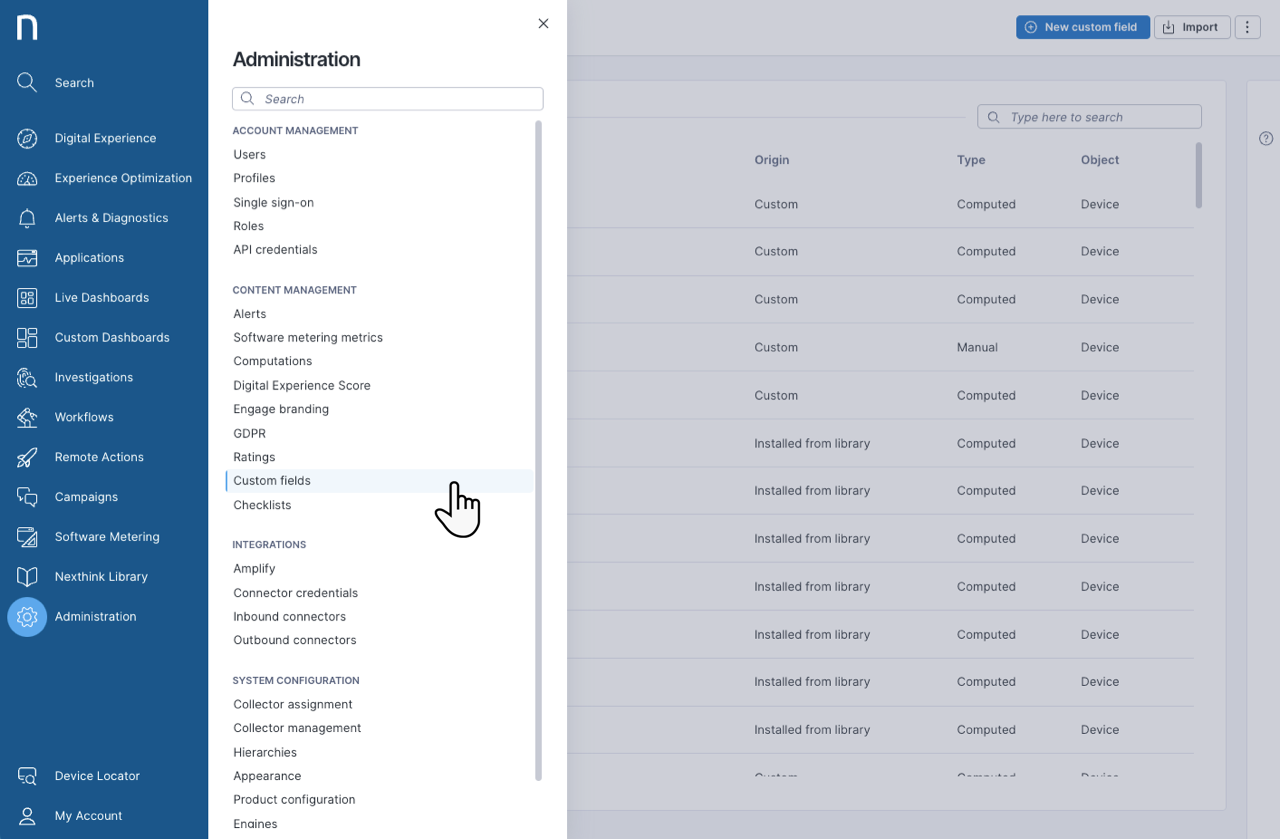
* Select **Administration** from the main menu.
* Click on **Custom fields** in the navigation panel under the Content Management section.
If you don’t see the menu entries, ensure your role has the proper [permissions](#customfieldsmanagement-permissionspermissions).
***
## Managing custom fields
The **Custom fields administration** page lists all the custom fields organized in a table.
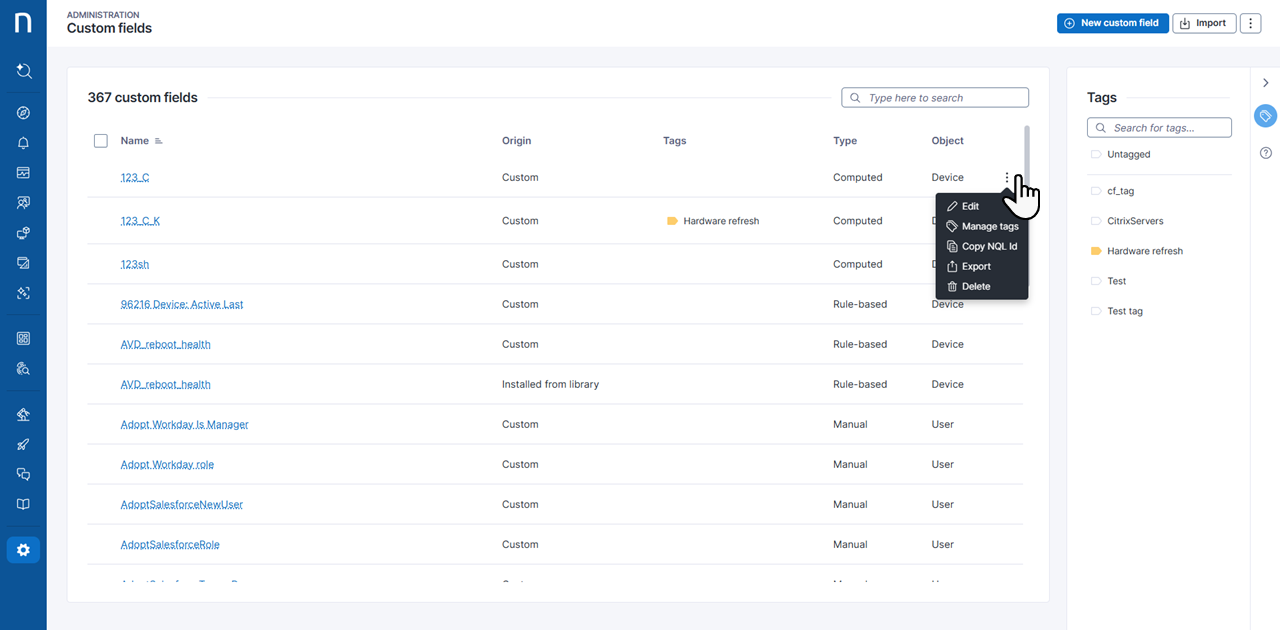
* Hover over each custom field to reveal the action menu on the right side of the table. The action menu options are:
* **Edit**: Configure a custom field.
* **Manage tags:** [Add one or more tags](#customfieldsmanagement-creatinganewcustomfieldaddfield) to a custom field.
* **Delete**: Remove a custom field.
* **Export**: Export a custom field in the JSON file format to share with other instances of the Nexthink cloud instance.
* **Copy NQL ID**: Use the NQL ID when writing NQL queries to retrieve information from a custom field.
* In the top-right corner of the page you can find 3 buttons to do different tasks:
* Click on the **New custom field** button to add and configure a custom field. Refer to the [Creating a new custom field](#customfieldsmanagement-creatinganewcustomfieldaddfield) section for more information.
* Click on the **Import** button to import a custom field in the JSON file format.
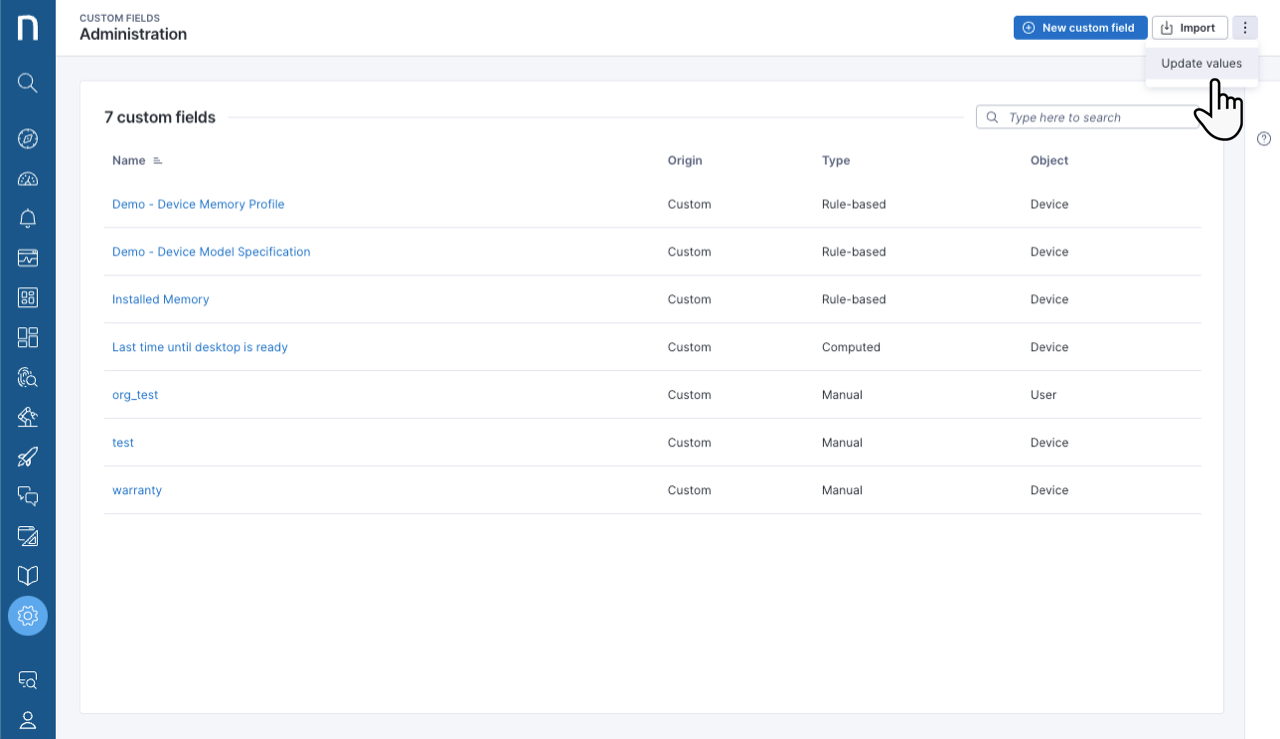
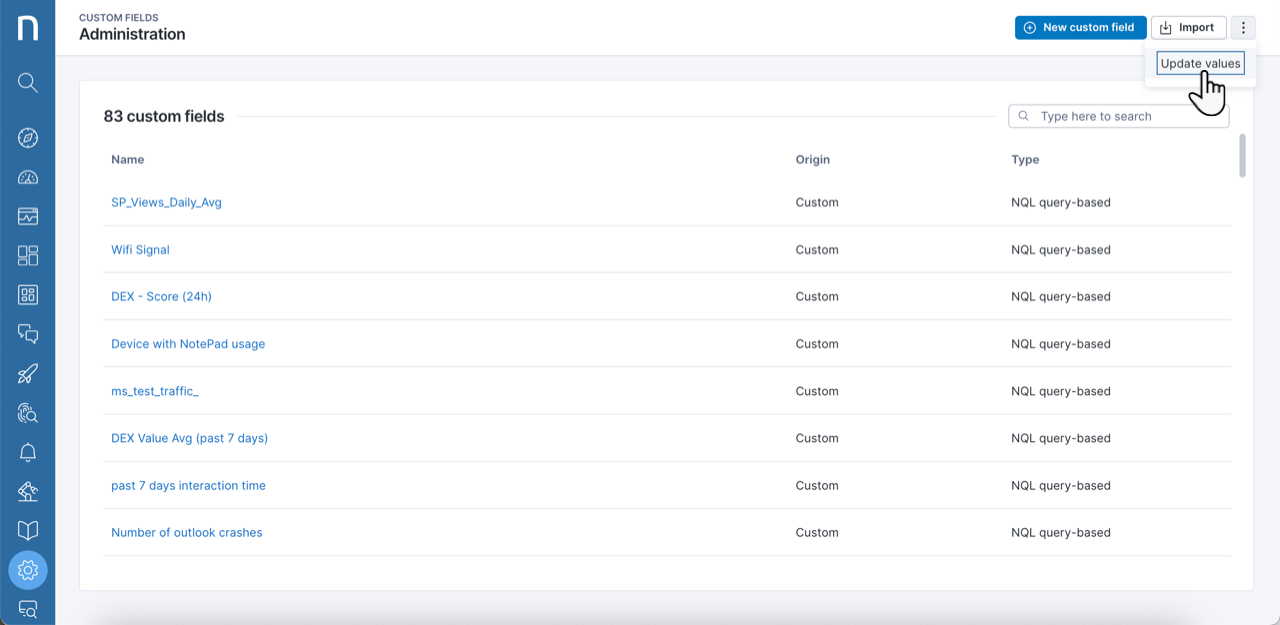
* Click on the action menu in the top-right corner of the page and select **Update values**. Refer to the [Updating custom fields by importing a CSV file](#customfieldsmanagement-updatingcustomfieldsbyimportingacsvfileimportcsv) section for more information.
### Filtering the custom fields list
Use the filters at the top of the list to narrow it to the custom fields you want to work on. Filter by:
* **Origin**: How the custom field was created.
* **Tags**: The tags assigned to the custom field.
* **Type**: The custom field type.
* **Object**: The object the custom field applies to.
Refer to [Filtering capabilities](/platform/getting-started/navigating-the-web-interface.md#navigatingthewebinterface-filteringcapabilities) for more information.
### Adding tags to custom fields
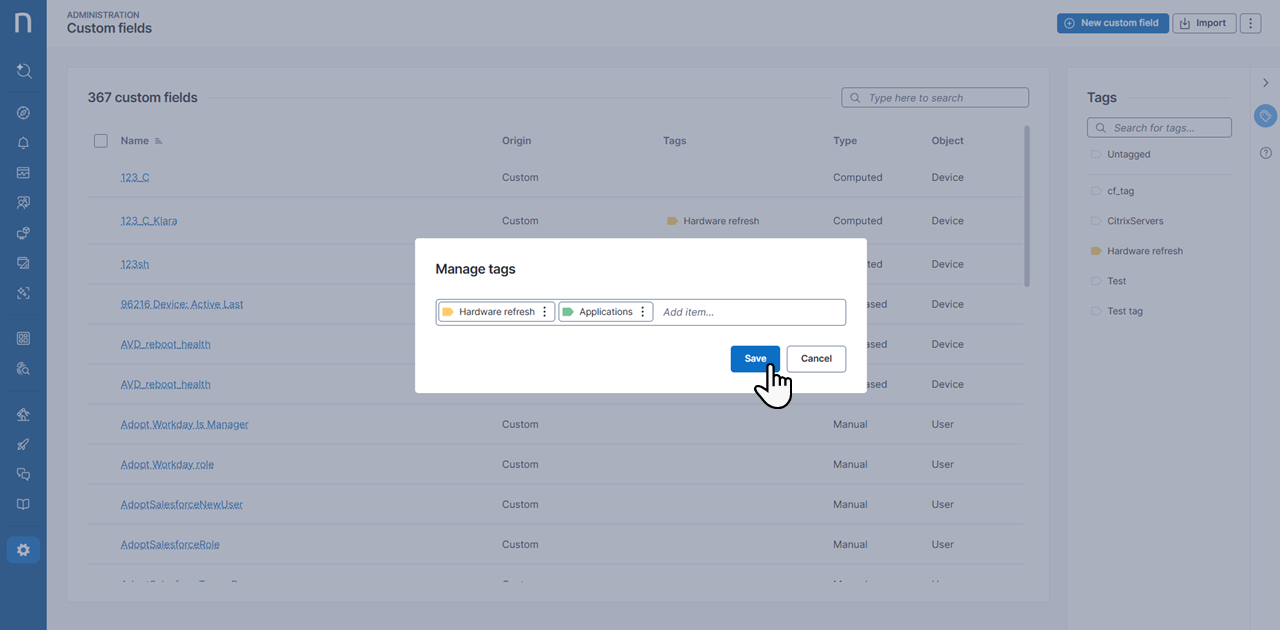
You can create or reuse tags for easier searching and indexing of custom fields. From the action menu on any custom field:
* Select **Manage tags**.
* Type the name of a new tag or a pre-existing one. The context menu provides a list of matching tags. If there are no matches, the system creates a new tag.
* Optionally, add more tags or a specific color.
* **Save** your tags.
The **Tags** menu on the rightmost side of the dashboard allows you to search for tags by typing their names or clicking them from a populated list of all tags currently assigned to a custom field.
***
## Creating a new custom field
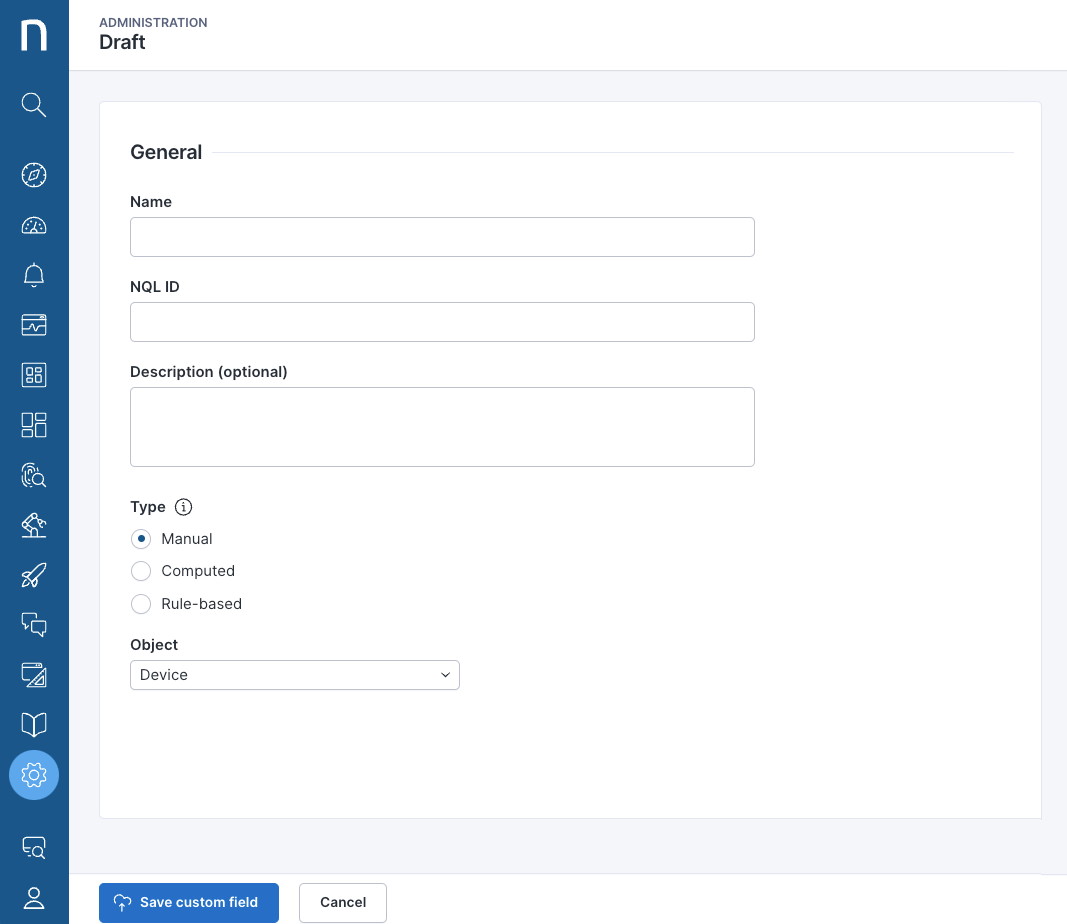
Click on the **New custom field** button to add and configure a custom field. This opens the **Draft** page.
Fill out the fields under **General** according to the table below:
| Field | Description |
| -------------------------- | ----------------------------------------------------------------------------------------------------------------------------------------------------------------------------------- |
| **Name** | The name that appears on the Investigations page. |
| **NQL ID** | The system references custom fields in queries using NQL ID. Nexthink suggests an NQL ID based on the custom field name. The NQL ID cannot be edited after saving the custom field. |
| **Description (optional)** | Enter an optional text to help other users understand the meaning of the custom field. |
Select a custom field **Type**. There are 3 possible options:
* [Manual Type](#customfieldsmanagement-choosingmanualcustomfieldtypemanual) with an **Object**
* [Computed Type ](#customfieldsmanagement-choosingcomputedcustomfieldtypecomputed)with an **NQL query**
* [Ruled-based Type](#customfieldsmanagement-choosingrule-basedcustomfieldtyperuledbased) with an **Object** and **Rules**
### Choosing Manual Custom field Type
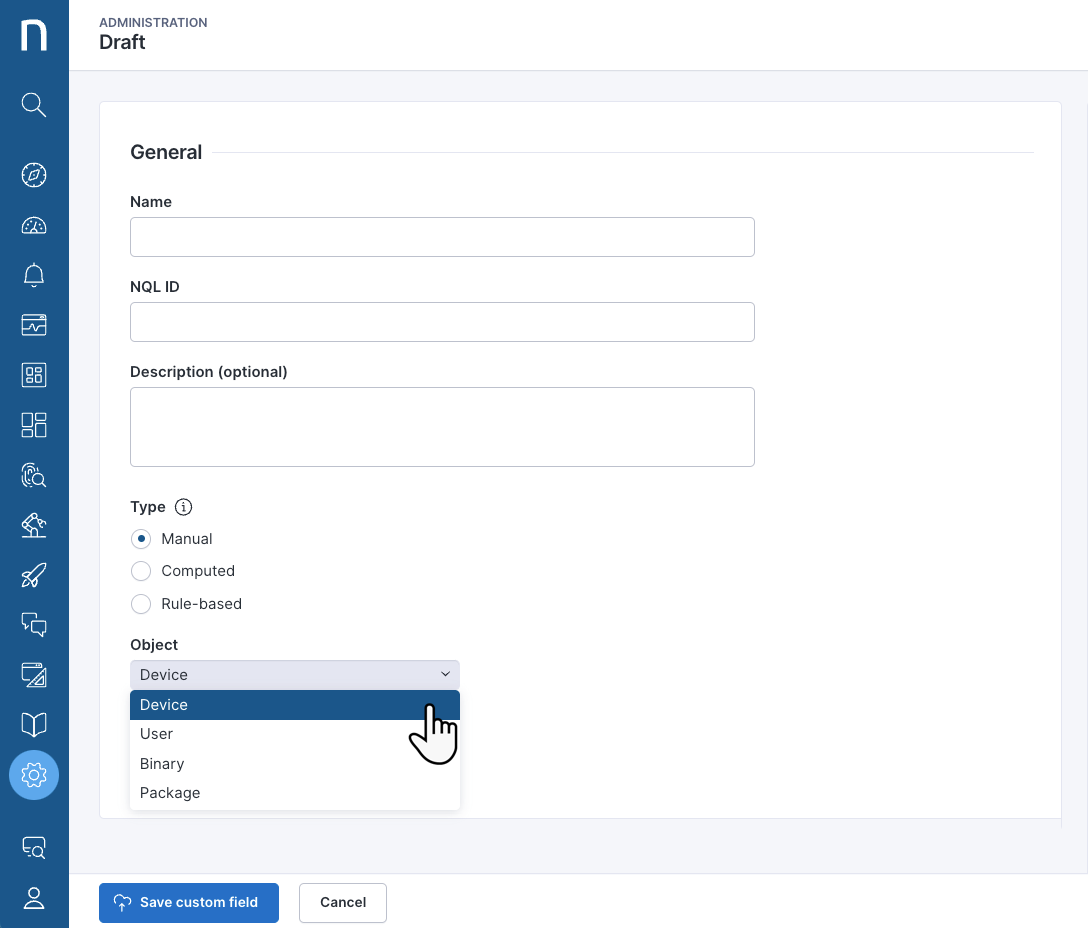
* Select **Manual** under **Type**.
* From the **Object** drop-down menu, choose the object to which the system applies the custom field: **Device**, **User**, **Binary** or **Package**.
Refer to the [Setting values for manual custom fields](#customfieldsmanagement-settingvaluesformanualcustomfieldssetvalues) section for more information.
### Choosing Computed Custom field Type
* Select **Computed** under **Type.**
* Write an **NQL query** that returns a single-column table with the `devices` computation results in each row.
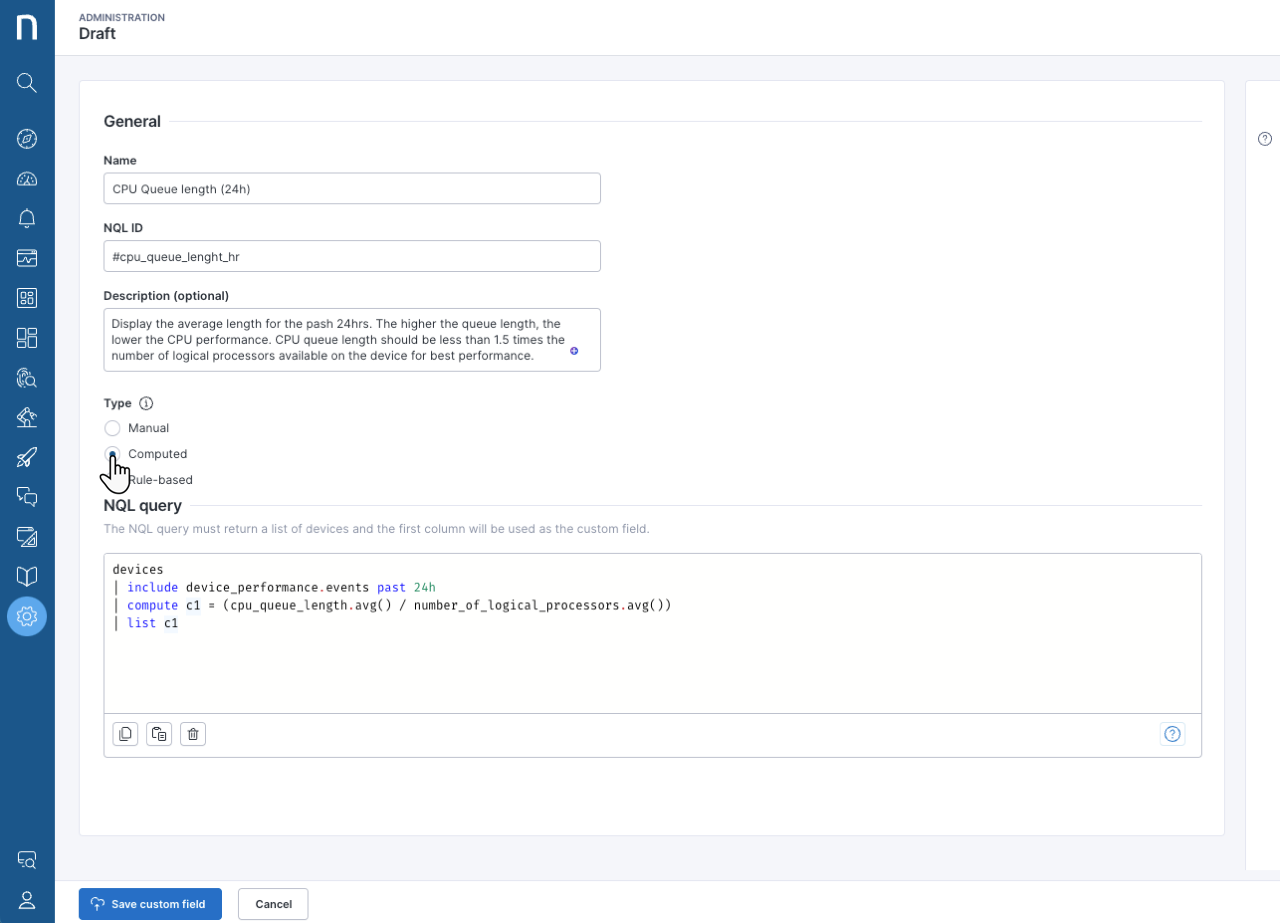
See the example below of a **CPU Queue length (24h)** custom field.
The following table displays the field inputs for the **Computed Type** example above:
| Field | Input (example) |
| -------------------------- | -------------------------------------------------------------------------------------------------------------------------------------------------------------------------------------------------------------------------------------------------------------------------------------- |
| **Name** | CPU Queue length (24h) |
| **NQL ID** |
#cpu\_queue\_length\_1hr
In the example above, even though the user updates the custom field name to a 24-hour timeframe, the NQL ID still reflects the initial 1-hour timeframe.
Remember, The NQL ID cannot be edited after saving the custom field.
|
| **Description (optional)** | Display the average length for the pash 24hrs. The higher the queue length, the lower the CPU performance. CPU queue length should be less than 1.5 times the number of logical processors available on the device for best performance. |
| **NQL query** | See query code below. |
{% code lineNumbers="true" %}
```
devices
| include device_performance.events past 24h
| compute c1 = (cpu_queue_length.avg() / number_of_logical_processors.avg())
| list c1
```
{% endcode %}
#### **Guidelines for writing NQL queries for computed custom fields**
* The query must target the `devices` collection.
* The query must have exactly one `include` clause.
* The system allows the `where` clause only after the `include` clause.
* The query must have exactly one `compute` clause.
* The query must end with a `list` clause and a single previously computed field.
* The system does not allow the `sort`, `limit`, `summarize` or `with` clauses.
* Once you save a computed custom field with a query, you cannot change the query to return a different data type.
### Choosing Rule-based Custom field Type
* Select **Rule-based** under **Type** to sort objects according to predefined criteria.
* From the **Object** drop-down menu, choose the object to which the system applies the custom field: **Device**, **User**, **Binary** or **Package**.
Common use cases for rule-based custom fields include:
* Classify device models as premium, mainstream or budget, based on their hardware specifications.
* Classify devices based on their installed memory.
* Classify users as internal or external, based on their name or email patterns.
* Classify packages and binaries by their importance for business continuity.
* Define a blocklist of packages or binaries for compliance.
{% hint style="info" %}
A rule-based custom field can contain up to 20 rules.
{% endhint %}
{% hint style="info" %}
You can drag and drop rule-based custom fields to change their order. The system evaluates rules from top to bottom.
{% endhint %}
The following attributes characterize each rule:
| Rule attribute | Description |
| -------------- | ------------------------------------------------------------------------------------------------------------ |
| **Value** | The label attached to all objects that satisfy the rule. |
| **Rating** | A value judgment attached to the rule: **Poor**, **Average** or **Good**. By default, it is set to **None**. |
| **NQL query** | A query to be executed upon evaluation of the rule. |
{% hint style="info" %}
When sorting the values of a Rule-Based Custom Field, they are not guaranteed to follow alphabetical order or the order in which the rules appear on the configuration page. Instead, they follow the order in which they were originally saved.
{% endhint %}
Consider the following constraints for NQL queries for ruled-based custom fields:
* The query must target the object that the custom field is defined on. For instance, `devices` for a device custom field.
* The query must have at least one `where` clause.
* The `with`, `include`, `summarize`, `compute` and `list` clauses are not allowed.
* Time selections such as `during past`, `from` and `to` are not allowed.
* The query can only reference native object properties
#### Rule-based example of installed memory profile
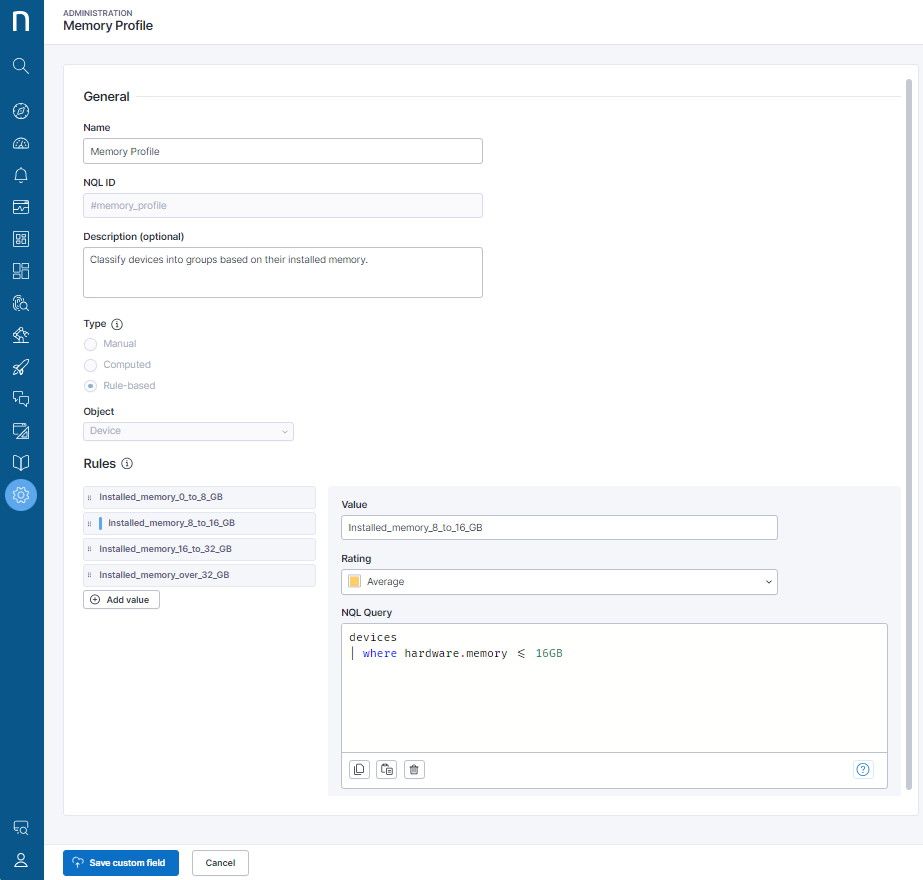
This section displays an example of a rule-based custom field for classifying devices based on installed memory. These are the field inputs and rules:
* **Name**: Memory Profile
* **NQL ID:** `#memory_profile`
* **Description:** Classify devices based on their installed memory.
* **Object:** Device
\| **Rule 1** |
* Value: Installed\_memory\_0\_to\_8\_GB
* Rating: Poor
* NQL query: `devices | where hardware.memory <= 8GB`
\| | ---------- | --------------------------------------------------------------------------------------------------------------------------------------------------------- | | **Rule 2** |
* Value: Installed\_memory\_8\_to\_16\_GB
* Rating: Average
* NQL query: `devices | where hardware.memory <= 16GB`
\| | **Rule 3** |
* Value: Installed\_memory\_16\_to\_32\_GB
* Rating: Good
* NQL query: `devices | where hardware.memory <= 32GB`
\| | **Rule 4** |
* Value: Installed\_memory\_over\_32\_GB
* Rating: Good
* NQL query: `devices | where hardware.memory > 32GB`
|
Considering the rules from above, the system tags a device with 16GB of installed memory as **Installed\_memory\_8\_to\_16\_GB**, as **Rule 2** is the first rule satisfied by the condition of the NQL query.
From the **Investigations** page, you can execute an investigation running an [NQL query](/platform/user-guide/investigations/creating-investigations/nql-editor.md) using your ruled-based custom fields.
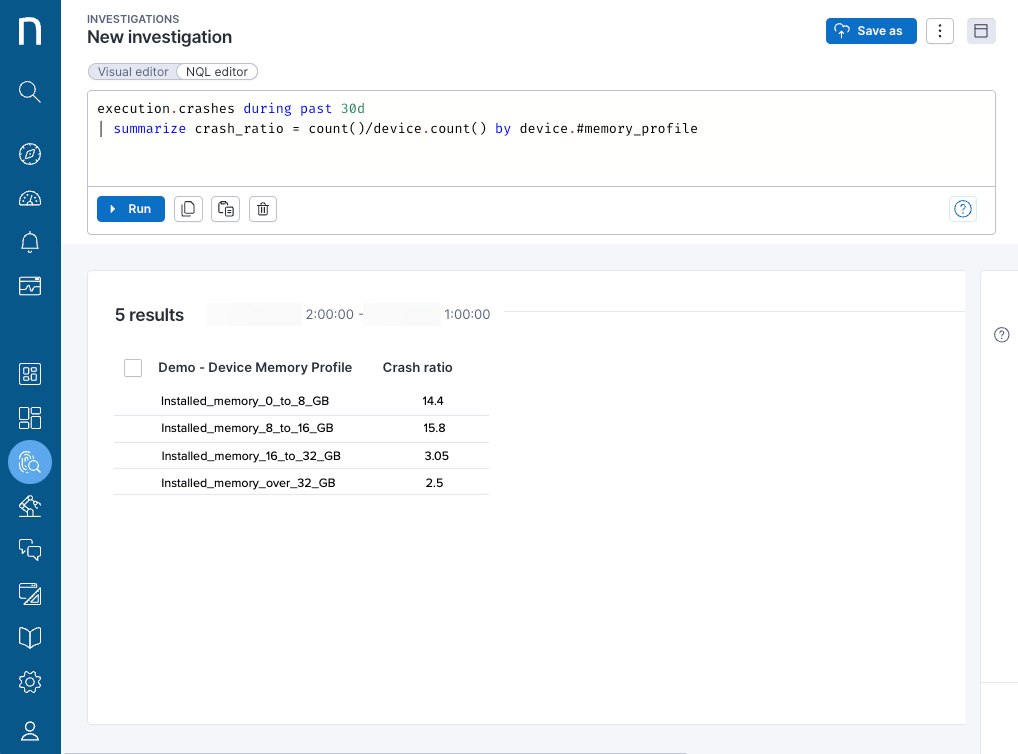
The following query returns the number of execution crashes per device, according to the device’s memory profile:
{% code lineNumbers="true" %}
```
execution.crashes during past 30d
| summarize crash_ratio = count()/device.count() by device.#memory_profile
```
{% endcode %}
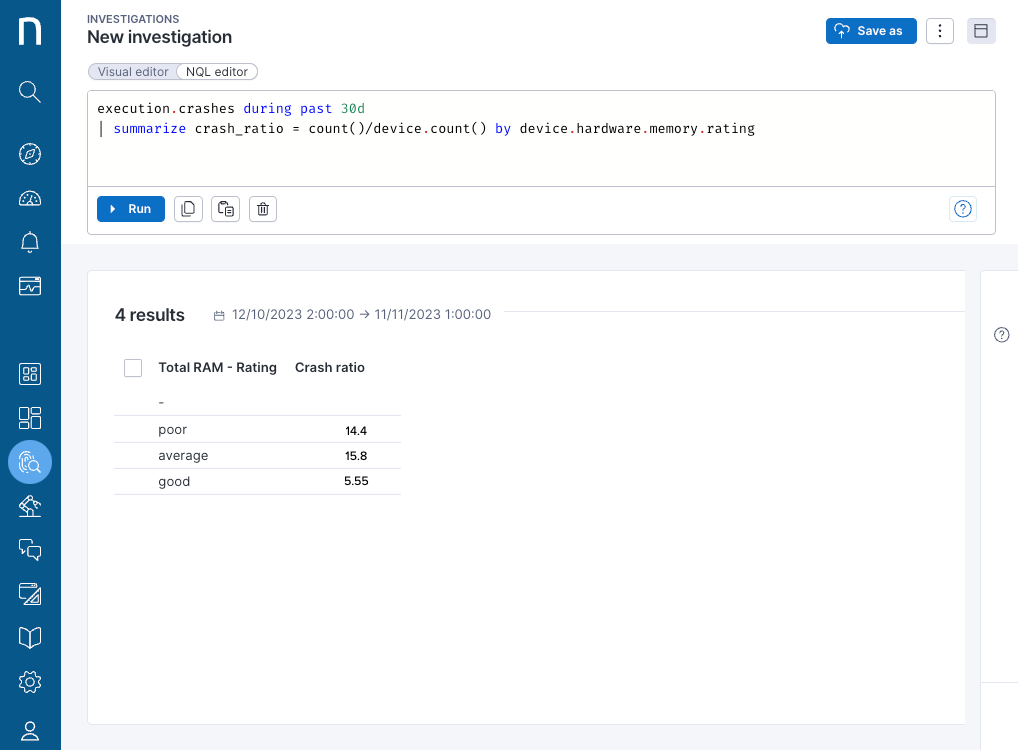
Instead of breaking down the results by memory, you can also break them down by the ratings set in the rules: **poor**, **average** and **good**.
In this case, Nexthink rates the devices with **Installed\_memory\_16\_to\_32\_GB** and **Installed\_memory\_over\_32\_GB** together as **good**.
{% code lineNumbers="true" %}
```
execution.crashes during past 30d
| summarize crash_ratio = count()/device.count() by device.#memory_profile.rating
```
{% endcode %}
***
## Setting values for manual custom fields
Once you create a custom field, you can set its values in the following ways:
* [Edit](#customfieldsmanagement-editingcustomfieldsontheinvestigationspageeditcf) options on the Investigations page.
* The permission to edit manual custom fields only requires **limited access** to [View domain](/platform/user-guide/administration/account-management/roles/view-domain.md#administration).
* [Update values](#customfieldsmanagement-updatingcustomfieldsbyimportingacsvfileimportcsv) from the actions menu of the Custom fields administration page.
* **Enrichment API**, refer to the [Nexthink API Documentation](https://developer.nexthink.com/) for more information.
* Update values using the **Update custom field** thinklet in Nexthink [workflow executions](/platform/user-guide/workflows/creating-workflows.md#updating-custom-fields-in-workflows-for-downstream-use).
The following requirements apply independently of the option you choose to set the values:
* UTF-8 characters are supported, except the backslash `\` and double quote `"` characters.
* A maximum of 64 characters are allowed per field value.
### Editing custom fields on the Investigations page
You may edit custom fields on the Investigation page by accessing the following:
* The action menu
* The action bar
* The Export results option (bulk editing)
#### **Editing custom fields with the action menu**
From the **Investigations** page:
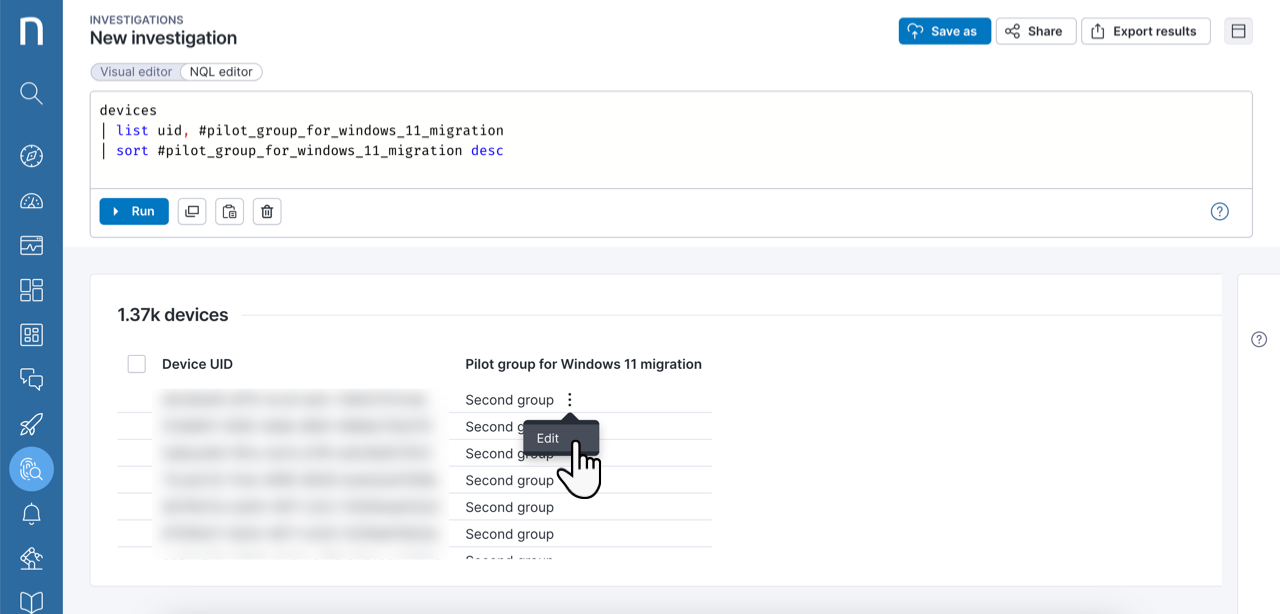
* Select **Edit** from the action menu for the custom field in the NQL results table.
* Enter the value for the **New value** field in the **Edit custom field** modal.
* Click **Done** to save the change.
#### **Editing custom fields with the action bar**
From the **Investigations** page:
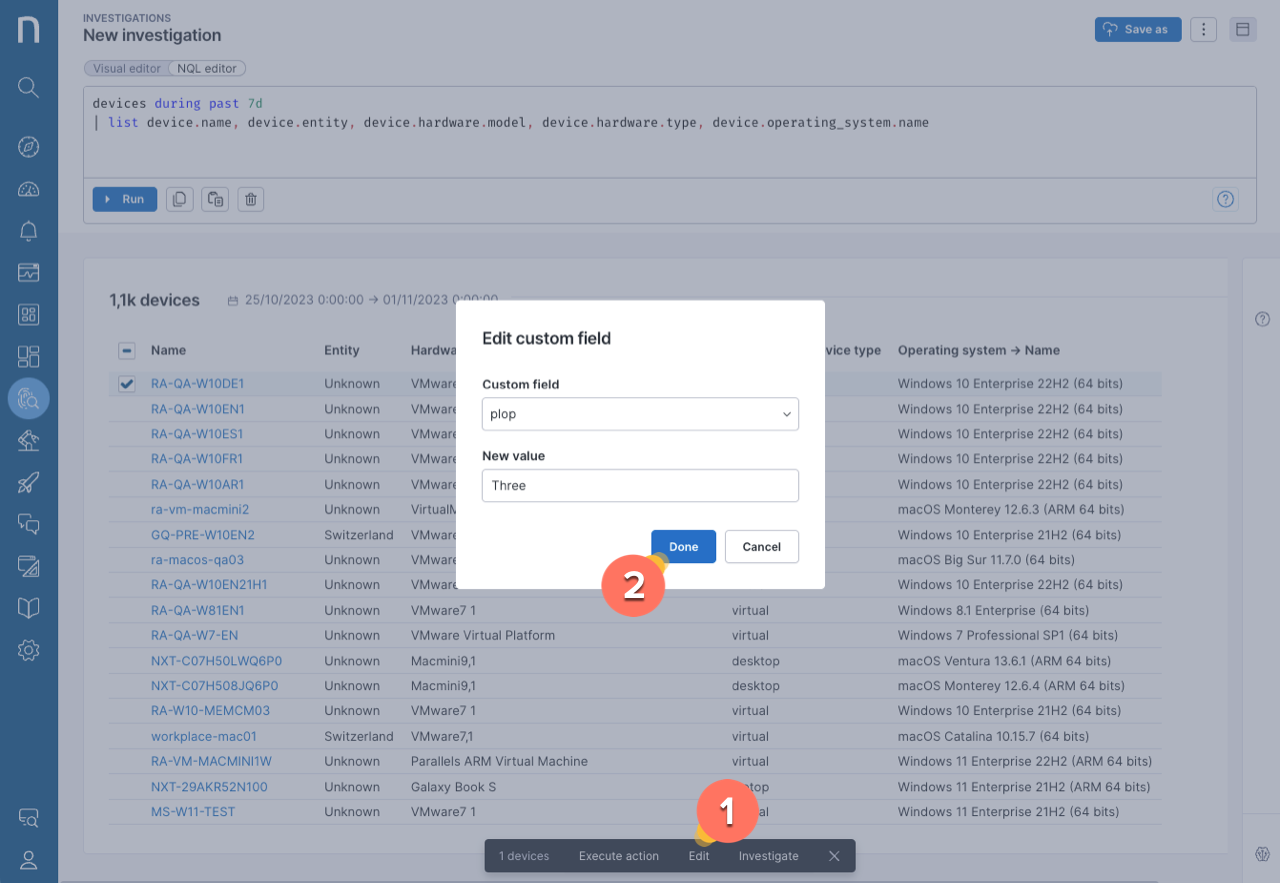
1. Select the **Edit** option in the action bar at the bottom of the page for the results of the NQL query on the object type you wish to edit, for example, on `devices`.
{% hint style="info" %}
If you don’t see the **Edit** option, ensure your [Roles](/platform/user-guide/administration/account-management/roles.md) have the right permissions.
{% endhint %}
2. In the **Edit custom field** modal:
* Select a custom field from the **Custom field** drop-down menu.
* Enter a new value into the **New value** text field.
* Click **Done** to save changes.
{% hint style="info" %}
The action bar does not allow bulk editing of large sets of investigation results that are not fully loaded and visible on the page.
{% endhint %}
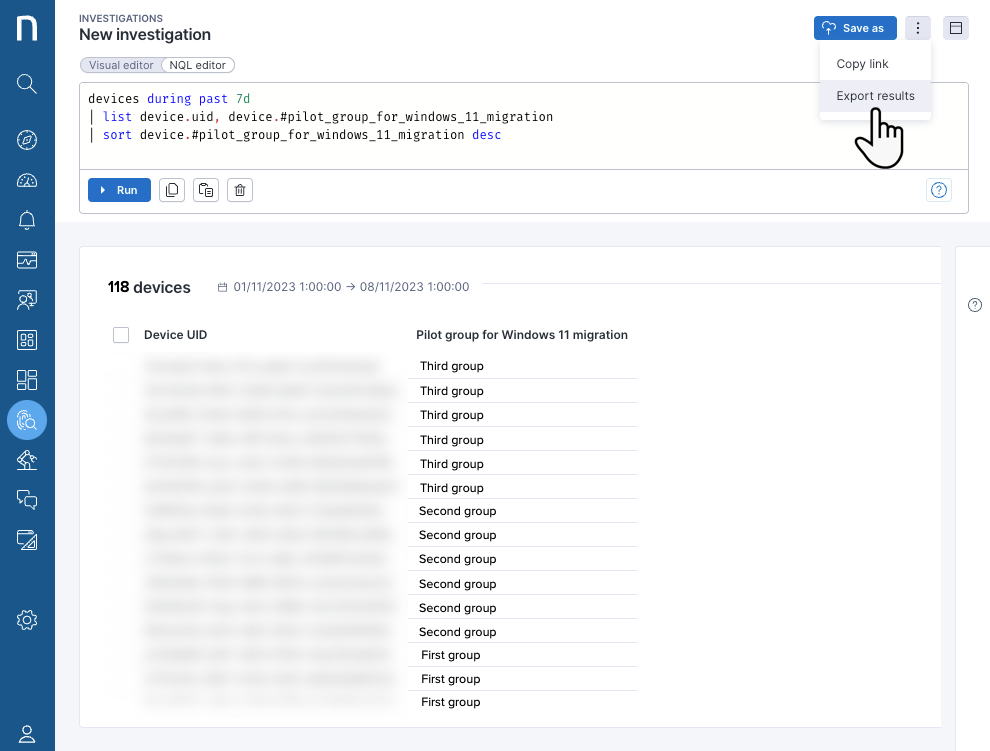
#### **Bulk editing custom fields by exporting results**
From the **Investigations** page:
* Run an investigation with the ID field and the custom fields to edit.
* **Export results** as a CSV file.
* Edit the custom field values using a spreadsheet editor.
* [Import ](#customfieldsmanagement-updatingcustomfieldsbyimportingacsvfileimportcsv)the edited CSV file.
The [CSV file example](#example-of-a-csv-file-for-updating-custom-fields) on this page describes the tabular configuration of the file. Additionally, the image below displays how to **Export results** from an investigation page.
### Updating custom fields by importing a CSV file
{% hint style="info" %}
You can also update manual custom field values using the **Update custom field** thinklet in Nexthink [workflow executions](/platform/user-guide/workflows/creating-workflows.md#updating-custom-fields-in-workflows-for-downstream-use).
{% endhint %}
From the [Custom fields](#customfieldsmanagement-accessingcustomfieldsaccesscs) page:
* Click on the action menu in the top-right corner of the page.
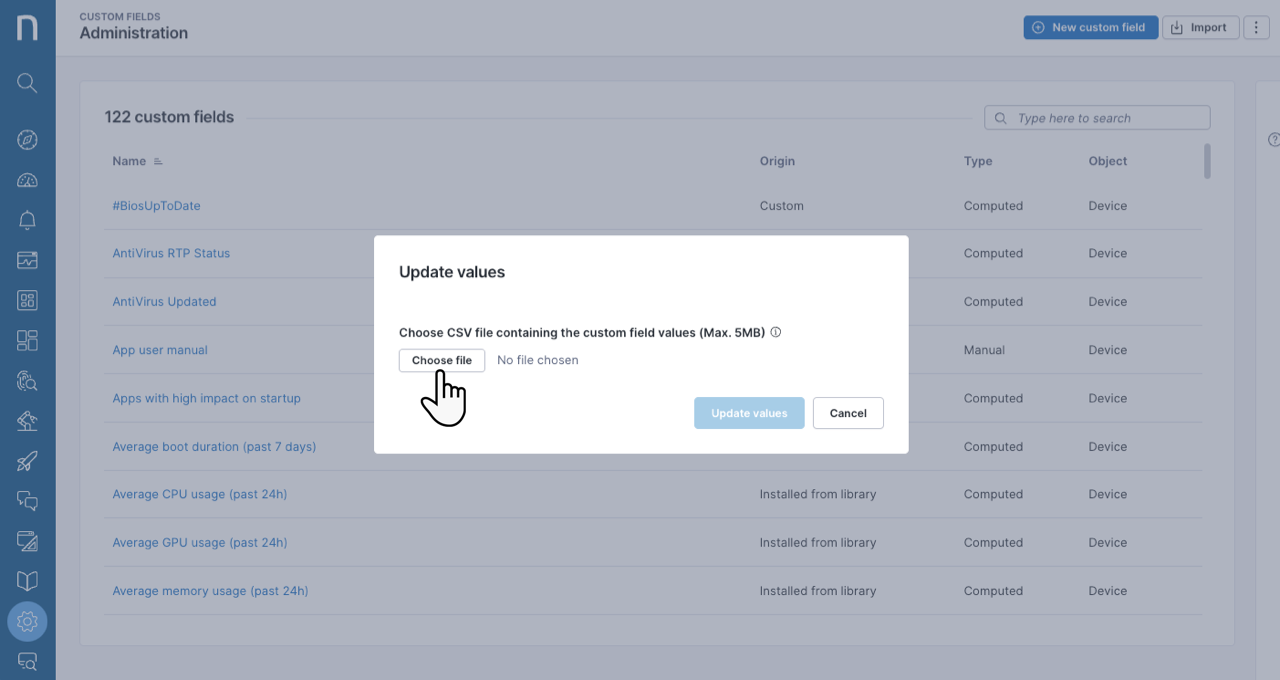
* Select **Update values** to import several custom fields at once into the Nexthink web interface.
* In the **Update values** dialog box select a valid CSV file ensuring it meets the following criteria:
* The file size is less than 5MB.
* The file encoding is UTF-8 (UTF-8-BOM is not supported).
* The backslash `\` character is not supported.
* A comma is the field separator.
* Field delimiters are optional and quotes `"` are the only allowed delimiter type.
#### **Example of a CSV file for updating custom fields**
* Configure a CSV file with a tabular structure to import your data.
* ```
device.name,device.#custom_field1,device.#custom_field2
device-1,A1,B
device-2,A1,B
device-3,A2,B
device-4,A2,
```
* The values `A1` or `A2` are assigned to all devices listed in the CSV file for the first custom field.
* The value `B` is assigned to the first three devices for the second custom field.
* The value of `#custom_field2` is not set for `device-4`. If previously set, this CSV file updates `#custom_field2` value to `NULL`.
* Follow these formatting rules:
* Headers are in an NQL ID format with an explicit object type, for example, `device.name` and `device.#custom_field1`.
* The file has at least one ID column. These IDs are accepted:
* device: `device.uid`, `device.name`
* user: `user.uid`, `user.sid`, `user.upn`
* binary: `binary.uid`
* package: `package.uid`
{% hint style="info" %}
Prerequisite for user updates based on `user.upn: UPN` collection enabled at collector level, as cleartext. This can be achieved with the following Library content:
{% endhint %}
## Permissions
To enable proper permissions for custom fields:
* Select **Administration** from the main menu.
* Click on **Roles** from the navigation panel.
* Click on the **New Role** button in the top-right corner of the page to create a new role.
* Or edit an existing role by hovering over it and clicking on the edit icon to change the role configuration.
* In the **Permissions** section, scroll down to **Administration** and enable **Manage all custom fields**. This will allow users to create, edit, and delete custom fields and set values for manual custom fields. Note that this permission is only available to users with a **full view domain**.
* The **Manage all ratings** permission is automatically granted for those with **Manage all custom fields** privileges (granting user rights for configuring rule-based custom fields).
* Otherwise, the **Edit manual custom fields** permission can be granted to users with a **limited view domain**.
* This permission is automatically granted to users with the **Manage all custom fields** permission.
{% hint style="info" %}
Refer to the [Roles](/platform/user-guide/administration/account-management/roles.md) documentation for a detailed description of the permission options.
{% endhint %}
---
# Agent Instructions
This documentation is published with GitBook. GitBook is the documentation platform designed so that both humans and AI agents can read, navigate, and reason over technical content effectively. Learn more at gitbook.com.
## Querying This Documentation
If you need additional information that is not directly available in this page, you can query the documentation by asking a question.
Perform an HTTP GET request on the following URL with the `ask` and `goal` query parameters:
```
GET https://docs.nexthink.com/platform/user-guide/administration/content-management/custom-fields-management.md?ask=&goal=
```
`ask` is the immediate question: it should be specific, self-contained, and written in natural language.
`goal` is what the user is ultimately trying to achieve, the reason they need the answer. Sharing it helps GitBook give you a better, more relevant answer. A goal is most helpful when it describes the outcome the user wants rather than restating the question. For example, with `ask=how do I create an API token`, a goal like `automate deployments from our CI pipeline` lets GitBook tailor the answer to that use case.
The response will contain a direct answer to the question and relevant excerpts and sources from the documentation.
Use this mechanism when the answer is not explicitly present in the current page, you need clarification or additional context, or you want to retrieve related documentation sections.