# Appearance

## Branding the Nexthink web interface <a href="#appearance-brandingthenexthinkwebinterface" id="appearance-brandingthenexthinkwebinterface"></a>

Customize the visual appearance of the Nexthink web interface and adapt it to your corporate visual identity guidelines.

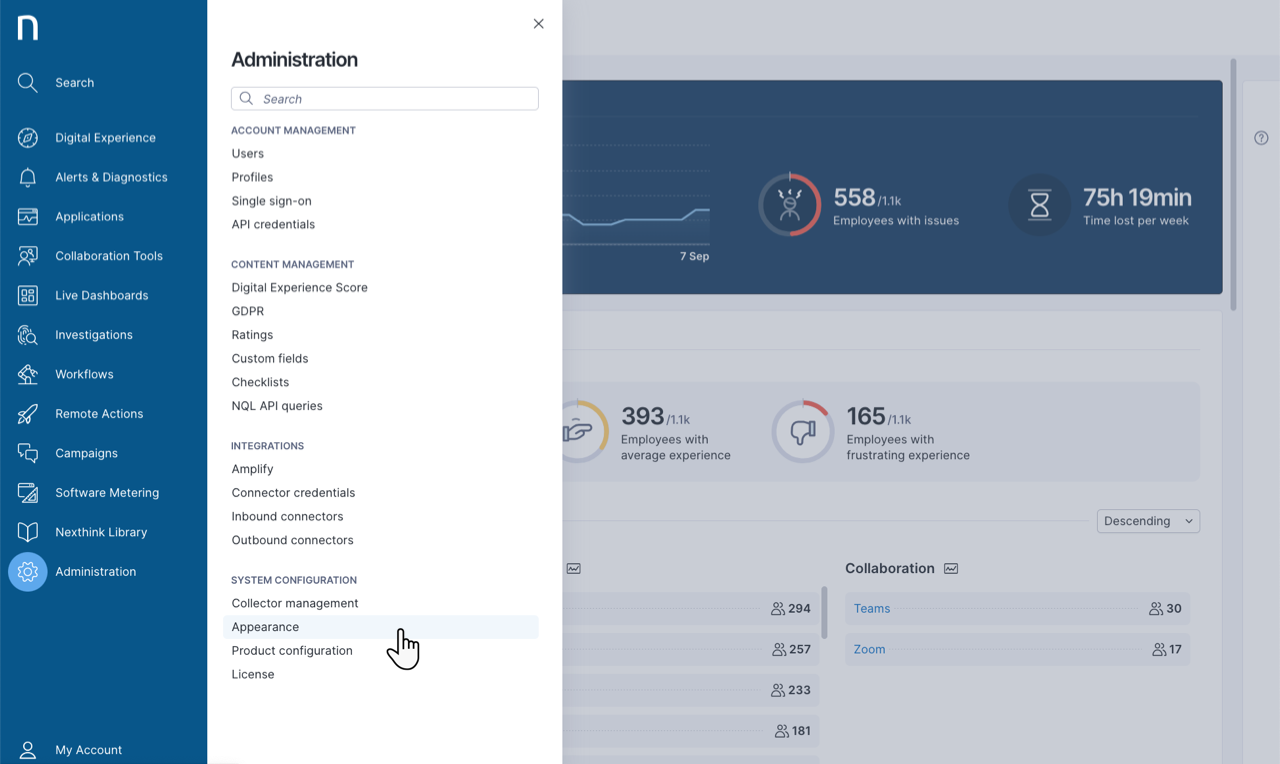
To access the Appearance page:

* Select **Administration** from the main menu.
* Click on **Appearance** in the System Configuration section of the navigation panel.

<figure><img src="/files/MSCxOHf8mNBbRsys65LB" alt="Accessing the appearance page"><figcaption></figcaption></figure>

## Appearance page <a href="#appearance-appearancepage" id="appearance-appearancepage"></a>

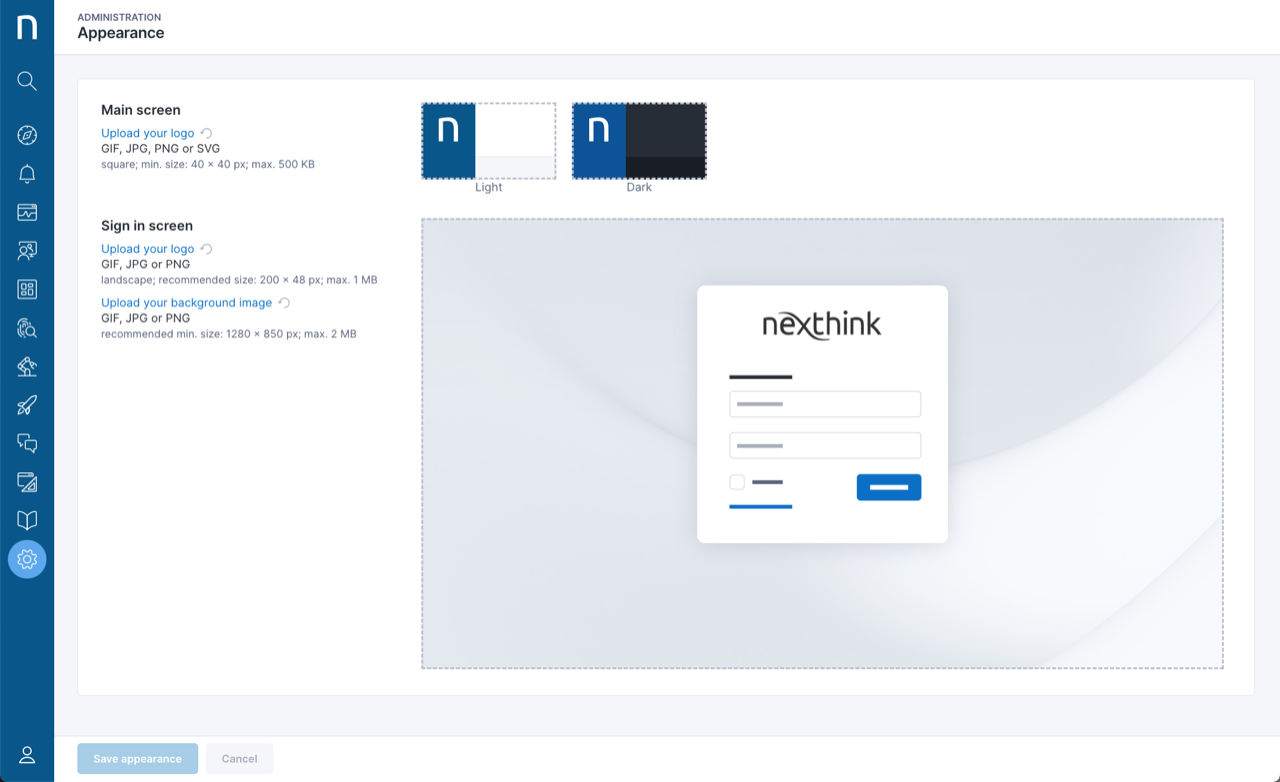
On the Appearance page, customize the look and feel of the web interface and the sign-in screen.

<figure><img src="/files/SemKfd7ekOpNiyaHgXDm" alt="Appearance page"><figcaption></figcaption></figure>

* **Main screen**: Upload an image of the logo that will appear at the top of the main menu.
* **Sign-in screen**: Upload images of the logo and background that will appear on the sign-in screen.

### Image requirements <a href="#appearance-imagerequirements" id="appearance-imagerequirements"></a>

<table><thead><tr><th></th><th width="243">Supported formats</th><th>Requirements</th></tr></thead><tbody><tr><td>Main screen logo</td><td><p>GIF, JPG, PNG, SVG</p><p>Transparent backgrounds are supported.</p></td><td><p>Square dimension</p><p>Minimum size: 40 x 40 px</p><p>Maximum file size: 500 KB</p></td></tr><tr><td>Sign-in screen logo</td><td><p>GIF, JPG, PNG</p><p>Transparent backgrounds are supported.</p></td><td><p>Landscape orientation</p><p>Recommended size: 200 x 48 px</p><p>Maximum file size: 1 MB</p></td></tr><tr><td>Sign-in screen background image</td><td><p>GIF, JPG, PNG</p><p>Transparent backgrounds are supported.</p></td><td><p>Recommended minimum size: 1280 x 850 px</p><p>Maximum file size: 2 MB</p></td></tr></tbody></table>

### Main screen logo and dark mode <a href="#appearance-mainscreenlogoanddarkmode" id="appearance-mainscreenlogoanddarkmode"></a>

When you switch the user interface to dark mode, the shade of blue in the main menu changes to a slightly darker shade. Use a transparent background to make sure the system displays the main screen logo the same way for all your users. The image file formats that support transparent backgrounds are GIF, PNG, and SVG.

### Removing custom logos

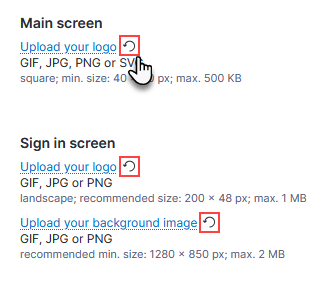
To remove a custom logo and reset the image to its default, select the pertaining curved arrow button.

<figure><img src="/files/OnHNbebDDZkhZ4kvIELg" alt="Resetting custom logos"><figcaption></figcaption></figure>

## Email digest logo (Classic) <a href="#appearance-emaildigestlogo-classic" id="appearance-emaildigestlogo-classic"></a>

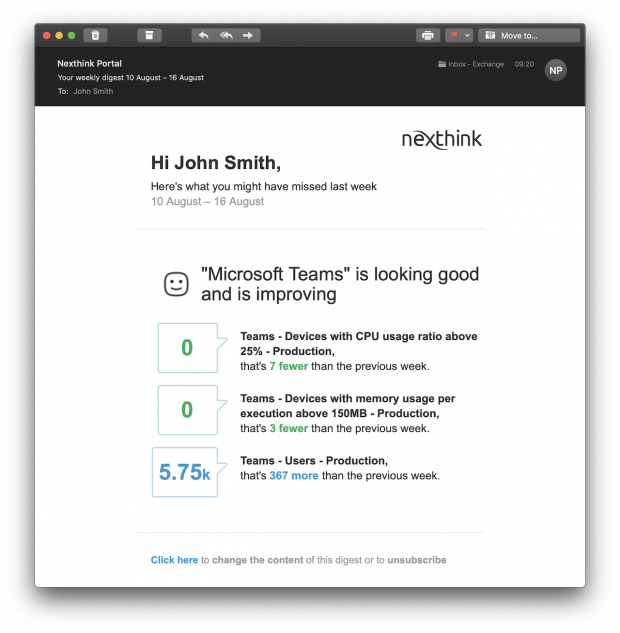
<figure><img src="/files/RoxAfncQK9fuEXLcv5jd" alt="Email digest logo" width="442"><figcaption></figcaption></figure>

To replace the logo that appears in the top-right corner of the email digest, contact [Nexthink Support](https://support.nexthink.com/) and attach an image of the logo to your request:

* File format: PNG, GIF or JPEG
* Dimensions: width 128 pixels, height 34 pixels (128x34 px), or the same aspect ratio.


---

# Agent Instructions: Querying This Documentation

If you need additional information that is not directly available in this page, you can query the documentation dynamically by asking a question.

Perform an HTTP GET request on the current page URL with the `ask` query parameter:

```
GET https://docs.nexthink.com/platform/user-guide/administration/system-configuration/appearance.md?ask=<question>
```

The question should be specific, self-contained, and written in natural language.
The response will contain a direct answer to the question and relevant excerpts and sources from the documentation.

Use this mechanism when the answer is not explicitly present in the current page, you need clarification or additional context, or you want to retrieve related documentation sections.