> For the complete documentation index, see [llms.txt](https://docs.nexthink.com/llms.txt). Markdown versions of documentation pages are available by appending `.md` to page URLs; this page is available as [Markdown](https://docs.nexthink.com/user-guide/campaigns/campaigns-in-finder-classic/creating-a-campaign-with-finder-classic.md).
# Creating a campaign with Finder (classic)
{% hint style="info" %}
Nexthink Finder is a Windows-only desktop application whose functionality is now available within the Nexthink web interface. Nexthink can now be used directly from a browser and most functions no longer require an additional desktop application.
{% endhint %}
## The process
To create a new campaign:
1. Log in to Finder as an employee with the right to create campaigns.
2. Select the **Campaigns** section on the left side of the main window.
3. Right-click the header of the **Campaigns** section or the empty area below it.
4. Select **Create new campaign** from the context menu. The form to create the campaign shows up in a new tab.
5. Click the temporary name **Untitled campaign *****n*** and replace it with an appropriate name for the campaign.
6. Optional: Briefly describe the purpose of the campaign in the field which contains the text **Enter optional description here...**.
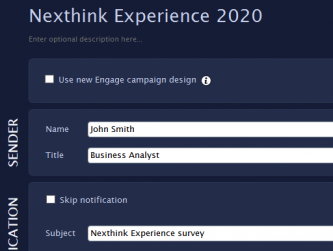
7. Provide personal information about the owner of the campaign in the **SENDER** section. The information about the sender is displayed both in the notification pop-up and when employees take the campaign to help them identify who is requesting their attention:
1. For **Name**, type in the name of the sender.
2. For **Title**, type in the job title of the sender.
3. Optional: Click the icon under **Picture** and choose an image that identifies the sender.
### Notifying employees
In the **NOTIFICATION** section, specify how your users are notified when the campaign is published alongside the sender information:
1. Optional: Tick **Skip notification** for the campaign to omit the notification step when being shown to the employees (useful for communicating important matters). Note that you still need to provide the rest of the fields in the **NOTIFICATION** section for backward compatibility with Collectors V6.20 and older, which still show the notification regardless of the value of this setting.
2. For **Subject**, enter the main theme of the campaign.
3. Optional: For **Footer**, type in any additional text that will appear below the subject of the campaign in the notification pop-up.
4. From the **Reminder Frequency** list, select how often the notification should be repeated for a particular employee until that employee completes the survey. The possible values are:
* Twice per day
* Once per day
* Twice per week
* Once per week
5. Optional: Choose the persistence of the notification on the screen of the employee under **Notification is always visible**:
* **until user closes it**: the notification stays indefinitely on the screen until the employee either accepts or declines the campaign.
* **for 60 seconds**: the notification hides after 60 seconds of no action from the user.
### Targeting users
In the **RECIPIENTS** section, specify how to target users and the urgency of the campaign.
1. Complete the sentence **Users are targeted**:
* Choose **with an investigation** to select the target users by means of an investigation.
1. Drag and drop an investigation on users into the **RECIPIENTS** section.
2. Optional: Right-click the investigation and select **Run...** to see the list of users that will compose the initial audience of the campaign (depending on the settings of the investigation, the audience may vary with time). Be aware that you are connecting to a single Engine with the Finder, so you may get fewer results than the campaign itself in a multi-Engine setup.
3. Select the desired type of campaign by combining the two available targeting policies. In the option **The campaign will be sent to**:
1. Choose to send the campaign to **all target users** to create a one-off or recurring campaign. In the option **Target users will receive the campaign**:
* Select **only once** to create a one-off campaign.
* Select **again** and a quiet period to create a recurring campaign.
2. Choose to send the campaign to **a different sample of the target users every day** to create a continuous satisfaction measurement campaign.
* Select a quiet period for the option **Target users can receive the campaign again after x \[time unit]**.
* Choose **with a remote action** to use the campaign in a self-help scenario of Nexthink Act.
* Choose **manually** to trigger the campaign later either manually from Finder or through the Engage API.
2. Tick **This campaign is urgent** to notify users immediately after the publication of the campaign, even if the users have recently answered another campaign. By default, campaigns are not urgent and they respect the Do Not Disturb period between campaigns.
### Writing the questions
In the **QUESTIONS** section, compose the questions to be answered by the targeted users.
1. Type in an identifier for the question in **Question name**. This is the name displayed in the Finder and the Portal when referring to the question.
2. Choose the type of question from the **Type** list:
* **Single answer**: The user must select only one out of all the available options.
* **Multiple answer**: The user may tick several options from the list of all those possible. At least one must be selected for the user to be able to continue.
* **Opinion scale**: This is basically a single answer question where each choice gets assigned a numerical value.
* **NPS**: A *Net Promoter Score (NPS)* question is a specific type of opinion scale question where choices are predefined as a value between 0 and 10. This type of question gives insights into how much employee support there is for a particular initiative, product or service.
3. Type in the actual question in **Text displayed**.
4. For non-NPS questions, specify the available choices for the question in **Choices**. For each choice:
1. Type the text that will be displayed as an option for the user in the **Text displayed** column.
2. Type in an identifier for the choice in the **Name** column. This is the name displayed in the Finder and the Portal when referring to this particular choice.
3. Optional: If the question was of the opinion scale type, assign a numeric value to it in the **Value** column. By default, any new opinion scale choice gets the maximum value from those assigned to the previous choices plus one.
4. Optional: If the question was of the single answer or opinion scale type, click the *step to* icon that displays a turning arrow. This allows the natural order of the questions in the campaign to be altered when the user selects the current choice as an answer. The *step to* icon is not available for the choices of multiple answer questions, as the user may select more than one choice.
1. From the drop-down menu, choose the next question the user should jump to if the current choice is selected.
5. Optional: Click **Add choice** to create an additional choice and repeat the previous steps.
6. Optional: Click the up and down arrows to the right of a choice to reposition it in the desired order.
7. Optional: Click the bin icon to the right of a choice to remove the choice from the list.
5. Optional: Click the general ***step to*** icon for the question if the next question to be asked is not the next question defined.
1. From the drop-down menu, choose the next question the user should jump to if the current choice is selected. Note that the *step to* options of individual choices take precedence over the general *step to* option for the question.
6. Optional: If the question is of the multiple answer or the opinion scale type, tick **Optional text** to add a text field to the question where users can freely express themselves.
1. Type in a **Label** for the text field.
7. Optional: Under Optional content, an introduction to the survey, which will be displayed alongside the first question, can be added. A closing to the survey, which will be displayed after the last question, can also be added.
1. Under **On first question**, enter the text for the different introductory elements of the campaign:
* **Greetings**: Brief salutation formula. To personalize your greetings, use a word between braces to refer to the user (e.g. {user}, {colleague}, {co-worker}, etc). In the greetings, the placeholder is replaced by the actual name of the user who receives the notification, if the system is able to retrieve it. Otherwise, the notification displays the word without the braces.
* **Header**: Message displayed above the first question. This is useful to clarify the purpose of the campaign to the user.
* **Footer**: Message displayed below the first question. This is useful to give additional information about the campaign process (estimated duration, deadline, contact information, etc).
2. Under **After last question**, type in some acknowledgment text as a **Final message**.
### Optional translate and preview
1. Optional: Under **Translations**, click the link **Click here to add a new translation** to translate the campaign to a different language.
2. Optional: Before saving your campaign, click **Preview** to inspect how employees will see the campaign on their own devices. The preview function relies on the Collector being installed on the same machine that runs the Finder.
3. To save your new campaign, either:
* Click **Save** to keep your changes without publishing the campaign. The name of the campaign appears grayed out to indicate that the campaign remains in an idle state.
* Click **Save & Publish** to store the changes and immediately publish your campaign. Targeted users start receiving notifications to take the survey. Once the campaign is published, you can edit only a restricted set of its features.
## Inserting links into campaigns
To provide additional information about a campaign and give employees the ability to contact support either by email or instant messaging, insert appropriate links into any of the following sections:
| Sender | On first question | Question | After last question |
| ------------------------------------ | --------------------------------------------------------- | -------------------------------- | ------------------------------- |
|
Name
Title
|
Greetings
Header
Footer
|
Text displayed
|
Final message
|
The links must have the following formats depending on their type:
**Web links**
`[Link text](http://www.example.com/campaign-info)`
**Email links**
`[Link text](mailto:someone@example.com?subject=Optional%20subject)`
**Instant messaging links**
`[Link text](im:sip:username)`
When a user clicks a link in a campaign, the OS opens the application associated with the protocol.
## The brand image on campaigns
Further, customize the appearance of campaigns with your own logo and colors to reflect your brand identity and encourage employees to answer.
{% hint style="info" %}
Applies to platform | Windows |
{% endhint %}
## Maximum number of published campaigns
To gather the answers from employees, campaigns add custom fields to the user object. In addition, the traffic between the Collectors and their corresponding Engine also increases as a result of asking for employee feedback.
To keep the impact of publishing campaigns on both the network traffic and the performance of the Engine within bounds, the maximum number of simultaneously published campaigns is limited. Depending on the type of campaign, create up to:
* 15 one-off or recurring campaigns.
* 15 continuous satisfaction measurement campaigns.
* 100 manually triggered campaigns.
* 1000 campaigns embedded in remote actions.
Note that the limit on the number of available custom fields may actually lower the maximum number of campaigns that you can publish.
## Using the new campaign design
Nexthink introduced a brand new user interface for campaigns. From the Finder, you can specify which design you want the Collector to use.
When you select the **Use new Engage campaign design** option, all the devices equipped with the Collector version 6.29.1.17 or higher use the new design and all those with a previous version, the classic design. Note that by ticking that box, the system is automatically instructing the Collector to skip the notification.
---
# Agent Instructions
This documentation is published with GitBook. GitBook is the documentation platform designed so that both humans and AI agents can read, navigate, and reason over technical content effectively. Learn more at gitbook.com.
## Querying This Documentation
If you need additional information that is not directly available in this page, you can query the documentation by asking a question.
Perform an HTTP GET request on the following URL with the `ask` and `goal` query parameters:
```
GET https://docs.nexthink.com/user-guide/campaigns/campaigns-in-finder-classic/creating-a-campaign-with-finder-classic.md?ask=&goal=
```
`ask` is the immediate question: it should be specific, self-contained, and written in natural language.
`goal` is what the user is ultimately trying to achieve, the reason they need the answer. Sharing it helps GitBook give you a better, more relevant answer. A goal is most helpful when it describes the outcome the user wants rather than restating the question. For example, with `ask=how do I create an API token`, a goal like `automate deployments from our CI pipeline` lets GitBook tailor the answer to that use case.
The response will contain a direct answer to the question and relevant excerpts and sources from the documentation.
Use this mechanism when the answer is not explicitly present in the current page, you need clarification or additional context, or you want to retrieve related documentation sections.