> For the complete documentation index, see [llms.txt](https://docs.nexthink.com/llms.txt). Markdown versions of documentation pages are available by appending `.md` to page URLs; this page is available as [Markdown](https://docs.nexthink.com/getting-started/installing-finder-classic/finder-proxy-support-classic.md).
# Finder proxy support (classic)
{% hint style="info" %}
Nexthink Finder is a Windows-only desktop application whose functionality is now available within the Nexthink web interface. Nexthink can now be used directly from a browser and most functions no longer require an additional desktop application.
{% endhint %}
## Overview
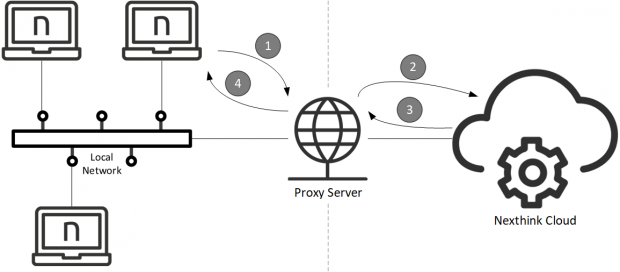
The devices in a corporate network typically connect to the Internet through a proxy server instead of using a direct connection. A proxy server, often simply referred to as a proxy, forwards the requests of client applications that run on corporate devices to the servers that run on the Internet, as if the proxy itself is initiating the requests. Then the proxy sends the responses from the servers back to the clients. By acting as an intermediary, a proxy server can provide varied functionality such as content filtering (for improved security) or content caching (for better performance).
Finders inside a corporate network that is equipped with a proxy are usually required to send their traffic through the proxy to reach the Nexthink instance. In this article, learn about the different types of proxies and configurations supported by Finder.
## Supported types of proxies
Finder supports the following types of proxies without user authentication:
* **HTTP**
Finder should work out of the box with transparent proxies that automatically intercept network traffic going from the corporate network to the Internet. The client systems are not aware that their traffic is traversing a proxy.
## Supported proxy configurations
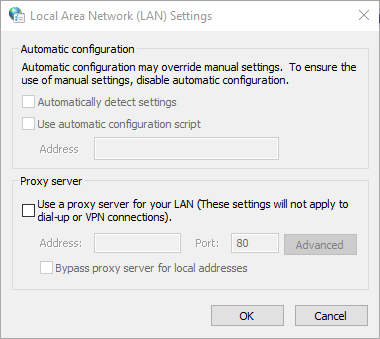
Being a desktop application, Finder gets its proxy configuration through the Microsoft Windows Internet (WinINet) API. The WinINet API was designed to give interactive desktop applications access to standard Internet protocols such as HTTP or FTP. Other notable applications such as Internet Explorer get their proxy configuration via WinINet as well. This configuration is visible from the Internet Properties dialog of the Control Panel:
1. Press the **WinKey**.
2. Type in **Internet Options** and press **Enter**. The **Internet Properties** dialog appears.
3. Select the **Connections** tab.
4. Under the section **Local Area Network (LAN) settings**, click the button **LAN settings**
5. Choose how WinINet should configure the LAN settings (which include the proxy settings), tick either:
* **Automatically detect settings**, to use Web Proxy Auto-Discovery (WPAD) protocol, a method to set the proxy settings automatically by leveraging the DHCP and DNS protocols. WPAD uses discovery methods in DHCP and DNS to find out the URL of a PAC file.
* **Use automatic configuration script**, to get a PAC file from the specified URL in **Address**. A proxy-auto-config (PAC) file is a JavaScript file with a single function that determines which proxy should be used for each client connection.
* **Use a proxy server for your LAN**..., to manually configure the proxy settings.
## Finder logic to connect through a proxy
To choose whether to use a proxy or not, Finder follows the steps listed below:
1. Calls the WinINet API to determine the proxy to use for connecting to the Nexthink instance via WebSocket with the URL. For example:\
`wss://nxdocs.eu.nexthink.cloud:443`
2. Connect to Nexthink instance either:
* Through a proxy server, if the call to WinINet returned a proxy.
* Through a direct connection, if the call to WinINet returned no proxy.
3. If the connection fails, whatever the means to access the Nexthink instance, Finder calls WinINet again, but this time with an HTTPS scheme in the URL. For example:\
`https://nxdocs.eu.nexthink.cloud:443`
4. If the connection is successful, the proxy may ask for user authentication. Only basic authentication is currently supported.
* If a proxy dialog appears asking for a username and password, enter your credentials.
5. Finder should now be connected.
---
# Agent Instructions
This documentation is published with GitBook. GitBook is the documentation platform designed so that both humans and AI agents can read, navigate, and reason over technical content effectively. Learn more at gitbook.com.
## Querying This Documentation
If you need additional information that is not directly available in this page, you can query the documentation by asking a question.
Perform an HTTP GET request on the following URL with the `ask` and `goal` query parameters:
```
GET https://docs.nexthink.com/getting-started/installing-finder-classic/finder-proxy-support-classic.md?ask=&goal=
```
`ask` is the immediate question: it should be specific, self-contained, and written in natural language.
`goal` is what the user is ultimately trying to achieve, the reason they need the answer. Sharing it helps GitBook give you a better, more relevant answer. A goal is most helpful when it describes the outcome the user wants rather than restating the question. For example, with `ask=how do I create an API token`, a goal like `automate deployments from our CI pipeline` lets GitBook tailor the answer to that use case.
The response will contain a direct answer to the question and relevant excerpts and sources from the documentation.
Use this mechanism when the answer is not explicitly present in the current page, you need clarification or additional context, or you want to retrieve related documentation sections.