> For the complete documentation index, see [llms.txt](https://docs.nexthink.com/llms.txt). Markdown versions of documentation pages are available by appending `.md` to page URLs; this page is available as [Markdown](https://docs.nexthink.com/library-packs/l1-support/workflow-schedule-online-meeting-outlook/usage-guide-proactive-password-reset.md).
# Usage guide: Schedule online meetings in Outlook
{% hint style="warning" %}
This page outlines various ways to use the pack, including use case examples. Administrators can refer to the [Configuration guide](/library-packs/l1-support/workflow-schedule-online-meeting-outlook/configuration-guide-proactive-password-reset.md) to set up and customize the installed content.
{% endhint %}
The **Workflow: Schedule online meetings in Outlook** library pack enables EUC teams to:
* Automate meeting scheduling, reducing time spent on coordination
* Accelerate ticket resolution by streamlining collaboration setup
* Enhance support agent productivity and reduce scheduling overhead
* Enhance the user experience by offering faster and more efficient support interactions.
## Library pack uses
{% hint style="info" %}
Jump to [Use cases](#library-pack-uses) on this page to see relevant scenario applications.
{% endhint %}
Use the library pack content for the following purposes.
### Visibility
This library pack focuses on the **Schedule online meetings in Outlook** [workflow](/user-guide/workflows.md). This workflow automates the scheduling of Microsoft Teams meetings by programmatically coordinating availability and creating calendar events in Outlook for both support agents and end users.
### Workflow triggering
This workflow should be launched on a specific device either during a call with an employee or in response to an issue they have raised. This can be achieved using [device view](/user-guide/device-view.md) (as shown below) or from [Amplify](/configuring_nexthink/bringing-data-into-your-nexthink-instance/deploying-nexthink-in-non-vdi-environment/configure-amplify.md).
{% hint style="info" %}
The workflow takes the logged-in user on the target device as the meeting organiser and the user specified in the 'Participant' parameter as a meeting participant.
{% endhint %}
### Predefined workflow structure and steps
The **Schedule online meetings in Outlook** workflow is structured in these main steps:
1. [Configure the input parameters](#configure-the-input-parameters)
2. [The workflow uses a Function thinklet containing JavaScript code to determine the next business day based on the current date](#the-workflow-uses-a-function-thinklet-containing-javascript-code-to-determine-the-next-business-day)
3. [The workflow retrieves calendar availability data from the target user's and the defined participant's calendars](#the-workflow-retrieves-calendar-availability-data-from-the-target-users-and-the-defined-participants)
4. [The workflow uses a Function thinklet containing JavaScript code to compare the availability data and identify the first common time slot for both parties](#the-workflow-uses-a-function-thinklet-containing-javascript-code-to-compare-the-availability-data-an)
5. [If a common time slot is found, the workflow will create a Microsoft Teams online meeting for both parties on that date and time](#if-a-common-time-slot-is-found-the-workflow-will-create-a-microsoft-teams-online-meeting-for-both-pa)
### Configure the input parameters
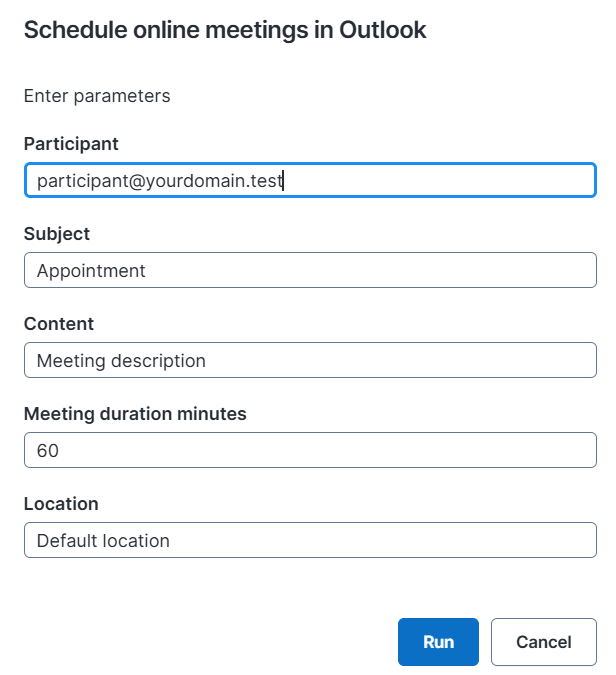
The following input parameters are required for the workflow:
* Participant - Specify the email address of the user who will be invited to the online meeting.\
Example: `participant@yourdomain.com`
* Subject - Enter the subject line for the online meeting.\
Example: `Project Kickoff Meeting`
* Content - Provide the body text that will appear in the meeting invitation.\
Example: `Please join this Teams meeting to review the project scope and next steps.`
* Meeting duration minutes - Set the duration of the meeting, in minutes.\
Example: `60`
* Location - Specify the location text for the meeting appointment.\
Example: `Microsoft Teams Meeting`
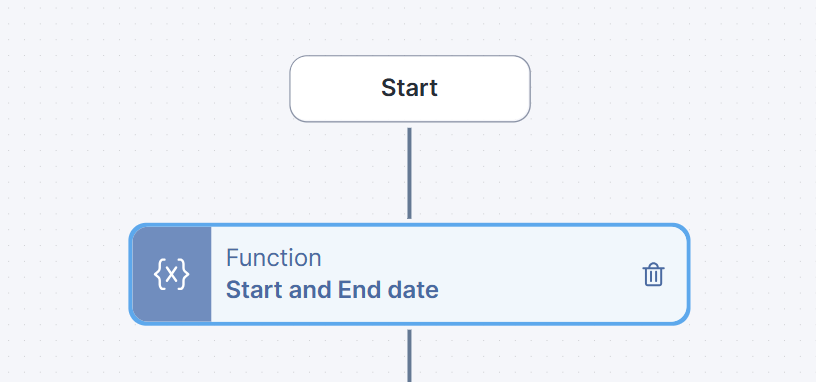
### The workflow uses a Function thinklet containing JavaScript code to determine the next business day based on the current date
The purpose of this Function thinklet is to identify the next business day from the current date and return the start and end timestamps of that day as outputs.
{% hint style="warning" %}
This function only considers weekends. Bank holidays are not taken into account.
Please note that the current version of this workflow is hard-coded to business hours of 09:00–17:00 UTC and does not consider local time zones.
Please be aware that the hard-coded business hours of 09:00–17:00 UTC equate to 11:00–19:00 CEST and 02:00–10:00 PST, respectively, which may cause confusion in these time zones.
{% endhint %}
You can find the code for this function in the relevant section of the [Configuration guide](/library-packs/l1-support/workflow-schedule-online-meeting-outlook/configuration-guide-proactive-password-reset.md#start-and-end-date-function).
### The workflow retrieves calendar availability data from the target user's and the defined participant's calendars
In the next step, the workflow retrieves availability strings (you can find more details of AvailabilityView in [Microsoft documentation](https://learn.microsoft.com/en-us/graph/outlook-get-free-busy-schedule)) for both the organiser and participant using a Graph API call to the getSchedule API endpoint.
These strings represent a person's working day as a sequence of digits, with each digit indicating availability within a defined time interval (one hour by default, as managed by the AvailabilityViewInterval parameter). Availability statuses can take the following values:
* 0 = free or working elsewhere
* 1 = tentative
* 2 = busy
* 3 = out of office
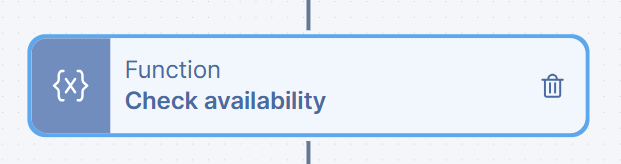
### The workflow uses a Function thinklet containing JavaScript code to compare the availability data and identify the first common time slot for both parties
The next step in the workflow is to compare these availability strings to find a time slot that works for both the organiser and the participant, using a Function thinklet. This thinklet returns a string output 'message', which indicates whether or not a time slot was found. If a time slot is found, it also returns the start and end outputs containing timestamps of this time slot.
You can find the code for this function in the relevant section of the [Configuration guide](/library-packs/l1-support/workflow-schedule-online-meeting-outlook/configuration-guide-proactive-password-reset.md#check-availability-function).
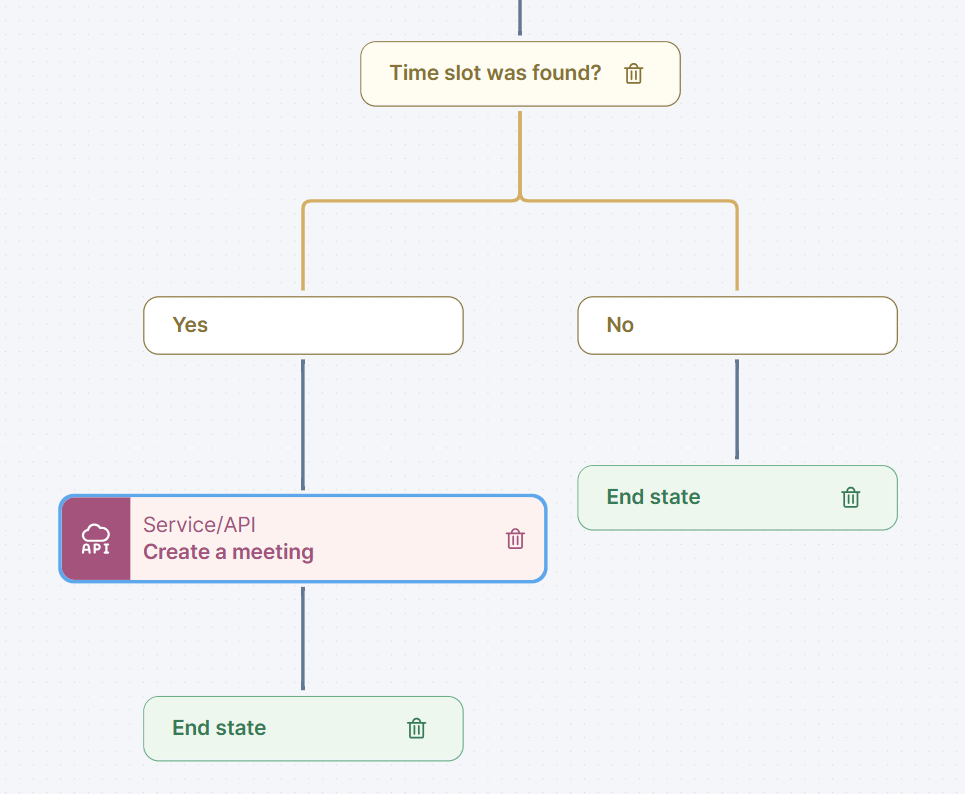
### If a common time slot is found, the workflow will create a Microsoft Teams online meeting for both parties on that date and time
The final step consists of two actions. First, a condition is checked to see if the slot has been found. If so, a Service/API thinklet performs a call to the Graph API to create an event; you can find more details of the Event API endpoint in the [Microsoft documentation](https://learn.microsoft.com/en-us/graph/api/user-post-events?view=graph-rest-1.0\&tabs=http).
{% hint style="info" %}
Please note that the event will be created as an online meeting with Microsoft Teams as the provider.
{% endhint %}
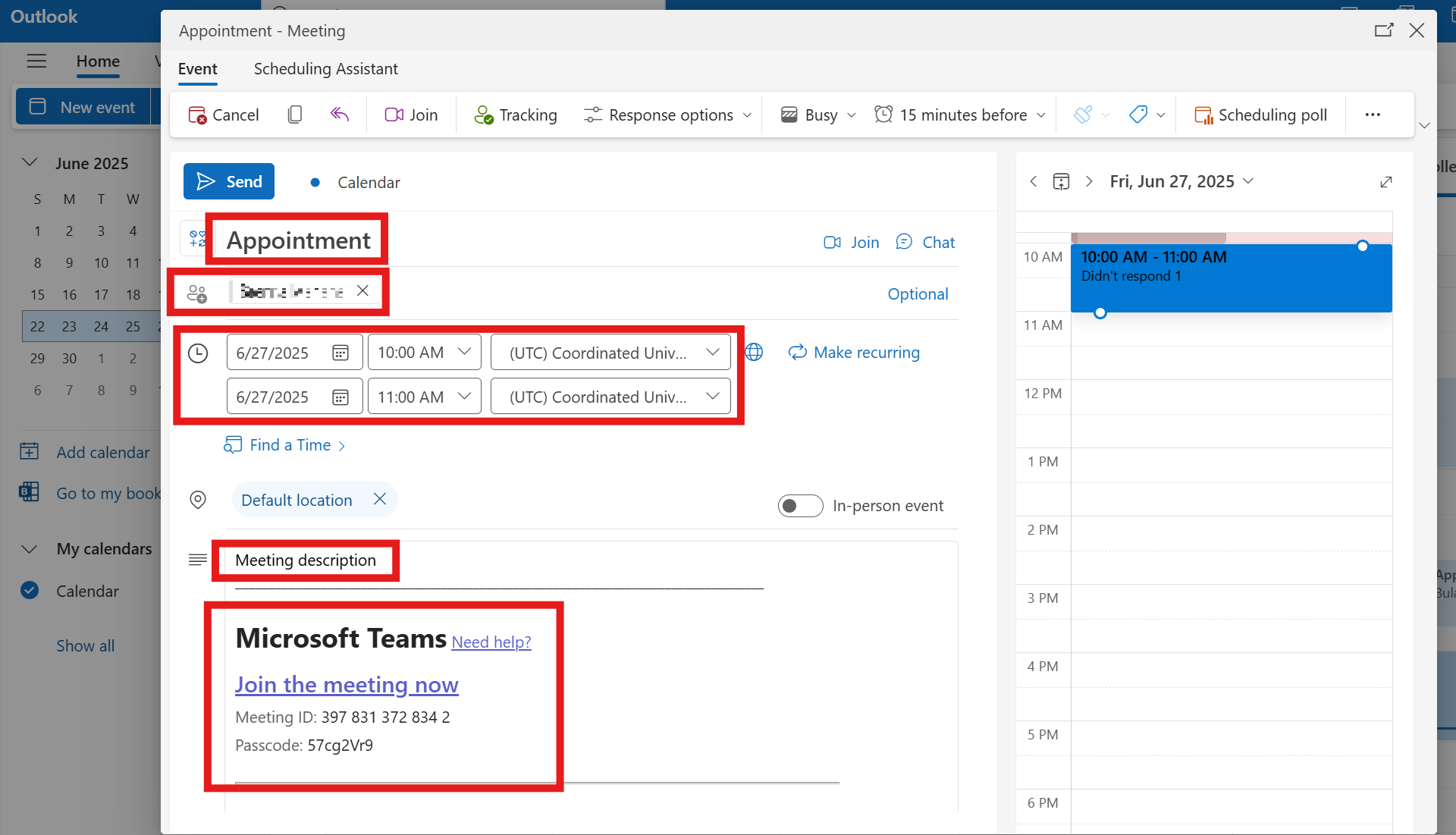
Here is an example of the resulting event, with its properties defined by the workflow parameters.
***
RELATED TOPICS
* [Workflow: Schedule online meetings in Outlook](/library-packs/l1-support/workflow-schedule-online-meeting-outlook.md)
* [Configuration guide: Schedule online meetings in Outlook](/library-packs/l1-support/workflow-schedule-online-meeting-outlook/configuration-guide-proactive-password-reset.md)
* [Manage Workflows](https://docs.nexthink.com/platform/user-guide/workflows/managing-workflows)
---
# Agent Instructions
This documentation is published with GitBook. GitBook is the documentation platform designed so that both humans and AI agents can read, navigate, and reason over technical content effectively. Learn more at gitbook.com.
## Querying This Documentation
If you need additional information that is not directly available in this page, you can query the documentation by asking a question.
Perform an HTTP GET request on the following URL with the `ask` and `goal` query parameters:
```
GET https://docs.nexthink.com/library-packs/l1-support/workflow-schedule-online-meeting-outlook/usage-guide-proactive-password-reset.md?ask=&goal=
```
`ask` is the immediate question: it should be specific, self-contained, and written in natural language.
`goal` is what the user is ultimately trying to achieve, the reason they need the answer. Sharing it helps GitBook give you a better, more relevant answer. A goal is most helpful when it describes the outcome the user wants rather than restating the question. For example, with `ask=how do I create an API token`, a goal like `automate deployments from our CI pipeline` lets GitBook tailor the answer to that use case.
The response will contain a direct answer to the question and relevant excerpts and sources from the documentation.
Use this mechanism when the answer is not explicitly present in the current page, you need clarification or additional context, or you want to retrieve related documentation sections.