# Configuration guide: Connectivity assisted troubleshooting

{% hint style="warning" %}
The configuration options on this page are only accessible to [administrators](https://docs.nexthink.com/platform/user-guide/administration/account-management/roles#roles-administration).

Refer to the [Usage guide: Connectivity assisted troubleshooting](https://docs.nexthink.com/platform/library-packs/network-and-connectivity/workflow-connectivity-assisted-troubleshooting/usage-guide-connectivity-assisted-troubleshooting) to use library content as a standard user.
{% endhint %}

## **Prerequisites** <a href="#documentation-pre-requisites" id="documentation-pre-requisites"></a>

This library pack contains content from the following required [expansion products](https://docs.nexthink.com/platform/overview/products):

* [Flow - workflow](https://docs.nexthink.com/platform/overview/products#products-flow)s

{% hint style="info" %}
Some of these products offer default access to their respective content and can still be used without [expansion products](https://docs.nexthink.com/platform/overview/products).

Refer to the [Nexthink Infinity thresholds and limits overview](https://edocs.nexthink.com/nexthink-infinity/infinity-specifications/nexthink-infinity-default-thresholds-overview) documentation for more information about default thresholds for expansion products.
{% endhint %}

## **Included content and dependencies** <a href="#documentation-contentanddependencies" id="documentation-contentanddependencies"></a>

This library pack contains the following content and dependencies:

| Content type  | Name                                  | Description                                                                                                                                    |
| ------------- | ------------------------------------- | ---------------------------------------------------------------------------------------------------------------------------------------------- |
| Workflow      | Connectivity assisted troubleshooting | A **workflow** to provide information gathering and ITSM ticket updates for L1 agents, in addition to guided troubleshooting for the employee. |
| Remote action | Get Wi-Fi signal strength             | Retrieves Wi-Fi signal quality, strength and channel, as well as whether the device is connected to a corporate network or not.                |
| Remote action | Get Wi-Fi information                 | Get information about Wi-Fi connection on the device including band, channel, and SSID/BSSID.                                                  |
| Remote action | Get network speed                     | Gets information about the speed of the network by measuring the RTT of an external URL and a business URL.                                    |

## **Configuring "Connectivity assisted troubleshooting pack"** <a href="#documentation-configurationguide" id="documentation-configurationguide"></a>

{% hint style="info" %}
Adapt these suggested configuration steps to edit and customize content according to your organizational needs.
{% endhint %}

Follow these steps to install and configure content:

* Before configuration - Install library pack content from [Nexthink Library](https://docs.nexthink.com/platform/user-guide/nexthink-library)
* [Step 1 - Configure remote action(s)](#configuring-remote-action-s)
* [Step 2 - Configure Microsoft Teams communication channel](#step-2-set-up-a-registered-microsoft-entra-id-app-and-configure-microsoft-graph-api-connector-creden)
* [Step 3 - Set up a registered Microsoft Entra ID app and configure Microsoft Graph API connector credentials](#step-2-set-up-a-registered-microsoft-entra-id-app-and-configure-microsoft-graph-api-connector-creden-1)
* [Step 4 - Edit MS Teams messages in the workflow](#documentation-step3-editcampaigns)
* [Step 5 - Configure ITSM API connector credentials](#configurationguide-batteryreplacementscheduling-step2-configureitsmapiconnectorcredentials)
* [Step 6 - Configure global parameters in the workflow](#configurationguide-batteryreplacementscheduling-step3-configureglobalparameters)

### **Step 1 - Configure remote action(s)**

*<mark style="color:blue;">Favor the use of numbered steps. Bold words/terms that appear in the Nexthink UI.</mark>*

1. From the main menu, navigate to the **Remote Actions** > [Manage remote action ](https://docs.nexthink.com/platform/user-guide/remote-actions/managing-remote-actions)page.
2. Review and edit your remote actions.

Nexthink recommends the following configurations for these remote actions:

<table><thead><tr><th width="235">Name</th><th width="222">Trigger schedule</th><th>Parameters to edit</th></tr></thead><tbody><tr><td>Get Wi-Fi signal strength</td><td>API trigger should be enabled so that it can be triggered from the Workflow</td><td><p>The following parameters must be configured:</p><ul><li>CorporateNetworks</li><li>AcceptableSignalQuality</li></ul></td></tr><tr><td>Get Wi-Fi information</td><td>API trigger should be enabled so that it can be triggered from the Workflow</td><td>None</td></tr><tr><td>Get network speed</td><td>API trigger should be enabled so that it can be triggered from the Workflow</td><td><p>The following parameters must be configured:</p><ul><li>ExternalURL</li><li>WebRTTThreshold</li><li>BusinessURL</li><li>BusinessWebRTTThreshold</li></ul></td></tr></tbody></table>

### Step 2 - Configure Microsoft Teams communication channel <a href="#step-2-set-up-a-registered-microsoft-entra-id-app-and-configure-microsoft-graph-api-connector-creden" id="step-2-set-up-a-registered-microsoft-entra-id-app-and-configure-microsoft-graph-api-connector-creden"></a>

This workflow uses Microsoft Teams messages as the communication channel with end users, which is called a Message thinklet. To learn more about the Message thinklet, see the [documentation](https://docs.nexthink.com/platform/user-guide/workflows/creating-workflows/configuring-thinklets/message-thinklet).

For the Message thinklets to work correctly in this workflow, please complete the configuration steps described on [this documentation page](https://docs.nexthink.com/platform/integrations/communication-channels).

### Step 3 - Set up a registered Microsoft Entra ID app and configure Microsoft Graph API connector credentials <a href="#step-2-set-up-a-registered-microsoft-entra-id-app-and-configure-microsoft-graph-api-connector-creden" id="step-2-set-up-a-registered-microsoft-entra-id-app-and-configure-microsoft-graph-api-connector-creden"></a>

Refer to the following documentation page to register the Microsoft Entra ID application and configure the appropriate connector credentials in Nexthink: [Entra ID integration for workflows](https://docs.nexthink.com/platform/library-packs/faq/entra-id-integration-for-workflows).

For this workflow, the registered Entra ID application must be granted the following permissions:

| Permission type          | Least priviledged permissions                                 |
| ------------------------ | ------------------------------------------------------------- |
| Application or Delegated | <p>User.Read.All</p><p>Directory.Read.All</p><p>Mail.Send</p> |

This workflow has been tested using the Application permission type. Different environments require different permissions. You should assign permissions according to your environment and know the risks involved.

Refer to the [Graph REST API](https://learn.microsoft.com/en-us/graph/api/overview?view=graph-rest-1.0) documentation from Microsoft for more information.

### **Step 4 - Edit MS Teams messages in the workflow** <a href="#documentation-step3-editcampaigns" id="documentation-step3-editcampaigns"></a>

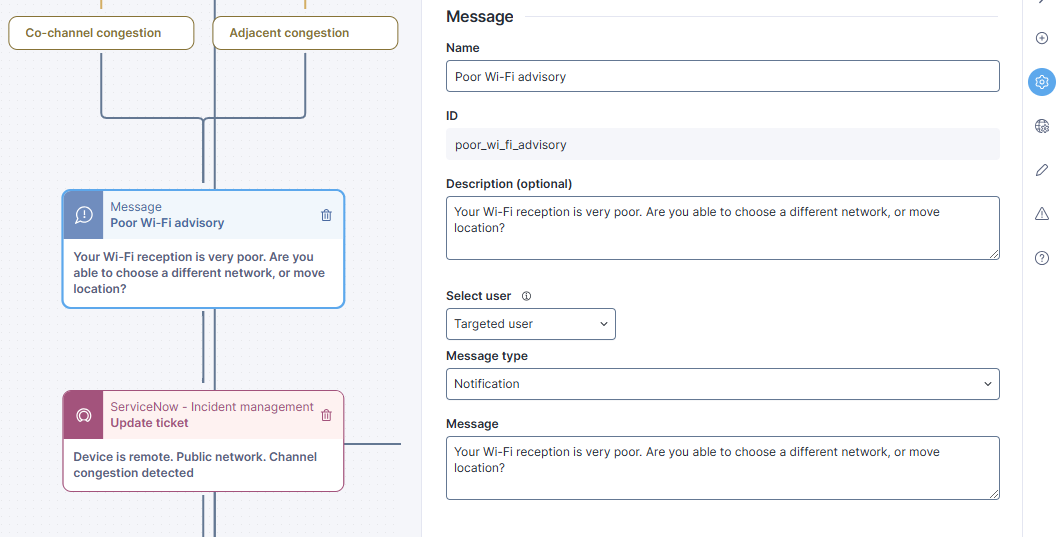
This workflow utilizes the Nexthink MS Teams application to send messages directly to the employee at various points in the process. This method fits in with employees work habits easily, and is quicker and less intrusive than the use of campaigns.\
Unlike campaigns, the wording and syntax of these messages is configured directly in the workflow. Nexthink recommends that these messages are reviewed for accuracy, and edited in line with corporate communication guidelines.

1. From the workflow, click on any 'Message' thinklet. The **Flow** sidebar will load with the thinklet details.
   <figure><img src="https://268444917-files.gitbook.io/~/files/v0/b/gitbook-x-prod.appspot.com/o/spaces%2FxJSUDk9NTtCHYPG5EWs3%2Fuploads%2Fgit-blob-edddf4ac49dfd7dd347f0cb6f67741c40f4f6fc7%2FMS%20Teams%20message.png?alt=media" alt=""><figcaption></figcaption></figure>
2. Review and edit the wording of the message. Save the changes when done.

### Step 5 - Configure ITSM API connector credentials <a href="#configurationguide-batteryreplacementscheduling-step2-configureitsmapiconnectorcredentials" id="configurationguide-batteryreplacementscheduling-step2-configureitsmapiconnectorcredentials"></a>

The configuration of [connector credentials](https://docs.nexthink.com/platform/integrations/outbound-connectors/connector-credentials) is essential for enabling API calls.

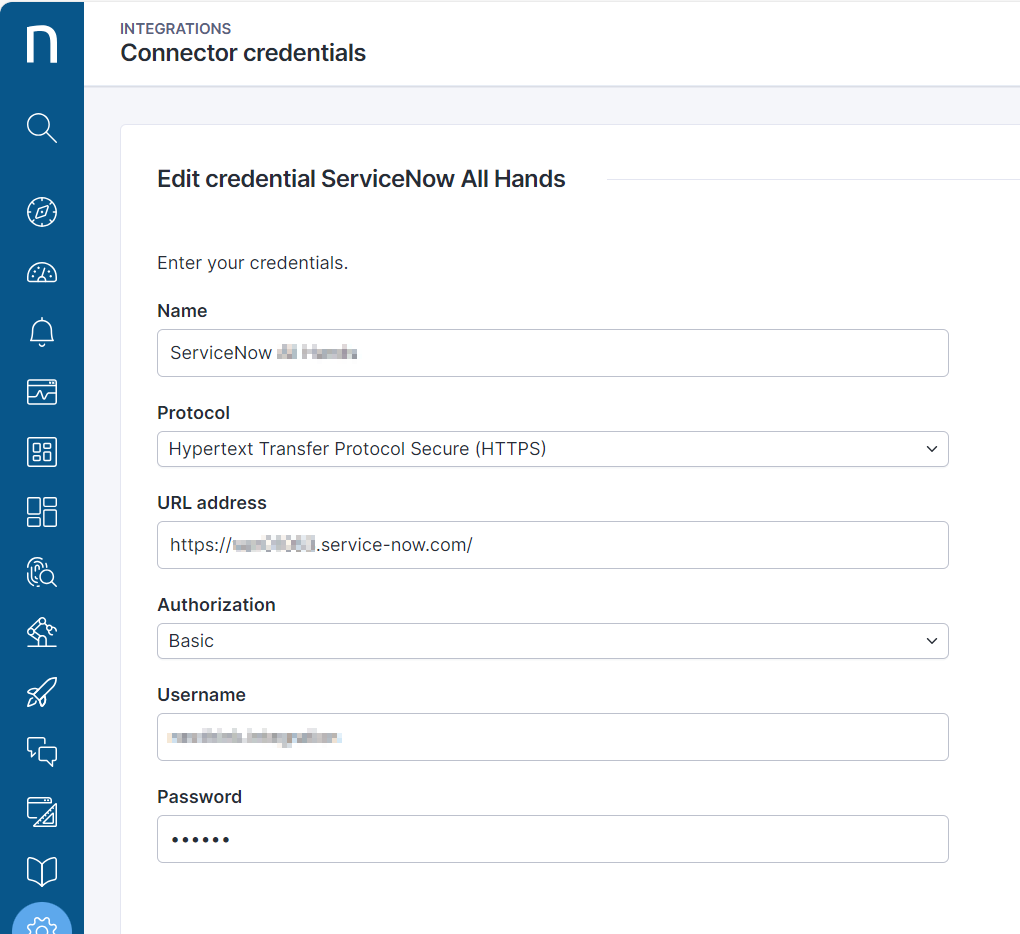
1. From the main menu, navigate to the **Administration** > [Connector credentials](https://docs.nexthink.com/platform/integrations/outbound-connectors/connector-credentials) page.
2. Choose the **HTTPS** option from the **Protocol** drop-down.
3. Paste the root `https://` of the ITSM into the **URL address** field.
4. Choose the **Basic** option from the **Authorization** drop-down.
5. Enter a **Username** and **Password** to connect to the third-party tool.
6. **Save** the credential.

<div data-full-width="true"><figure><img src="https://268444917-files.gitbook.io/~/files/v0/b/gitbook-x-prod.appspot.com/o/spaces%2FxJSUDk9NTtCHYPG5EWs3%2Fuploads%2Fgit-blob-7bc5e1898e0304f93b6e2963e951c3543d50f743%2Fconnector-credential.png?alt=media" alt="Connector credential.png" width="375"><figcaption></figcaption></figure></div>

After configuring the connector credential for the ITSM API:

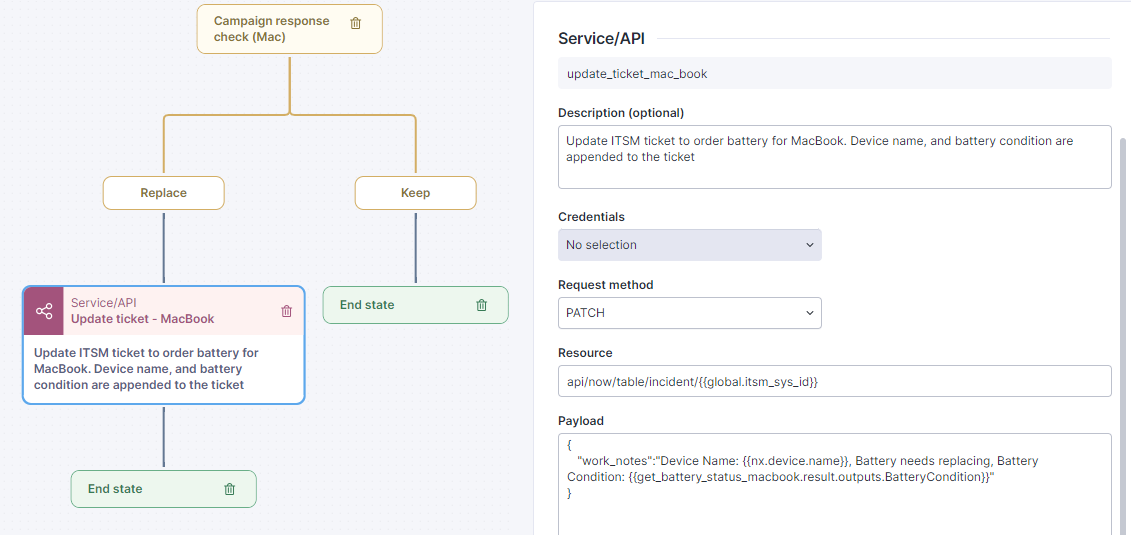
7. From the specific workflow, fill in each **Service/API** thinklet dropdown field for **Credentials**.
   * When the workflow is installed or copied from the Library, this field will be blank as it is a local setup of each environment and is not included in the Library.

<div data-full-width="true"><figure><img src="https://268444917-files.gitbook.io/~/files/v0/b/gitbook-x-prod.appspot.com/o/spaces%2FxJSUDk9NTtCHYPG5EWs3%2Fuploads%2Fgit-blob-90daae14368007cc94d46fe3224c401d495cfd5b%2Fimage-20240119-144723.png?alt=media" alt="image-20240119-144723.png" width="760"><figcaption></figcaption></figure></div>

### Step 6 - Configure global parameters in the workflow <a href="#configurationguide-batteryreplacementscheduling-step3-configureglobalparameters" id="configurationguide-batteryreplacementscheduling-step3-configureglobalparameters"></a>

There is one global parameter in this workflow:

* `Incident number`- the user friendly reference for an ITSM ticket created before running the workflow.

Before running the workflow, a ticket should be logged in ITSM for network connectivity issues. The ticket reference, the `Incident number` for ServiceNow, can then be added to the workflow as a global parameter.

The first step in the workflow is to use this `Incident number` to determine the `sys_id`of the ticket that was raised. This `sys_id` will then be used as the workflow progresses and work notes are appended to the ITSM ticket if problems are discovered, and whether or not they are fixed automatically.

***

RELATED TOPICS

* [Overview page: Connectivity assisted troubleshooting](https://docs.nexthink.com/platform/library-packs/network-and-connectivity/workflow-connectivity-assisted-troubleshooting/usage-guide-connectivity-assisted-troubleshooting)
* [Usage guide: Connectivity assisted troubleshooting](https://docs.nexthink.com/platform/library-packs/network-and-connectivity/workflow-connectivity-assisted-troubleshooting/usage-guide-connectivity-assisted-troubleshooting)
