> For the complete documentation index, see [llms.txt](https://docs.nexthink.com/platform/llms.txt). Markdown versions of documentation pages are available by appending `.md` to page URLs; this page is available as [Markdown](https://docs.nexthink.com/platform/user-guide/applications/setting-up-and-managing-applications/configuring-applications/configuring-web-applications/transactions.md).
# Configuring Transactions
{% hint style="info" %}
Nexthink allows configuring unlimited transactions per application, as long as the total number of transactions across all apps remains under 1000.
{% endhint %}
A transaction is an employee action or event in a web application that creates business value for the company. A service manager needs enough granularity to see if employees can efficiently perform specific actions on an application's web page.
The Nexthink web interface defines transactions by specifying start and end events:
* Start events are user-defined actions, such as clicking or keypressing on an element to which the action is applied to. For example, clicking on a save button.
* End events are page-defined elements that are added or changed. For example, a message or icon appears on the page, or on the contrary, an element disappears from the page.
Nexthink uses CSS selectors to define start and end elements on the application's web page.
***
### Configuring transactions for web applications
After [configuring the fields in the General tab](/platform/user-guide/applications/setting-up-and-managing-applications/configuring-applications/configuring-web-applications.md) of the web application configuration, proceed with the instructions on this page to configure the **Transactions** tab.
#### Adding a new transaction
To add a new transaction:
1. Select **Applications > Manage applications** from the main menu.
2. Click on a chosen application's name to access its configuration.
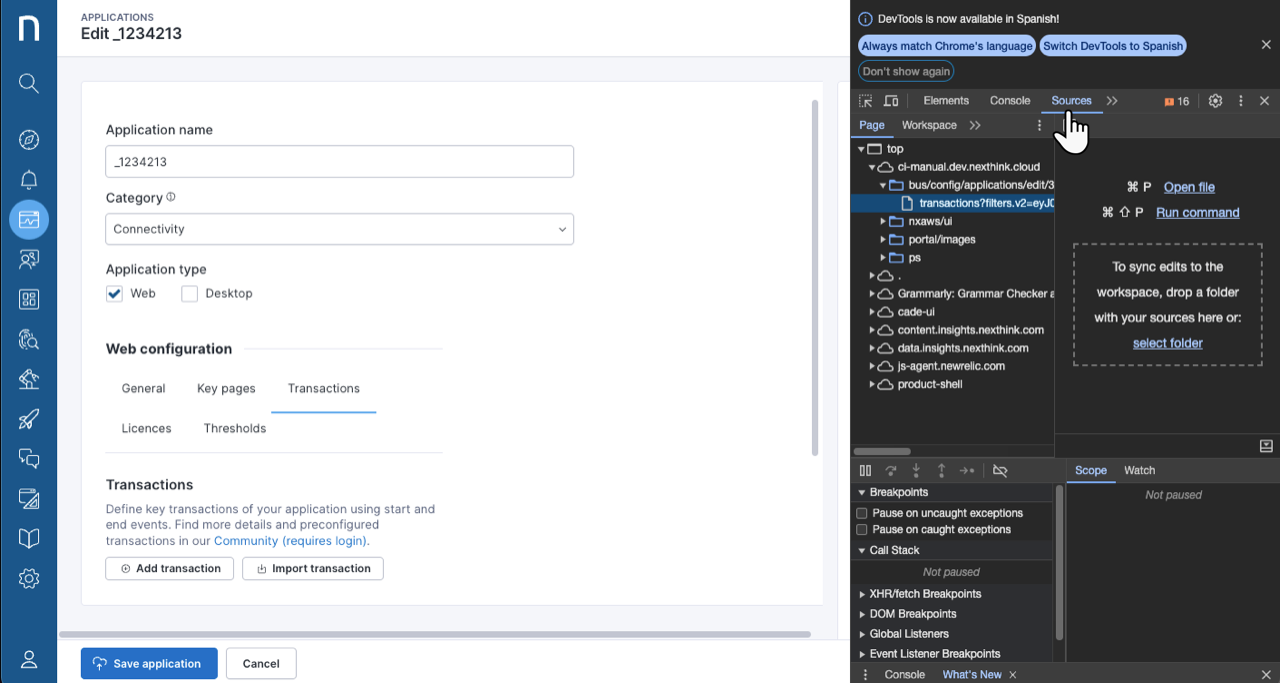
3. Click on the **Transactions** tab from the application's configuration page.
4. Click on the **Add transaction** button to open the **Add transaction** window.
From the **Add transaction** window, fill in the [Transaction start ](#transactions-definingthetransactionstarttransstart)and [Transaction end](#transactions-definingthetransactionendtransend) tabs.
#### Defining the Transaction start
From the **Add transaction** window, click on the **Transaction start** tab and fill in the fields.
Some applications contain elements that are always a part of the web page. These elements may become visible or invisible with changes to the CSS:
* The `visible` attribute of the element can change.
* The class name of the element can change dynamically.
* The element might be obscured by another element that includes an attribute or class that can change dynamically.
The following table displays the Transaction start fields and how to define them:
| Transaction start field | Description |
| ------------------------------------- | ---------------------------------------------------------------------------------------------------------------------------------------------------------------------------------------------------------------------------------------------------------------------------------------------------------------------------------------------------- |
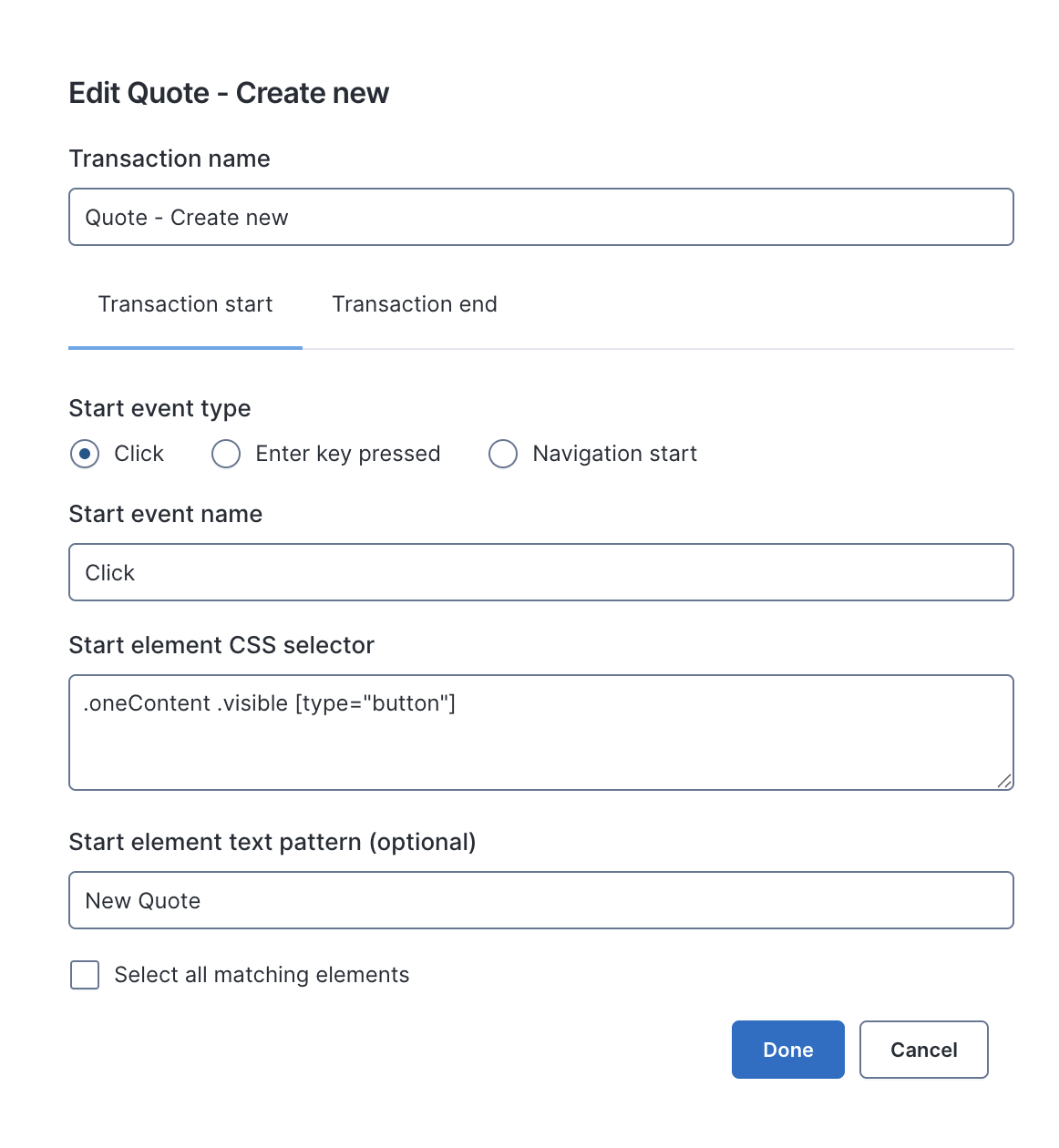
| Transaction name | Enter a meaningful name for the transaction. |
| Start event type |
Pick one of the options depending on how the user triggers the transaction.
A trigger can be clicking, pressing the return key on the keyboard or navigating to the page.
|
| Start event name |
Choose a name for the start element that is up to 100 characters long.
When writing the name, use the standard UTF-8 characters set.
Note that copying text from other sources might bring unsupported special characters.
|
| Start element CSS selector |
Paste the CSS selector of the page element used to trigger the transaction.
Refer to the CSS selectors section on this page.
|
| Start element text pattern (optional) |
In addition to the CSS selector, you can narrow down the start element using a text pattern.
Note that the text might exist in multiple languages for some applications.
Tick this box to select all elements matching the element id.
This can be useful, for instance, to trigger a transaction when a user clicks on any table row.
|
#### Defining the Transaction end
From the **Add transaction** window, click on the **Transaction end** tab and fill in the fields.
You can either choose to:
* Use automatic transaction end detection
* Untick the automatic option for filling in manual transaction end fields.
**Use automatic transaction end detection**
To simplify the process transaction end configuration, Nexthink Applications offers automatic detection. The system enables this feature by default:
* When you select this option, the rest of the configuration options collapse as they are no longer required.
* When editing an existing transaction end, you will lose the current configuration after ticking the checkbox and pressing **Done**.
Nexthink recommends backing up your existing transaction end configuration before proceeding with the automatic transaction end detection.
{% hint style="info" %}
For transactions with **automatic end detection**, Nexthink determines the end of the transaction using the same completion logic as soft navigations.
Refer to .
{% endhint %}
**Manual transaction end fields**
Unticking the automatic transaction end detection option opens the manual tranesaction end fields.
The following table displays the manual transaction end fields and how to define them:
| Manual transaction end field | Description |
| ----------------------------------- | -------------------------------------------------------------------------------------------------------------------------------------------------------------------------------------------------------------------------------------------------------------------------------------------------------------------------------------------------- |
| End event name | Choose a name for the start element using any standard safe character combination separated by a space, up to 100 characters long. |
| End event type |
Pick one of the options for the end of the transaction:
Element appears
Element disappears
Element CSS class added
Element CSS class removed
|
| End element CSS selector |
Paste the CSS selector of the page element used to end the transaction.
|
| Select all matching elements | Do not tick the box for this field as it is deprecated and to be removed from Nexthink web interface. |
| Check for new elements only |
Select this option for new elements that are generated with an existing element identifier after the transaction starts.
The system ignores the existing element already present and captures the transaction end.
|
#### Defining the CSS selector text pattern
The **Start/End element text pattern** field narrows an element selection further when the provided CSS selector matches multiple elements. This is particularly useful when targeting buttons or labels that share the same structure but differ by visible text.
**Example: Selecting the "New quote" Button**
Let’s walk through a basic example to illustrate the correct usage.
* The goal is to configure a transaction that starts when the user clicks the **New quote** button.
* Use the browser’s Inspect tool (or the Transaction Configuration tool) to find the element's CSS selector. In this example, assume the selector is **#button**.
* After checking whether this selector is unique on the page, you discover that it matches multiple buttons, and therefore, the selector alone is not sufficient to identify the exact element.
* To refine the match, use the **Start element text pattern** field; in this case, enter **New quote**.
This ensures the system identifies the specific button with the visible label **New quote** among other elements sharing the same CSS selector.
**Important Notes**
* The text pattern refers to the **visible text content** of the element.
* It is used **with the CSS selector**, not as a replacement.
* This feature is helpful for disambiguating elements with shared structure but unique labels.
{% hint style="info" %}
The selector used in this example is illustrative only. Actual selectors will vary depending on the application being configured.
{% endhint %}
#### Editing an existing transaction
Created transactions are listed under the **Transactions** tab on the application's configuration page:
1. Hover over an existing transaction to reveal the action menu.
2. Click on the **Edit transaction** option to open the Edit transaction windows.
3. Edits the transaction fields. Refer to [Defining the Transaction start](#transactions-definingthetransactionstarttransstart) and [Defining the Transaction end](#transactions-definingthetransactionendtransend).
4. Click **Done** to save changes.
***
### Importing and Exporting a transaction
Under the **Transactions** tab from the application's configuration page:
* To export a transaction, hover over an existing transaction to reveal the action menu.
* Click on the **Export transaction** option to export the transaction in a JSON file format.
* The file appears in your browser’s downloads folder.
* To import a transaction, click the **Import transaction** button to import a JSON-format transaction file.
***
### Setting CSS selectors for transactions
CSS selectors identify specific elements on web pages. It is crucial to use the appropriate selectors when setting up transactions.
Keep in mind these special considerations:
* Selectors can change when the application is updated or upgraded.
* Selectors can change when the page is reloaded.
* One selector can reference more than one element of the page.
To work around these issues, analyze the following points for each transaction start and end event:
* If the application is available in multiple languages, avoid selectors containing text.
* Avoid selectors containing randomly generated strings of characters.
* Reload the page to make sure that the selector still works after the page reloads.
* Explore all page elements to ensure that other elements might not be selected when the page is in a different configuration.
* For example, expanding a combo box or unveiling a hidden menu.
* Confirm that the selectors still work when the application gets updated or upgraded.
{% hint style="info" %}
If Nexthink fails to collect transactions after system maintenance, it may indicate the need for selector adjustment.
{% endhint %}
You can find the CCS selectors using the following options:
* [Nexthink browser extension ](#transactions-usingthenexthinkbrowserextensionbrowser)(recommended)
* [Browser's developer tools](#transactions-usingthechromedevelopertoolsdevtools)
* Nexthink Toolbox
#### Using Nexthink browser extension to identify & test transaction CSS selectors
{% hint style="info" %}
Refer to the Installing the Nexthink browser extension documentation.
{% endhint %}
The Nexthink browser extension lets you detect individual transactions for the monitored web application or domain. The extension significantly simplifies and facilitates the process of setting up transactions by allowing you to:
* Determine the CSS selector of the element of interest.
* Test the transaction configuration and verify the CSS selector works
* Export the transaction as a JSON file to import it to Nexthink.
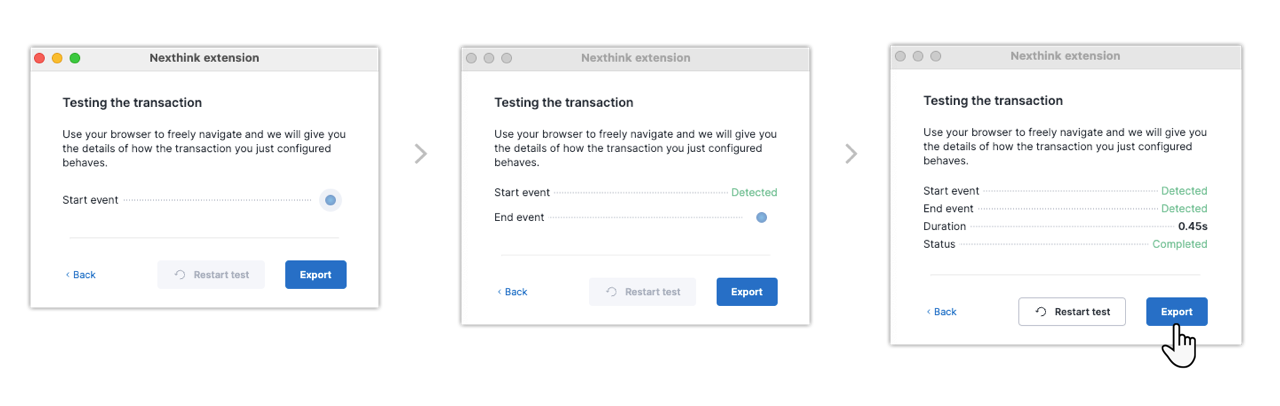
After installing and launching the Nexthink extension:
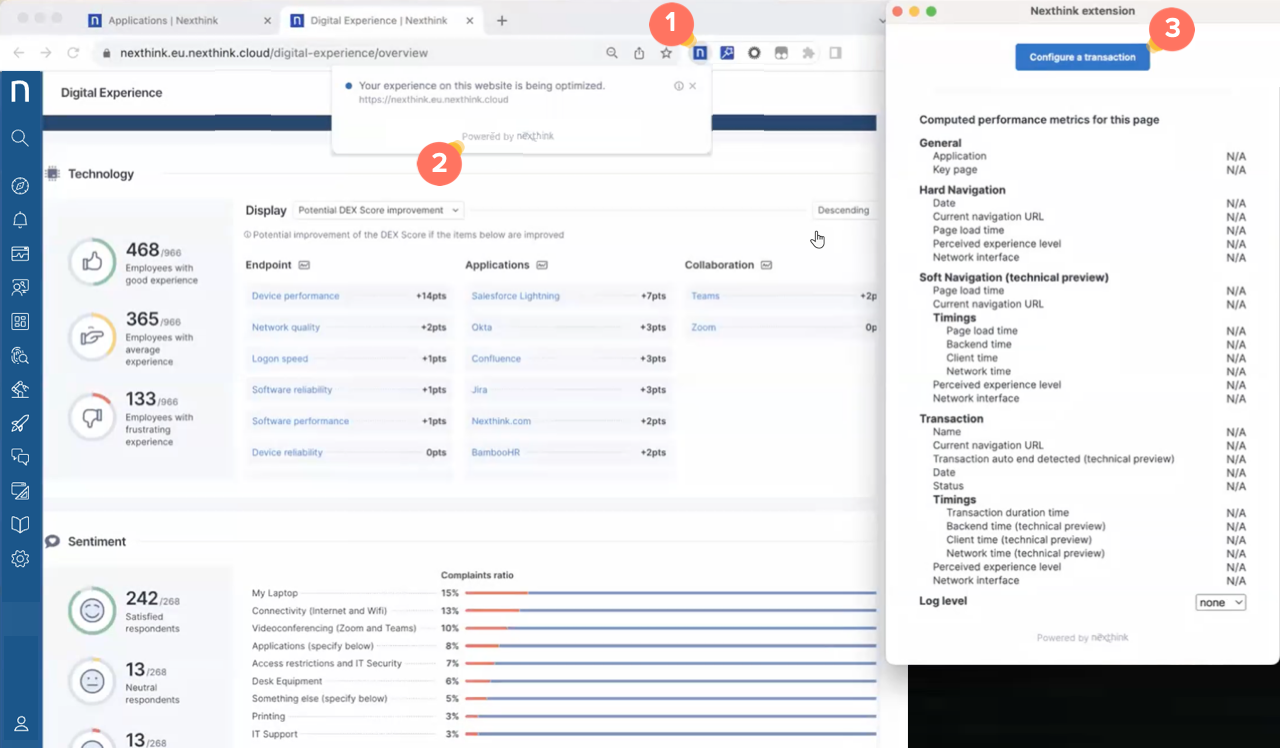
1. Locate and click on the extension in the browser toolbar.
2. Click on **Powered by Nexthink** five times in quick succession, to open the Nexthink extension window.
3. Click on the **Configure a transaction** button on the Nexthink extension window.
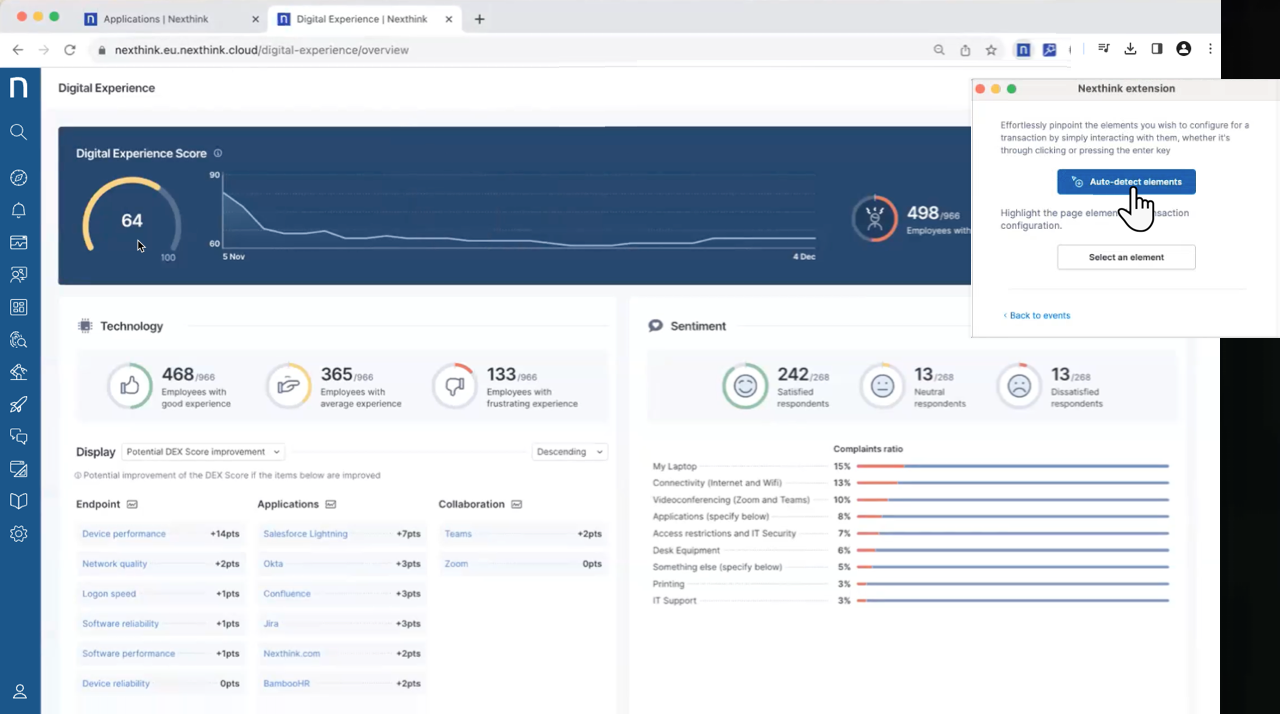
4. You can use the **auto-detect elements** mode and track the desired elements by clicking on them.
* All elements you interact with on the web application are displayed in the pop-up.
* Auto-detection of elements only works within monitored applications/websites.
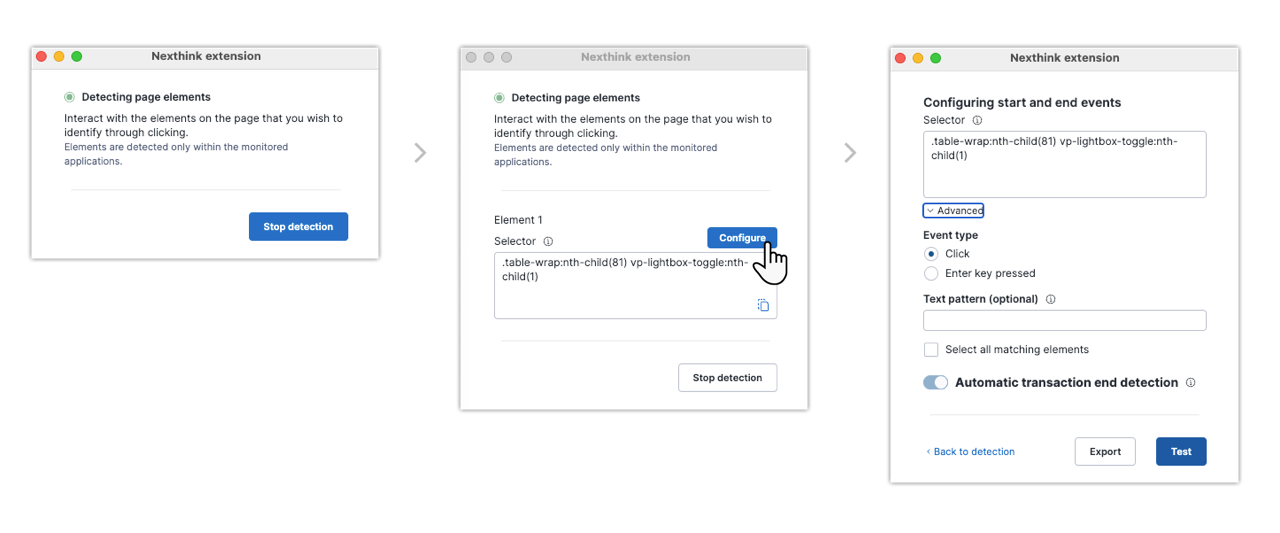
5. After auto-selecting the page elements, you can **Configure** the transaction directly from the Nexthink browser extension.
{% hint style="warning" %}
The extension's configuration feature can only be used with automatic detection.
{% endhint %}
6. Click the **Test** button to verify the transaction configuration captures user interaction correctly. If needed, you can **Restart test**.
7. Click the **Export** button to download a JSON file that you can [import](#transactions-importingandexportingatransactionimportexport) as a transaction into Nexthink.
**Using Nexthink browser extension to manually select an element**
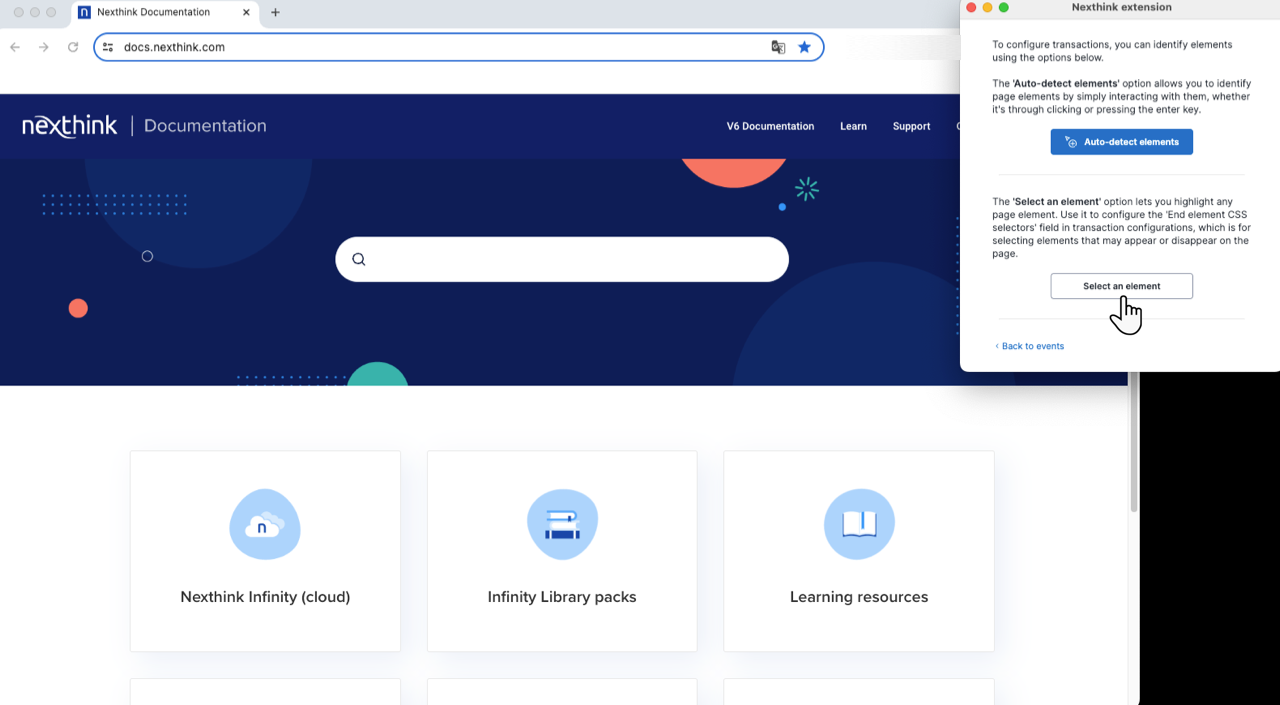
The Nexthink browser extension also offers manual element detection for advanced configuration scenarios requiring more precision to properly define an end element.
To cover these cases:
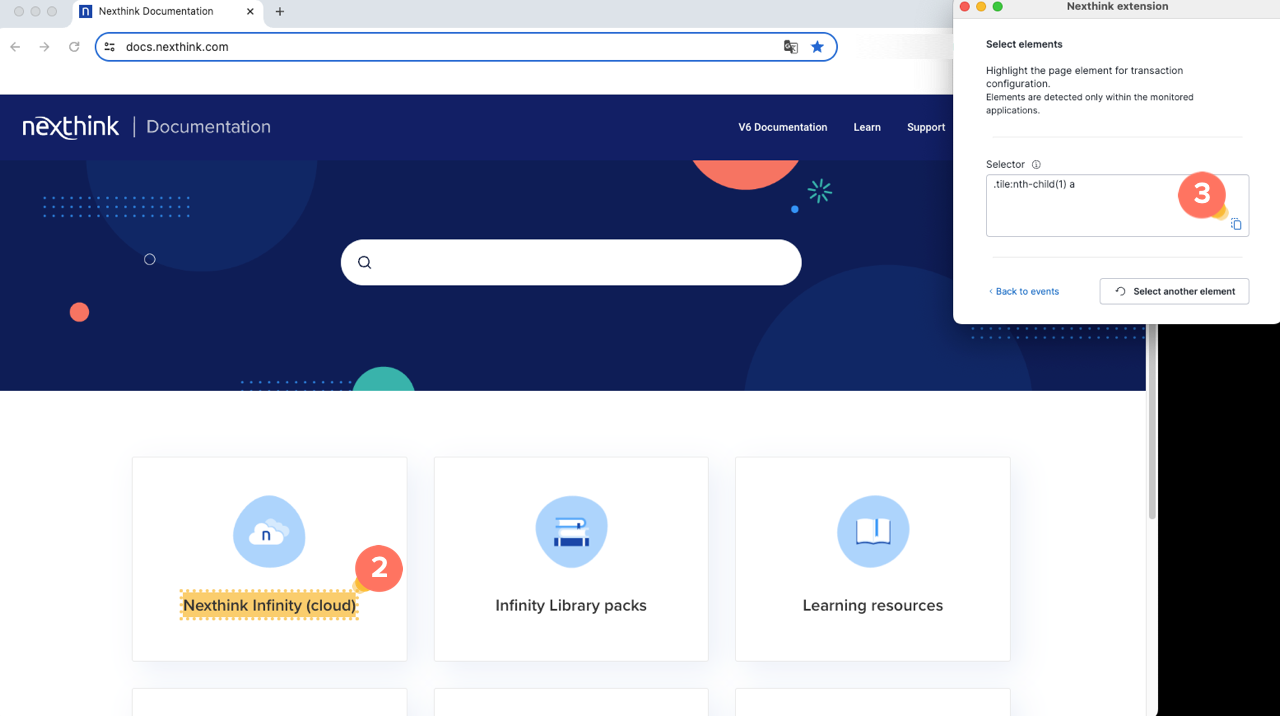
1. Click the **Select an element** button to enter a mode that allows you to select specific elements.
2. Manually click or interact with the desired element on the application's page.
3. Copy the element's **Selector** and use it to configure end elements in the Nexthink web interface.
{% hint style="warning" %}
Manual selection of elements only works within monitored applications/websites.
{% endhint %}
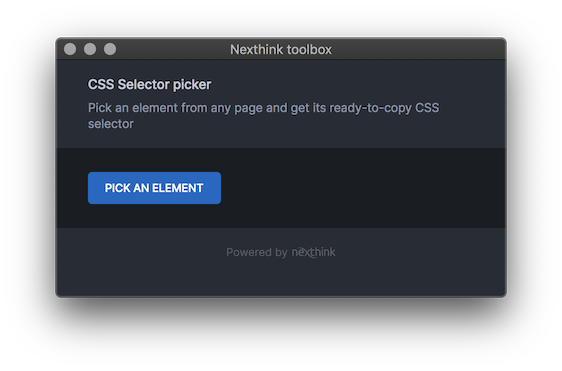
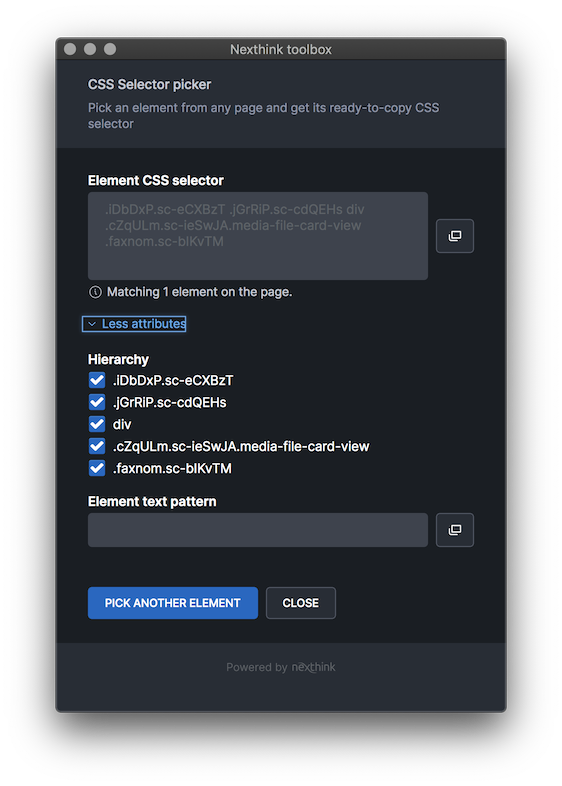
#### Using the Nexthink Toolbox extension to identify CSS selectors
{% hint style="warning" %}
Nexthink recommends [using the Nexthink browser extension](#transactions-usingthenexthinkbrowserextensionbrowser) to identify page elements.\
The Nexthink Toolbox is no longer supported and will soon be deprecated.
{% endhint %}
You can identify a CSS selector for a UI element of a webpage using the additional Toolbox extension provided by Nexthink through the Chrome Web Store on the [chrome.google.com](https://chromewebstore.google.com/detail/nexthink-toolbox/clndcckcfbeokfnejgamfbeginbmbkgk) website.
After installing and launching the Nexthink Toolbox:
1. Navigate to the page where you want to find a selector, then click on the extension.
2. Click the **Pick and element** button to initiate inspection mode.
3. Click on your area of interest on the web page, highlighted in light yellow, and automatically collect the CSS selectors you need.
#### Using the Chrome developer tools to identify CSS selectors
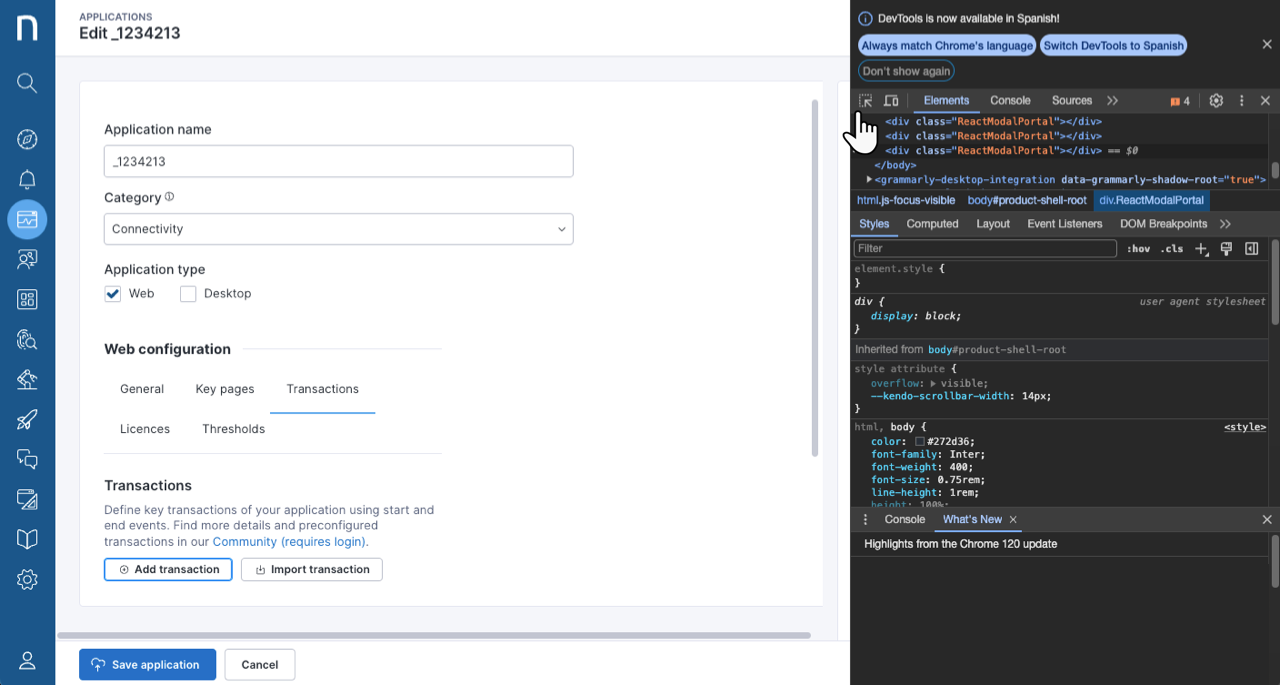
The Chrome developer tools are available with every installation, allowing you to locate the relevant CSS selectors.
1. Load the web page of interest and open the Chrome developer tools.
2. Right-click anywhere on the page and select the ‘Inspect' option from Chrome’s popup.
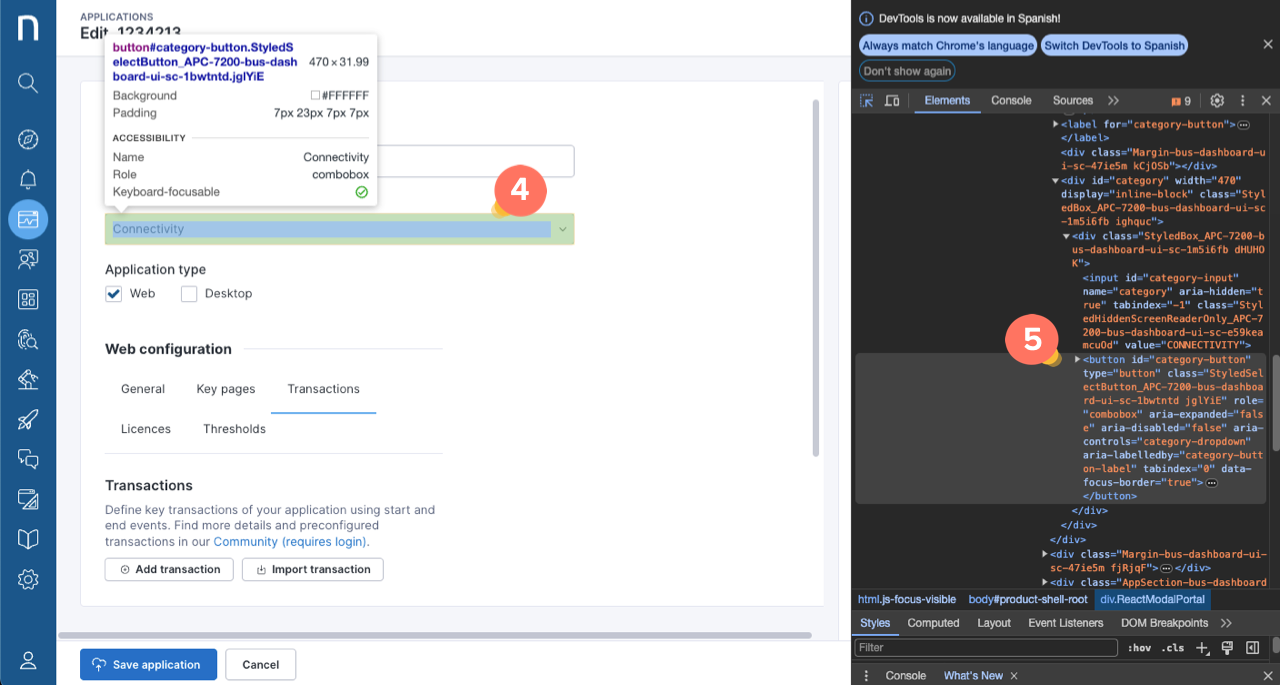
3. Click on the select icon.
4. Use your cursor to select a specific element on the webpage that triggers the functionality you are interested in monitoring.
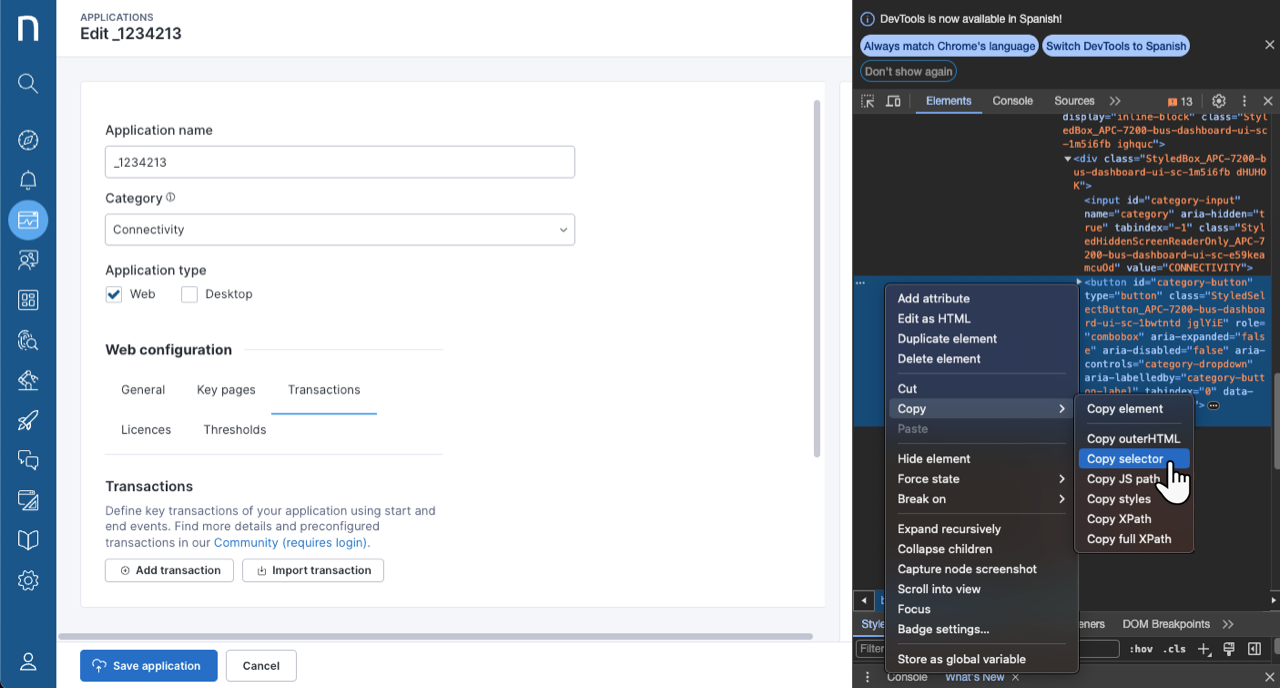
5. Right-click on the portion of code highlighted inside the developer tools side panel.
6. In the contextual menu, click on **Copy** > **Copy selector**.
**Finding temporary CSS selectors in Chrome**
You can also use Chrome’s developer tools to find CSS selectors of temporary elements.
1. Load the web page of interest and open the Chrome developer tools.
2. Right-click anywhere on the page and select the ‘Inspect' option from Chrome’s popup.
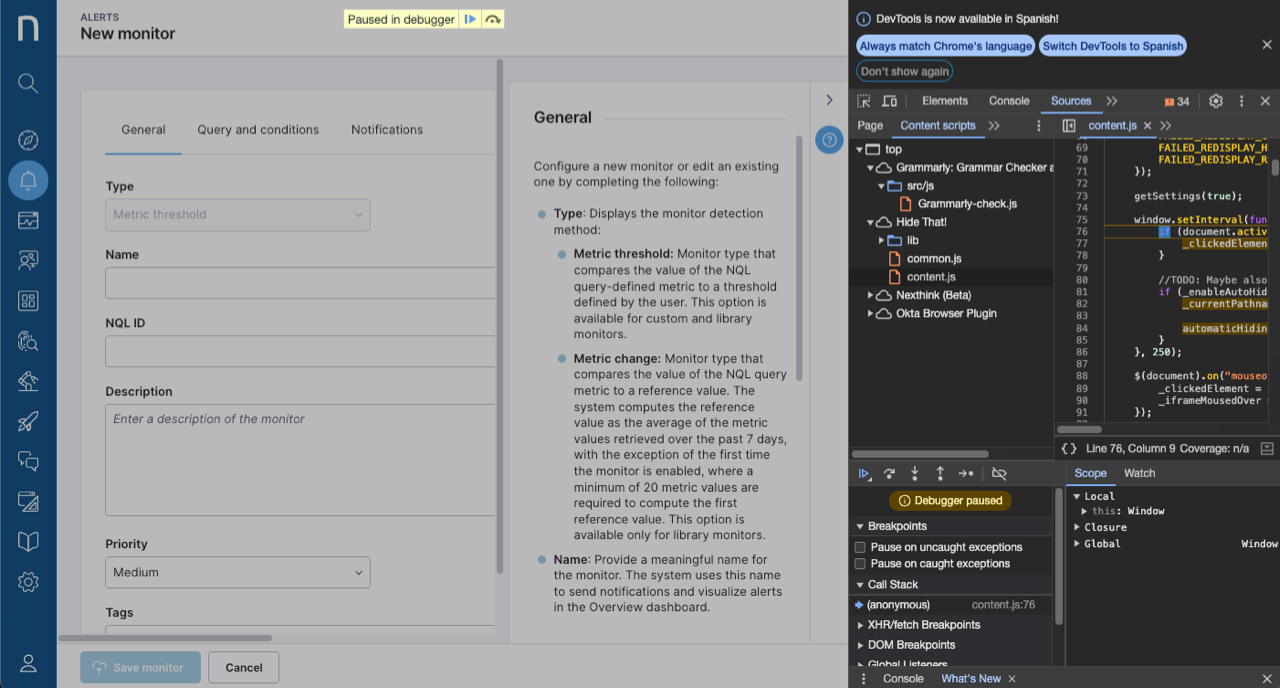
3. Switch to the **Sources** tab.
4. Trigger an action in the browser to get to the state you want to inspect.
5. Press F8 or fn+F8 for MacOS. This pauses the browser and the **Elements** tab does not update until you return to **Sources** and press F8 again.
5. While **Paused**, switch back to the Elements tab and use the standard inspection tools.
#### Transactions for nested and cross-origin iframes
Many critical business applications use iframes to embed external elements into their websites. Some of them use specific types called nested or cross-origin iframes.
You can identify iframes in code with the `` tag, for example: ``
* A nested iframe is an iframe that contains a page with another iframe.
* A cross-origin iframe contains content outside of a website's domain.
Configure transactions for applications that utilize nested and cross-origin iframes with the current process of configuring transactions.
### CSS selectors use case examples
These two scenarios exemplify how to define the CSS selector for different situations.
Scenario 1: A button in a menu bar that varies according to the user's preferences.
A button in the menu bar is not necessarily positioned similarly for all users, and its location might depend on specific user rights or preferences.
Solution: Use one attribute of the HTML elements, for example, `link`. Use the `\` character for any `"` in the attributes.
CSS selector example: `a[href=\"/lightning/o/Account/home\"]`
Scenario 2: A generic selector for many elements.
A generic selector for many elements is described with `nth child`.
Solution: Remove `nth child` from the selector.
From `#js-work-quickfilters > dd:nth-child(4) > a`
To `#js-work-quickfilters > dd > a`
***
RELATED TASKS
* [Configuring AHEAD](/platform/user-guide/applications/setting-up-and-managing-applications/configuring-applications/configuring-web-applications/configuring-ahead.md)
* [Configuring Key pages](/platform/user-guide/applications/setting-up-and-managing-applications/configuring-applications/configuring-web-applications/key-pages.md)
* [Setting application licenses](/platform/user-guide/applications/setting-up-and-managing-applications/configuring-applications/configuring-web-applications/application-licenses.md)
* [Setting application thresholds](/platform/user-guide/applications/setting-up-and-managing-applications/configuring-applications/configuring-web-applications/thresholds.md)
---
# Agent Instructions
This documentation is published with GitBook. GitBook is the documentation platform designed so that both humans and AI agents can read, navigate, and reason over technical content effectively. Learn more at gitbook.com.
## Querying This Documentation
If you need additional information that is not directly available in this page, you can query the documentation by asking a question.
Perform an HTTP GET request on the following URL with the `ask` and `goal` query parameters:
```
GET https://docs.nexthink.com/platform/user-guide/applications/setting-up-and-managing-applications/configuring-applications/configuring-web-applications/transactions.md?ask=&goal=
```
`ask` is the immediate question: it should be specific, self-contained, and written in natural language.
`goal` is what the user is ultimately trying to achieve, the reason they need the answer. Sharing it helps GitBook give you a better, more relevant answer. A goal is most helpful when it describes the outcome the user wants rather than restating the question. For example, with `ask=how do I create an API token`, a goal like `automate deployments from our CI pipeline` lets GitBook tailor the answer to that use case.
The response will contain a direct answer to the question and relevant excerpts and sources from the documentation.
Use this mechanism when the answer is not explicitly present in the current page, you need clarification or additional context, or you want to retrieve related documentation sections.