> For the complete documentation index, see [llms.txt](https://docs.nexthink.com/llms.txt). Markdown versions of documentation pages are available by appending `.md` to page URLs; this page is available as [Markdown](https://docs.nexthink.com/library-packs/collaboration-and-productivity-applications/workflow-call-quality-troubleshooting/usage-guide-call-quality-troubleshooting.md).
# Usage guide: Call Quality troubleshooting
{% hint style="warning" %}
This page outlines various ways to use the pack, including use case examples.
Administrators can refer to the [Configuration guide: Call quality troubleshooting](/library-packs/collaboration-and-productivity-applications/workflow-call-quality-troubleshooting/configuration-guide-call-quality-troubleshooting.md) to set up and customize the installed content.
{% endhint %}
The **Call quality troubleshooting** library pack enables EUC teams to:
* Identify network connection issues that could contribute to poor call quality and assist the user in resolving this.
* Identify outdated MS Teams or Zoom applications and update them automatically.
* Update the ITSM ticket as issues are identified and/or resolved.
In addition, this library pack offers preconfigured remote actions, self-healing, and campaigns to suggest self-help solutions for network connection issues.
## Library pack uses
{% hint style="info" %}
Jump to [Use cases](#use-cases) on this page to see relevant scenario applications.
{% endhint %}
Use the library pack content for the following purposes.
### **Visibility**
The **Call quality troubleshooting** [workflow](https://docs.nexthink.com/platform/user-guide/workflows) is the starting point of this library pack. It performs network checks on the device and provides self-help solutions via campaigns should an issue be detected. Depending on the collaboration tool, it performs troubleshooting steps, including application updates, if required.
{% hint style="info" %}
There are two parameters required for this workflow to function.
* **Incident number**: Normally, this workflow would be used in response to a service desk call or logged ticket reporting poor call quality. This is the reference of that ITSM ticket.
* **Collaboration tool**: This workflow will perform troubleshooting actions against either MS Teams or Zoom. This application needs to be identified when the workflow is launched.
{% endhint %}
## Use cases
In addition to the relevant use cases covered below, you may uncover other troubleshooting scenarios specific to your environment.
### **Identifying network connection issues**
A poor **network connection** could be a contributing factor to call quality issues.
The first step in the workflow takes user user-friendly workflow parameter of `Incident number` and uses it to retrieve the `sys_id` of the ticket from ServiceNow. This `sys_id` will be used throughout the workflow to update the ticket that was originally logged.
1. Check the device location. The actions taken after the next step will differ if the device is on-site or remote.
2. The remote action “Get network speed" is run on the device and the “TimesExternalURLAboveWebRTTThreshold" output is checked.
* The network speed is considered "Good" if this threshold has not been breached.
* If this threshold has been breached more than once, the network speed can be considered "Bad".
3. If the network speed is considered good, the workflow checks the parameter `Collaboration tool`, and will now either [troubleshoot MS teams client issues](#troubleshoot-ms-teams-client-issues), or [troubleshoot Zoom client issues](#troubleshoot-zoom-client-issues). If the network speed is slow, the workflow will branch depending on location and network connection type.
4. On-site devices:
* In the unlikely event that the device is on-site and connected via an ethernet cable with a poor network connection, there is little that the user can do except change desks. The ITSM ticket is updated and the workflow continues.
* If the device is on-site and connected to a poor Wi-Fi network, they will receive a campaign advising them to move closer to the router. The ITSM ticket is updated and the workflow continues.
5. In the case of remote devices:
* For remote devices connected via ethernet, we can assume that the user is either at home or in a hotel room. They will receive a campaign asking them to turn off their internet router for 30 seconds. They will have the option to confirm or indicate that they do not have access to this router. For both choices, the ITSM ticket is updated, and the workflow continues.
* For remote devices connected via Wi-Fi the user will receive a standard "Wi-Fi self help" campaign with several suggestions to improve Wi-Fi reception. The ITSM ticket is updated and the workflow continues.
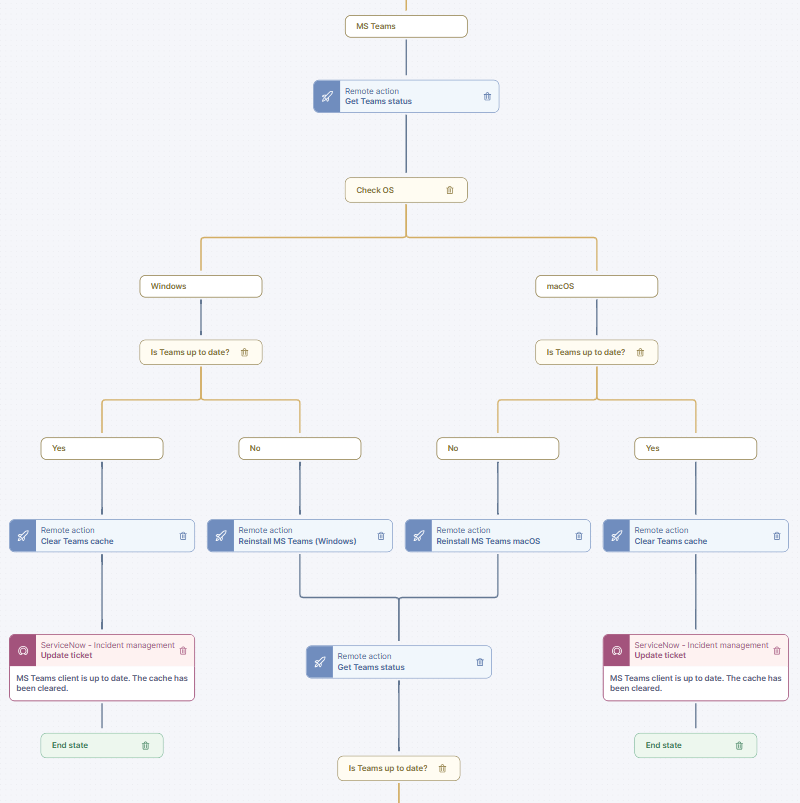
### Troubleshoot MS Teams client issues
1. Check Teams or Zoom - The workflow checks the parameter `Collaboration tool`, and will branch accordingly.
1. The remote action "Get Microsoft Teams client status" is run on the device.
2. The operating system of the device is checked and the workflow will branch. Both branches operate the same, it is just the OS-specific remote action that will differ.
3. The remote action output "MonthsSinceLastUpdate" is checked.
* If MS Teams is up to date, the remote action "Clear Teams cache" is run on the device. The ITSM ticket is updated and the workflow terminates.
* If MS Teams needs to be updated, the remote action "Reinstall MS Teams" is run on the device.
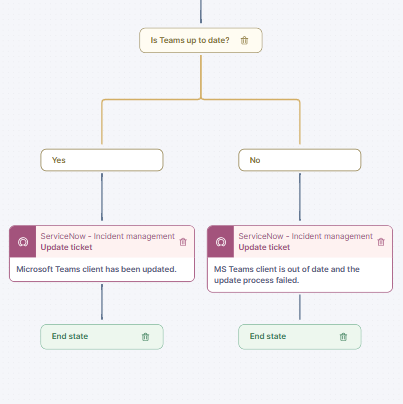
5. The remote action "Get Microsoft Teams client status" is run on the device again and the "output "MonthsSinceLastUpdate" is checked.
* If MS Teams is now up to date, the ITSM ticket is updated with the note 'Microsoft Teams client has been updated' and the workflow terminates.
* If MS Teams is still out of date, the ITSM ticket is updated with the note 'MS Teams client is out of date and the update process failed' and the workflow terminates.
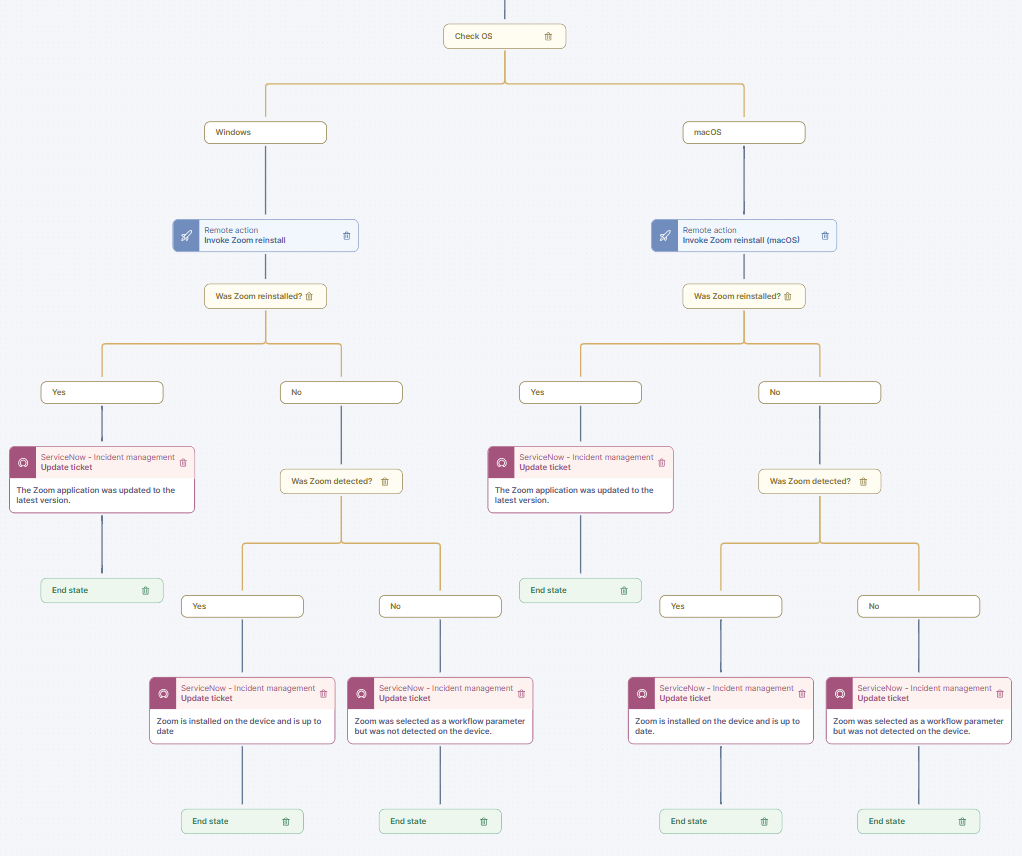
### Troubleshoot Zoom client issues
1. The operating system of the device is checked and the workflow will branch. Both branches operate the same, it is just the OS-specific remote action that will differ.
2. The remote action "Invoke Zoom reinstall" is run on the device. It has a parameter for "ZoomRequiredVersion."
3. If Zoom is installed on the device, and the version installed is lower than the required version, Zoom will be updated.
4. The workflow will check whether Zoom was re-installed.
* If it is, the ITSM ticket will be updated with the note 'The Zoom application was updated to the latest version,' and the workflow will terminate.
* If not, the workflow continues.
5. The workflow will now check the remote action output to determine if Zoom is installed on the device.
* If yes, the ITSM ticket is updated with the note 'Zoom is installed on the device and is up to date', and the workflow terminates.
* If no, the ITSM ticket is updated with the note 'Zoom was selected as a workflow parameter but was not detected on the device' and the workflow terminates.
RELATED TOPICS
* [Manage live dashboards](https://nexthink.gitbook.io/opd/user-guide/live-dashboards/managing-live-dashboards)
* [Manage remote actions](https://nexthink.gitbook.io/opd/user-guide/remote-actions/managing-remote-actions)
* [Manage campaigns](https://nexthink.gitbook.io/opd/user-guide/campaigns/managing-campaigns)
* [Manage workflows](https://nexthink.gitbook.io/opd/user-guide/workflows/managing-workflows)
* [Manage custom fields](https://nexthink.gitbook.io/opd/user-guide/administration/content-management/custom-fields-management)
* [Manage ratings](https://nexthink.gitbook.io/opd/user-guide/administration/content-management/ratings-management)
* [Manage custom trends](https://nexthink.gitbook.io/opd/user-guide/administration/content-management/custom-trends-management)
* [Manage applications](https://nexthink.gitbook.io/opd/user-guide/applications/managing-applications)
* [Manage software metering rules](https://nexthink.gitbook.io/opd/user-guide/software-metering/managing-software-metering)
* [Configuration guide: Call quality troubleshooting](/library-packs/collaboration-and-productivity-applications/workflow-call-quality-troubleshooting/configuration-guide-call-quality-troubleshooting.md)
---
# Agent Instructions
This documentation is published with GitBook. GitBook is the documentation platform designed so that both humans and AI agents can read, navigate, and reason over technical content effectively. Learn more at gitbook.com.
## Querying This Documentation
If you need additional information that is not directly available in this page, you can query the documentation by asking a question.
Perform an HTTP GET request on the following URL with the `ask` and `goal` query parameters:
```
GET https://docs.nexthink.com/library-packs/collaboration-and-productivity-applications/workflow-call-quality-troubleshooting/usage-guide-call-quality-troubleshooting.md?ask=&goal=
```
`ask` is the immediate question: it should be specific, self-contained, and written in natural language.
`goal` is what the user is ultimately trying to achieve, the reason they need the answer. Sharing it helps GitBook give you a better, more relevant answer. A goal is most helpful when it describes the outcome the user wants rather than restating the question. For example, with `ask=how do I create an API token`, a goal like `automate deployments from our CI pipeline` lets GitBook tailor the answer to that use case.
The response will contain a direct answer to the question and relevant excerpts and sources from the documentation.
Use this mechanism when the answer is not explicitly present in the current page, you need clarification or additional context, or you want to retrieve related documentation sections.