> For the complete documentation index, see [llms.txt](https://docs.nexthink.com/platform/llms.txt). Markdown versions of documentation pages are available by appending `.md` to page URLs; this page is available as [Markdown](https://docs.nexthink.com/platform/library-packs/security-and-compliance/intune-alerting/usage-guide-intune-alerting.md).
# Usage guide: Intune alerting
Track the status, health and compliance of Intune managed devices
{% hint style="warning" %}
This page outlines various ways to use the pack, including use case examples.
Administrators can refer to the [Configuration guide: Intune alerting](/platform/library-packs/security-and-compliance/intune-alerting/configuration-guide-intune-alerting.md) to set up and customize the installed content.
{% endhint %}
The **Intune alerting** library pack enables EUC teams to:
* Track an increase in device non-compliance automatically without using the Intune portal.
* Monitor Intune to check for policy application issues or failed application deployments.
## Library pack uses
{% hint style="info" %}
Jump to [Use cases](#use-cases) on this page to see relevant scenario applications.
{% endhint %}
Use the library pack content for the following purposes.
* Measure spikes in device non-compliance.
* Be alerted to an excessive number of sync failures.
* Be alerted to an excessive number of policy failures.
* Measure spikes in failing application deployment.
## Visibility
Alerts created by these Intune monitors will be visible in two ways:
* Generated alerts appear in the [Alerts overview dashboard](https://docs.nexthink.com/platform/user-guide/alerts-and-diagnostics/responding-to-alerts/alerts-overview#alertsoverview-accessingthealertsoverviewpage).
* If configured, generated alerts are sent via [email notification](https://docs.nexthink.com/platform/user-guide/alerts-and-diagnostics/managing-alerts/configuring-email-and-webhook-notifications-for-alerts#configuringemailandwebhooknotificationsforalerts-emailnotifications).
## Use cases
In addition to the relevant use cases covered below, you may uncover other troubleshooting scenarios specific to your environment.
### Track unintended policy application errors
These monitors are intended to run in the background and only activate an alert when an unexpected change occurs on multiple devices running Intune. This could be due to a simple mistake when applying a policy or a small planned change to a policy having unintended consequences.
To achieve this:
1. Schedule the three remote actions included with this pack to run daily.
2. Check and configure the thresholds for the monitors to ensure they will only trigger alerts when certain minimum conditions are met.
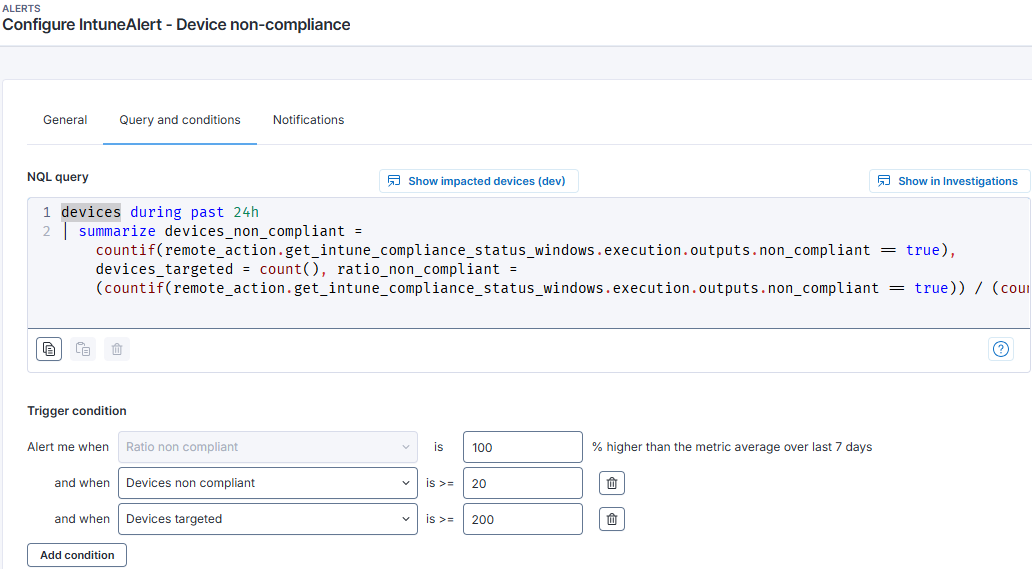
In this example, three conditions must be met for an alert to be generated:
* The ratio of non-compliant devices must be 100% higher than the 7-day average
* The number of non-compliant devices must be at least 20
* The minimum number of devices targeted by the remote action must be 200
### Track planned policy updates or application rollouts
#### Policy updates
If a significant Intune policy change is planned, the monitors can be used to give you advance warning of any issues:
1. Schedule the remote actions 'Get Intune device non-compliance' and 'Get Intune synchronization failures' to run more frequently (the monitors will execute every 3 hours).
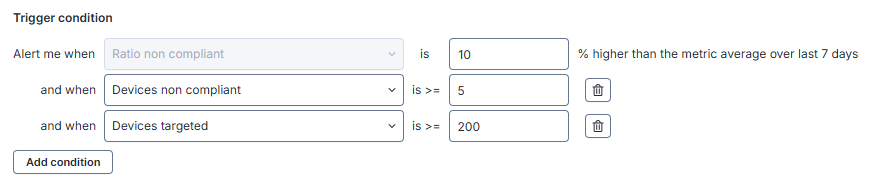
2. Temporarily lower the thresholds for the monitors 'IntuneAlert—Device non-compliance' and 'Intune alert—Policy failures.'
3. Activate the policy change in Intune.
4. Check the Alerts Overview page or the email account configured to receive alerts.
5. Triggered alerts will signal any marked increase in the number of non-compliant devices or devices with policy errors.
#### Application rollouts
To track issues with a planned application deployment, follow these steps:
1. Schedule the remote action 'Get Intune failed app deployments' to run more frequently (the monitors will execute every 3 hours).
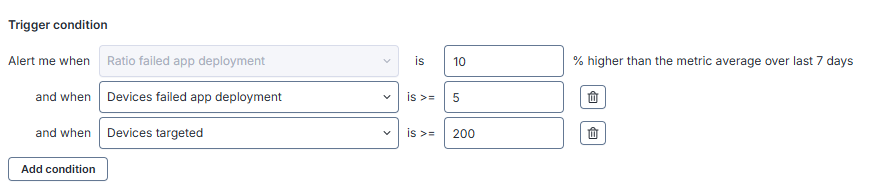
2. Temporarily lower the thresholds for the monitor 'IntuneAlert - Failed app deployments.'
3. Activate the policy change in Intune to deliver the application to target devices.
4. Check the Alerts Overview page or the email account configured to receive alerts.
5. Any marked increase in the number of failed application deployments will be signaled by triggered alerts.
RELATED TOPICS
* [Manage alerts](https://docs.nexthink.com/platform/user-guide/alerts-and-diagnostics/managing-alerts)
* [Manage remote actions](https://nexthink.gitbook.io/opd/user-guide/remote-actions/managing-remote-actions)
* [Configuration guide: Intune alerting](/platform/library-packs/security-and-compliance/intune-alerting/configuration-guide-intune-alerting.md)
---
# Agent Instructions
This documentation is published with GitBook. GitBook is the documentation platform designed so that both humans and AI agents can read, navigate, and reason over technical content effectively. Learn more at gitbook.com.
## Querying This Documentation
If you need additional information that is not directly available in this page, you can query the documentation by asking a question.
Perform an HTTP GET request on the following URL with the `ask` and `goal` query parameters:
```
GET https://docs.nexthink.com/platform/library-packs/security-and-compliance/intune-alerting/usage-guide-intune-alerting.md?ask=&goal=
```
`ask` is the immediate question: it should be specific, self-contained, and written in natural language.
`goal` is what the user is ultimately trying to achieve, the reason they need the answer. Sharing it helps GitBook give you a better, more relevant answer. A goal is most helpful when it describes the outcome the user wants rather than restating the question. For example, with `ask=how do I create an API token`, a goal like `automate deployments from our CI pipeline` lets GitBook tailor the answer to that use case.
The response will contain a direct answer to the question and relevant excerpts and sources from the documentation.
Use this mechanism when the answer is not explicitly present in the current page, you need clarification or additional context, or you want to retrieve related documentation sections.