> For the complete documentation index, see [llms.txt](https://docs.nexthink.com/platform/llms.txt). Markdown versions of documentation pages are available by appending `.md` to page URLs; this page is available as [Markdown](https://docs.nexthink.com/platform/user-guide/applications/setting-up-and-managing-applications/managing-applications.md).
# Managing applications
Your Nexthink Lead can identify the scope of applications that require configuration for your organization. Nexthink Leads are best positioned to play a product ambassador role and get application owners appropriately engaged in the process, maximizing the value received from Applications.
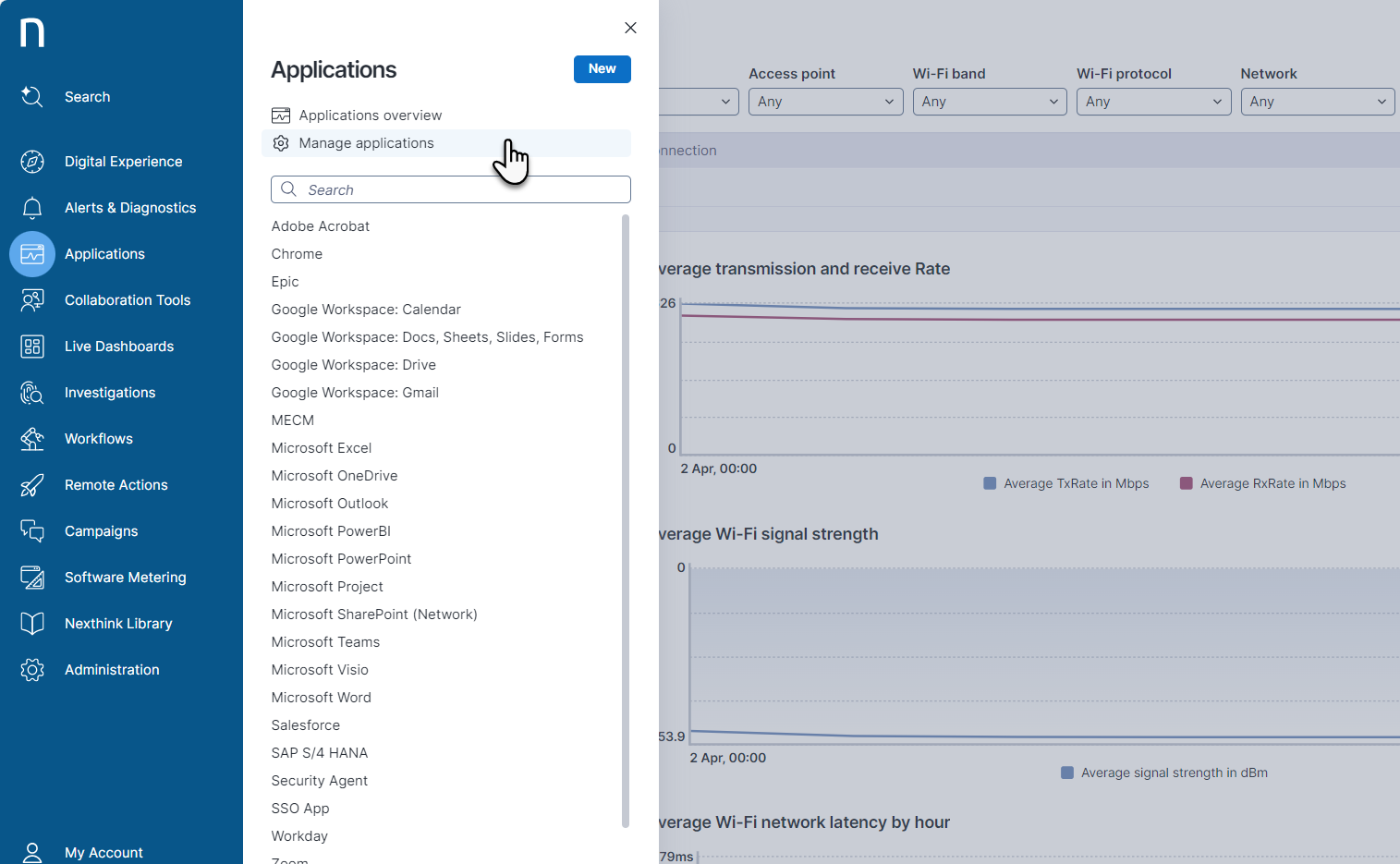
### Accessing the Manage applications page
From the navigation menu, select **Applications** > **Manage applications** to open the administration page for all existing applications.
### Managing applications
The **Applications** > **Manage applications** page contains:
* The [Applications tab](#managingapplications-applicationstab) to list and manage configured applications.
* The [Settings tabs ](#managingapplications-browserextension)to customize privacy and Nexthink browser extension configurations for monitored applications.
#### Managing configured applications
{% hint style="info" %}
Refer to [Configuring applications](/platform/user-guide/applications/setting-up-and-managing-applications/configuring-applications.md) to set up new applications or edit existing application settings.
{% endhint %}
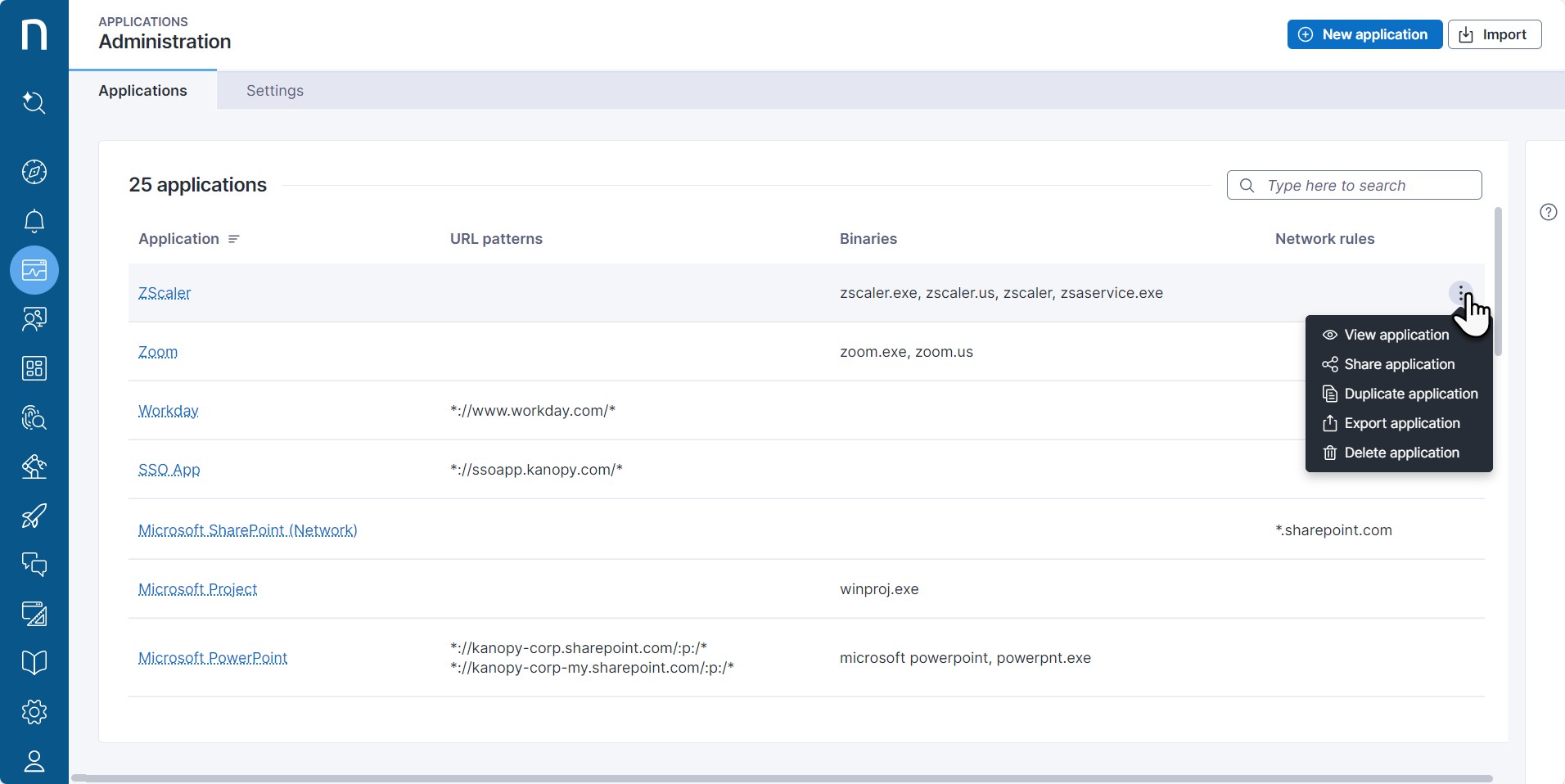
The **Applications** tab on the **Manage Applications** page displays all configured applications for Nexthink monitoring, including application-specific fields: **URL patterns**, **Binaries**, and **Network rules**.
From the **Manage applications** > **Applications** tab, you can:
* Search and filter all configured applications.
* Click on an application hyperlink from the **Applications** table to access and/or edit its [configuration](/platform/user-guide/applications/setting-up-and-managing-applications/configuring-applications.md).
* Hover over an existing application to reveal the action menu on the right side to:
* **View application** [dashboards](/platform/user-guide/applications/monitoring-applications.md)
* **Share application**
* Sharing an application allows selected user roles to view and edit the application in the Applications menu. This setting does not affect data users can access through NQL.
* To share applications you must have 'Edit all applications' permissions.
* **Duplicate application**
* **Export application**
* **Delete application**
* **Import** a new application configuration in a JSON file format—from the top-right corner of the page.
* Create a **New application** to set up its monitoring configurations—from the top-right corner of the page.
**Applications installed from Library**
{% hint style="info" %}
Applications installed from Library also appear on the **Manage applications** page. To make them operational, update the URL patterns of these Library application configurations.
{% endhint %}
Nexthink offers a set of applications you can manually install from Nexthink Library. Go to the Nexthink Library module within your Nexthink instance to install, manage, and update predefined applications.
Refer to the [Nexthink Library](https://docs.nexthink.com/platform/user-guide/nexthink-library) documentation for more information.
#### Customizing privacy and Nexthink browser extension settings for monitored apps
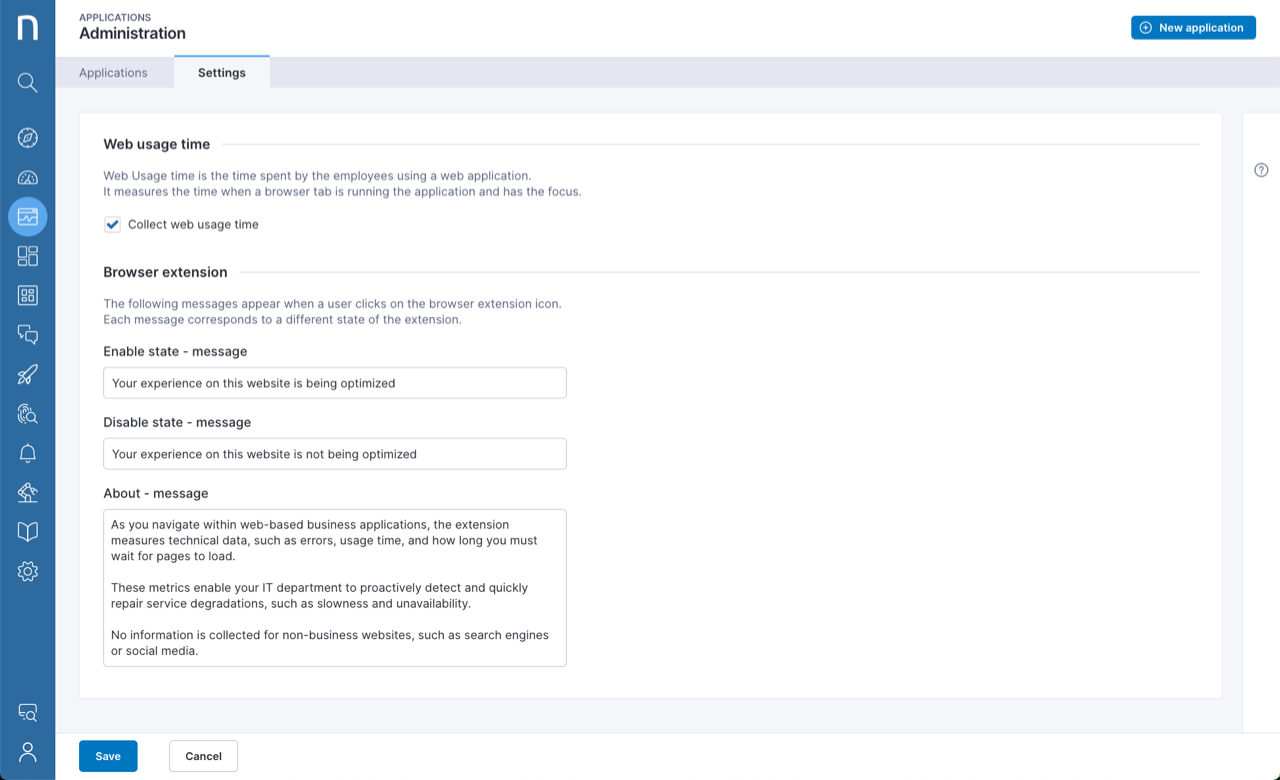
The **Settings** tab on the **Manage Applications** page allows you to:
* Enable [data collection for web applications](#managingapplications-collectusagetimeforwebapplications)
* Customize the [Nexthink browser extension messaging ](#managingapplications-browserextension)visible to employees.
**Collecting usage time for web applications**
Usage time refers to the time employees spend using a web application. It measures the duration when a browser tab is running the application and has the focus. This is the default option and applies to all applications.
From the **Manage Applications > Settings** tab, disable the default monitoring of **Web usage time** to:
* Stop data collection at the endpoint.
* Remove the **Adoption** dashboard from all monitored applications.
**Customizing Nexthink browser extension visible messaging for configured applications**
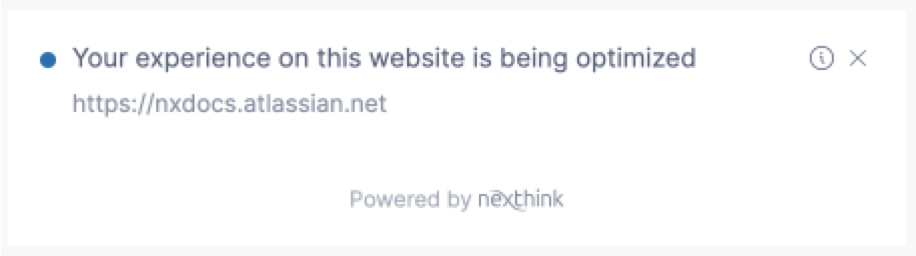
Customize the messages employees see when they click on the Nexthink browser extension.
From the **Manage Applications > Settings** tab, customize the **Browser extension** message fields:
* **Enable state - message**: this is the message an employee sees when they are visiting a site that is monitored by the browser extension.
* **Disable state - message**: this is the message an employee sees when visiting a site that is not monitored by the extension.
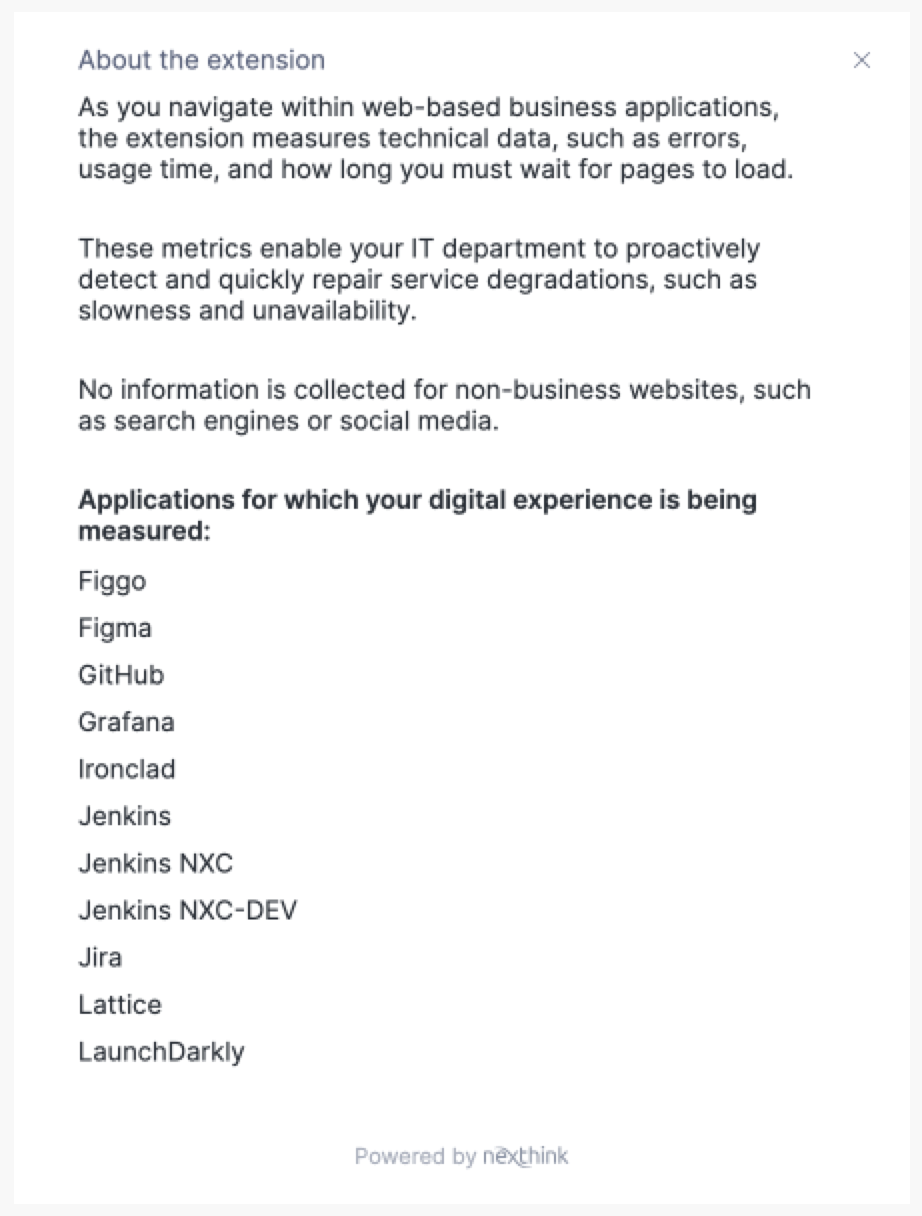
* **About - message**: this message appears when an employee clicks on the information icon. It contains information about the browser extension and is followed by a list of business web applications that are being monitored.
***
RELATED TOPICS
* [Monitoring applications](/platform/user-guide/applications/monitoring-applications.md)
* [Configuring applications](/platform/user-guide/applications/setting-up-and-managing-applications/configuring-applications.md)
---
# Agent Instructions
This documentation is published with GitBook. GitBook is the documentation platform designed so that both humans and AI agents can read, navigate, and reason over technical content effectively. Learn more at gitbook.com.
## Querying This Documentation
If you need additional information that is not directly available in this page, you can query the documentation by asking a question.
Perform an HTTP GET request on the following URL with the `ask` and `goal` query parameters:
```
GET https://docs.nexthink.com/platform/user-guide/applications/setting-up-and-managing-applications/managing-applications.md?ask=&goal=
```
`ask` is the immediate question: it should be specific, self-contained, and written in natural language.
`goal` is what the user is ultimately trying to achieve, the reason they need the answer. Sharing it helps GitBook give you a better, more relevant answer. A goal is most helpful when it describes the outcome the user wants rather than restating the question. For example, with `ask=how do I create an API token`, a goal like `automate deployments from our CI pipeline` lets GitBook tailor the answer to that use case.
The response will contain a direct answer to the question and relevant excerpts and sources from the documentation.
Use this mechanism when the answer is not explicitly present in the current page, you need clarification or additional context, or you want to retrieve related documentation sections.