> For the complete documentation index, see [llms.txt](https://docs.nexthink.com/platform/llms.txt). Markdown versions of documentation pages are available by appending `.md` to page URLs; this page is available as [Markdown](https://docs.nexthink.com/platform/library-packs/vdi/microsoft/windows-365-essentials/usage-guide-windows-365-essentials.md).
# Usage guide: Windows 365 essentials
{% hint style="warning" %}
This page outlines various ways to use the pack, including use case examples.
Nexthink administrators can refer to the [Configuration guide: Windows 365 essentials](/platform/library-packs/vdi/microsoft/windows-365-essentials/configuration-guide-windows-365-essentials.md) to set up and customize the installed content.
{% endhint %}
The Windows 365 essentials library pack provides EUC teams with:
* A Windows 365 Cloud PC monitoring dashboard that provides a centralized view of Cloud PC health, availability, reboot status, performance, and connection experience.
* Insights that help teams identify Cloud PCs requiring attention, investigate performance or connectivity issues, and take timely action.
In addition, this library pack offers preconfigured remote actions that can be used to restart Cloud PCs, update Group Policy, log off Cloud PC sessions, and end unresponsive processes running within a user session. It also includes preconfigured Windows 365 monitors that help administrators quickly detect and address key issues affecting Cloud PC performance and availability.
## Library pack uses
{% hint style="info" %}
Jump to [Use cases](#use-cases) on this page to see relevant scenario applications.
{% endhint %}
### Cloud PC monitoring
The Windows 365 monitoring dashboard acts as the starting point of this library pack. It provides a dedicated view for monitoring Cloud PC availability, reboot health, performance, registration or provisioning-related signals, and session experience.
#### Visibility into Cloud PC availability
With the Summary tab on the Windows 365 monitoring dashboard, you can quickly determine the online and offline status of your Cloud PCs and identify areas that may require investigation.
Where available, use dashboard breakdowns such as destination pool and VDI type to narrow the scope of an issue. These shared VDI dimensions can help identify patterns across Windows 365 Cloud PCs.
#### Cloud PC performance overview
The Performance Overview tab on the Windows 365 monitoring dashboard focuses on hardware load and resource utilization across Cloud PCs. It helps you identify performance bottlenecks before they affect the end-user experience.
The tab's telemetry is organized into four health groups:
* **CPU/GPU**: CPU queue length, overall CPU usage, and GPU utilization where available.
* **Memory**: Available memory, cache, and swap activity to reveal pressure and paging.
* **Storage**: Disk queue length and read/write latencies to surface storage contention.
* **Network**: Failed connections, slow connection establishment, and total traffic to highlight connectivity or saturation patterns.
### Monitoring Windows 365 access clients
The pack includes shared application objects used to monitor access to Windows 365 Cloud PCs and Azure Virtual Desktop (AVD) environments:
* **Microsoft AVD** - A shared network application object that provides visibility into connectivity and network usage for Windows 365 Cloud PCs and Azure Virtual Desktop traffic.
* **Microsoft AVD client** - A shared hybrid web and desktop application object that provides visibility into client usage, performance, and stability when users connect to Windows 365 Cloud PCs or Azure Virtual Desktop environments.
These names reflect the installed content names in the library pack.
More information on monitoring web and desktop applications can be found on the [documentation page](/platform/user-guide/applications/monitoring-applications.md).
### Triggering alerts for Windows 365 issues
The installed monitors from this library pack allow you to detect issues using critical metrics related to Windows 365 Cloud PC performance, connectivity, and session experience:
* **VDI - High percentage of disconnected sessions per desktop pool** - Identifies frequent or unexpected drops.
* **VDI - High CPU usage per desktop pool** - Flags potential Cloud PC performance bottlenecks.
* **VDI - High average latency per VDI client location** - Highlights network-related delays by region or location.
* **VDI - High number of sessions per virtual machine** - Helps identify possible overutilization, where applicable.
Alerts generated by these monitors appear in the [Alerts overview](https://docs.nexthink.com/platform/user-guide/alerts-and-diagnostics/responding-to-alerts/alerts-overview) dashboard for further investigation and analysis.
### Cloud PC administration
Remediation remote actions are provided to help resolve common Windows 365 Cloud PC issues that would otherwise require specialist support or administration tools. These actions can include restarting a Cloud PC, updating Group Policy, logging off a Cloud PC session, and ending unresponsive processes running within a user session.
## Use cases
In addition to the relevant use cases covered below, you may uncover other troubleshooting scenarios specific to your environment.
### Investigate Cloud PCs with poor reboot health
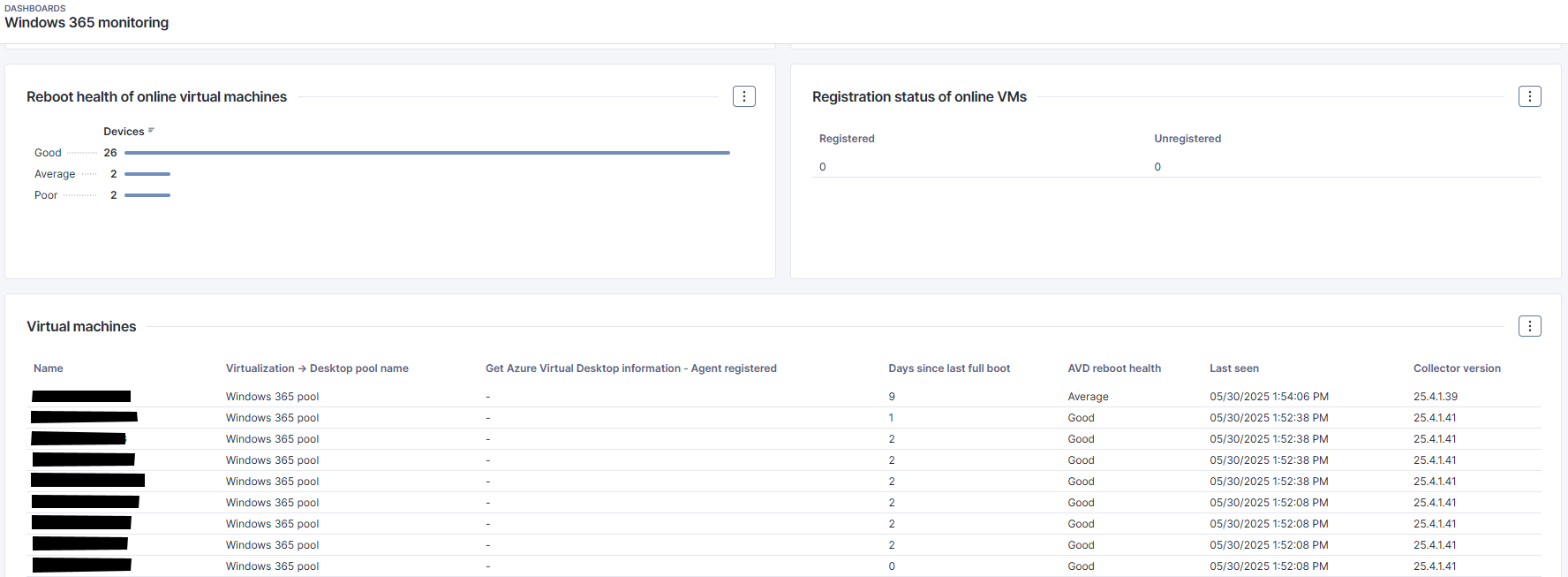
The reboot health of a Cloud PC is determined by the shared custom field **AVD reboot health** included with this pack. This custom field is used by the shared VDI content and applies to Windows 365 Cloud PCs as well as Azure Virtual Desktop environments.
This information is summarized in the dashboard with a dedicated chart showing the number of Cloud PCs in each category. Use it to identify Cloud PCs that have not rebooted within your organization's expected policy and may require investigation.
### Detect network congestion causing latency spikes in specific office locations.
The **High average latency per VDI client location** monitor tracks average network latency by client location and triggers an alert when latency exceeds a dynamic threshold compared to a 7-day baseline, computed hourly.
### Identify CPU bottlenecks affecting Cloud PCs
The **High CPU usage per desktop pool monitor** tracks average CPU queue length for desktop pools and helps identify CPU pressure affecting Windows 365 Cloud PCs.
### Prevent overloaded Cloud PCs or pools to maintain optimal user experience
The **High number of sessions per virtual machine** monitor tracks the total number of active sessions per virtual machine and triggers an alert when the session count exceeds a user-defined threshold. For Windows 365, this is most relevant where multiple sessions or shared Cloud PC usage patterns apply.
### Identify network instability affecting session continuity
The **High percentage of disconnected sessions per desktop pool** monitor observes session disconnections, calculates the disconnection-to-active session ratio, and triggers an alert if the ratio surpasses a defined threshold.
---
# Agent Instructions
This documentation is published with GitBook. GitBook is the documentation platform designed so that both humans and AI agents can read, navigate, and reason over technical content effectively. Learn more at gitbook.com.
## Querying This Documentation
If you need additional information that is not directly available in this page, you can query the documentation dynamically by asking a question.
Perform an HTTP GET request on the current page URL with the `ask` query parameter, and the optional `goal` query parameter:
```
GET https://docs.nexthink.com/platform/library-packs/vdi/microsoft/windows-365-essentials/usage-guide-windows-365-essentials.md?ask=&goal=
```
`ask` is the immediate question: it should be specific, self-contained, and written in natural language.
`goal` is optional and describes the broader end goal you are ultimately trying to accomplish on behalf of the user. GitBook uses it to tailor the answer towards what is most useful for that goal.
The response will contain a direct answer to the question and relevant excerpts and sources from the documentation.
Use this mechanism when the answer is not explicitly present in the current page, you need clarification or additional context, or you want to retrieve related documentation sections.