> For the complete documentation index, see [llms.txt](https://docs.nexthink.com/platform/llms.txt). Markdown versions of documentation pages are available by appending `.md` to page URLs; this page is available as [Markdown](https://docs.nexthink.com/platform/~/changes/Sh4xqs4GDClkDKT9Hvux/user-guide/software-metering/managing-software-metering.md).
# Managing Software Metering
Examine the software license usage within your organization by creating a software metering configuration for each product of interest.
## Accessing the Manage software metering page
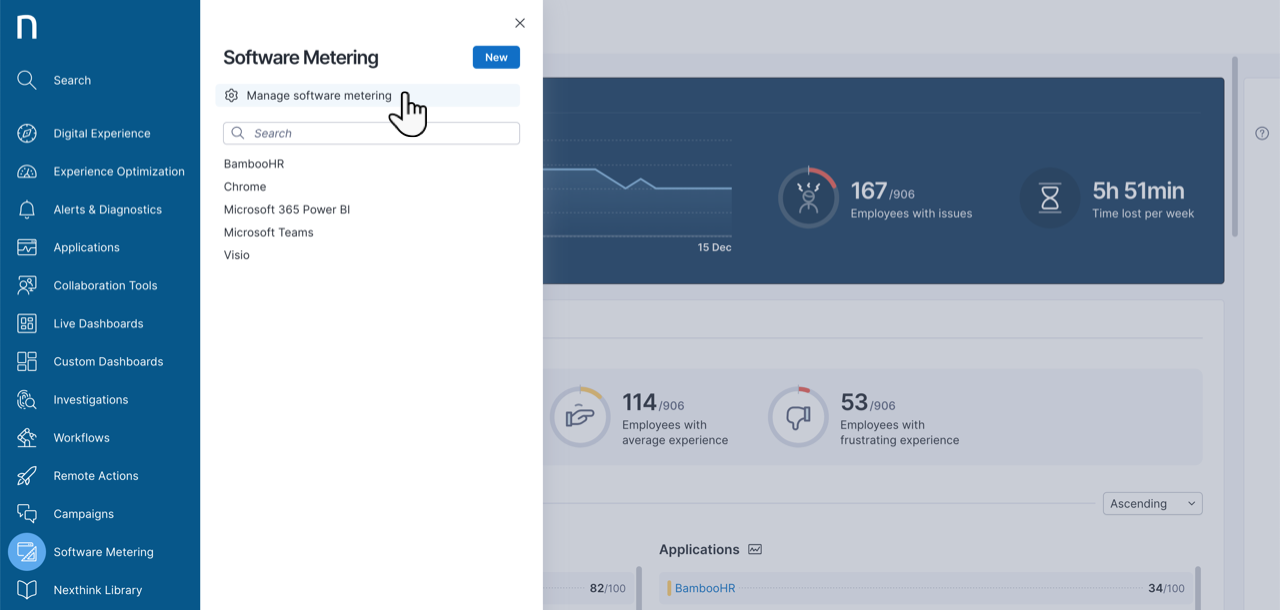
* Select **Software Metering** from the main menu.
* Click the **Manage software metering** in the navigation panel.
You can only meter software that has been configured in the Applications module. Refer to the [Manage Applications](/platform/~/changes/Sh4xqs4GDClkDKT9Hvux/user-guide/applications/managing-applications.md) documentation for more information.
## Create a new software meter
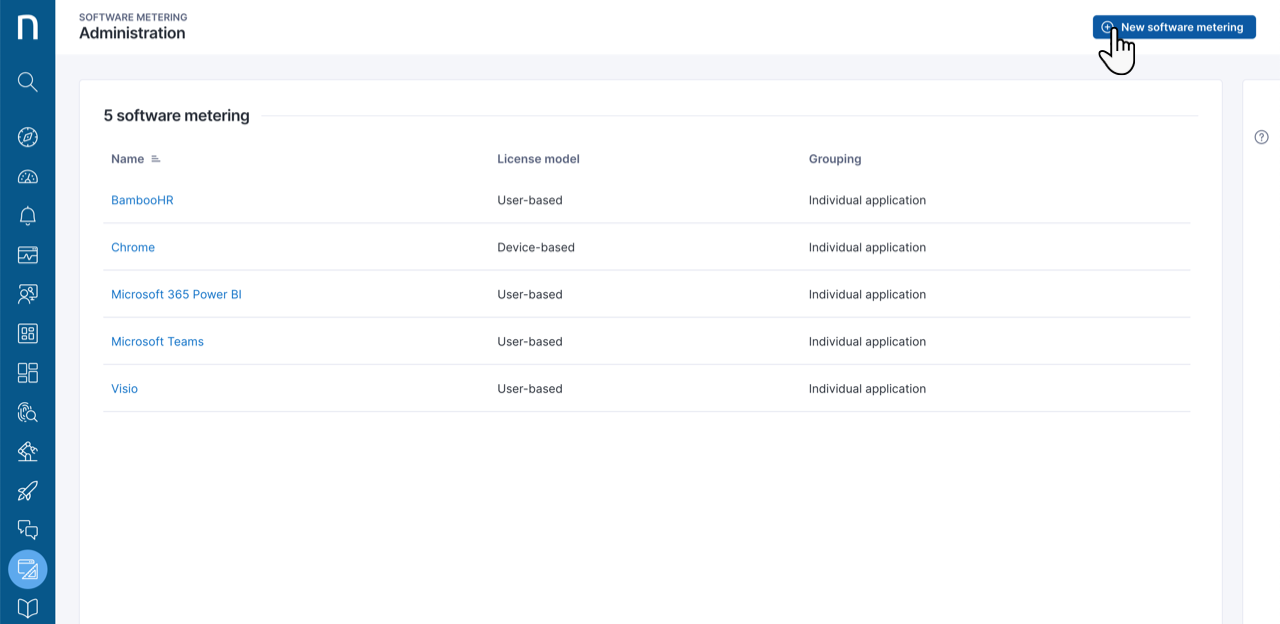
Click on the **New software metering** button in the top-right corner of the **Manage software metering** page to begin the configuration process.
You need proper permissions to configure software metering. Refer to the Permissions section of the [Getting started with Software Metering](/platform/~/changes/Sh4xqs4GDClkDKT9Hvux/user-guide/software-metering/getting-started-with-software-metering.md) documentation for more information.
### Configuration
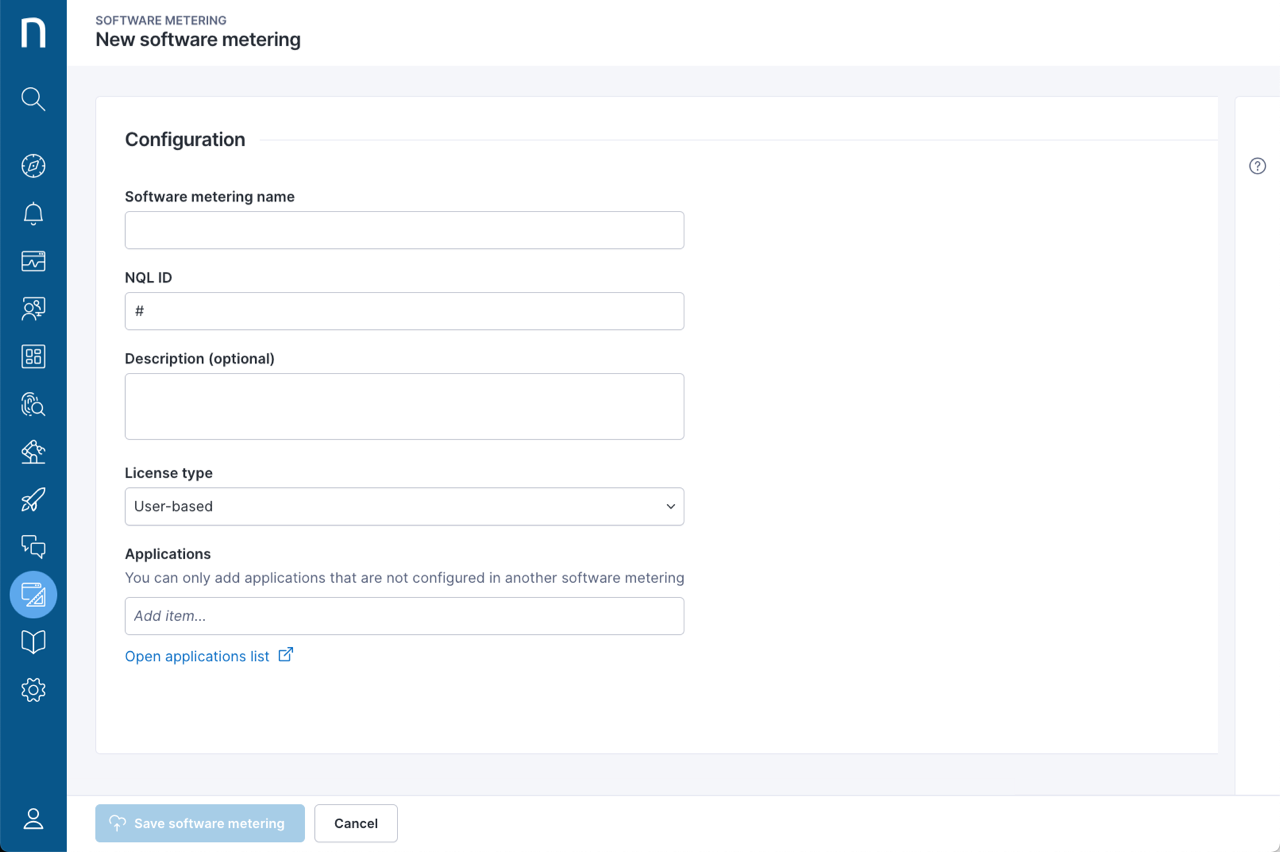
Enter the following information:
* **Software metering name**: This name appears on the Manage software metering page and the list of software meters in the navigation panel for the module.
* **NQL ID**: An NQL ID generated from the software metering name for use when writing queries. Once the system has created the software meter, you can no longer change the NQL ID.
* **Description**: A meaningful description of the configuration.
* **License type**: This can be either **User-based** or **Device-based**. The license type dictates the insights provided by the system and adapts the configuration options.
* **Applications**: Select one or multiple applications for the metering. Click inside the text field to view the list of applications.\
**Note**: Changing the selection of applications is not retroactive and the system reflects the change starting on the day of the change.
* Applications can only be associated with one software metering configuration at a time.
* If you have chosen a **Device-based** licensing model, you cannot select web applications.
### **Underusage**
Depending on the type of application selected, desktop, web, or hybrid, you must configure different monthly usage thresholds for the application per device or per user.
For web applications:
* **Metric**: Focus time is selected automatically by the system.
* **Threshold**: Select the amount of time for the usage **threshold**.
* **Unit**: Define the unit of time: **minutes** or **hours**. You must enable data collection of web usage time on your system. Refer to the *Collect usage time for web applications* section in the [Manage Applications](/platform/~/changes/Sh4xqs4GDClkDKT9Hvux/user-guide/applications/managing-applications.md) documentation for more information.
For desktop applications:
* **Metric**: Choose between **Execution duration** and **Focus time**.
* **Threshold**: Select the amount of time for the usage threshold.
* **Unit**: Define the unit of time: **minutes** or **hours**. You must enable data collection of focus time on your system. Refer to the [Focus time metric](/platform/~/changes/Sh4xqs4GDClkDKT9Hvux/references/database-information-and-organization/focus-time-metric.md) documentation for more information.
### **Package details**
This option is only available for **Device-based** licensing.
* Select either a single package or multiple packages per desktop application.
* The same package can be associated with multiple desktop applications.
## Editing a software meter
Click on the name of the software meter on the Manage software configuration page to edit it.
## Deleting a software meter
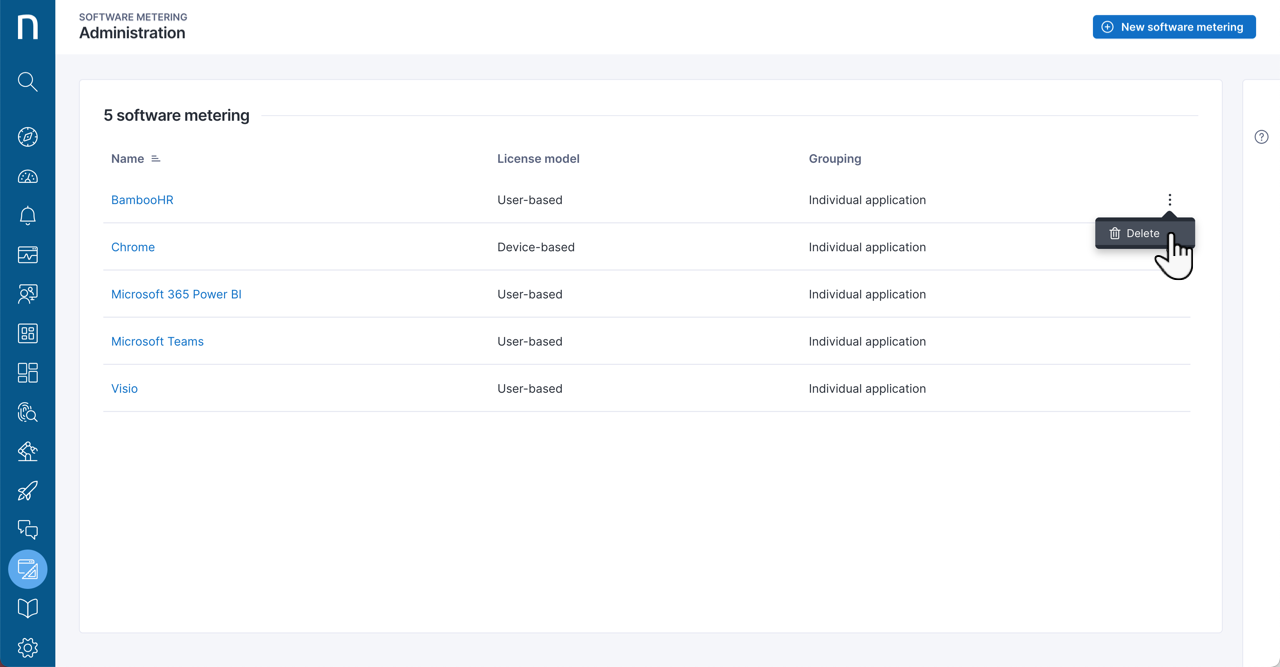
Hover over a software meter to reveal the action menu on the right side of the table. Click on it and select **Delete** to remove the configuration.
{% hint style="info" %}
You cannot add or delete a software application while editing the existing software metering configuration.
{% endhint %}
***
RELATED TOPICS
* [Getting started with Software Metering](/platform/~/changes/Sh4xqs4GDClkDKT9Hvux/user-guide/software-metering/getting-started-with-software-metering.md)
* [Software Metering NQL examples](/platform/~/changes/Sh4xqs4GDClkDKT9Hvux/user-guide/software-metering/software-metering-nql-examples.md)
---
# Agent Instructions
This documentation is published with GitBook. GitBook is the documentation platform designed so that both humans and AI agents can read, navigate, and reason over technical content effectively. Learn more at gitbook.com.
## Querying This Documentation
If you need additional information that is not directly available in this page, you can query the documentation dynamically by asking a question.
Perform an HTTP GET request on the current page URL with the `ask` query parameter, and the optional `goal` query parameter:
```
GET https://docs.nexthink.com/platform/~/changes/Sh4xqs4GDClkDKT9Hvux/user-guide/software-metering/managing-software-metering.md?ask=&goal=
```
`ask` is the immediate question: it should be specific, self-contained, and written in natural language.
`goal` is optional and describes the broader end goal you are ultimately trying to accomplish on behalf of the user. GitBook uses it to tailor the answer towards what is most useful for that goal.
The response will contain a direct answer to the question and relevant excerpts and sources from the documentation.
Use this mechanism when the answer is not explicitly present in the current page, you need clarification or additional context, or you want to retrieve related documentation sections.