> For the complete documentation index, see [llms.txt](https://docs.nexthink.com/platform/llms.txt). Markdown versions of documentation pages are available by appending `.md` to page URLs; this page is available as [Markdown](https://docs.nexthink.com/platform/~/changes/Sh4xqs4GDClkDKT9Hvux/references/investigating-storage-disks-and-volumes.md).
# Investigating storage, disks and volumes
### Disk
The term disk refers to the physical storage device of a computer. However, there are instances where it can represent a logical disk, which spans across one or more physical disks. For example, with a redundant array of independent disks (RAID) configuration, you combine multiple physical disks to form a single logical disk, providing increased performance, redundancy or both.
**Windows**
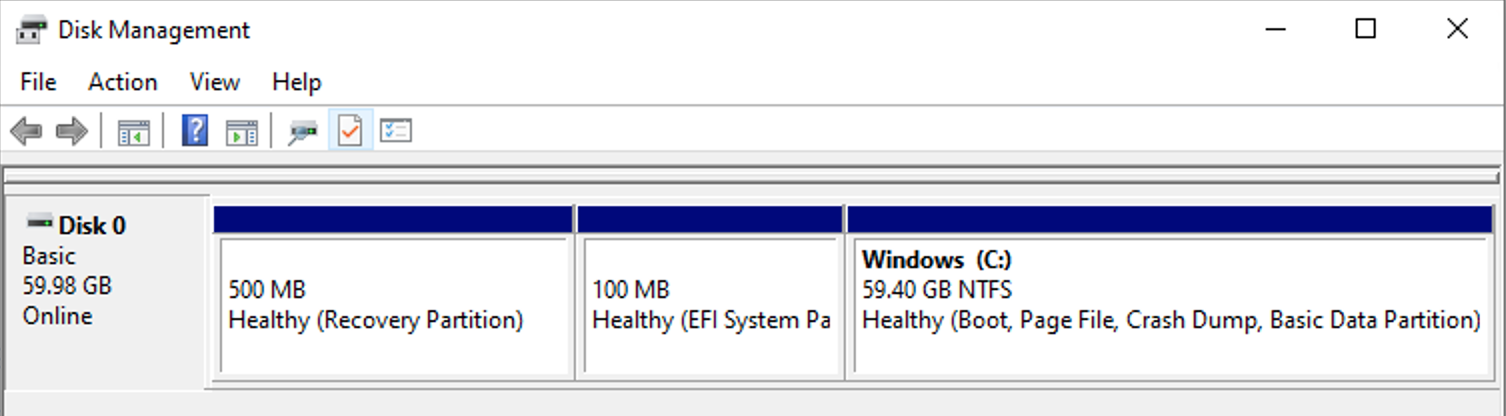
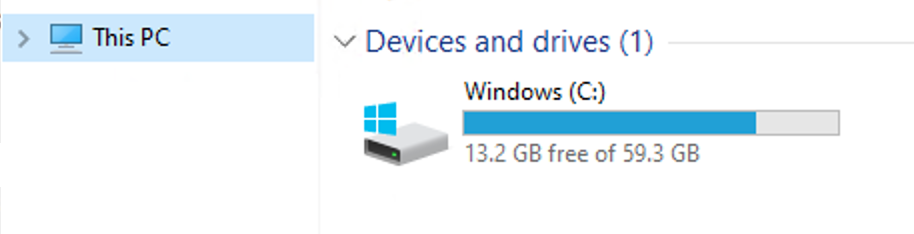
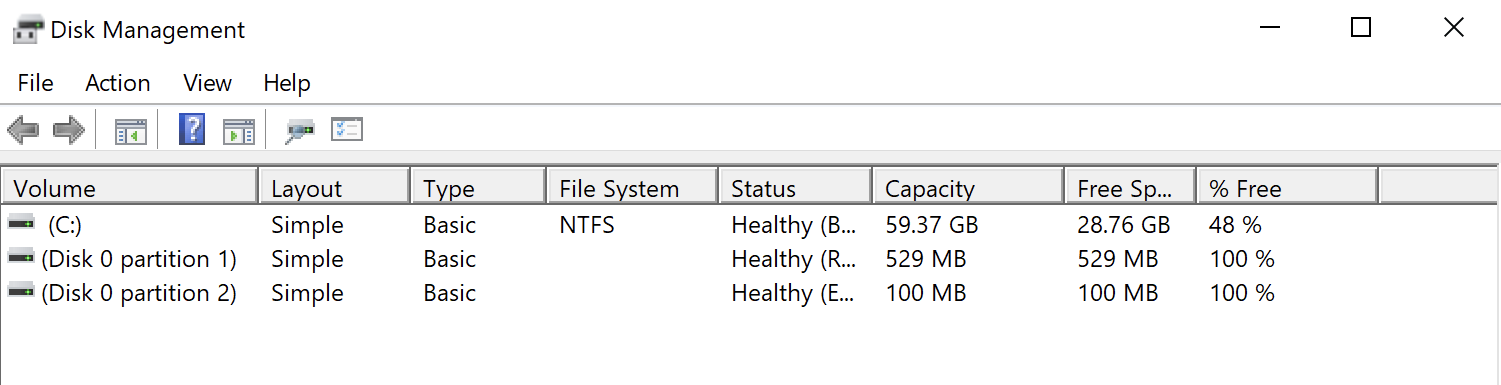
In the **Disk Management** application, the system calls physical drives **disks** and labels them as `Disk 0`, `Disk 1`, ... Under **This PC**, the system assigns these storage devices drive letters (`C:`, `D:`, ...).
These devices can vary in type, including local disks, USB drives or virtual disks.
**macOS**
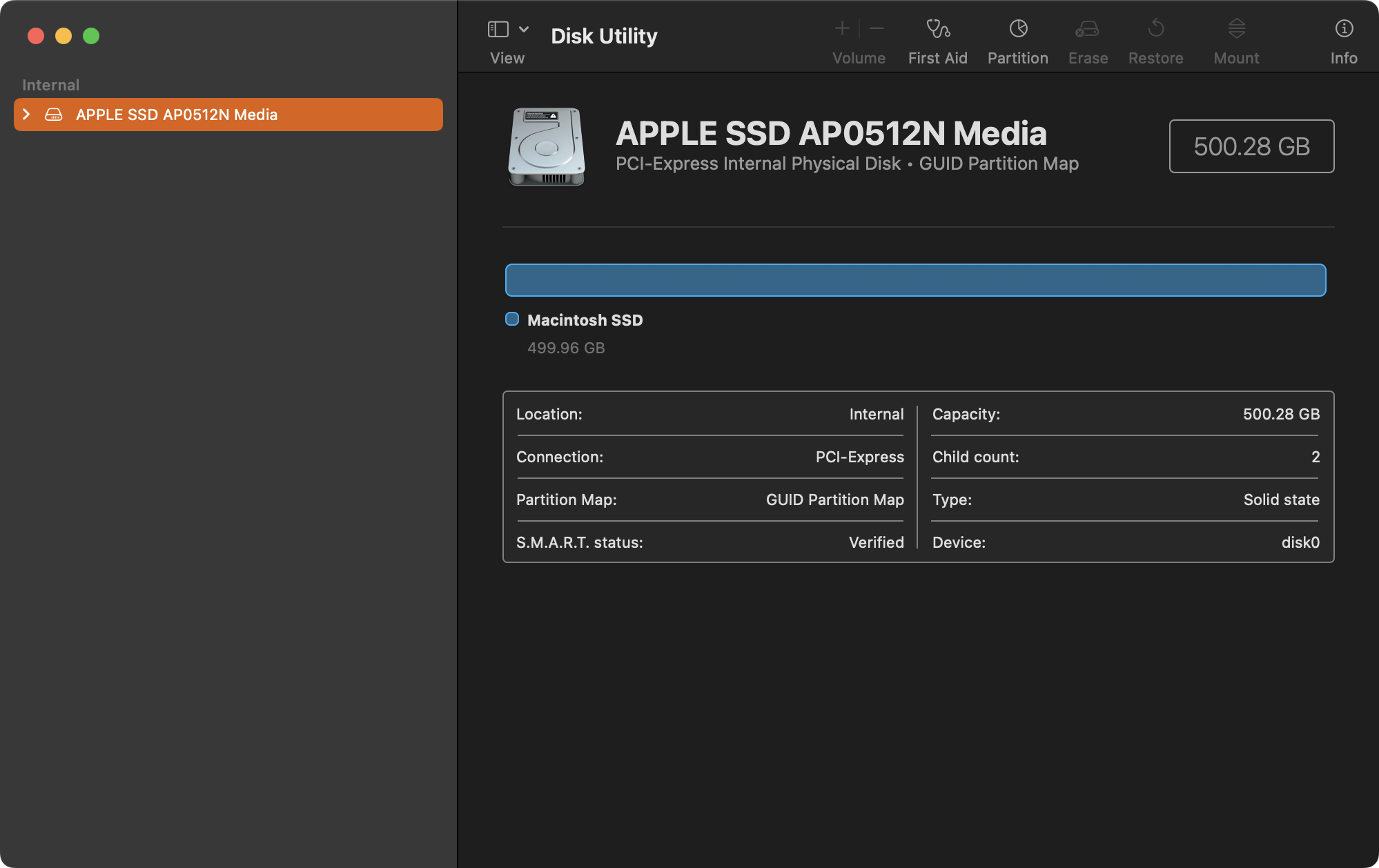
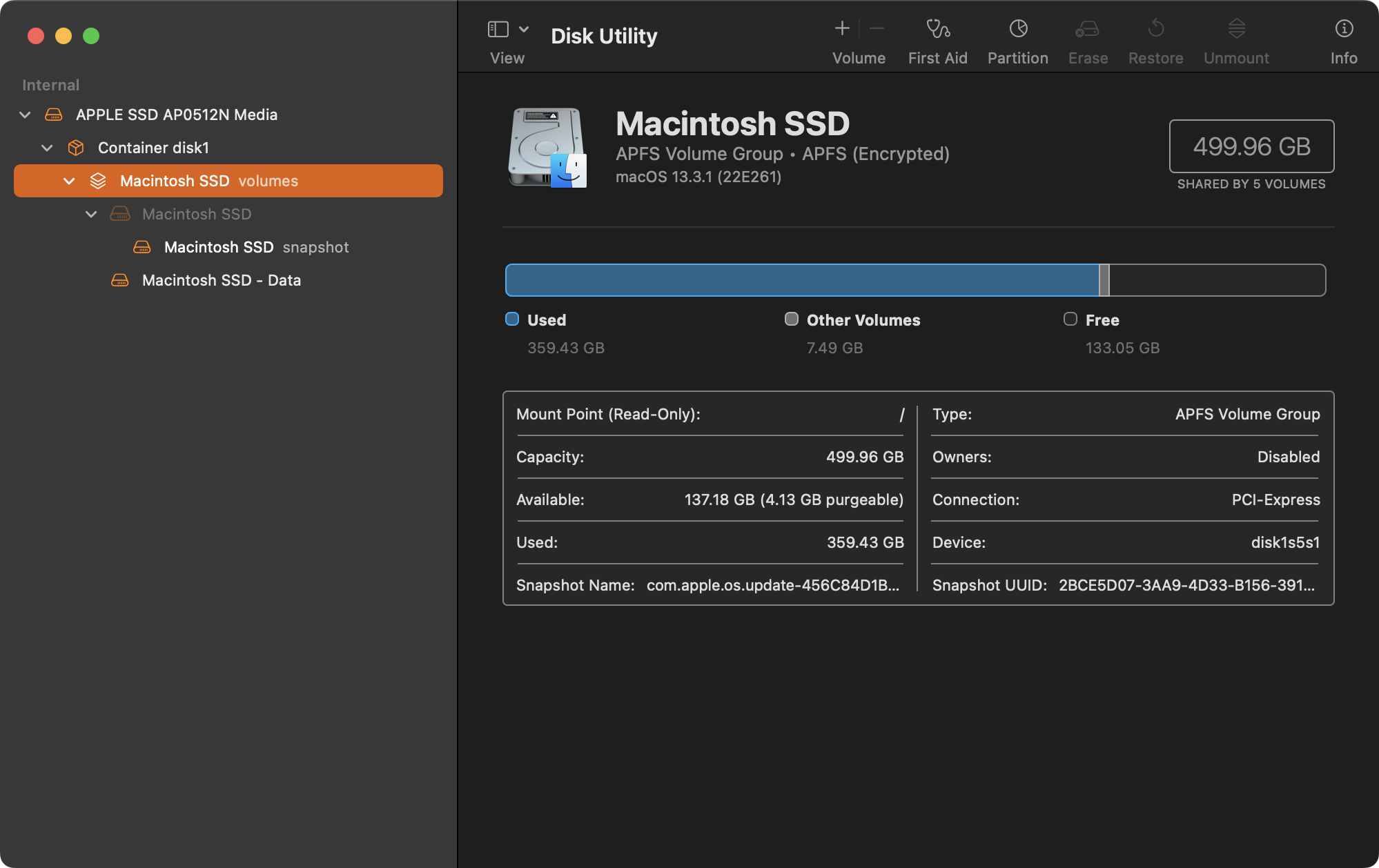
In the **Disk Utility** application, the system calls physical drives **media** and they appear as top-level entries. The system classifies them as internal or external and labels them as `disk0`, `disk1`, ...
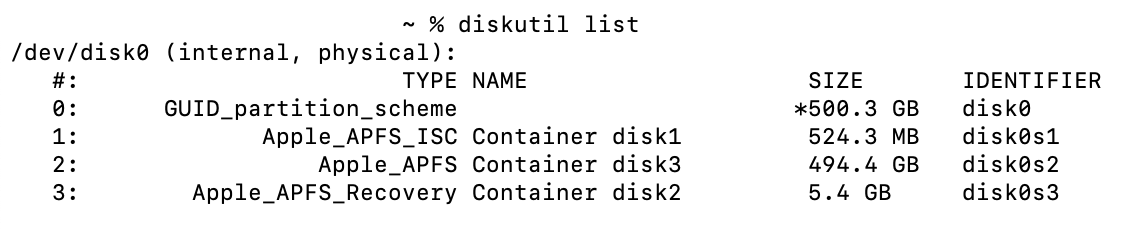
Using the `diskutil list` command, you can display all devices as `/dev/disk0`, `/dev/disk1`, ...
### Volume
Volume refers to a storage unit within a disk that organizes and manages data. It functions as a logical partition and can be formatted with a file system, allowing users to store and access files. Although a single disk can contain multiple volumes, each volume operates independently, providing additional flexibility and organization to the storage system.
**Windows**
On Windows, in the **Disk Management** application, the system lists volumes under **Volume.**
**macOS**
In the **Disk Utility** application, the system displays volumes under the media they belong to.
Using the `diskutil list` command in macOS shows volumes beneath their respective disk drives, with identifiers like `/dev/disk0s1`, `/dev/disk0s2`, ...
### NQL examples List the system drive (volume/partition) free space on devices.
```
devices during past 7d
| include volumes
| where system == true
| compute system_drive_free_space = capacity.sum() * (1 - usage.sum())
| list device.name, system_drive_free_space
```
List the system drive usage on devices.
```
devices during past 7d
| include device_performance.events during past 7d
| compute system_drive_used = event.system_drive_usage.avg()
| list device.name, system_drive_used
| sort system_drive_used desc
```
List devices with less than 5GB available on the system drive.
```
devices during past 7d
| include volumes
| where system == true
| compute system_drive_free_space = capacity.sum() * (1 - usage.sum())
| where system_drive_free_space < 5GB
| list device.name, system_drive_free_space
```
List a summary of the disks and volume of devices.
```
devices during past 7d
| list device.name, disks, volumes
```
List all disks from all devices with their size, bootable status and type (SSD or HDD).
```
disks during past 7d
| list device.name, name, is_bootable, capacity , type
```
**Working with custom fields**
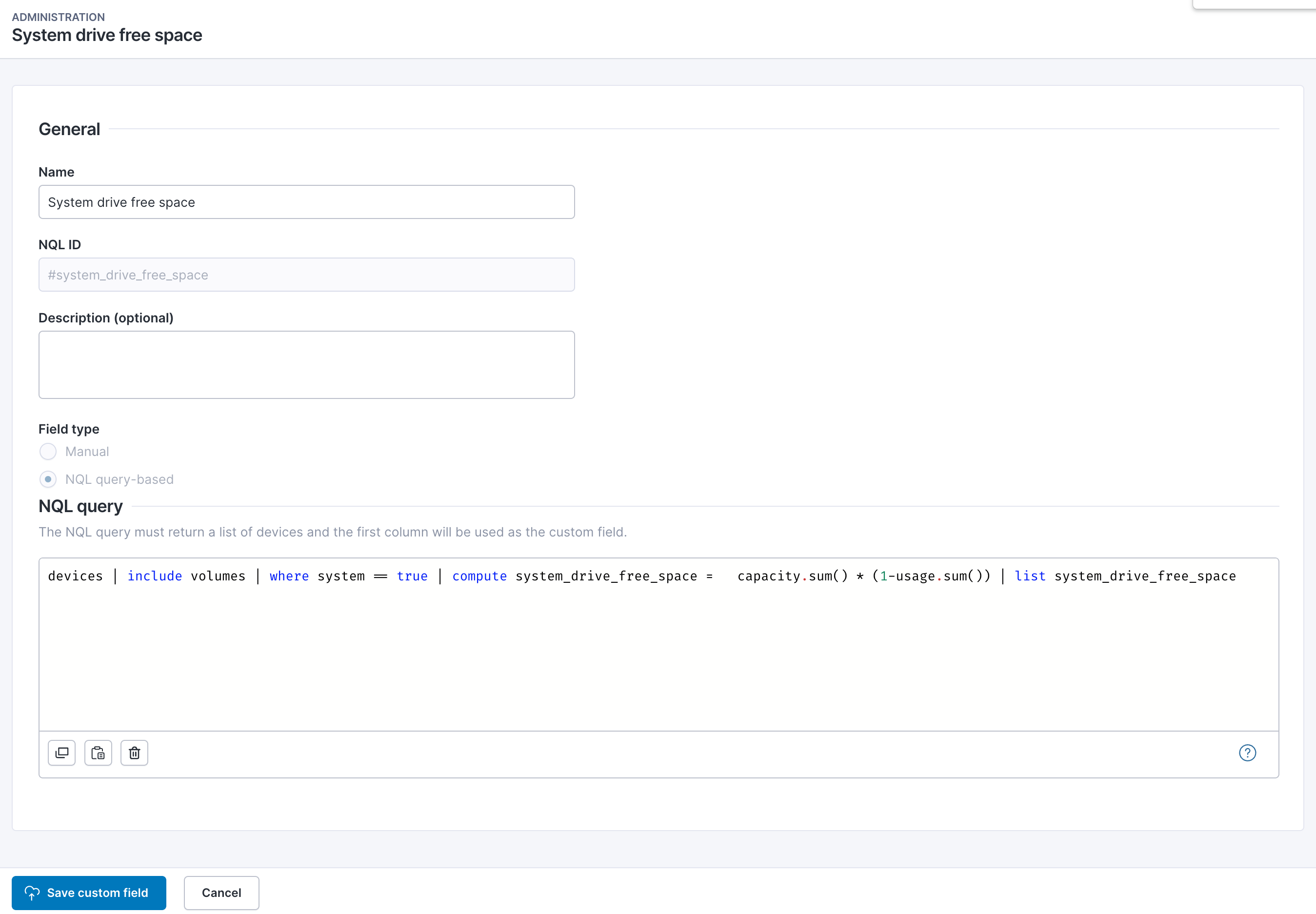
If you use a specific NQL query often, consider creating a custom field.
Find more information about custom fields on the [Custom fields management](/platform/~/changes/Sh4xqs4GDClkDKT9Hvux/user-guide/administration/content-management/custom-fields-management.md) page.
Using a custom field in an NQL query to list devices with less than 5GB available on the system drive.
```
devices
| where #system_drive_free_space < 5GB
| list device.name, #system_drive_free_space
```
---
# Agent Instructions
This documentation is published with GitBook. GitBook is the documentation platform designed so that both humans and AI agents can read, navigate, and reason over technical content effectively. Learn more at gitbook.com.
## Querying This Documentation
If you need additional information that is not directly available in this page, you can query the documentation by asking a question.
Perform an HTTP GET request on the following URL with the `ask` and `goal` query parameters:
```
GET https://docs.nexthink.com/platform/~/changes/Sh4xqs4GDClkDKT9Hvux/references/investigating-storage-disks-and-volumes.md?ask=&goal=
```
`ask` is the immediate question: it should be specific, self-contained, and written in natural language.
`goal` is what the user is ultimately trying to achieve, the reason they need the answer. Sharing it helps GitBook give you a better, more relevant answer. A goal is most helpful when it describes the outcome the user wants rather than restating the question. For example, with `ask=how do I create an API token`, a goal like `automate deployments from our CI pipeline` lets GitBook tailor the answer to that use case.
The response will contain a direct answer to the question and relevant excerpts and sources from the documentation.
Use this mechanism when the answer is not explicitly present in the current page, you need clarification or additional context, or you want to retrieve related documentation sections.