> For the complete documentation index, see [llms.txt](https://docs.nexthink.com/platform/llms.txt). Markdown versions of documentation pages are available by appending `.md` to page URLs; this page is available as [Markdown](https://docs.nexthink.com/platform/library-packs/security-and-compliance/employee-onboarding-dashboard/configuration-guide-employee-onboarding-dashboard.md).
# Configuration Guide: Employee onboarding dashboard
## **Prerequisites**
This library pack contains content from the following required [expansion products](https://docs.nexthink.com/platform/overview/products):
* [Employee Engagement - Campaigns](https://docs.nexthink.com/platform/user-guide/campaigns)
* [Adopt - User guides](https://docs.nexthink.com/platform/user-guide/adopt)
* [Flow - Workflows](https://docs.nexthink.com/platform/overview/products#products-flow)
{% hint style="info" %}
Some of these products offer default access to their respective content and can still be used without [expansion products](https://docs.nexthink.com/platform/overview/products).
Refer to the [Nexthink Infinity thresholds and limits overview](https://edocs.nexthink.com/nexthink-infinity/infinity-specifications/nexthink-infinity-default-thresholds-overview) documentation for more information about default thresholds for expansion products.
{% endhint %}
## **Included content and dependencies**
This library pack contains the following content and dependencies:
| Type | Name | Description |
| ------------- | ------------------------------------------ | --------------------------------------------------------------------------------------------------------------------------------------------------------------------------------------------------------------------------------------------------------------------------------------------------------------------------------------- |
| Workflow | Employee onboarding - Workday | A customisable workflow to check pre-requistes on a new employee's device before launching a welcome campaign with a redirection to Workday to start the onboarding process. |
| Remote action | Get ZScaler status | This Remote Action provides information about the connectivity status of Zscaler. |
| Campaign | Onboarding welcome - workflow invoke | Welcomes the employee to the organization and provides them with a link to Workday. |
| | Onboarding NPS survey | Collects early feedback from new joiners to measure onboarding satisfaction. |
| Adopt guides | Workday - Add or change emergency contacts | Gives new employees a simple, step-by-step process to add or modify their emergency contact details directly within their Workday profile. |
| | Workday - Change home contact information | Provides new employees with a clear, step-by-step walkthrough to update their home address, phone number, and personal email within their Workday profile. |
| | Workday - Change my email address | Gives new employees a simple, step-by-step process to review and update their email information in Workday. |
| | Workday - Change my preferred name | Provides clear, step-by-step instructions to help new employees quickly update their preferred name in the Workday system. |
| | Workday - Homepage navigation | An interactive, self-guided walkthrough designed to help new employees quickly become comfortable with the Workday homepage. By clearly explaining each core feature, it empowers users to work confidently, complete their responsibilities on time, and reduce onboarding friction. |
| | Workday - Browser extension missing | Automatically detects when a required browser extension is not installed on an employee's device. When triggered, it launches a workflow that automatically installs all corporate-approved extensions, ensuring each device remains secure, compliant, and fully equipped. |
| | Workday - Login assistance | automatically detects when a Workday login attempt has failed. When triggered, it launches a workflow that creates a support ticket and sends an email to the employee's manager to request the necessary access. This ensures quick resolution and keeps both IT and the manager informed without additional effort from the employee. |
| | Workday - Onboarding comlete | Allows employees to easily confirm that they've finished their onboarding process. When launched, the guide triggers a workflow that automatically emails the employee's manager to let them know. |
## **Configuring Employee onboarding pack**
{% hint style="info" %}
Adapt these suggested configuration steps to edit and customize content according to your organizational needs.
{% endhint %}
Follow these steps to install and configure content:
* Before configuration - Install library pack content from [Nexthink Library](https://docs.nexthink.com/platform/user-guide/nexthink-library)
* Step 1 - Configure remote action(s)
* Step 2 - Edit campaigns
* Step 3 - Configure Adopt guides
### **Step 1 - Configure remote action(s)**
1. From the main menu, navigate to the **Remote Actions** > [Manage remote action ](https://docs.nexthink.com/platform/user-guide/remote-actions/managing-remote-actions)page.
2. Review and edit your remote actions.
Nexthink recommends the following configurations for these remote actions:
Name
Trigger
Parameters to edit
Get Zscaler status
Triggered by the workflow
### **Step 2 - Edit campaigns**
1. From the main menu, navigate to the **Campaigns** > [Manage Campaigns](https://docs.nexthink.com/platform/user-guide/campaigns/managing-campaigns) page.
2. Review and edit your campaigns. For each installed campaign:
* Customize the sender name and image.
* Review and adjust questions.
* Publish the campaign when you are ready to use it.
Nexthink recommends the following configurations for these campaigns:
| Campaign name | Campaign NQL ID | Description |
| ------------------------------------ | ----------------------- | ----------------------------------------------------------------------------------- |
| Onboarding welcome - workflow invoke | onboarding\_welcome | Welcomes the employee to the organization and provides them with a link to Workday. |
| Onboarding NPS survey | onboarding\_nps\_survey | Collects early feedback from new joiners to measure onboarding satisfaction. |
### **Step 3 - Configure guides**
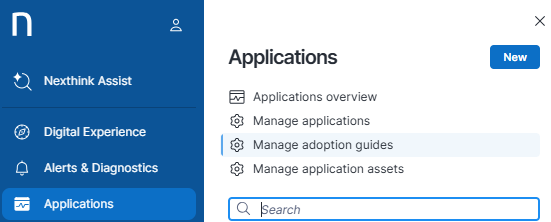
1. From the main menu, navigate to the **Applications** > [Manage adoption guides](https://docs.nexthink.com/platform/user-guide/adopt/guide-creation-and-management-from-nexthink-applications/managing-guides) page.
2. The installed guides will be unattached.
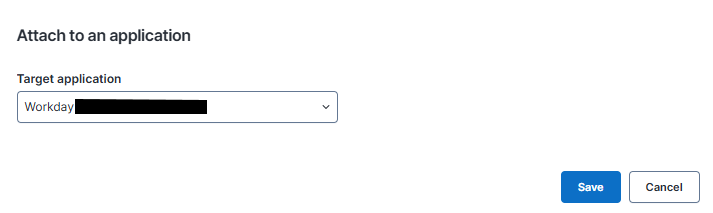
3. Select a guide, and using the menu, choose "Attach to an application".
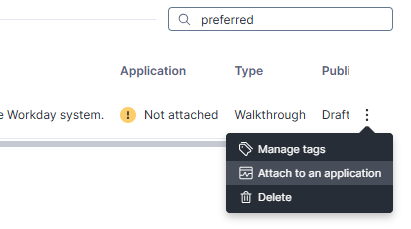
4. Choose your application from the list, and click OK.
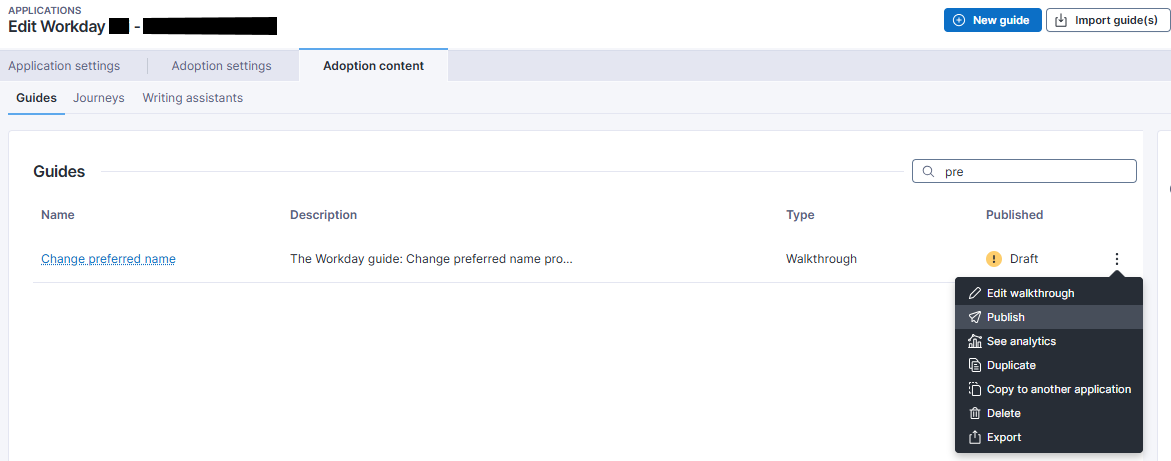
5. By default, your installed guide will be in draft mode.
6. You are free to edit the guide, change the description and assign key page restrictions if required.
7. Once the guide settings are complete, you can publish the guide.
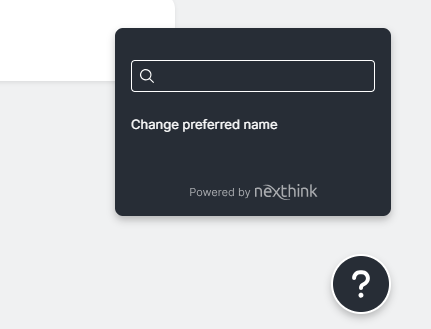
8. Your guide will now be available in the Context help menu.
***
RELATED TOPICS
* [Employee onboarding dashboard](/platform/library-packs/security-and-compliance/employee-onboarding-dashboard.md)
* [Usage guide: Employee onboarding dashboard](/platform/library-packs/security-and-compliance/employee-onboarding-dashboard/usage-guide-employee-onboarding-dashboard.md)
---
# Agent Instructions
This documentation is published with GitBook. GitBook is the documentation platform designed so that both humans and AI agents can read, navigate, and reason over technical content effectively. Learn more at gitbook.com.
## Querying This Documentation
If you need additional information that is not directly available in this page, you can query the documentation by asking a question.
Perform an HTTP GET request on the following URL with the `ask` and `goal` query parameters:
```
GET https://docs.nexthink.com/platform/library-packs/security-and-compliance/employee-onboarding-dashboard/configuration-guide-employee-onboarding-dashboard.md?ask=&goal=
```
`ask` is the immediate question: it should be specific, self-contained, and written in natural language.
`goal` is what the user is ultimately trying to achieve, the reason they need the answer. Sharing it helps GitBook give you a better, more relevant answer. A goal is most helpful when it describes the outcome the user wants rather than restating the question. For example, with `ask=how do I create an API token`, a goal like `automate deployments from our CI pipeline` lets GitBook tailor the answer to that use case.
The response will contain a direct answer to the question and relevant excerpts and sources from the documentation.
Use this mechanism when the answer is not explicitly present in the current page, you need clarification or additional context, or you want to retrieve related documentation sections.