# Managing AI tools
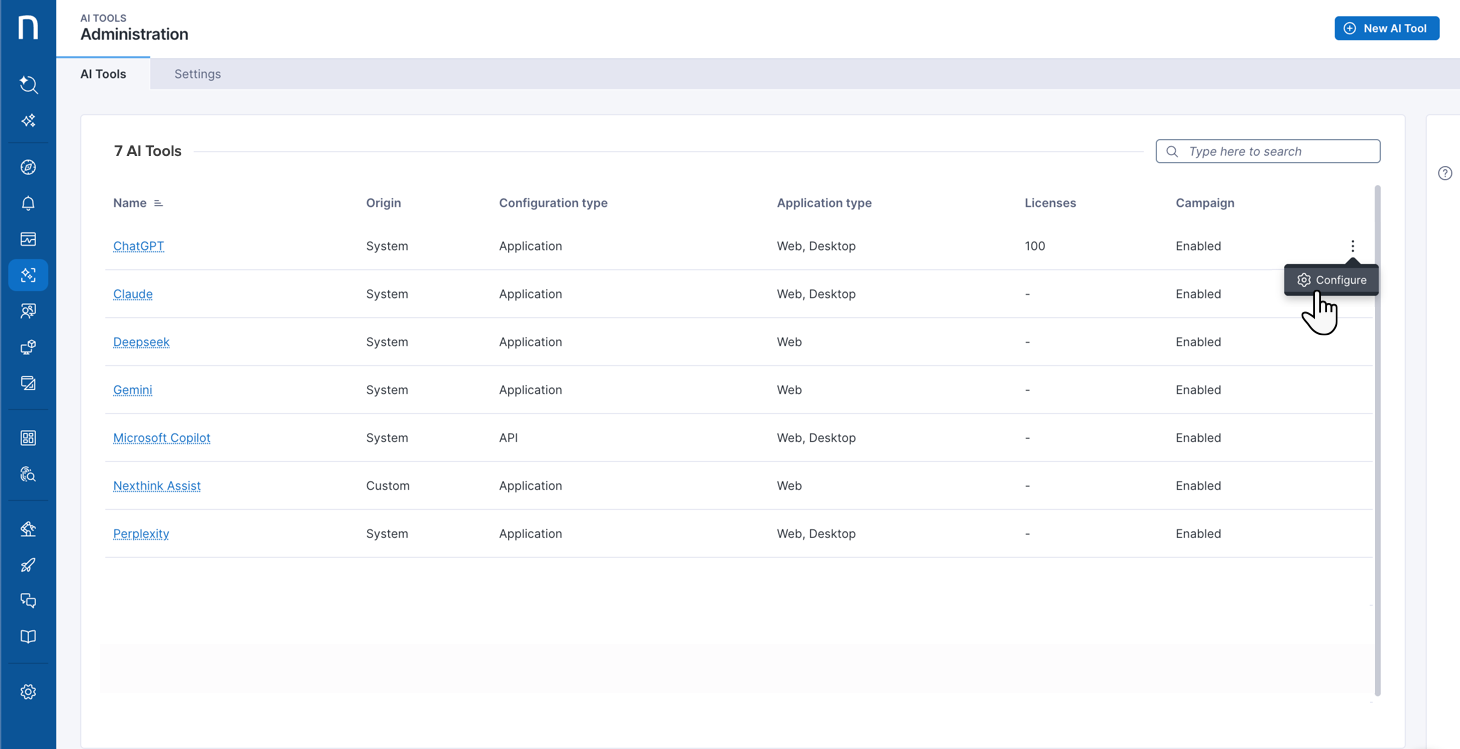
Manage configured AI tools monitored by Nexthink AI Tools. Review the AI tool origin, configuration type, and other key attributes, and take action such as editing the AI tool or its related campaign.
{% hint style="info" %}
If needed, use the **New AI Too**l button in the top-right corner of the page to [set up a new custom AI tool](https://docs.nexthink.com/platform/user-guide/configuring-ai-tools#configuring-custom-ai-tools-for-nexthink-monitoring).
{% endhint %}
To manage configured AI tools for monitoring:
1. Navigate to **AI Tools** > **Manage AI tools** from the main navigation, and open the **AI tools** tab.
2. Review the table fields listing all registered AI tools, including:
* **Name** of the tool. Click on any AI-agent name hyperlink to access configuration settings.
* **Origin** specifies if the AI tool is a **Custom** configuration or **System**-detected.
* **Configuration type** refers to API-centered or application-based configurations.
* The system uses [API-based configuration](https://docs.nexthink.com/platform/user-guide/configuring-ai-tools#exception-configuring-system-detected-ms-copilot-based-on-api-credentials) only for Microsoft Copilot, which requires you to provide API credentials. Therefore, you cannot configure a custom AI tool using APIs.
* **Application type: Web** and/or **Desktop.**
* **Licenses** available, if applicable.
* **Campaign** activation status: **Enabled** or **Disabled**. Remember, enable campaigns in the [tool configuration](https://docs.nexthink.com/platform/user-guide/configuring-ai-tools#configuring-ai-tools-for-nexthink-monitoring).
3. Hover over an AI tool to reveal the action menu on the right side of the table-item row:
* **Edit** the existing AI tool configuration settings.
* Permanently **Delete** the AI tool from Nexthink.
4. Optionally, use the **search bar** in the top right to locate tools by name. Click column headers to sort the table.
{% hint style="warning" %}
You can only **Edit** or **Delete** the AI tools you configured in Nexthink. Built-in AI tools preconfigured out of the box follow automated lifecycle rules and offer fewer manual controls.
However, you can enable/disable corresponding campaigns for any AI tool.
{% endhint %}
## Configuring campaign setups for AI tools
When enabled from the specific [AI tool configuration](https://docs.nexthink.com/platform/user-guide/configuring-ai-tools#configuring-ai-tools-for-nexthink-monitoring), built-in campaigns collect employee feedback on AI usage, which is necessary for monitoring employee perception of AI tools.
To manage built-in campaign setups for configured AI tools:
1. Navigate to **AI Tools** > **Manage AI tools** from the navigation menu and open the **Settings** tab.
2. Under the Employee experience campaign, verify current **campaign-enabled** AI tools and **Target users**.
3. If needed, **Set up exclusions** to prevent certain users from receiving AI-tool campaigns.
* Write an **NQL query** to list users who should be excluded from campaigns.
* Alternatively, **Ask Assist to create the query** based on your described needs.
When setting up user exclusions, you should first **Run** a valid NQL query before saving changes.
Verify the number of query-matching users, displayed in the web user interface, or **Show results in Investigations** for further user inspection.
{% hint style="warning" %}
If you disable a campaign from the specific [AI tool configuration](https://docs.nexthink.com/platform/user-guide/configuring-ai-tools#configuring-ai-tools-for-nexthink-monitoring), no new employees are targeted. However, employees who had already been targeted continue to receive the campaign until they respond, cancel, or the campaign expires.
{% endhint %}
{% hint style="info" %}
The system displays the ✦ sparkles icon to indicate AI-generated content or insights. AI is evolving rapidly and delivering great insights, but it can still make mistakes. Nexthink recommends validating your results to ensure accuracy and support informed decision-making.
Refer to the [Nexthink Assist - AI Model Card](https://docs.nexthink.com/legal/global-ai-hub/nexthink-assist-ai-model-card) documentation for more information.
{% endhint %}
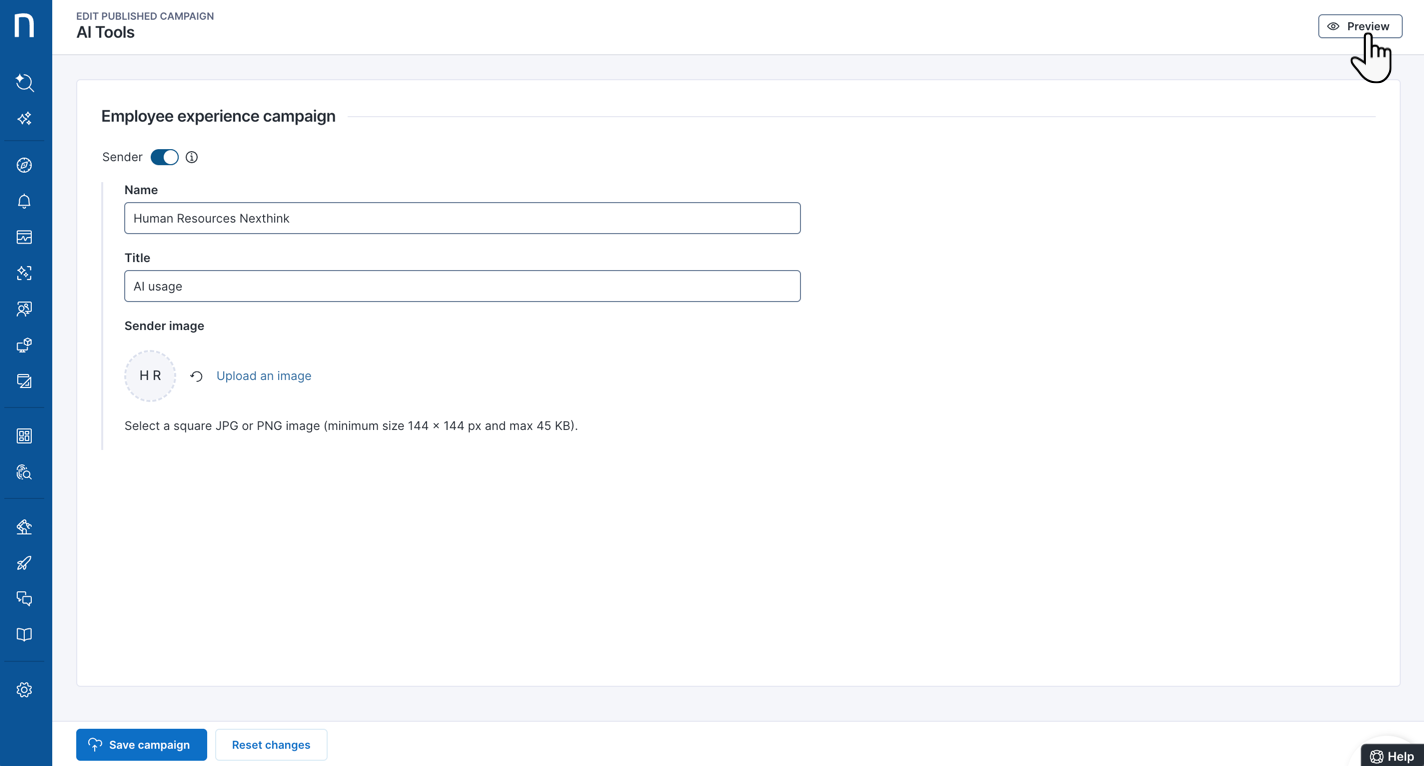
4. Optionally, **Edit sender** to enable and modify the campaign sender information, from a new browser tab—by default, the system hides the campaign **Sender** information.
* From the top-right corner of the open browser tab, with the **Edit published campaign** page, **Preview** the campaign from the user perspective.
* After previewing the campaign, you should go back to the **Edit published campaign** page and **Save campaign** changes.
Return to the **Manage AI tools** page > **Settings** tab after saving campaign changes—as there is no automatic redirection from the open browser tab with the **Edit published campaign** page.
{% hint style="warning" %}
Previewed but unsaved campaign changes are lost if you close the browser tab—with the **Edit published campaign** page—and navigate away.
Built-in campaign questions are uneditable.
{% endhint %}
{% hint style="info" %}
Refer to the [#configuring-custom-filters-for-ai-tools-dashboards](https://docs.nexthink.com/platform/user-guide/configuring-ai-tools#configuring-custom-filters-for-ai-tools-dashboards "mention") learn how to set up and tailor AI Tools dashboard filters.
{% endhint %}
***
RELATED TASKS
* [monitoring-ai-tools](https://docs.nexthink.com/platform/user-guide/ai-tools/monitoring-ai-tools "mention")
* [configuring-ai-tools](https://docs.nexthink.com/platform/user-guide/ai-tools/configuring-ai-tools "mention")