> For the complete documentation index, see [llms.txt](https://docs.nexthink.com/platform/llms.txt). Markdown versions of documentation pages are available by appending `.md` to page URLs; this page is available as [Markdown](https://docs.nexthink.com/platform/library-packs/l1-support/workflow-automated-three-strikes/usage-guide-automated-three-strikes.md).
# Usage guide: Automated three strikes
{% hint style="info" %}
This page outlines various ways to use the pack, including use case examples.
Administrators can refer to the [Configuration guide: Automated three strikes](/platform/library-packs/l1-support/workflow-automated-three-strikes/configuration-guide-automated-three-strikes.md)
{% endhint %}
Empower your service desk to manage unresponsive tickets more efficiently by triggering a workflow that automates reminders and ticket resolution through employee engagement.
The Automated three strikes workflow enables IT teams to:
* Reduce open ticket backlogs by automating follow-ups and closure
* Minimize time wasted on tickets awaiting end-user input
* Ensure clear communication and transparency during ticket resolution
* Maintain consistent SLAs by applying a repeatable closure policy
## Library pack uses
{% hint style="info" %}
Jump to [Use cases](#use-cases) on this page to see relevant scenario applications.
{% endhint %}
Use the library pack content for the following purposes.
### Automating ticket closure with reminders
The **Automated three strikes** workflow follows the ITSM “three-strike” rule. It reminds employees to act on their open tickets and closes them automatically if no action is taken.
Using the Repeat feature in Nexthink Flow, the workflow cycles through a series of checks and user prompts until one of the following outcomes is reached:
* The user updates the ticket (ending the workflow)
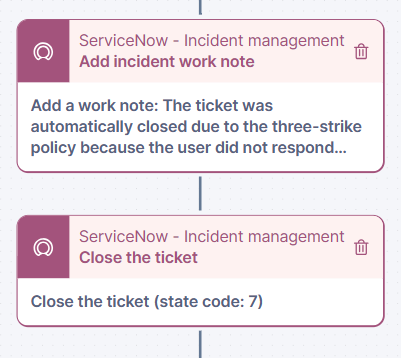
* The user ignores or postpones the prompt three times (triggering automatic ticket closure)
* The user is unavailable for three cycles (also triggering closure)
This helps ensure unresolved tickets don’t remain open indefinitely.
### Engaging users before auto-closing tickets
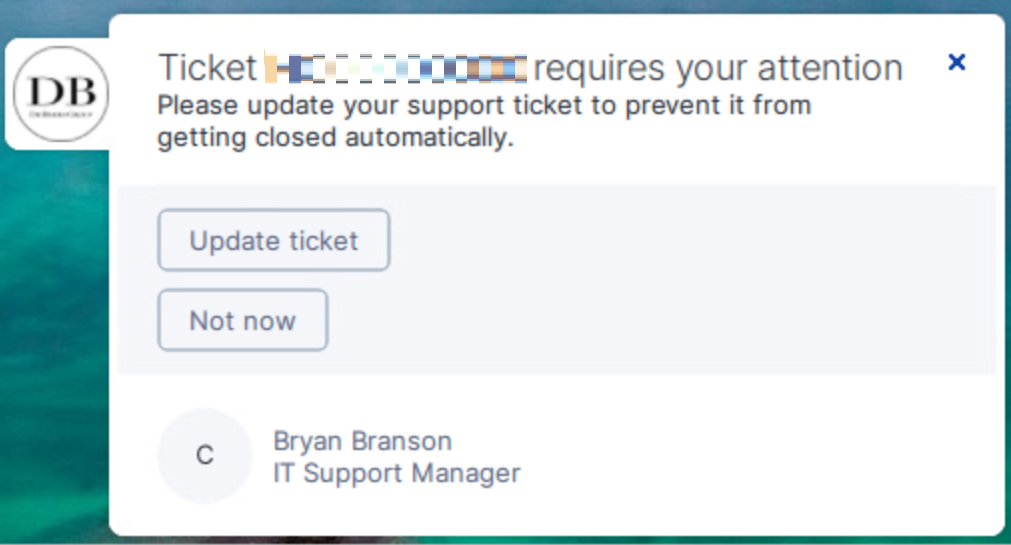
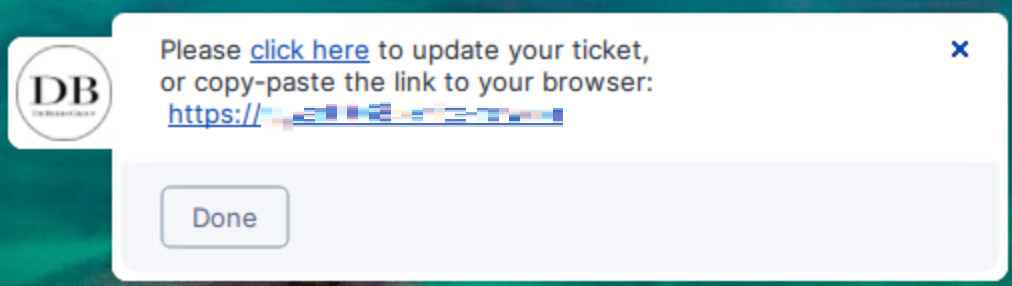
Each loop in the Automated three strikes workflow includes a campaign that displays two messages:
1. A prompt asking the user to update their ticket
2. If accepted, a follow-up displaying the ticket number and a URL for quick access
If the user selects **Not now**, the workflow pauses and retries after three hours (default). After three failed attempts, whether from non-response or postponement, the ticket is automatically closed with a note citing the three-strike rule.
### Identifying available users before prompting
To avoid notifying inactive users, the workflow first checks the Days since last seen property. If a user hasn’t been seen in the last 24 hours, the prompt is skipped for that loop cycle.
This check ensures only available employees receive reminders, avoiding irrelevant campaign prompts.
## Use cases
In addition to the relevant use cases covered below, you may uncover other troubleshooting scenarios specific to your environment.
### Reducing ITSM ticket backlog by auto-resolving stalled tickets
You can automate the process of closing tickets that are no longer progressing due to a lack of user input.
1. Deploy the Automated three strikes workflow via Nexthink Flow
2. Configure the loop using the Repeat feature with a 3-hour interval
3. Ensure the first action checks the Days since last seen property
4. If the user is available, send a campaign with two messages:
* Ask whether the user can update the ticket
* If accepted, display the ticket details and mark as resolved
5. If the user chooses Not now, the workflow retries
6. After three missed or declined prompts, close the ticket and log the reason
This use case improves SLA compliance and helps your IT team focus on actionable tickets.
***
RELATED TOPICS
* [Workflow: Automated three strikes](/platform/library-packs/l1-support/workflow-automated-three-strikes.md)
* [Configuration guide: Automated three strikes](/platform/library-packs/l1-support/workflow-automated-three-strikes/configuration-guide-automated-three-strikes.md)
* [Manage Workflows](https://nexthink.gitbook.io/opd/user-guide/workflows/managing-workflows)
* [Manage Campaigns](https://nexthink.gitbook.io/opd/user-guide/campaigns/managing-campaigns)
---
# Agent Instructions
This documentation is published with GitBook. GitBook is the documentation platform designed so that both humans and AI agents can read, navigate, and reason over technical content effectively. Learn more at gitbook.com.
## Querying This Documentation
If you need additional information that is not directly available in this page, you can query the documentation by asking a question.
Perform an HTTP GET request on the following URL with the `ask` and `goal` query parameters:
```
GET https://docs.nexthink.com/platform/library-packs/l1-support/workflow-automated-three-strikes/usage-guide-automated-three-strikes.md?ask=&goal=
```
`ask` is the immediate question: it should be specific, self-contained, and written in natural language.
`goal` is what the user is ultimately trying to achieve, the reason they need the answer. Sharing it helps GitBook give you a better, more relevant answer. A goal is most helpful when it describes the outcome the user wants rather than restating the question. For example, with `ask=how do I create an API token`, a goal like `automate deployments from our CI pipeline` lets GitBook tailor the answer to that use case.
The response will contain a direct answer to the question and relevant excerpts and sources from the documentation.
Use this mechanism when the answer is not explicitly present in the current page, you need clarification or additional context, or you want to retrieve related documentation sections.