> For the complete documentation index, see [llms.txt](https://docs.nexthink.com/platform/llms.txt). Markdown versions of documentation pages are available by appending `.md` to page URLs; this page is available as [Markdown](https://docs.nexthink.com/platform/ja/configuring_nexthink/bringing-data-into-your-nexthink-instance/integrating-nexthink-with-third-party-tools/outbound-connectors/webhooks/webhook-use-cases-setup/creating-an-event-in-splunk.md).
# Splunkでのイベント作成
{% hint style="warning" %}
このドキュメントでは外部ソースを参照しています。
Nexthinkは、第三者のドキュメントや外部更新の精度を制御できず、それらは不一致を招く可能性があります。
エラーや不一致を[Nexthinkサポート](https://support.nexthink.com/)に報告してください。
{% endhint %}
このドキュメントでは、Nexthink Webhookを設定して、HTTP Event Collector (HEC) へイベントを送信する方法を示します。
## Splunkで
[Splunk HTTP Event Collector](https://docs.splunk.com/Documentation/SplunkCloud/latest/Data/UsetheHTTPEventCollector)にデータを送信するために以下の手順を完了してください:
1. Splunkサーバーにログインしてください。
2. **設定**に進み、次に**データ入力**、そして**HTTP Event Collector**に進んで、**グローバル設定**を選択してください。
3. グローバル設定を編集してください:
* **すべてのトークン**オプションに対して**有効**ボタンをクリックしてください。
* HTTPSを介してSplunkにデータを送信したい場合は、**SSLを有効にする**チェックボックスをクリックしてください。データストリーマーを構成してTransport Layer Security (TLS)を使用する必要があります。
* **HTTPポート番号**フィールドで、HECがリッスンするポート番号を指定してください。
* **保存**をクリックしてください。
4. **設定**、次に**データ入力**に進んでください。
5. **HTTP Event Collector**の行で**新規追加**をクリックして、新しいHECトークンを作成してください。
* **名前**フィールドにHECトークンの名前を指定してください。
* この入力が生成するイベントのソース名を置き換える場合、**ソース名のオーバーライド**フィールドに値を指定してください。
* **次に**、**インデックス**セクションで、SplunkがHECイベントデータを格納するインデックスを選択してください。データを実稼働インデックスに送信する前に確認するためにテストインデックスを使用することをお勧めします。
{% hint style="warning" %}
Webhook情報をHCを使用してSplunkに送信するには、**インデクサーの確認を有効にする**を選択できません。
デフォルトで**インデクサーの確認を有効にする**を選択区域としておくと、システムにはWebhookがサポートしていないカスタムヘッダー (`X-Splunk-Request-Channel`) が必要です。
詳細については、[HECインデクサー確認](https://docs.splunk.com/Documentation/SplunkCloud/8.2.2203/Data/AboutHECIDXAck)Splunkドキュメントを参照してください。代わりに、URLクエリパラメータを使用することもできます。
{% endhint %}
## Nexthinkで
Nexthinkのウェブインターフェースから:
* [Webhookのコネクタ資格情報を設定する](#postingamessageinzoom-configuringaconnectorcredentialforzoomcredentialzoomtrue)
* [Webhookを設定してSplunkにメッセージを投稿する](#postingamessageinzoom-configuringawebhookforzoomwebhookzoomtrue)
### Splunkのコネクタ資格情報を設定する
[コネクタ資格情報](/platform/ja/configuring_nexthink/bringing-data-into-your-nexthink-instance/integrating-nexthink-with-third-party-tools/outbound-connectors/connector-credentials.md)設定ページから、Splunkで作成した接続の情報を使用してフィールドを記入してください。
1. **プロトコル**のドロップダウンから**HTTPS**オプションを選択してください。
2. ルート `https://prdXXXXXXXX.splunkcloud.com:80XX` を**URLアドレス**フィールドに貼り付けてください。
3. **認証**のドロップダウンから**ベアラートークン**オプションを選択してください。
4. **ヘッダープレフィックス**フィールドに`Splunk`と入力してください。
5. Splunk接続からHECトークンをコピーして**トークン**フィールドに貼り付けてください。
6. 資格情報を**保存**してください。
### SplunkのWebhook設定
[Webhook設定ページ](/platform/ja/configuring_nexthink/bringing-data-into-your-nexthink-instance/integrating-nexthink-with-third-party-tools/outbound-connectors/webhooks/managing-webhooks.md)から、Splunkで作成した接続情報とNexthinkで定義したコネクタ資格情報を使用してフィールドを記入してください。
1. [Webhook NQL条件の設定](/platform/ja/configuring_nexthink/bringing-data-into-your-nexthink-instance/integrating-nexthink-with-third-party-tools/outbound-connectors/webhooks/managing-webhooks/configuring-webhook-nql-conditions.md) ドキュメントに従って、**NQL条件**に入力してください。以下のクエリーを確認してください。
* NQL条件を設定した後、**ペイロード**のために[許可されたプレースホルダー](/platform/ja/configuring_nexthink/bringing-data-into-your-nexthink-instance/integrating-nexthink-with-third-party-tools/outbound-connectors/webhooks/managing-webhooks/configuring-webhook-fields_-method-resource-and-payload.md#configuringwebhookfields-method-resource-andpayload-usingdatamodelvariablesasplaceholdersinthepayloa)がシステムによって列挙されます。
```
device_performance.system_crashes
| list error_code, time, label
```
2. **資格情報**ドロップダウンから、Splunk用に作成した[コネクタ資格情報](#creatinganeventinsplunk-step1-configurecredentialsconfigure-credentials)を選択してください。
3. **メソッド**ドロップダウンから**POST**を選択してください。
4. Splunk接続からURLアドレスを除いたエンドポイントを**リソース**フィールドにコピーして貼り付けてください。例:`services/collector`
5. **ペイロード**に送信したいメッセージを追加してください。以下の例を確認してください。
* ペイロードに含まれるいくつかのプロパティはクエリパラメータとして追加できます。
例えば、`index` を **リソース** フィールドでクエリパラメータとして指定できます:`services/collector?index=main`
```
{
"time": {{device_performance.crashes.time}},
"index":"main",
"event": "metric",
"source": "metrics",
"sourcetype": "perflog",
"host": "host_1.splunk.com",
"fields": {
"region": "us-west-1",
"datacenter": "dc2",
"rack": "63",
"Crashes count": "{{device_performance.crashes.count}}",
"Crashes error code": "{{device_performance.crashes.error_code}}",
"Crashes label": "{{device_performance.crashes.label}}"
}
}
```
{% hint style="info" %}
[Webhookフィールドの設定:メソッド、リソース、およびペイロード](/platform/ja/configuring_nexthink/bringing-data-into-your-nexthink-instance/integrating-nexthink-with-third-party-tools/outbound-connectors/webhooks/managing-webhooks/configuring-webhook-fields_-method-resource-and-payload.md#configuringwebhookfields-method-resource-andpayload-usingdatamodelvariablesasplaceholdersinthepayloa)で、ペイロードのプレースホルダーについての詳細を確認してください。
{% endhint %}
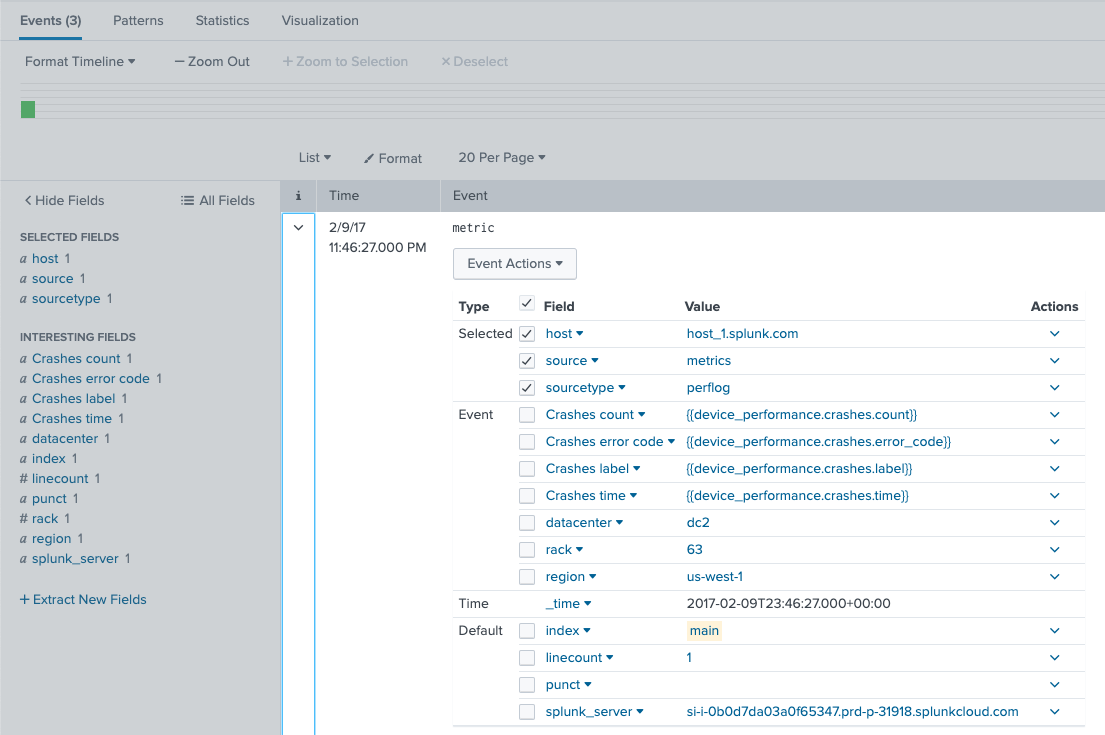
7. **テストを送信**して情報がSplunkに表示されることを確認してください。以下の画像を参照してください。
* **検索**タブを使用してSplunkでイベントを見つけてください。
---
# Agent Instructions
This documentation is published with GitBook. GitBook is the documentation platform designed so that both humans and AI agents can read, navigate, and reason over technical content effectively. Learn more at gitbook.com.
## Querying This Documentation
If you need additional information that is not directly available in this page, you can query the documentation by asking a question.
Perform an HTTP GET request on the following URL with the `ask` and `goal` query parameters:
```
GET https://docs.nexthink.com/platform/ja/configuring_nexthink/bringing-data-into-your-nexthink-instance/integrating-nexthink-with-third-party-tools/outbound-connectors/webhooks/webhook-use-cases-setup/creating-an-event-in-splunk.md?ask=&goal=
```
`ask` is the immediate question: it should be specific, self-contained, and written in natural language.
`goal` is what the user is ultimately trying to achieve, the reason they need the answer. Sharing it helps GitBook give you a better, more relevant answer. A goal is most helpful when it describes the outcome the user wants rather than restating the question. For example, with `ask=how do I create an API token`, a goal like `automate deployments from our CI pipeline` lets GitBook tailor the answer to that use case.
The response will contain a direct answer to the question and relevant excerpts and sources from the documentation.
Use this mechanism when the answer is not explicitly present in the current page, you need clarification or additional context, or you want to retrieve related documentation sections.