AWS WorkSpaces connector
This documentation references external sources. Nexthink does not have control over the accuracy of third-party documentation, nor any external updates or changes that might create inconsistencies with the information presented on this page. Please report any errors or inconsistencies to Nexthink Support.
The Nexthink Connector for AWS WorkSpaces retrieves essential information about your AWS WorkSpaces virtual desktop infrastructure (VDI). The connector enriches your Nexthink environment with AWS WorkSpaces data that enhances visibility into VDI health, usage patterns, and configuration drift.
This installation guide is designed to help you securely deploy the connector for AWS. We recommend that your organization’s security team reviews the configuration and installation steps outlined here and adjusts them as needed to align with internal security policies and compliance requirements.
Device fields
The connector for AWS WorkSpaces enriches the following device virtualization fields:
Virtualization desktop pool name
Hardware characteristics of the associated VMs.
Virtualization desktop pool type
Possible values:
personal
pooled
Virtualization hostname
This field is enriched if the machines are hosted by a vendor in the cloud.
Default value: AWS host
Virtualization hypervisor name
Type of hardware virtualization system being used.
Defaults value: AWS hypervisor
Environment name
Name of the connector instance which enriches the virtual device.
Desktop broker
Name of the desktop virtualization product being used.
Defaults value: aws_workspaces
Disk image
Name of the disk image used to deploy the VM.
Instance size
The hardware configuration (vCPU, memory, and GPU resources) assigned to a VM. This field displays one of the predefined AWS values for compute type.
Region
AWS WorkSpaces region.
Last update
The last time the device fields were updated.
Configure connector credentials
To allow Nexthink to export data to your AWS WorkSpaces connector, you must first configure the connector credentials by completing the following steps:
Select Administration > Connector credentials in the main menu.
Select New credential in the top-right corner of the Connector credentials page.
Fill in the credential configuration input fields:
Name: The unique name of the credential.
Protocol: Select
AWS IAM.
The configuration screen should look as follows:

Nexthink generates the AWS External ID automatically. You will use it in the next steps to create the AWS Role and retrieve its Amazon Resource Name (ARN). You can then paste this ARN in the AWS Role ARN text box.
Nexthink uses the recommended procedure from AWS for third-party access as described in the Access to AWS accounts owned by third parties documentation.
Sign in to AWS and create an IAM role. The following code example shows the minimum level of access required by the Nexthink AWS WorkSpaces connector:
Create an IAM role that gives Nexthink access:
Name: The role name must start with the prefix
NexthinkConnector-.Permissions: Add the policy created above.
Trusted Policies: The trust policy must specify the following AWS account number of Nexthink as
Principal:884848470805Furthermore, add aConditionelement to the trust policy that will test whether theExternalIdmatches the generated external ID provided in the form above. The following code is an example of the trust relationship in the role:
Replace <EXTERNAL_ID> with the AWS External ID field generated in the credential form.
After creating the role, copy its AWS Role ARN:

In Nexthink, on the Connector credentials page, edit the AWS Credentials, and insert the ARN in the AWS Role ARN text box in Credential details, and select Save:

Configure the AWS WorkSpaces connector
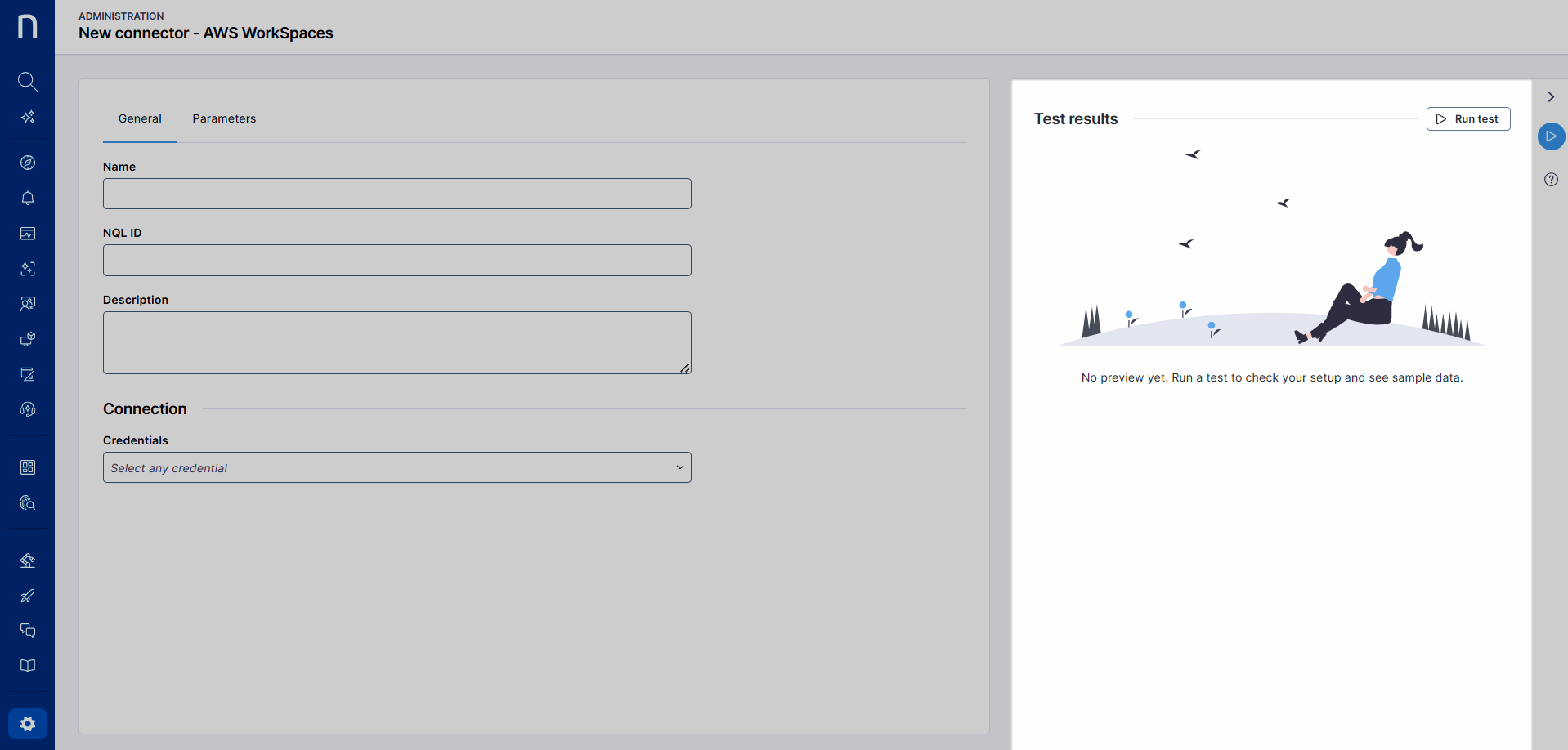
Ensure you configured the connector credentials, then create a new connector:
Go to Administration > Inbound connectors.
Select New connector in the top-right corner of the page.
Select AWS WorkSpaces from the connector list.
The following sections explain how to configure the connector.
General tab
Name: Add a meaningful name for the connector. This name appears on the administration page.
NQL ID: Add a unique identifier for the connector used when referencing the AWS WorkSpaces connector in NQL queries. You can initially modify the suggested NQL ID, but after saving the workflow, you can no longer change it.
Description: Add a short description of the purpose and behavior of the connector.
Schedule
Recurrence: Select how often the connector should run.
Connection
Credentials: Select preconfigured credentials from the Connector credentials page. Only AWS IAM is supported.

Parameters tab
Region: Select the AWS region where the workspaces are located. It needs to be a valid AWS region, such as
us-east-1.Environment name: A custom-defined text. The enriched virtual devices will have a reference to this environment name in NQL.

Test results panel
The Test results panel is available only for supported connectors. Connector availability also depends on your license.
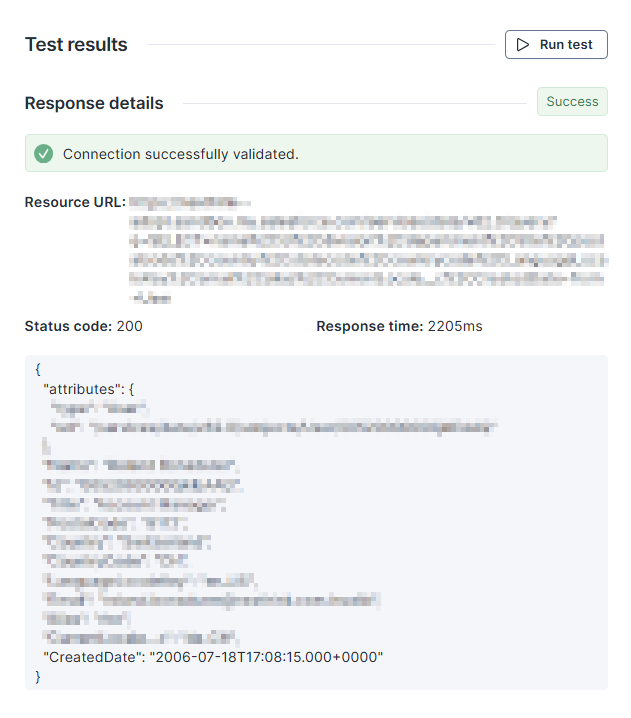
Use the Test results panel on the right side to run the connector with real data on demand, and inspect responses and errors. The test panel helps with faster debugging and validation during setup, and also with more reliable mappings with less trial and error.
Select the Run test button to call the API, and validate the credentials and check connectivity to the targeted endpoint.

Besides basic information, such as the response status code and time, the panel also shows a sample record of the response at the bottom.

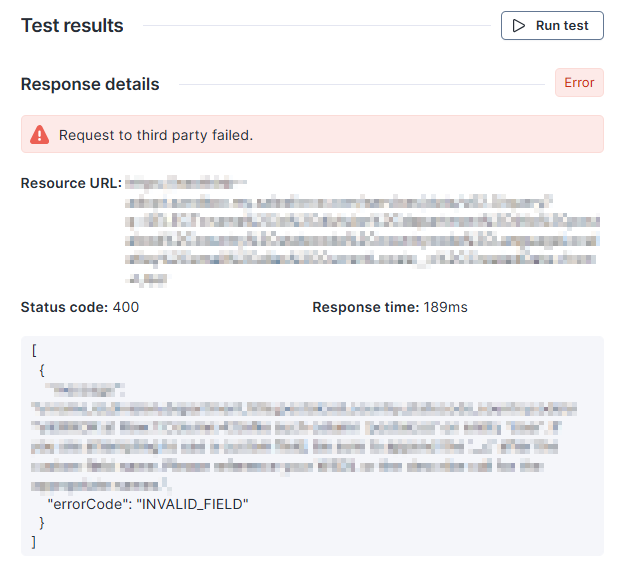
In the event of an error, the system displays the API response to aid in diagnosing the issue.

Note: For AWS workspaces you may encounter rate limits being applied, which could fail the connection test. We advise to run it several times or if possible, one region at a time.
Last updated
Was this helpful?