# Connector credentials

Before Nexthink can export data to any third-party supported tools, you must create and define new credentials to connect and enable such communication and then apply the credentials when configuring an outbound connector such as a webhook or data exporter.

## Configuring credentials for the first time <a href="#connectorcredentials-configuringcredentialsforthefirsttime" id="connectorcredentials-configuringcredentialsforthefirsttime"></a>

* Click on the **Administration** > **Connector credentials** in the main menu.

The **Connector credentials** page remains empty until you save the first credential configuration.

{% hint style="info" %}
If the system does not display the **Connector credentials** option in the main menu, reach out to [Nexthink Support](https://support.nexthink.com/) to enable this functionality as it might be hidden.
{% endhint %}

<figure><img src="https://268444917-files.gitbook.io/~/files/v0/b/gitbook-x-prod.appspot.com/o/spaces%2FxJSUDk9NTtCHYPG5EWs3%2Fuploads%2Fgit-blob-8286a6db616273e42122ae1cd8287a0a9df7b5b2%2Fint-1673360809.png?alt=media" alt="Accessing Connector credentials"><figcaption></figcaption></figure>

## Creating a new credential <a href="#connectorcredentials-creatinganewcredential" id="connectorcredentials-creatinganewcredential"></a>

From the **Administration** > **Connector credentials** pag&#x65;**:**

1. Click on the **New credential** button located in the top-right corner of the **Connector credentials** page.
2. Fill in the credential configuration input fields:
   * **Name:** The unique name of the credential.
   * **Protocol** options:
     * **Hypertext Transfer Protocol Secure (HTTPS)**. Refer to the [Connector credentials for HTTPS](#connectorcredentials-connectorcredentialsforhttpshttpsprotocol) section below.
     * **Secure File Transfer Protocol (SFTP)**. Refer to the [Connector credentials for SFTP](#connectorcredentials-connectorcredentialsforsftpcredentialsftp) section below.

<figure><img src="https://268444917-files.gitbook.io/~/files/v0/b/gitbook-x-prod.appspot.com/o/spaces%2FxJSUDk9NTtCHYPG5EWs3%2Fuploads%2Fgit-blob-f16c737852c0adcb0efecd247dda9fed0bf651d3%2Fint-1673360905.png?alt=media" alt=""><figcaption></figcaption></figure>

## Connector credentials for HTTPS <a href="#connectorcredentials-connectorcredentialsforhttpshttpsprotocol" id="connectorcredentials-connectorcredentialsforhttpshttpsprotocol"></a>

1. Choose **Hypertext Transfer Protocol Secure (HTTPS)** from the **Protoco**l drop-down menu.
2. Add the **URL address** using the URL of the third-party tool.
   * Ensure it follows the `https://{host}:{port}/` format.
   * Select the appropriate [authorization type](#connectorcredentials-supportedauthorizationmechanismsauthorizationtype) and fill in the input fields.
3. [Save](#connectorcredentials-savinganewcredentialsavingcredential) the credential configuration.

The following table includes URL examples for adding the **URL address** input field.

{% hint style="info" %}
Each third-party tool constructs the instance URL differently. Refer to the third-party software documentation to verify the URL values you insert.
{% endhint %}

| Third-party tool  | Full URL                                                           | Instance URL (credential field)         |
| ----------------- | ------------------------------------------------------------------ | --------------------------------------- |
| ServiceNow        | `https://<instancename>.service-now.com/api/now/table/{tableName}` | `https://ven01063.service-now.com/`     |
| BMC               | `https://serverName:port/api/arsys/v1/entry/{formName}`            | `https://serverName:port/`              |
| Ivanti            | `https://{tenant url}/api/rest/ServiceRequest/new`                 | `https://{tenant url}/`                 |
| Freshservice      | `https://api.freshservice.com/v1/#update_ticket_priority`          | `https://api.freshservice.com/`         |
| 4me               | `https://api.4me.com/v1/requests`                                  | `https://api.4me.com/`                  |
| Jira Service Desk | `https://<instancename>.atlassian.net/rest/servicedeskapi/request` | `https://<instancename>.atlassian.net/` |

### Supported authorization mechanisms <a href="#connectorcredentials-supportedauthorizationmechanismsauthorizationtype" id="connectorcredentials-supportedauthorizationmechanismsauthorizationtype"></a>

Choose the authorization mechanism from the **Authorization type** drop-down and fill in the related input fields according to the type:

* **Basic** authorizations: Enter a username and password to connect to the third-party tool.
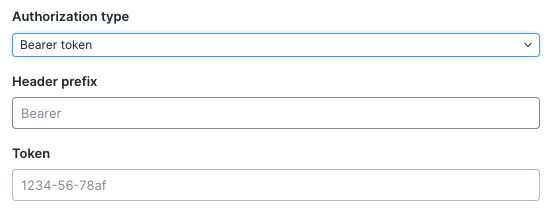
* **Bearer token** authorizations: The **Header prefix** should be configured manually. In most cases, this should be set to `Bearer`. However, always verify the expected value in the target API’s documentation, as some APIs may require a different prefix.
  * Enter an API token in the **Token** field. These tokens are typically generated by a third-party tool and added automatically to the header when the request is launched.

<figure><img src="https://268444917-files.gitbook.io/~/files/v0/b/gitbook-x-prod.appspot.com/o/spaces%2FxJSUDk9NTtCHYPG5EWs3%2Fuploads%2Fgit-blob-6940371b22104572167d6ad838da4e7f545a2424%2Fscreenshot-2021-11-03-at-08-52-47.png?alt=media" alt="Bearer token authorizations"><figcaption></figcaption></figure>

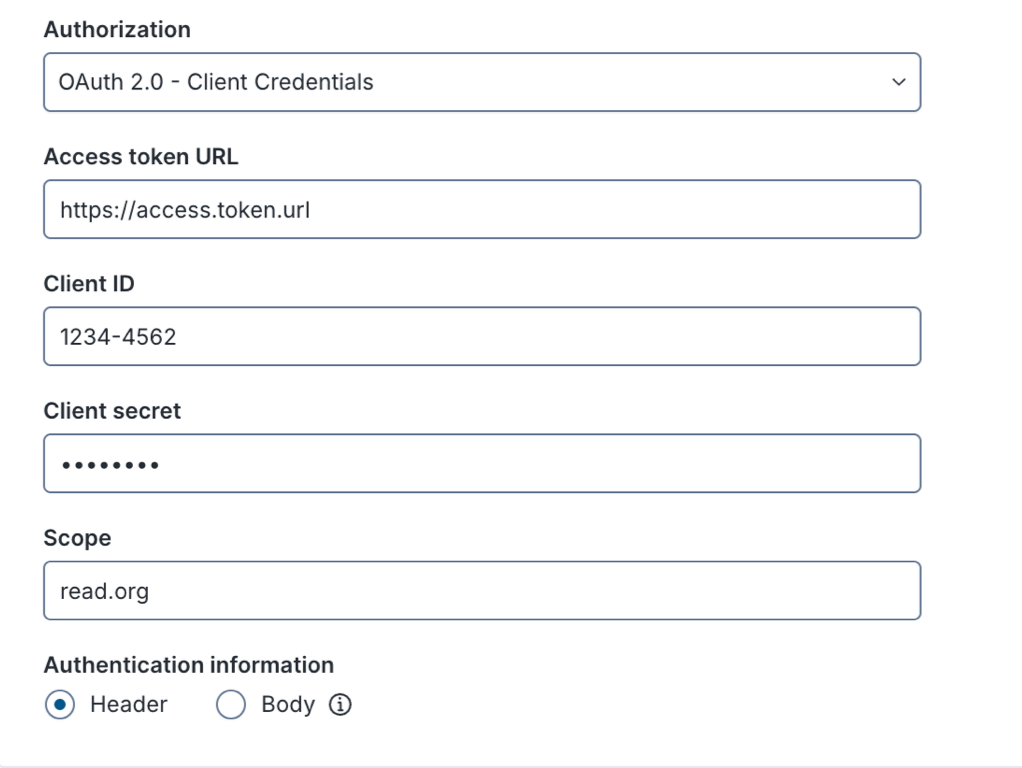
* **OAuth 2.0 - Client credentials** authorizations: Use the **Client ID** and **Client secret** to obtain a token instead of the typical username and password. Both values are required.
  * The token expires and needs to be renewed. Configure the **Access Token URL** field to automatically request a new token when the current one expires.
  * **Scope** is an optional field that lists the operations the system can execute on the target machine, using the **Client ID** and **Client secret**.
  * **Authentication information** enables requests for OAuth tokens either in the **Header** or **Body** to verify and authorize access.
    * Nexthink does not recommend storing authentication in the **Body**, as it does not conform to Request for Comments (RFC) standards.
  * [Custom header](#custom-header) provide additional information for authorization.

<figure><img src="https://268444917-files.gitbook.io/~/files/v0/b/gitbook-x-prod.appspot.com/o/spaces%2FxJSUDk9NTtCHYPG5EWs3%2Fuploads%2Fgit-blob-3f59cad9eb7ee0706570f0da980ccb09c23630c5%2FConnector%20-%20Credentials.png?alt=media" alt="" width="563"><figcaption></figcaption></figure>

{% hint style="warning" %}
If the client secret contains special characters, the system sends them URL-encoded. If the third-party tool doesn’t support URL encoding, select **Body** to send your client credentials in the request body instead. This helps prevent encoding-related 4xx errors.
{% endhint %}

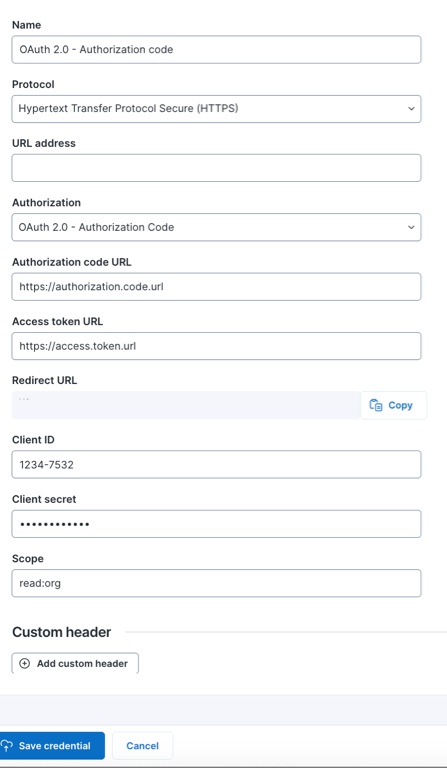
* **OAuth 2.0 - Authorization code** authorizations: Use the **Client ID** and **Client secret** to obtain a token instead of a username and password. Both values are required.
  * The third-party tool uses a **Redirect URL** to send the authorization code to Nexthink. Use the copy button to copy and add the redirect URL to the third-party tool.
  * The token expires and needs to be renewed. Configure the **Authorization code URL** and **Access token URL** fields to automatically request a new token when the current one expires.
  * **Scope** is an optional field that lists the operations the system can execute on the target machine, using the **client ID** and **client secret**.
  * [Custom header](#custom-header) provide additional information for authorization.

<figure><img src="https://268444917-files.gitbook.io/~/files/v0/b/gitbook-x-prod.appspot.com/o/spaces%2FxJSUDk9NTtCHYPG5EWs3%2Fuploads%2Fgit-blob-c54944f25fa2dce44a7dd004f244c6c9122e7b03%2FConnectors-auth-code..png?alt=media" alt=""><figcaption></figcaption></figure>

{% hint style="info" %}
Nexthink does not recommend storing authentication in the Body, as it does not conform to Request for Comments (RFC) standards.
{% endhint %}

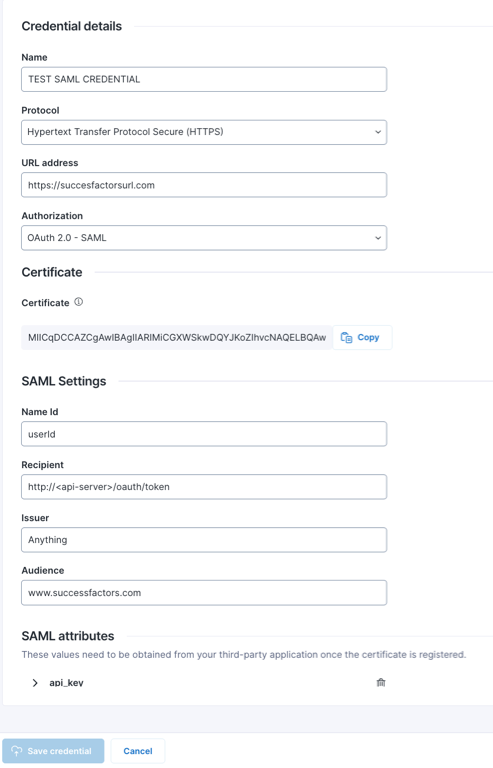
* **OAuth 2.0 – SAML** authorizations: Use a signed SAML 2.0 assertion to obtain an OAuth 2.0 access token. The certificate and SAML settings are required to generate the SAML assertion.

  * **Certificate**: The X.509 certificate contains the public key used by the OAuth provider to verify the SAML assertion. The SAML assertion is generated by Nexthink.
  * **SAML Settings**: Configuration values required to generate the SAML assertion:
    * **Name ID**: The user or entity identifier in the format required by the OAuth provider.
    * **Recipient**: The OAuth provider's token endpoint URL where the assertion will be sent, for example, `https://provider.com/oauth/token.`
    * **Issuer**: The identifier of the SAML assertion’s issuer. Since Nexthink generates the assertion, use `https://www.nexthink.com` as the issuer value. If an OAuth provider requires a different value, refer to their documentation for specific requirements
    * **Audience**: The Service Provider (SP) entity identifier from the OAuth provider, typically the token endpoint URL or the provider's entity ID, for example, `https://provider.com/oauth/token` or `https://provider.com`.

  **Optional SAML parameters:** The following parameters are optional and depend on the third-party application's SAML requirements:

  * **OAuth Token Requests**: Additional parameters or claims required by the OAuth provider.
  * **SAML Attributes**: SAML attribute values obtained from the OAuth provider.

{% hint style="info" %}
Verify with the third-party OAuth provider's documentation to determine which optional SAML attributes are required for your specific integration.
{% endhint %}

<figure><img src="https://268444917-files.gitbook.io/~/files/v0/b/gitbook-x-prod.appspot.com/o/spaces%2FxJSUDk9NTtCHYPG5EWs3%2Fuploads%2Fgit-blob-e6523ec727d6c25cda8ecb5338e34888624672d2%2FSAML-config.png?alt=media" alt=""><figcaption></figcaption></figure>

* **No Auth (None)** authorizations: Enter the URL to connect to the third-party tool. This is typically used for Incoming Webhook URLs.

### Custom header

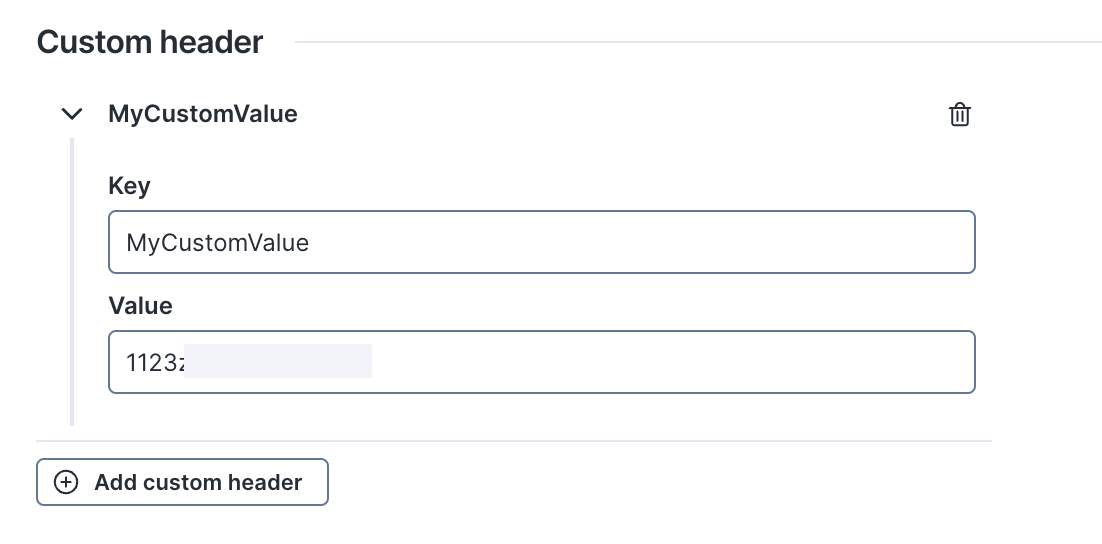
Use **Custom header** to include additional credential information in OAuth 2.0 authentication methods, such as **Client Credentials** and **Authorization Code**. This is useful when additional authorization methods are needed beyond the default OAuth 2.0 authorization mechanism.

Select **Add custom header** to include additional information in either **OAuth 2.0 - Client credentials** or **OAuth 2.0 - Authorization code** authorizations.

<figure><img src="https://268444917-files.gitbook.io/~/files/v0/b/gitbook-x-prod.appspot.com/o/spaces%2FxJSUDk9NTtCHYPG5EWs3%2Fuploads%2Fgit-blob-55de238b52a89f62d586d1c7e0f3527caf07edd0%2FConnector%20-%20001.png?alt=media" alt="" width="563"><figcaption></figcaption></figure>

Click the trash bin icon to delete an existing custom header.

## Connector credentials for SFTP <a href="#connectorcredentials-connectorcredentialsforsftpcredentialsftp" id="connectorcredentials-connectorcredentialsforsftpcredentialsftp"></a>

Choose the **Secure File Transfer Protocol (SFTP)** from the **Protocol** drop-down menu.

* **Hostname:** The hostname of the SFTP server to connect to, in the following format `sftp://{hostname}:{port}/`. The protocol `sftp` and the `port` must be included.
* **SFTP server fingerprint**: This helps users and client applications authenticate an SSH or SFTP server and determine whether it's really connecting to the server it was intended to connect to. The supported host key algorithms are the following:
  * `rsa-sha2-512`
  * `rsa-sha2-256`
  * `ecdsa-sha2-nistp256`
  * `ecdsa-sha2-nistp384`
  * `ecdsa-sha2-nistp521`
  * `ssh-rsa` is only supported if the underlying hashing algorithm is not SHA1 (deprecated).

{% hint style="warning" %}
Values such as, `da:47:93:b4:3a:90:5b:50:1f:20:a8:f9:b7:a1:d0:e1` are not valid for this field.

The algorithm `ssh-ed25519` is currently not supported.
{% endhint %}

{% hint style="info" %}
The algorithm `ssh-ed25519` is currently not supported.
{% endhint %}

* **Authorization:** Choose the authorization type from the drop-down list.
  * **Basic:** Enter a username and password to connect to the SFTP server.
  * **SSH key:** Enter a username and SSH key—with an optional passphrase—to connect to the SFTP server.

## Saving a new credential <a href="#connectorcredentials-savinganewcredentialsavingcredential" id="connectorcredentials-savinganewcredentialsavingcredential"></a>

Once you fill in the credentials input fields, **Save** the configuration to create a new credential.

If needed, **Cancel** the process of creating a new credential to remove the information from the input fields.

{% hint style="info" %}
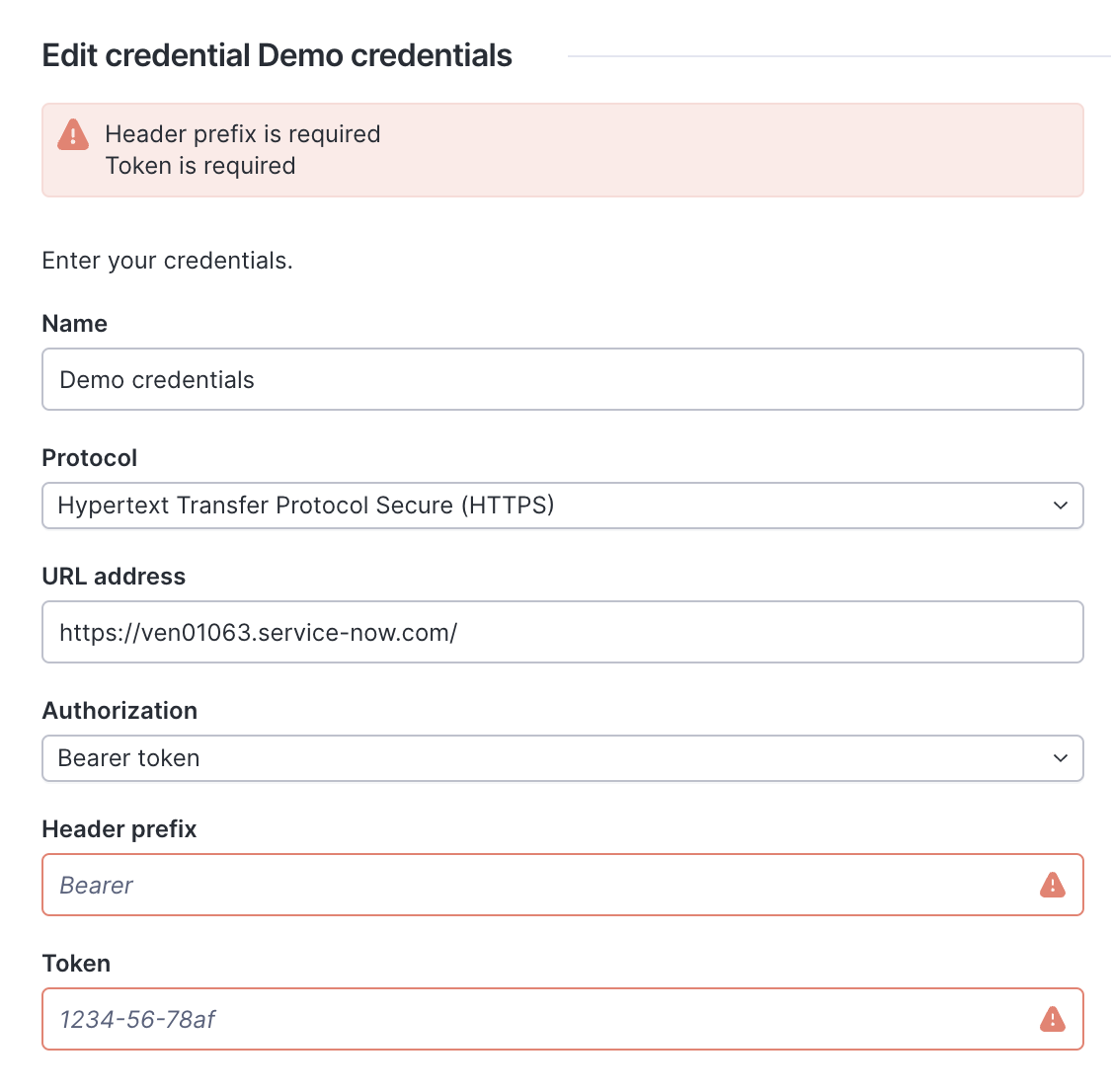
The system displays an error message if the credential configuration fields are invalid.
{% endhint %}

<figure><img src="https://268444917-files.gitbook.io/~/files/v0/b/gitbook-x-prod.appspot.com/o/spaces%2FxJSUDk9NTtCHYPG5EWs3%2Fuploads%2Fgit-blob-7c2df6f63ac6111d565f867343cc0e20d2734374%2Fnxcheseaux-20230619-111641-20230619-091655.png?alt=media" alt="" width="563"><figcaption></figcaption></figure>

## Editing a credential <a href="#connectorcredentials-editingacredential" id="connectorcredentials-editingacredential"></a>

From the **Administration** > **Connector credentials** pag&#x65;**:**

1. Click the pencil icon on the right side of the credential item in the Credentials table.
   * Once clicked, you are redirected to the credentials configuration page with the prefilled values.
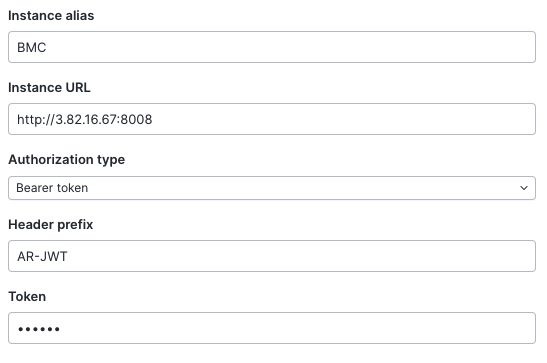
   * The **Token** or **Password** fields remain hidden and cannot be copied for security purposes. See the image below.
2. **Save** the edits made to the credential configuration.
   * **Cancel** any changes and return to the **Connector credentials** page.

<figure><img src="https://268444917-files.gitbook.io/~/files/v0/b/gitbook-x-prod.appspot.com/o/spaces%2FxJSUDk9NTtCHYPG5EWs3%2Fuploads%2Fgit-blob-5954f650b7dfd20db044bf82b27b2ffb79384722%2Fscreenshot-2021-11-03-at-09-18-49.png?alt=media" alt="" width="517"><figcaption></figcaption></figure>

## Deleting a credential <a href="#connectorcredentials-deletingacredential" id="connectorcredentials-deletingacredential"></a>

From the **Administration** > **Connector credentials** pag&#x65;**:**

1. Click the trash bin icon on the right side of the credential item in the Credentials table.
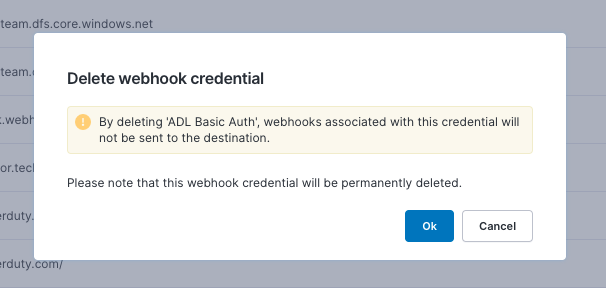
2. Confirm the deletion from the **Delete webhook credential** pop-up.

The system removes credentials regardless of having a connector linked to it.

<figure><img src="https://268444917-files.gitbook.io/~/files/v0/b/gitbook-x-prod.appspot.com/o/spaces%2FxJSUDk9NTtCHYPG5EWs3%2Fuploads%2Fgit-blob-513c9f25f63d29877845f198217fc515a6a70826%2Fscreenshot-2022-02-07-at-16-12-45.png?alt=media" alt=""><figcaption></figcaption></figure>

***

RELATED LINKS

* [Integrations](https://docs.nexthink.com/platform/overview/integrations)
* [Inbound connectors](https://docs.nexthink.com/platform/configuring_nexthink/bringing-data-into-your-nexthink-instance/integrating-nexthink-with-third-party-tools/inbound-connectors)
* [Outbound connectors](https://docs.nexthink.com/platform/configuring_nexthink/bringing-data-into-your-nexthink-instance/integrating-nexthink-with-third-party-tools/outbound-connectors)