# Microsoft Entra ID (Azure AD) connector

This documentation references external sources. Nexthink does not have control over the accuracy of third-party documentation, nor any external updates or changes that might create inconsistencies with the information presented on this page. Please report any errors or inconsistencies to [Nexthink Support](https://support.nexthink.com/).

The connector for Microsoft Entra ID (formerly named Azure AD) allows you to import user information from Entra ID. Schedule the feature to run automatically and communicate with the Azure application according to the configuration of the Azure portal.

## Prerequisites <a href="#connectorformicrosoftentraid-azuread-prerequisites" id="connectorformicrosoftentraid-azuread-prerequisites"></a>

1. Set up [Microsoft Entra ID Connect](https://docs.microsoft.com/en-us/azure/active-directory/hybrid/whatis-azure-ad-connect) if you have [Hybrid Azure AD joined devices](https://docs.microsoft.com/en-us/azure/active-directory/devices/concept-azure-ad-join-hybrid). Refer to the [Microsoft tool](https://docs.microsoft.com/en-us/azure/active-directory/devices/troubleshoot-device-dsregcmd#device-state) to identify the state of your devices.
2. [Register a new application](https://docs.microsoft.com/en-us/graph/auth-register-app-v2) in your Azure portal.
   * During the registration process, ensure you select the **Single tenant** option.
   * For the Redirect URI, use the drop-down list to select **Web**.
   * When asked for application permissions, select **User.Read.All**.

{% hint style="warning" %}
Assign **User.Read.All** as an **Application** permission, not a **Delegated** permission. If you assign **User.Read.All** as a delegated permission, the integration **won’t retrieve** user data from Microsoft Entra ID.
{% endhint %}

Refer to the official [Microsoft documentation](https://docs.microsoft.com/en-us/azure/active-directory/hybrid/how-to-connect-install-roadmap) on how to install and configure Microsoft Entra ID Connect.

## Configuring the Nexthink web interface <a href="#connectorformicrosoftentraid-azuread-configuringthenexthinkwebinterface-configureentraidconnectortru" id="connectorformicrosoftentraid-azuread-configuringthenexthinkwebinterface-configureentraidconnectortru"></a>

{% hint style="info" %}
You can configure more than one Entra ID connector with different settings.
{% endhint %}

To set up an Entra ID connector using the Nexthink web interface:

1. Go to **Administration** > **Inbound connectors**.
2. Click the **New connector** button in the top-right corner of the page.
3. Choose the **Entra ID (Azure AD)** option from the **Inbound connectors** page.
4. Click on the **New connector** button in the top-right corner of the page.
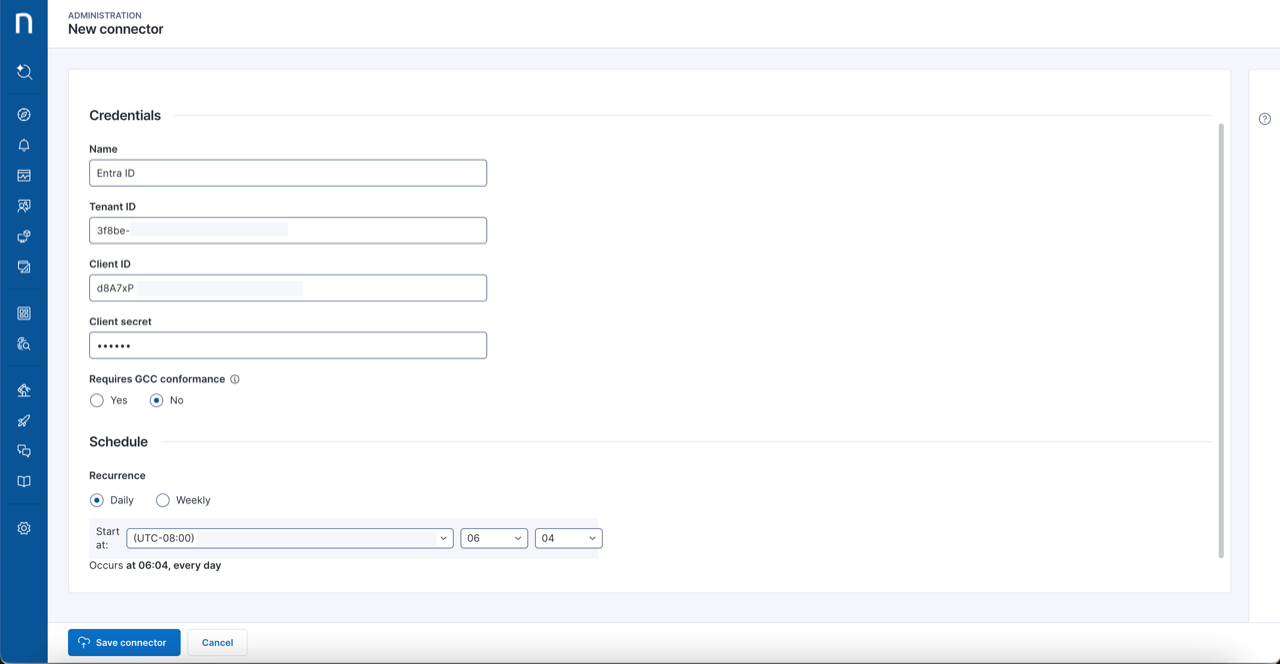
5. Fill in the fields under the **General** tab following the in-product documentation in the right-side menu of the Nexthink web interface.

<figure><img src="https://268444917-files.gitbook.io/~/files/v0/b/gitbook-x-prod.appspot.com/o/spaces%2FxJSUDk9NTtCHYPG5EWs3%2Fuploads%2Fgit-blob-9ff514897e646bfd1552396fb3b97b852ced34a3%2FConnector%20-%20.png?alt=media" alt=""><figcaption></figcaption></figure>

**GCC Conformance**

If you have instances of Entra ID in a GCC environment, you can now integrate with Nexthink. Select the **Yes** checkbox to enable GCC integration. By default, the **Requires GCC Conformance** option is set to **No**.

## Field Mapping <a href="#connectorformicrosoftentraid-azuread-fieldmapping" id="connectorformicrosoftentraid-azuread-fieldmapping"></a>

After configuring the [General Tab](#connectorformicrosoftentraid-azuread-configuringthenexthinkwebinterface-configureentraidconnectortru) from the selected Entra ID connector page, map Nexthink user fields with their corresponding [Entra ID properties](https://docs.microsoft.com/en-us/graph/api/resources/user?view=graph-rest-1.0#properties):

1. Click the **Field mapping** tab from the selected Entra ID connector page.
2. Type in the exact name of the desired Entra ID property in the text input field under **Common**.
   * See the example [field mapping table](#connectorformicrosoftentraid-azuread-fieldmappingtablefieldmappingexampletrue) on this page.
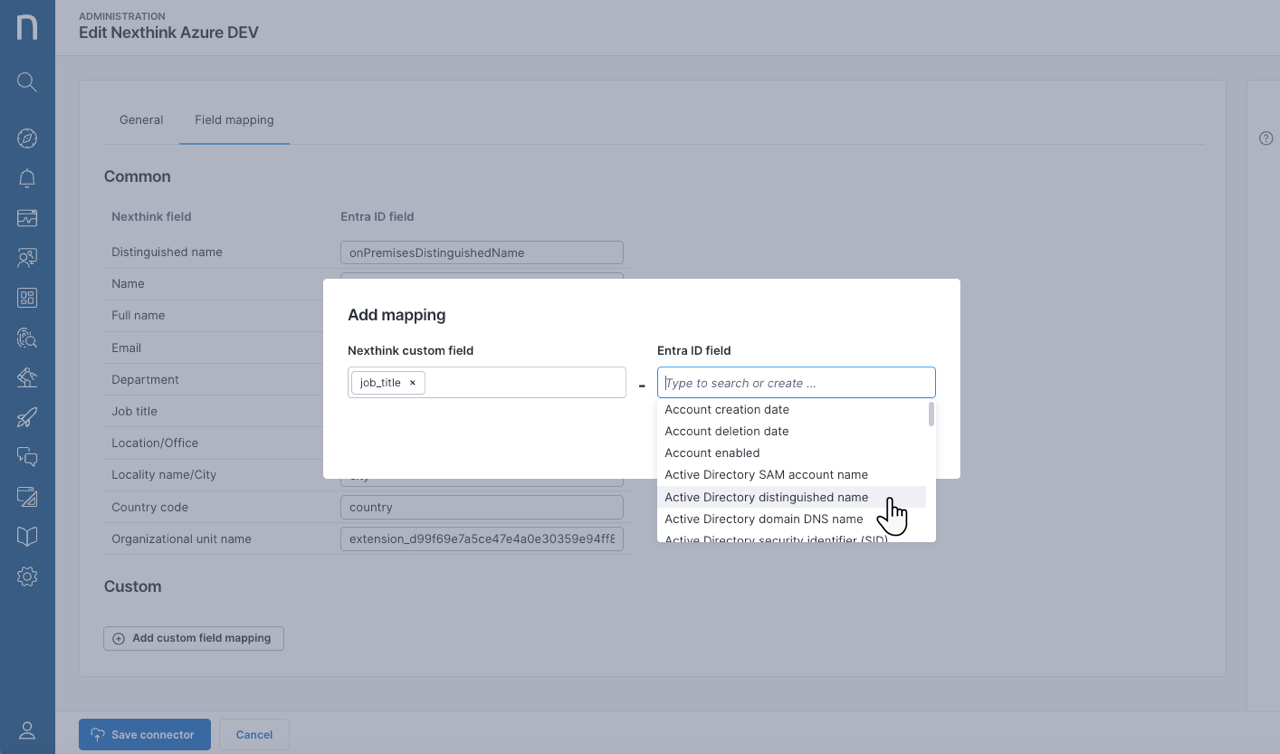
3. In addition, **Add custom field mapping** to quickly map Entra ID properties using expandable drop-downs with suggested items: created user-type [custom fields](https://docs.nexthink.com/platform/user-guide/administration/content-management/custom-fields-management) and Entra ID properties.
   * You can still type in any Entra ID property not suggested by the expandable drop-down.

<figure><img src="https://268444917-files.gitbook.io/~/files/v0/b/gitbook-x-prod.appspot.com/o/spaces%2FxJSUDk9NTtCHYPG5EWs3%2Fuploads%2Fgit-blob-6075d49ebf5665e73bff509a19ea2ca82331d976%2Fconnectorformicrosoftentraid-1707754266.png?alt=media" alt="Mapping Entra ID properties to populate custom fields." width="760"><figcaption></figcaption></figure>

### Field mapping table <a href="#connectorformicrosoftentraid-azuread-fieldmappingtablefieldmappingexampletrue" id="connectorformicrosoftentraid-azuread-fieldmappingtablefieldmappingexampletrue"></a>

The table below is an example of mapping common Nexthink fields and Entra ID properties by typing the property names directly in the Nexthink web interface. Consider the following:

* Entra ID property names are case-sensitive.
* Text input boxes for Entra ID properties let you control field mapping. For instance, you can have the `Distinguished name` field populated with the `employeeId` property.

| Nexthink Field           | Entra ID Field                | Description                                      |
| ------------------------ | ----------------------------- | ------------------------------------------------ |
| Distinguished name       | `onPremisesDistinguishedName` | Employee's name as displayed in the address book |
| Name                     | `userPrincipalName`           | Employee's user principal name                   |
| Full name                | `displayName`                 | Employee's name as displayed in the address book |
| Email                    | `mail`                        | Employee's email address                         |
| Department               | `department`                  | Name of the employee’s department                |
| Job title                | `jobTitle`                    | Employee's job title                             |
| Location/Office          | `officeLocation`              | Name of the employee’s office location           |
| Locality name/City       | `city`                        | Office location - city                           |
| Country code             | `postalCode`                  | Office location - postal code                    |
| Organizational unit name | `streetAddress`               | Office location - street address                 |

{% hint style="info" %}
If you use the Enrichment API to enrich AD fields—Distinguished name, Email, or others—ensure you do not map the same fields here to avoid overridden values.
{% endhint %}

### Mapping extended properties

Entra ID allows you to extend data using [Microsoft Graph extensions](https://learn.microsoft.com/en-us/graph/extensibility-overview?tabs=http) and map extended properties with the Entra ID connector. The Nexthink field allows you to map existing data within the Microsoft Graph object using extensions.

There are 4 types of extensions:

* [Extension Attributes](#extension-attributes)
* [Directory Extensions](#directory-extensions)
* [Schema Extensions](#schema-extensions)
* [Open Extensions](#open-extensions)

#### Extension Attributes

The table below shows an example of how to map existing data from extension attributes using the `onPremisesExtensionAttributes` property.

| Microsoft Graph Example                                                                                                                    | Nexthink Field                                      | Result |
| ------------------------------------------------------------------------------------------------------------------------------------------ | --------------------------------------------------- | ------ |
| <p>"onPremisesExtensionAttributes": {</p><p>"extensionAttribute1": "value1"</p><p>....</p><p>"extensionAttribute15": "value15"</p><p>}</p> | `onPremisesExtensionAttributes.extensionAttribute3` | value3 |

{% hint style="info" %}
Microsoft Entra ID supports up to 15 extension attributes.
{% endhint %}

The connector for Microsoft Entra ID also supports accessing specific values for any kind of structured or complex property. For example, retrieving the `costCenter` of the `employeeOrgData` property or retrieving a given `disabledPlans` from the `assignedLicenses` property.

| Microsoft Graph Example                                                                                                                                                                                                  | Nexthink Field                         | Result    |
| ------------------------------------------------------------------------------------------------------------------------------------------------------------------------------------------------------------------------ | -------------------------------------- | --------- |
| <p>"employeeOrgData": {</p><p>"division": "valueDiv",</p><p>"costCenter": "valueCost"</p><p>}</p>                                                                                                                        | `employeeOrgData.costCenter`           | valueCost |
| <p>"assignedLicenses": \[</p><p>{</p><p>"disabledPlans": \[],</p><p>"skuId": "a403..."</p><p>},</p><p>{</p><p>"disabledPlans": \[</p><p>"57a0...",</p><p>"3634..."</p><p>],</p><p>"skuId": "bc94..."</p><p>}</p><p>]</p> | `assignedLicenses[1].disabledPlans[0]` | 57a0...   |

#### Directory Extensions

For Directory extensions, use the following naming convention:

Format -> `extension_<client_id>_<name>`

When defining the mapping, specify the extension name and `client_id` .

The table below shows examples of how to retrieve existing data in the directory extensions.

| Microsoft Graph Example                                                             | Nexthink Field                     | Result      |
| ----------------------------------------------------------------------------------- | ---------------------------------- | ----------- |
| <p>"extension\_d99f...\_arrayDirExt": \[</p><p>"value1",</p><p>"value2"</p><p>]</p> | `extension_d99f..._arrayDirExt[1]` | value2      |
| "extension\_d99f...\_stringDirExt": "test\_value"                                   | `extension_d99f..._stringDirExt`   | test\_value |

#### Schema Extensions

For Schema extensions, use the following naming convention:

* Format -> `ext<8_random_alphanumeric_chars>_<name>`
* If the company owns a domain: Format -> `<domain_name>_<name>`

The examples below show how to map existing data in the schema extension.

| Microsoft Graph Example                                                                                               | Nexthink Field                                  | Result               |
| --------------------------------------------------------------------------------------------------------------------- | ----------------------------------------------- | -------------------- |
| <p>"extoi9fq37m\_userInfoSchemaExt": {</p><p>"workAnniversary": "2024-01-11T07:44:28Z",</p><p>"feetSize": 42<br>}</p> | `extoi9fq37m_userInfoSchemaExt.workAnniversary` | 2024-01-11T07:44:28Z |
| <p>"mydomain\_userInfoSchemaExt": {</p><p>"workAnniversary": "2024-01-11T07:44:28Z",</p><p>"feetSize": 42</p><p>}</p> | `mydomain_userInfoSchemaExt.feetSize`           | 42                   |

#### Open Extensions

Schema extension names do not follow any naming convention. When defining them, add `openExtension` before the extension ID.

The example below shows how to map existing data in the open extension.

| Microsoft Graph Example                                                                                                                                              | Nexthink Field                                   | Result |
| -------------------------------------------------------------------------------------------------------------------------------------------------------------------- | ------------------------------------------------ | ------ |
| <p>"extensions": \[</p><p>{</p><p>"hairColor": "blond",</p><p>"feetSize": 42,</p><p>"isRemoteWorker": true,</p><p>"id": "personalDetailsOpenExt"</p><p>}</p><p>]</p> | `openExtension.personalDetailsOpenExt.hairColor` | blond  |

{% hint style="info" %}
For all previous extensions—extension attributes, directory, schema, or open extensions— the full extension object can be retrieved using extension names without adding any specific key or element to the mapping.
{% endhint %}

For instance, the example below shows how to retrieve the full `personalDetailsOpenExt` open extension object.

<table><thead><tr><th width="252">Microsoft Graph Example</th><th>Nexthink Field</th><th>Result</th></tr></thead><tbody><tr><td><p>"extensions": [</p><p>{</p><p>"hairColor": "blond",</p><p>"feetSize": 42,</p><p>"isRemoteWorker": true,</p><p>"id": "personalDetailsOpenExt"</p><p>}</p><p>]</p></td><td><code>openExtension.personalDetailsOpenExt</code></td><td><p>{</p><p>"hairColor": "blond",</p><p>"feetSize": 42,</p><p>"isRemoteWorker": true,</p><p>"id": "personalDetailsOpenExt"</p><p>}</p></td></tr></tbody></table>

## FAQ <a href="#connectorformicrosoftentraid-azuread-f.a.q" id="connectorformicrosoftentraid-azuread-f.a.q"></a>

<details>

<summary>What is the connector for Entra ID used for?</summary>

1. To enrich Nexthink user data from Entra ID in order to enhance user visualization.
2. To enrich Nexthink user data in order to identify users for other import connectors:
   * Connector for Microsoft Teams for hybrid configurations using the SID value
   * Connector for Zoom using the email value

</details>

<details>

<summary>How do we troubleshoot the connector for Entra ID?</summary>

Currently, the only way to troubleshoot issues with the connector for Entra ID is to reach out to [Nexthink support](https://support.nexthink.com/).

</details>

<details>

<summary>Can I map any property from Entra ID?</summary>

As long as the property exists in Entra ID, it can be mapped in Nexthink Infinity. If you leave the Nexthink field blank, it will not be enriched, and a dash ( `-` ) appears in the NQL query results.

</details>

<details>

<summary>Can I apply transformations to the imported fields from Entra ID?</summary>

All fields are transformed into strings by default, therefore the system cannot apply transformations at this point.

</details>

<details>

<summary>Are there any fields that cannot be mapped?</summary>

There are two Entra ID properties imported into Nexthink user fields whose mapping cannot be modified. These properties are `onPremisesSecurityIdentifier` and `id`.

Since the system uses these fields for identification purposes on connectors for Microsoft Teams and Zoom, users are not allowed to map them to other properties in Entra ID.

</details>

<details>

<summary>What if I need to retroactively remove email addresses (or any other field) because of GDPR?</summary>

To retroactively remove mapped email addresses (or any other field) add `[deleteMe]` in the corresponding Entra ID field box and save the connector.

</details>

<details>

<summary>Does the Entra ID connector create new users in Nexthink?</summary>

No. The Entra ID connector does not create users in Nexthink. It only enriches existing users with attributes retrieved from Entra ID.

During synchronization, the connector may receive data for users who do not exist in Nexthink. The system ignores these entries and does not create new user records.

</details>
