> For the complete documentation index, see [llms.txt](https://docs.nexthink.com/platform/llms.txt). Markdown versions of documentation pages are available by appending `.md` to page URLs; this page is available as [Markdown](https://docs.nexthink.com/platform/configuring_nexthink/bringing-data-into-your-nexthink-instance/integrating-nexthink-with-third-party-tools/inbound-connectors/connector-for-microsoft-azure-virtual-desktop.md).
# Microsoft Azure Virtual Desktop connector
{% hint style="warning" %}
This documentation references external sources. Nexthink does not have control over the accuracy of third-party documentation, nor any external updates or changes that might create inconsistencies with the information presented on this page. Please report any errors or inconsistencies to [Nexthink Support](https://support.nexthink.com/).
{% endhint %}
The connector for Microsoft Azure Virtual Desktop (AVD) allows you to import device organizational information about virtual desktops, such as host pool or the type of desktop virtualization. The feature is scheduled to run automatically and communicate with an Azure app according to the configuration of the Azure portal.
## Prerequisites
1. [Register a new application](https://docs.microsoft.com/en-us/graph/auth-register-app-v2) in Azure portal.
* During the registration process, make sure to select the **Single tenant** option.
* For the Redirect URI part, using the drop-down list, select **Web**.
2. [Assign](https://learn.microsoft.com/en-us/azure/role-based-access-control/role-assignments-portal) the [Desktop Virtualization Host Pool Reader](https://learn.microsoft.com/en-us/azure/role-based-access-control/built-in-roles#desktop-virtualization-host-pool-reader) role to the Service Principal of the Azure app.
3. To retrieve the disk image information, assign a role with `Microsoft.Compute/virtualMachines/read` permissions to the Service Principal. Assign the [Virtual Machine User](https://learn.microsoft.com/en-us/azure/role-based-access-control/built-in-roles#virtual-machine-user-login) built-in role or create a custom role for this purpose.
4. Install the latest version of the Nexthink data collector on your virtual desktops.
{% hint style="info" %}
Refer to [Installing Collector on Windows](broken://pages/2Fs3Q7uJbmCtb2ukmpmd) for more information.
{% endhint %}
## Device fields
The following device virtualization fields are imported.
| Nexthink Field | Description |
| -------------------------------- | --------------------------------------------------------------------------------------------------------------- |
| Virtualization desktop pool name | Hardware characteristics of the associated VMs |
| Virtualization desktop pool type |
Type of the desktop pool. Possible values are:
shared
personal
pooled
|
| Virtualization hypervisor name | Hardware virtualization system which is being used. In this case, the hypervisor name will always be *Azure*. |
| Virtualization instance size | A predefined configuration that determines the CPU, memory and storage which is allocated to a virtual machine. |
| Virtualization region | Geographical areas where one or more Microsoft Azure data centers are located. |
| Environment name | Name of the connector instance which enriches the virtual device. |
| Desktop broker | Name of the desktop virtualization broker product being used. In this case, `azure_virtual_desktop` |
For more information, please refer to [NQL data model](/platform/understanding-key-data-platform-concepts/nql-data-model.md) documentation.
## Configuring the Nexthink web interface
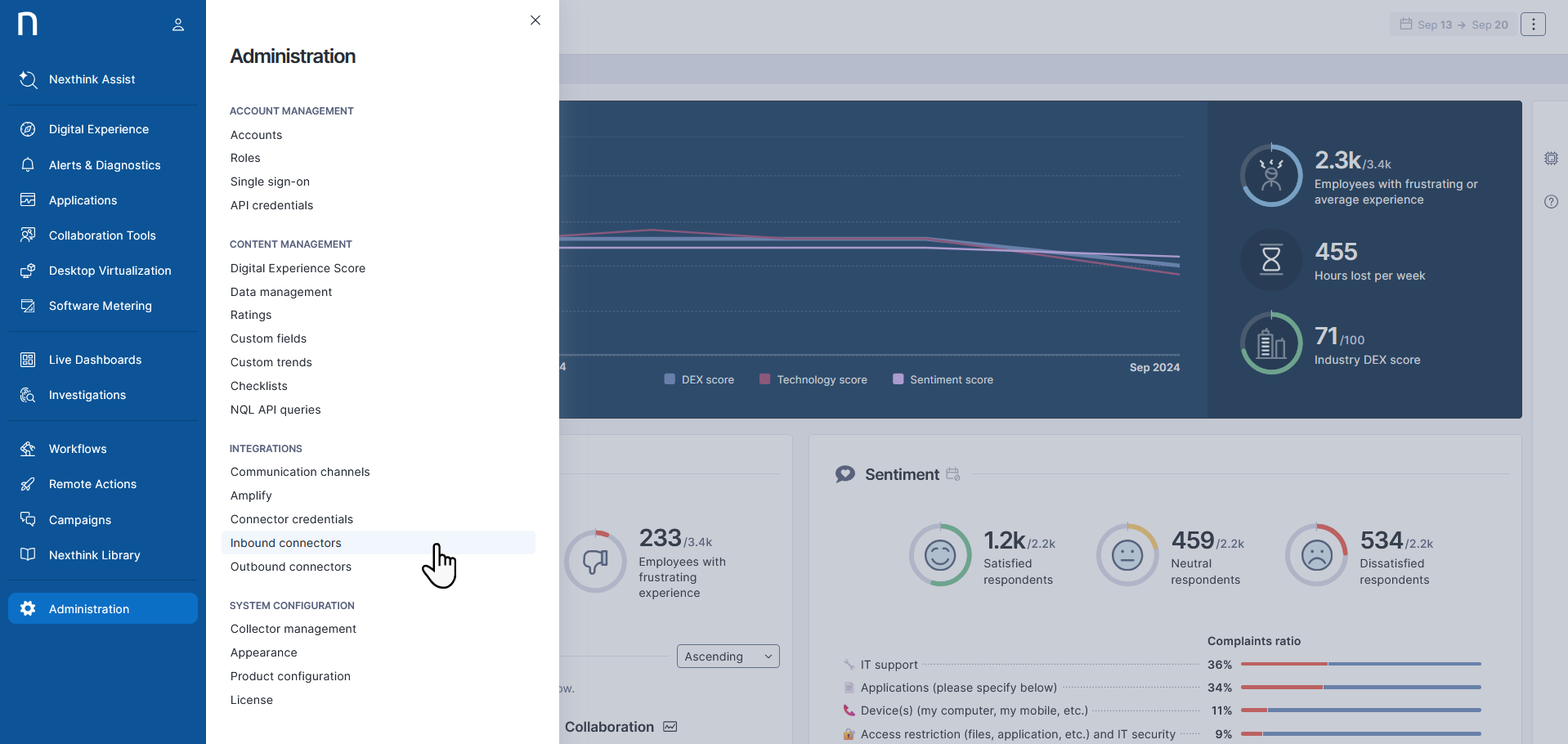
1. Go to **Administration** > **Inbound connectors**.
2. Click the **New connector** button in the top-right corner of the page.
3. Select **Azure Virtual Desktop** from the list of connectors.
### Activating the connector
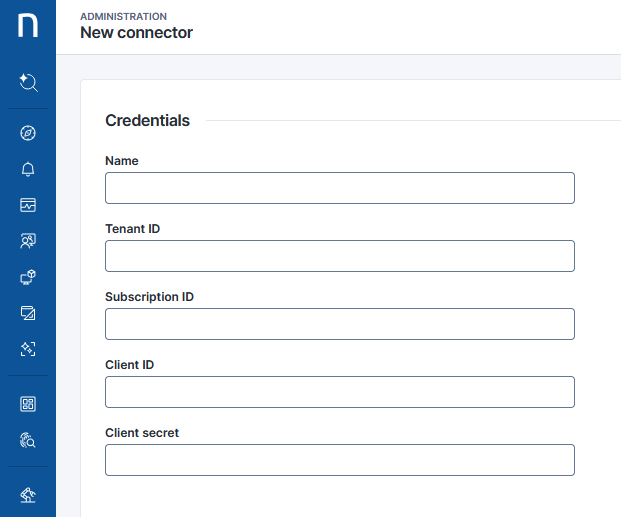
Activate the connection between your Nexthink instance and Azure Active Directory (Azure AD) by entering the following Azure AD credentials on this page:
* **Name**: Enter a meaningful name for the connector.
* **Tenant ID:** Directory (tenant) ID from the Overview section of the Azure portal.
* **Subscription ID:** Previously saved Subscription ID from the Azure portal.
* **Client ID:** Application (tenant) ID from the Overview section of the Azure portal.
* **Client Secret:** Enter the client secret, which you can generate in the Azure portal using the **Certificates and secret** option as follows:
* Click on **New client secret**.
* Fill in the **Description** and **Expiration** values.
* Click **Add** and copy the content from the **Value** column.
Refer to the [Microsoft documentation](https://docs.microsoft.com/en-gb/azure/active-directory/develop/howto-create-service-principal-portal#option-2-create-a-new-application-secret) for more information.
## FAQ What is the connector for Azure Virtual Desktop used for?
To enrich Nexthink device data from Azure Virtual Desktop by importing information like the host pool or the type of desktop virtualization. This is done in order to enhance device visualization.
How do we troubleshoot the connector for Azure Virtual Desktop?
Currently, the only way to troubleshoot issues with the connector for Azure Virtual Desktop is to reach out to [Nexthink support](https://support.nexthink.com/).
---
# Agent Instructions
This documentation is published with GitBook. GitBook is the documentation platform designed so that both humans and AI agents can read, navigate, and reason over technical content effectively. Learn more at gitbook.com.
## Querying This Documentation
If you need additional information that is not directly available in this page, you can query the documentation by asking a question.
Perform an HTTP GET request on the following URL with the `ask` and `goal` query parameters:
```
GET https://docs.nexthink.com/platform/configuring_nexthink/bringing-data-into-your-nexthink-instance/integrating-nexthink-with-third-party-tools/inbound-connectors/connector-for-microsoft-azure-virtual-desktop.md?ask=&goal=
```
`ask` is the immediate question: it should be specific, self-contained, and written in natural language.
`goal` is what the user is ultimately trying to achieve, the reason they need the answer. Sharing it helps GitBook give you a better, more relevant answer. A goal is most helpful when it describes the outcome the user wants rather than restating the question. For example, with `ask=how do I create an API token`, a goal like `automate deployments from our CI pipeline` lets GitBook tailor the answer to that use case.
The response will contain a direct answer to the question and relevant excerpts and sources from the documentation.
Use this mechanism when the answer is not explicitly present in the current page, you need clarification or additional context, or you want to retrieve related documentation sections.