> For the complete documentation index, see [llms.txt](https://docs.nexthink.com/platform/llms.txt). Markdown versions of documentation pages are available by appending `.md` to page URLs; this page is available as [Markdown](https://docs.nexthink.com/platform/configuring_nexthink/bringing-data-into-your-nexthink-instance/integrating-nexthink-with-third-party-tools/inbound-connectors/connector-for-omnissa-horizon.md).
# Omnissa Horizon connector
{% hint style="info" %}
This documentation references external sources. Nexthink does not have control over the accuracy of third-party documentation, nor any external updates or changes that might create inconsistencies with the information presented on this page. Please report any errors or inconsistencies to [Nexthink Support](https://support.nexthink.com/).
{% endhint %}
The Nexthink Connector for Omnissa Horizon retrieves essential information about your Horizon virtual desktop infrastructure (VDI), most notably the name of the desktop pool and related virtualization context to which VMs belong. The connector enriches your Nexthink environment with Horizon-specific data that enhances visibility into VDI health, usage patterns, and configuration drift.
This installation guide is designed to help you securely deploy the connector for Horizon. We recommend your organization’s security team reviews the configuration and installation steps outlined here and adjusts them as needed to align with internal security policies and compliance requirements.
## Device fields
The connector for Omnissa Horizon imports the following device virtualization fields.
| **Field** | **Description** |
| -------------------------------- | --------------------------------------------------------------------------------------------------------------- |
| Virtualization desktop pool name | Hardware characteristics of the associated VMs. |
| Virtualization desktop pool type |
Type of the desktop pool. Possible values are:
shared
personal
pooled
|
| Virtualization hostname | The physical device hosting the VM. It may be empty for those machines hosted in a cloud vendor, such as Azure. |
| Environment name | Name of the connector instance that enriches the virtual device. |
| Desktop broker | Name of the desktop virtualization product used. In this case, `omnissa_horizon`. |
| Disk image | Name of the disk image used to deploy the VM. |
## Nexthink connector server
Nexthink recommends installing the Nexthink Connector for Omnissa Horizon on a separate server.
### Prerequisites
* Installed Windows PowerShell 5.1.
* Execution policy set to **bypass**.
* Required PowerShell modules:
* [Logging 4.8.5](https://www.powershellgallery.com/packages/Logging/4.8.5)
* [CredentialManager 2.0](https://www.powershellgallery.com/packages/CredentialManager/2.0)
* The lowest compatible version of Omnissa Horizon is 8 2309.
* [Downloaded the Nexthink Connector for Omnissa Horizon](https://download.nexthink.com/integrations/Omnissa+onPrem+Connector/0.2.16/OmnissaConnector-0.2.16.zip).
### Hardware requirements
| Component | Minimum | Recommended |
| ---------------- | ------------------------ | ------------------------ |
| CPU | 2-core x64 | 4-core x64 |
| RAM | 2 GB | 4—8 GB |
| Free disk space | 2 GB | 5 GB |
| Operating system | Windows 10 / Server 2016 | Windows 11 / Server 2022 |
#### **URLs to allow through firewall/proxy for PowerShell `Install-Module`**
Purpose
URL
PowerShell Gallery
https://www.powershellgallery.com
NuGet provider
https://www.nuget.org
NuGet API
https://api.nuget.org
CDN for packages
https://www.powershellgallery.com/api/v2/
Alternate NuGet V2 API
https://www.nuget.org/api/v2/
Certificate revocation
http://crl.microsoft.com (normally optional; sometimes necessary)
#### Additional Considerations
* If SSL inspection is enabled on your proxy, ensure it doesn't break the TLS handshake.
* If you're behind a proxy, ensure `PowerShell` is configured to use it by running the following command:
{% code overflow="wrap" %}
```powershell
[System.Net.WebRequest]::DefaultWebProxy.Credentials = [System.Net.CredentialCache]::DefaultNetworkCredentials
```
{% endcode %}
#### **Test connectivity**
You can test access using a PowerShell terminal by running the following command:
```powershell
Invoke-WebRequest https://www.powershellgallery.com
```
### Networking
The Nexthink Connector for Omnissa Horizon needs to query the Omnissa Horizon REST API.
### Service account for scheduled tasks
The Nexthink Connector for Omnissa Horizon will run as a scheduled task and needs to access the Omnissa Horizon APIs. To limit security concerns, Nexthink recommends using a local user account on the Nexthink connector server or a regular domain user account without any special privileges at the domain level.
The following guide uses a local account on the Nexthink connector server.
{% stepper %}
{% step %}
Log on as an administrator to the server that will run the Nexthink Connector for Omnissa Horizon.
{% endstep %}
{% step %}
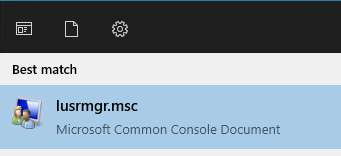
Launch the local users and groups console by running the following command from the Start Menu:
```powershell
lusrmgr.msc
```
{% endstep %}
{% step %}
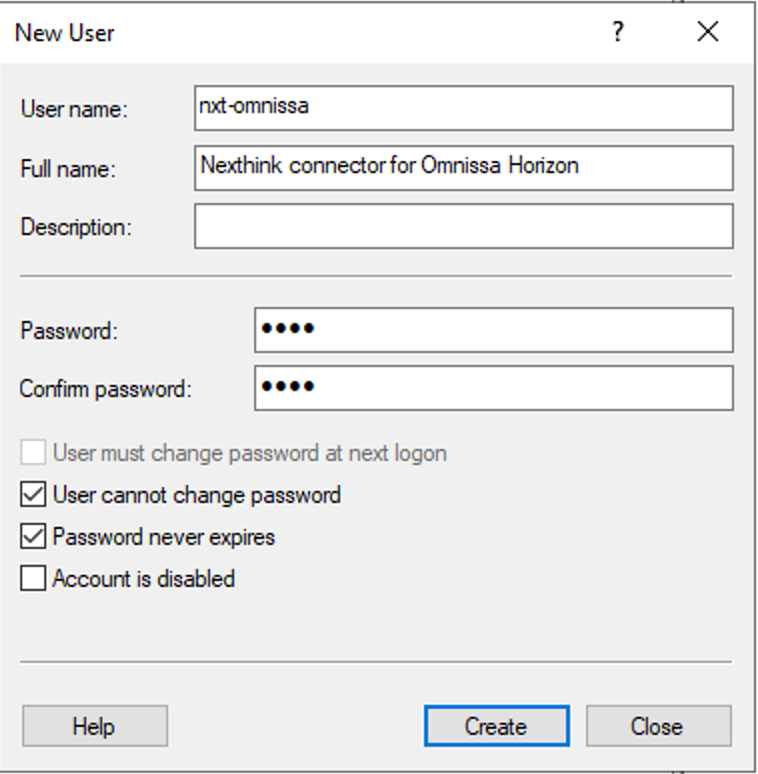
Right-click on the **Users** folder in the **Local Users and Groups (Local)** directory and select **New user…**
{% endstep %}
{% step %}
Create a user account according to your organization's naming conventions. Make a note of the **User name** and **Password** as you will need these later when creating a scheduled task. To safeguard the functionality of the connector, select the following options:
* **User cannot change password**
* **Password never expires**
{% endstep %}
{% step %}
Select **Create**.
{% endstep %}
{% step %}
Open the local group policy editor by running the following command from the Start Menu:
```powershell
gpedit
```
{% endstep %}
{% step %}
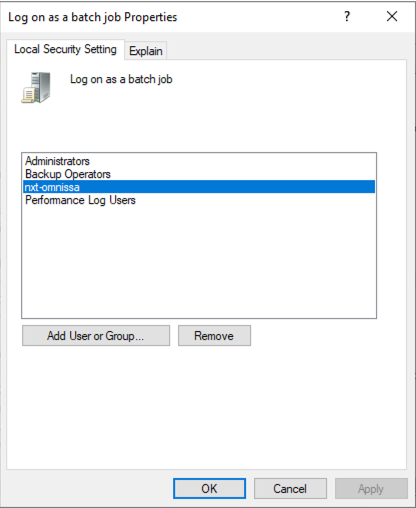
Navigate to **Computer Configuration > Windows Settings > Security Settings> Local Policies > User Rights Assignment** and locate the **Log on as a batch Job** policy.
{% endstep %}
{% step %}
Open the policy and select **Add User or Group** to add the previously created user to the list.
{% endstep %}
{% endstepper %}
### Installing the connector
{% stepper %}
{% step %}
Download the [Nexthink Connector for Omnissa Horizon](#connectorforcitrixvirtualappsanddesktops-prerequisites).
{% endstep %}
{% step %}
Extract the zip file to a folder on your system. Nexthink recommends placing it in the following folder:
`C:\program files\Nexthink\Connectors\Omnissa`
{% endstep %}
{% step %}
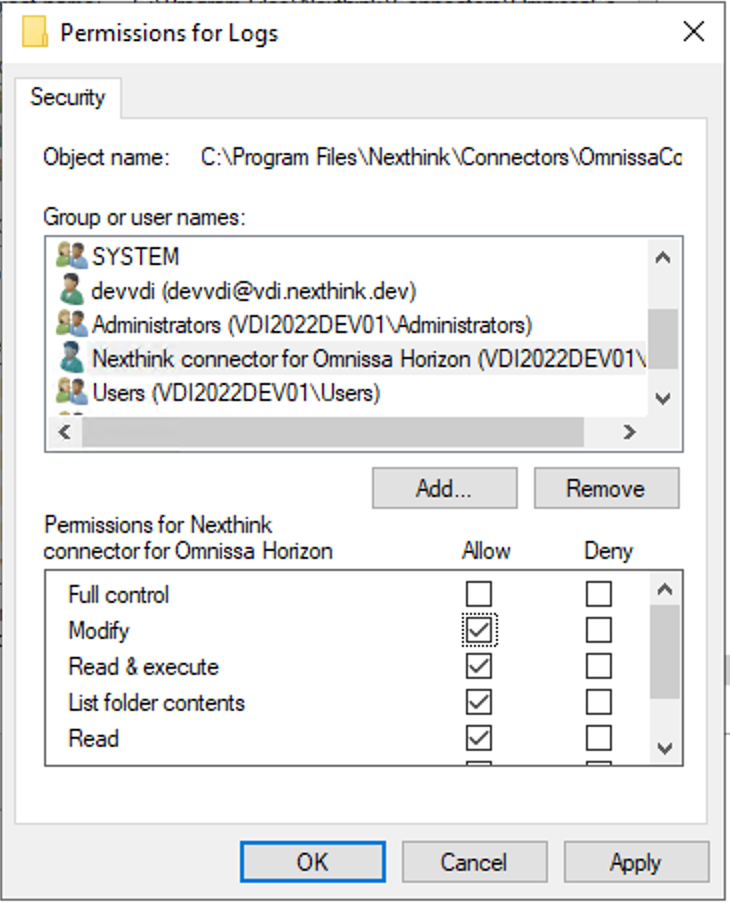
Apply **Modify** permissions for the **Logs** folder for the user account you created earlier.
{% endstep %}
{% endstepper %}
### Nexthink Enrichment API credentials
The Nexthink Connector for Omnissa Horizon needs appropriate credentials to connect to the Nexthink Enrichment API. Nexthink stores the credentials safely in the credential store of the local user account you created earlier.
{% stepper %}
{% step %}
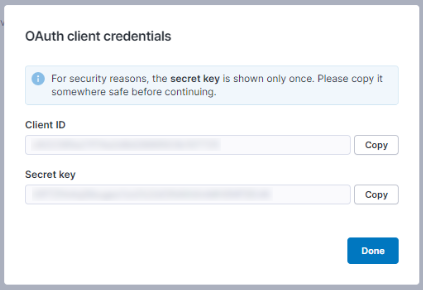
Refer to the [API credentials](https://developer.nexthink.com/docs/api/api-credentials) documentation for step-by-step guidance.
When you save the API credentials, a new window containing the Client ID and the Secret key appears. Make a note of the information as it will not be accessible once you close the window.
{% endstep %}
{% step %}
On the server that will be running the Nexthink Connector for Omnissa Horizon, open PowerShell under the credentials of the local user you created earlier by running `runas` in the command line:
```powershell
runas /user:nxt-omnissa-connector powershell.exe
```
{% endstep %}
{% step %}
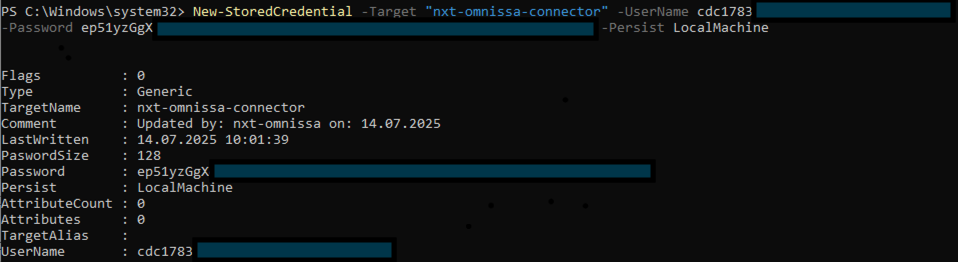
In the newly opened PowerShell window, add the API credentials you just created in the Nexthink web interface by writing the following command:
{% code overflow="wrap" %}
```powershell
New-StoredCredential -Target "nxt-omnissa-connector" -UserName -Password -Persist LocalMachine
```
{% endcode %}
Replace the `` and `` with the values you noted down when creating the API credentials and run the command. Make a note of the `TargetName` you used as you will need this value for the configuration file.
{% endstep %}
{% endstepper %}
### Updating the configuration file
For the configuration file update, you need the URL of your Nexthink Cloud API instance. The URL pattern looks like the following:
`instance.api.region.nexthink.cloud`
See the following steps for more details.
{% hint style="info" %}
If you do not know your region, reach out to your Nexthink representative to obtain this information.
{% endhint %}
{% stepper %}
{% step %}
Locate the folder where you unzipped the Nexthink Connector for Omnissa Horizon.
{% endstep %}
{% step %}
Navigate to the `Config` folder and open the `config.json` file using a text editor.
{% endstep %}
{% step %}
Scroll to the `"NexthinkAPI"` section and insert the following code:
```json
{
"_Info": "This is the JSON based configuration for Omnissa connector",
"Info": {
"Project": "connector-omnissa-horizon-server",
"ConfigVersion": "0.1.0"
},
"Logging": {
"LogRetentionDays": 7,
"LogLevel": "INFO"
},
"OmnissaEnvironments": [
{
"Name": "",
"Host": "",
"WindowsCredentialEntry": ""
},
{
"Name": "",
"Host": "",
"WindowsCredentialEntry": ""
}
],
"NexthinkAPI": {
"HostFQDN": "",
"WindowsCredentialEntry": "",
"RequestBatchSize": 1000
}
}
```
{% endstep %}
{% step %}
Change the following values under the `"NexthinkAPI"` section:
* Replace the `"HostFQDN"` value with the URL of your Nexthink cloud API instance using the format `.api..nexthink.cloud` where `` and `` are placeholders.
* Replace `` with the name of the instance
* Replace `` with the name of one of the following regions:
* `us` for the United States
* `eu` for the European Union
* `pac` for Asia-Pacific
* `meta` for the Middle East, Turkey, and Africa
* If needed, refer to the following URL example:\
`gwy-eu-west-3-fuji-rest.api.eu.nexthink.cloud`
* Replace the `“WindowsCredentialEntry"` with the `TargetName` of the credentials you noted down from the PowerShell window earlier, for example:\
`"WindowsCredentialEntry": "nxt-omnissa-credentials",`
{% hint style="warning" %}
To replace the `"OmnissaEnvironments"` values in the configuration file and set up a connection to the Omnissa Horizon farm, refer to [#connectorforcitrixvirtualappsanddesktops-updatingtheconfigurationfile](#connectorforcitrixvirtualappsanddesktops-updatingtheconfigurationfile "mention").
{% endhint %}
{% endstep %}
{% endstepper %}
## Setting up a connection to the Omnissa Horizon API
### Creating an administrator account
{% stepper %}
{% step %}
**Create a Service Account in AD**
Horizon relies on Active Directory (AD) integrated authentication. You typically:
* Create a dedicated user in your AD, such as `svc_horizon_api` .
* Give it a strong password and set **Password never expires** if used in automation.
* Place it in an appropriate Organization Unit (OU) or security group for tracking and management.
{% hint style="info" %}
Avoid using domain admin or Horizon administrator accounts for API access if not necessary. Nexthink recommends using Least Privilege.
{% endhint %}
{% endstep %}
{% step %}
**Assign the User in Horizon Console as an Administrator (with Least Privilege)**
1. Log into the **Horizon Admin Console**.
2. Go to **Settings** > **Administrators**.
3. Click **Add**.
4. Search for the **AD user** you created, such as `svc_horizon_api` .
5. Assign a **role**:
* For full access: Use **Administrator**
* For limited access: Use **Help Desk Administrator** or **custom role** (you can create one)
{% hint style="warning" %}
If you want to restrict the user to be only able to read API queries, consider setting up a custom role.
{% endhint %}
{% endstep %}
{% endstepper %}
### Setting up stored credentials
{% stepper %}
{% step %}
On the server that will be running the Nexthink Connector for Omnissa Horizon, open PowerShell under the credentials of the local user you created earlier by running `runas` in the command line:
```powershell
runas /user:nxt-omnissa-connector powershell.exe
```
{% endstep %}
{% step %}
In the newly opened PowerShell window, add the API credentials you just created in the Nexthink web interface by running the following command:
{% code overflow="wrap" %}
```powershell
New-StoredCredential -Target "nxt-omnissa-prod" -UserName -Password -Persist LocalMachine
```
{% endcode %}
Replace the `` and `` with the values you noted down when creating a domain user account with a read-only Omnissa administrator.
Make a note of the `TargetName` you used as you will need this value for the configuration file.
{% endstep %}
{% endstepper %}
### Updating the configuration file
Each Omnissa Horizon environment has its own section in the configuration file. The configuration file that comes with the connector contains an example of how to configure multiple environments. If needed, create a copy of the original `config.json` file for future reference.
{% stepper %}
{% step %}
Locate the folder where you unzipped the connector.
{% endstep %}
{% step %}
Navigate to the **`Config`** folder and open the `config.json` file using a text editor.
{% endstep %}
{% step %}
Scroll to the `"OmnissaEnvironments"` section and remove the second item on the list. The code should look similar to the following:
```json
{
"_Info": "This is the JSON based configuration for Omnissa connector",
"Info": {
"Project": "connector-omnissa-horizon-server",
"ConfigVersion": "0.1.0"
},
"Logging": {
"LogRetentionDays": 7,
"LogLevel": "INFO"
},
"OmnissaEnvironments": [
{
"Name": "",
"Host": "",
"WindowsCredentialEntry": ""
}
],
"NexthinkAPI": {
"HostFQDN": "",
"WindowsCredentialEntry": "",
"RequestBatchSize": 1000
}
}
```
Change the following values in the `"OmnissaEnvironments"` section:
* Replace `` with the name of your environment.
* Replace `` with the Omnissa host.
* Replace `` with the `TargetName` of the stored credentials you created earlier in PowerShell.
* Make a note of the identifier as you will need it later.
{% endstep %}
{% endstepper %}
### Testing the connector
{% stepper %}
{% step %}
On the server that will be running the Nexthink Connector for Omnissa Horizon, open PowerShell under the credentials of the local user you created earlier using the `runas` command on the command line:
```powershell
runas /user:nxt-omnissa-connector powershell.exe
```
{% endstep %}
{% step %}
Change to the directory where you installed the connector, for example:
```powershell
cd 'C:\Program Files\Nexthink\Connectors\Omnissa\'
```
{% endstep %}
{% step %}
Run the following command:
```powershell
.\Omnissa-Connector-Auto-Updater.ps1
```
{% endstep %}
{% step %}
Then run the following command:
```powershell
.\Omnissa-Connector-Runner.ps1 -OmnissaEnvironment
```
Replace `` with the value you put as a name in the config in the following section:
```json
"OmnissaEnvironments": [
{
"Name": "omnissa-name",
"Host": "https://horizon.vdi.nexthink.dev",
"WindowsCredentialEntry": "omnissa-user-credentials"
}
],
```
After executing the command, the PowerShell window closes, and a folder with the name you chose for the connection should appear. In the folder, you will find a log file with the result of the test.
{% endstep %}
{% endstepper %}
### Setting up scheduled tasks
#### Auto updater
{% stepper %}
{% step %}
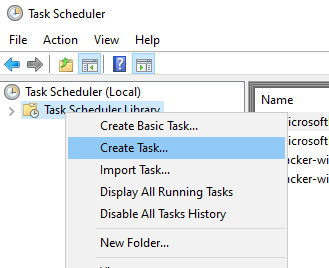
Open the task scheduler and select **Create task…**
{% endstep %}
{% step %}
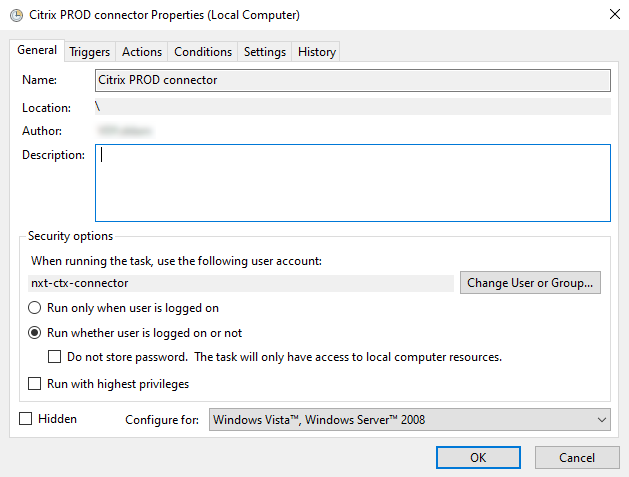
Name the task and change the user to the service account that you previously created in the **General** tab. Select **Run whether user is logged on or not**. Select **OK**.
{% endstep %}
{% step %}
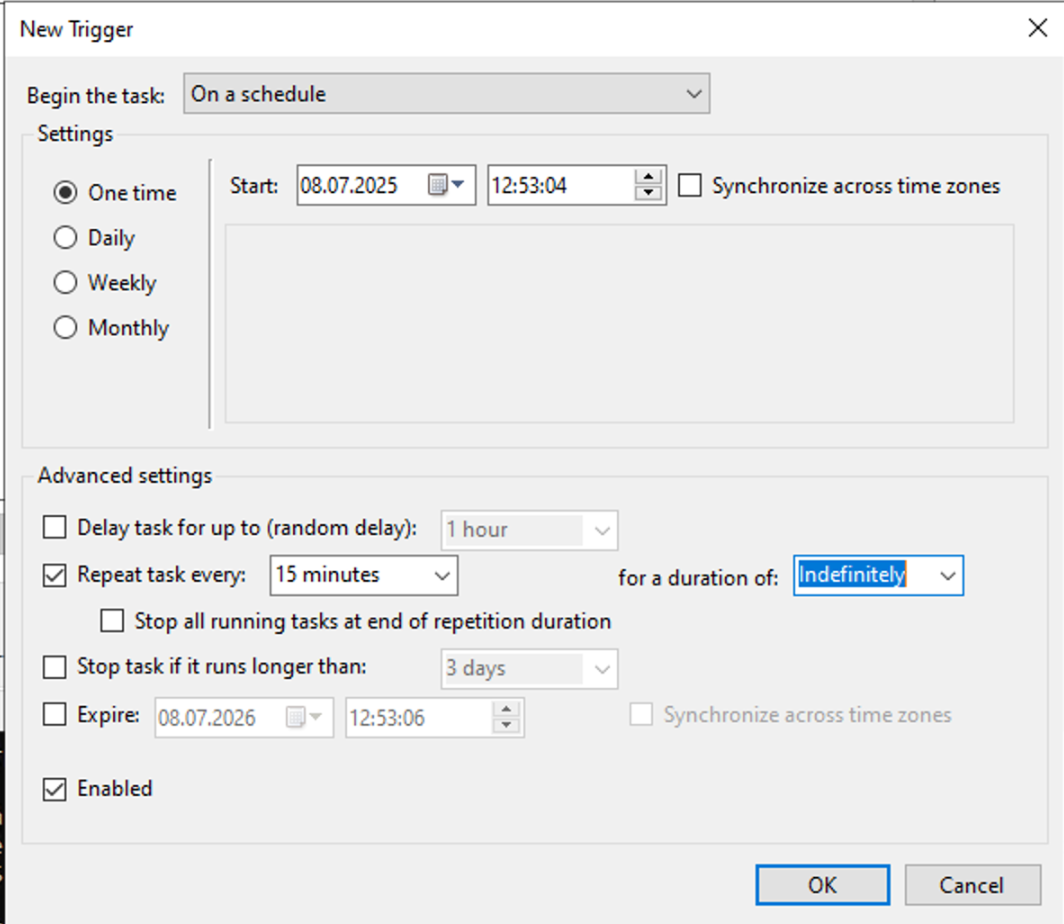
Switch to the **Triggers** tab.
{% endstep %}
{% step %}
Under Advanced settings, select **Repeat tasks every 15 minutes**. Select **OK**.
{% endstep %}
{% step %}
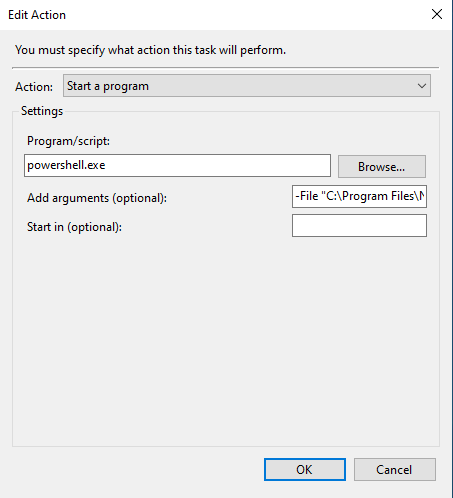
Switch to the **Actions** tab and create a new action.
{% endstep %}
{% step %}
Paste the full path of the `Omnissa-Connector-Auto-Updater.ps1` script into the **Add arguments (optional)** field, including the environment name, for example:
`-ExecutionPolicy Bypass -File "C:\Program Files\Nexthink\Connectors\Omnissa\Omnissa-Connector-Auto-Updater.ps1"`
Start in the folder containing the script, for example:
`C:\Program Files\Nexthink\Connectors\Omnissa`.
Select **OK**.
{% endstep %}
{% step %}
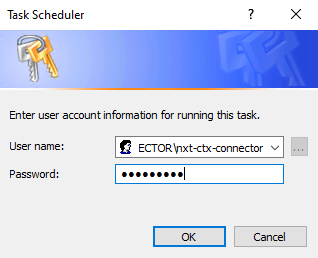
A window will prompt you to enter the password of the service account. Select **OK**.
{% endstep %}
{% endstepper %}
#### Runner
{% stepper %}
{% step %}
Open the task scheduler and select **Create task…**
{% endstep %}
{% step %}
Name the task and change the user to the service account that you previously created in the **General** tab. Select **Run whether user is logged on or not**. Select **OK**.
{% endstep %}
{% step %}
Switch to the **Triggers** tab.
{% endstep %}
{% step %}
Under Advanced settings, select **Repeat tasks every 15 minutes**. Select **OK**.
{% endstep %}
{% step %}
Switch to the **Actions** tab and create a new action.
{% endstep %}
{% step %}
Paste the full path of the `Omnissa-Connector-Runner.ps1` script into the **Add arguments (optional)** field, for example:
`-ExecutionPolicy Bypass -File "C:\Program Files\Nexthink\Connectors\Omnissa\Omnissa-Connector-Runner.ps1" -OmnissaEnvironment "omnissa-name"`
Start in the folder containing the script, for example:
`C:\Program Files\Nexthink\Connectors\Omnissa`
Select **OK**.
{% endstep %}
{% step %}
A window will prompt you to enter the password of the service account. Select **OK**.
{% endstep %}
{% endstepper %}
***
RELATED TOPIC
* [API Credentials](https://developer.nexthink.com/docs/api/api-credentials)
---
# Agent Instructions
This documentation is published with GitBook. GitBook is the documentation platform designed so that both humans and AI agents can read, navigate, and reason over technical content effectively. Learn more at gitbook.com.
## Querying This Documentation
If you need additional information that is not directly available in this page, you can query the documentation by asking a question.
Perform an HTTP GET request on the following URL with the `ask` and `goal` query parameters:
```
GET https://docs.nexthink.com/platform/configuring_nexthink/bringing-data-into-your-nexthink-instance/integrating-nexthink-with-third-party-tools/inbound-connectors/connector-for-omnissa-horizon.md?ask=&goal=
```
`ask` is the immediate question: it should be specific, self-contained, and written in natural language.
`goal` is what the user is ultimately trying to achieve, the reason they need the answer. Sharing it helps GitBook give you a better, more relevant answer. A goal is most helpful when it describes the outcome the user wants rather than restating the question. For example, with `ask=how do I create an API token`, a goal like `automate deployments from our CI pipeline` lets GitBook tailor the answer to that use case.
The response will contain a direct answer to the question and relevant excerpts and sources from the documentation.
Use this mechanism when the answer is not explicitly present in the current page, you need clarification or additional context, or you want to retrieve related documentation sections.