> For the complete documentation index, see [llms.txt](https://docs.nexthink.com/platform/llms.txt). Markdown versions of documentation pages are available by appending `.md` to page URLs; this page is available as [Markdown](https://docs.nexthink.com/platform/configuring_nexthink/bringing-data-into-your-nexthink-instance/integrating-nexthink-with-third-party-tools/inbound-connectors/connector-for-workday.md).
# Workday connector
The Workday connector imports user attributes from Workday using the Reports-as-a-Service API. This integration allows you to import specific user attributes to enhance targeting capabilities in Nexthink Adopt. While Adopt is the primary use case, the imported data can also be leveraged by any Nexthink feature that supports custom fields. The connector supports OAuth 2.0 and Basic Auth authentication methods.
## Prerequisites
Before configuring the Workday connector, ensure you complete the following:
* Create a custom report in Workday.
* Register a Workday API client with OAuth 2.0 Authorization Code Grant.
* Configure connector credentials in Nexthink. Refer to the [Connector credentials](/platform/configuring_nexthink/bringing-data-into-your-nexthink-instance/integrating-nexthink-with-third-party-tools/outbound-connectors/connector-credentials.md) documentation for more information.
## Creating a report in Workday
1. Navigate to the **Create Custom Report** page in Workday.
2. Configure the report:
* Choose **Advanced** as the report type.
* Provide a meaningful **Report Name**.
3. To ensure the report returns data quickly, select the **Web Service** and **Optimized for Performance** options. The data source depends on the data being collected, but the standard recommendation is to use **Indexed All Worker**.
4. Add required report fields that include user identifiers such as **email** or **UPN**.
5. After creating the report, generate a URL for Nexthink to use. The URL format is: `https://.workday.com/ccx/service/customreport2//`
* Split the URL into two parts for configuration:
* Base URL for connector credentials:\
`https://.workday.com`
* Resource path:\
`/ccx/service/customreport2//`
Refer to the official [Workday community](https://community.workday.com) documentation for more information.
## Creating OAuth 2.0 client application in Workday
1. Open **Edit Tenant Setup – Security** in Workday.
2. In **OAuth 2.0 Settings**, enable the **OAuth 2.0 Clients Enabled** check box.
3. Go to **Register API Client**.
4. Specify the following fields:
* **Client Name**: Enter the client app name.
* **Client Grant Type**: Select **Authorization Code Grant**.
* **Support Proof Key for Code Exchange (PKCE)**: Set to **No**; PKCE is not supported.
* **Access Token Type**: Select **Bearer**.
* **Redirection URI**: Enter the redirect URI provided in the Nexthink connector credentials configuration page. Refer to the [Connector credentials](/platform/configuring_nexthink/bringing-data-into-your-nexthink-instance/integrating-nexthink-with-third-party-tools/outbound-connectors/connector-credentials.md#connectorcredentials-creatinganewcredential) for more information.
* **Non-Expiring Refresh Tokens**: Set to **Yes**.
* **Scope (Functional Areas)**: Enable the functional areas (Workday domains) containing the data you want to retrieve.
* **Include Workday Owned Scope**: Select **Yes**.
5. Once the client app is created, copy the following values and enter them in the Nexthink connector credentials configuration page. The labels in brackets show how they appear in the Nexthink UI.
* Workday REST API Endpoint (**URL address**)
* Token Endpoint (**Access token URL**)
* Authorization Endpoint (**Authorization code URL**)
* Client ID and Client Secret
## Configuring the Connector credentials
Use the credentials from your Workday API client to create new connector credentials in Nexthink web interface. Refer to the [Connector credentials](/platform/configuring_nexthink/bringing-data-into-your-nexthink-instance/integrating-nexthink-with-third-party-tools/outbound-connectors/connector-credentials.md#connectorcredentials-creatinganewcredential) for more information.
## Configuring the Workday connector
From the Nexthink web interface:
1. Go to **Administration** > **Inbound connectors**.
2. Click the **New connector** button in the top-right corner of the page.
3. Select **Workday: User Attributes** from the connector list.
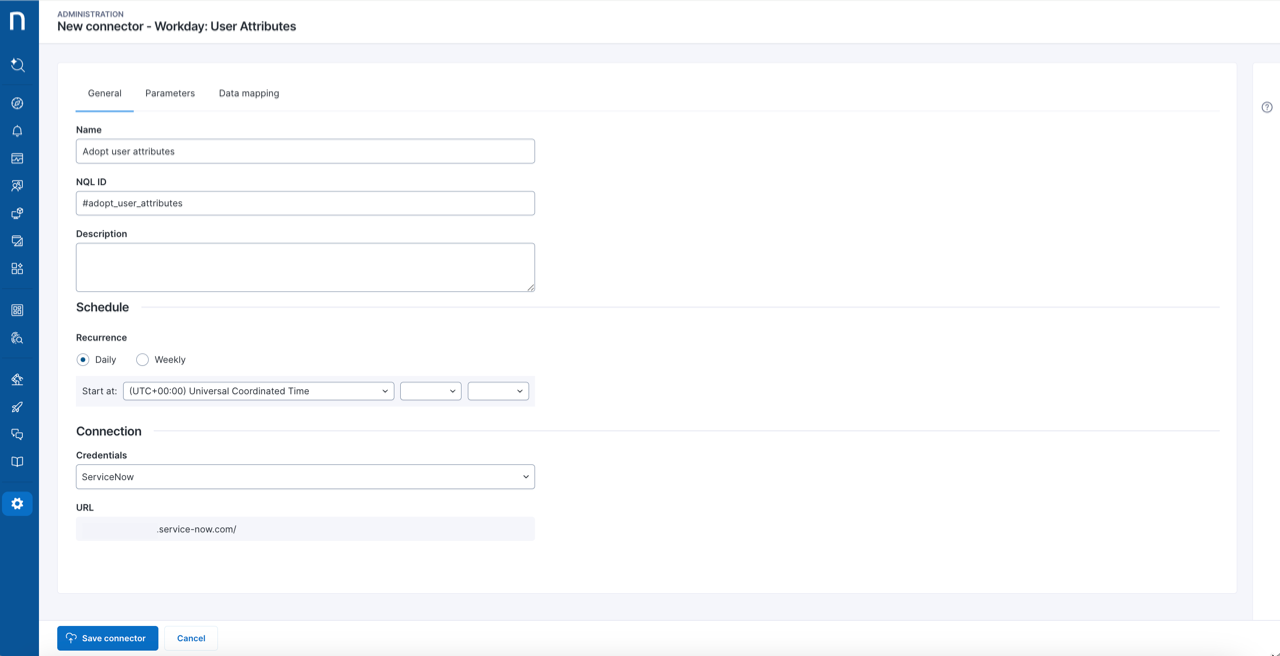
The **General** tab includes:
* **Name**: A meaningful name for the connector. This name appears on the administration page.
* **NQL ID**: A unique identifier for the connector used when referencing the Workday connector in NQL queries. You can initially modify the suggested NQL ID, but once you save the workflow, you can no longer change the NQL ID.
* **Description**: A short description of the purpose and behavior of the connector.
* **Scheduling**:
* **Recurrence**: Set the execution time and recurrence. Executions start at the scheduled time and distribute over the hour.
* **Connection:**
* **Credentials**: Select preconfigured credentials from the Connector credentials page. Refer to the [Connector credentials](https://docs.nexthink.com/platform/integrations/outbound-connectors/connector-credentials) documentation for more information.
* **URL**: This URL is automatically populated when you select credentials.
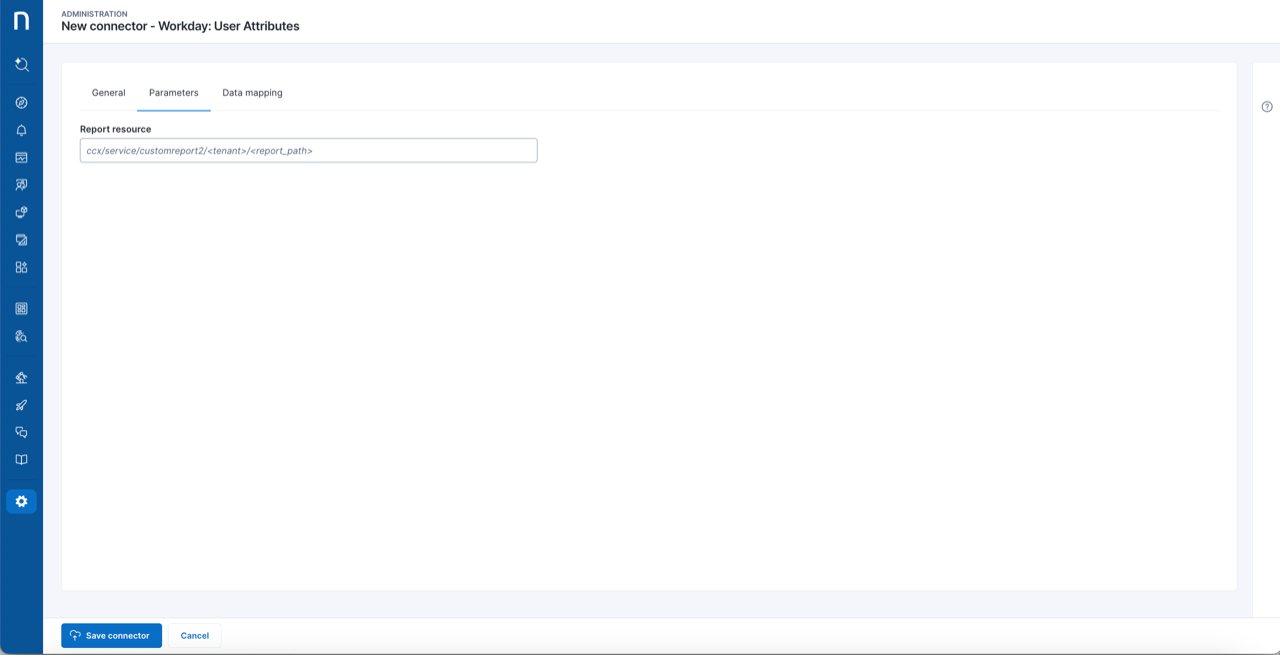
The **Parameters** tab includes:
* **Report resource**: Enter the full path to the Workday report. Ensure that you do not override it with another value (e.g., format=xml) For example, `/ccx/service/customreport2//`
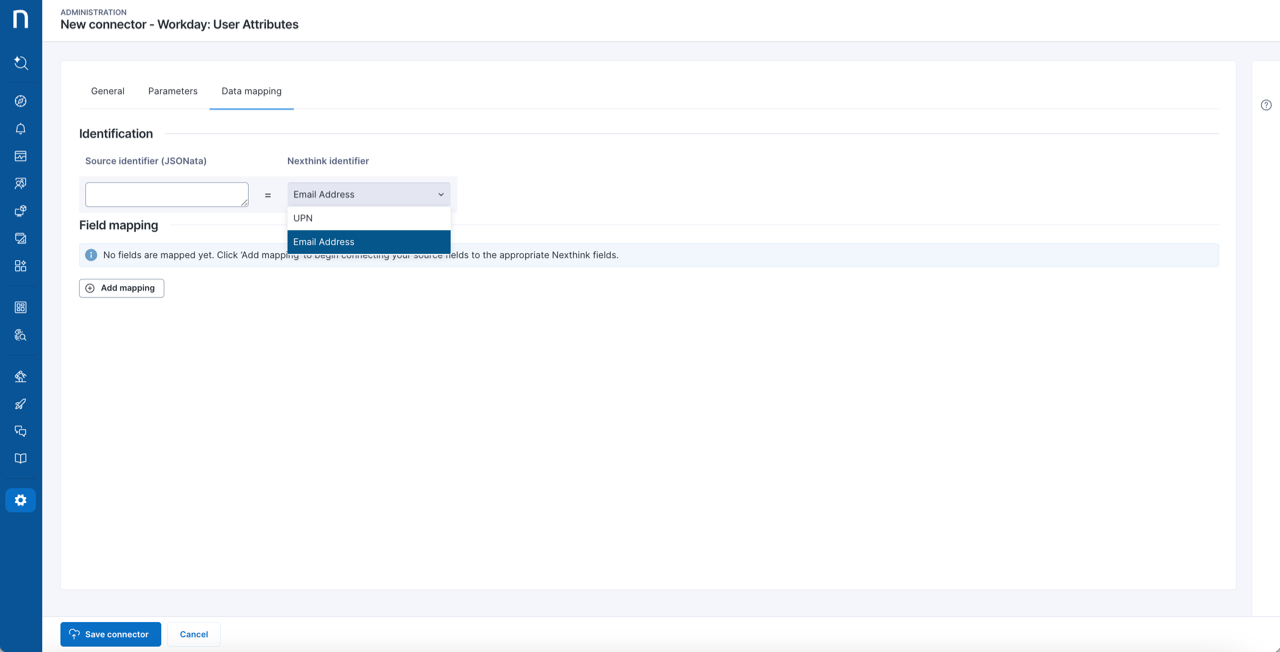
The **Data mapping** tab includes:
* **Identification:** Select a field from the API response to be used to identify users.
* **Source identifier (JSONata)**: Enter the field name returned by the API response that identifies users. Use [JSONata](https://docs.jsonata.org/overview) if needed to transform the value. Field names containing whitespaces or [JSONata](https://docs.jsonata.org/overview) reserved characters (such as `.`, `+`, `-`, `*`, `/`, `{`, and so on) must be enclosed in backticks (`` ` ``).
* **Nexthink identifier**: Select either **UPN** (requires UPN collection via Collector) or **Email address** (requires the Entra ID connector).
* **Field Mapping**: Click **Add mapping** to match custom fields defined on the user object.
* **Source identifier (JSONata)**: Enter the field name returned by the API response that identifies users. Use [JSONata](https://docs.jsonata.org/overview) if needed to transform the value. Field names containing whitespaces or [JSONata](https://docs.jsonata.org/overview) reserved characters (e.g., ., +, -, \*, /, {, etc. ) must be enclosed in backticks (\`).
* **Nexthink field**: Select the custom field to import the value.
## Test results panel
{% hint style="info" %}
The **Test results** panel is available only for supported connectors. Connector availability also depends on your license.
{% endhint %}
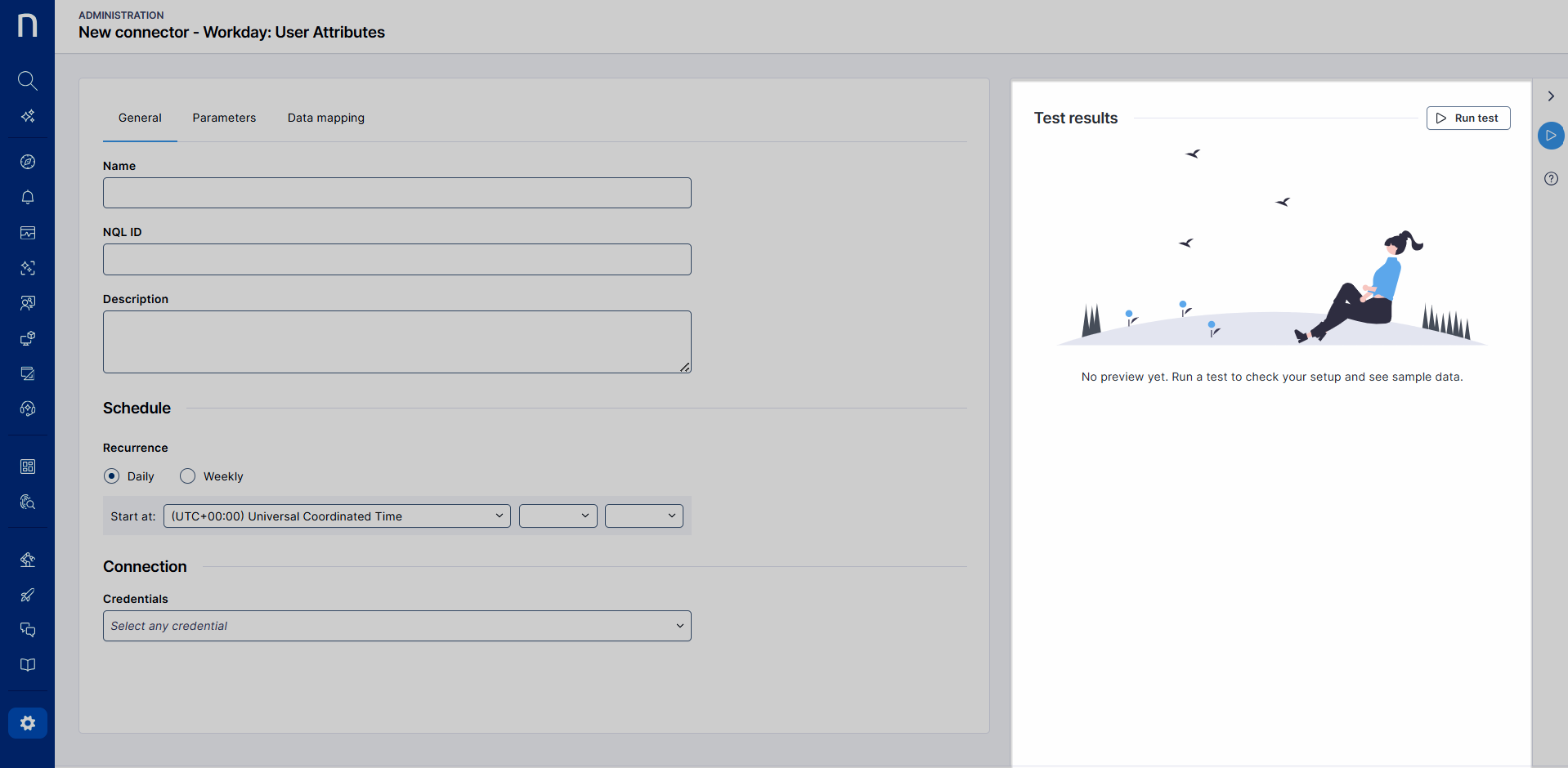
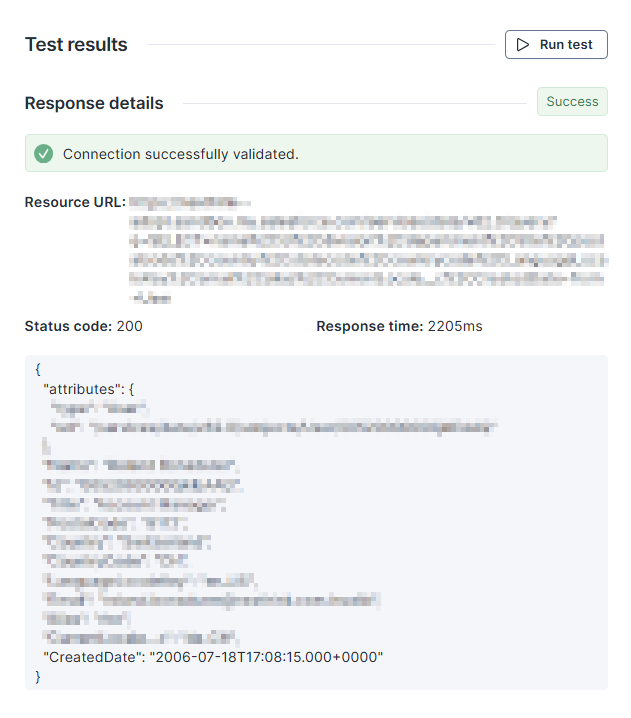
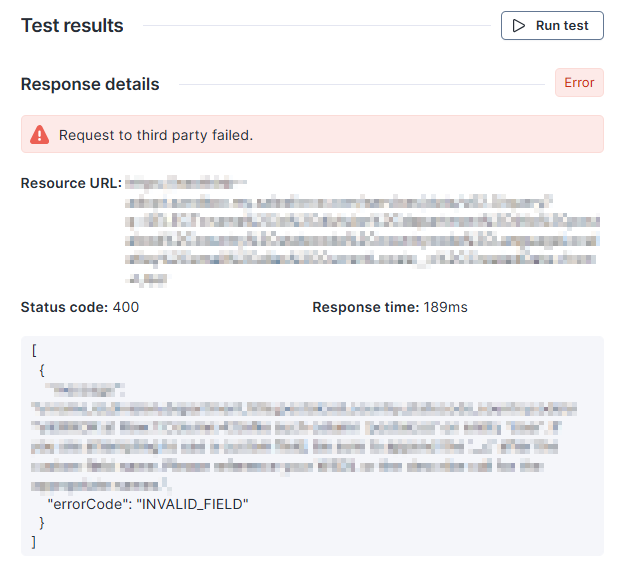
Use the **Test results** panel on the right side to run the connector with real data on demand, and inspect responses and errors. The test panel helps with faster debugging and validation during setup, and also with more reliable mappings with less trial and error.
Select the **Run test** button to call the API, and validate the credentials and check connectivity to the targeted endpoint.
Besides basic information, such as the response status code and time, the panel also shows a sample record of the response at the bottom.
In the event of an error, the system displays the API response to aid in diagnosing the issue.
## Known limitations
* Proof Key for Code Exchange(PKCE) is not supported.
* The connector cannot process more than 3 million records per sync.
* If employees share the same UPN, the UPN-based identification only processes the first 1,000 user records.
* User Principal Name (UPN) requires configuration in Collector.
* Email address requires the Entra ID (Azure AD) connector.
* The Workday API imposes the following restrictions:
* A report can contain between 1 million and 3 million records, depending on post-processing, 1 million if grouping is enabled.
* The report output cannot exceed 2 GB in size.
Refer to the official [Workday community](https://community.workday.com) documentation for more information.
## Querying execution logs with NQL
Using NQL, retrieve detailed insights into the execution of Workday connector instances by querying the following table:
| Field | Type | Description |
| ---------------------------------- | ------------- | --------------------------------------------------------------------------------------------------------------------------------------------------------------------------------------------------------------------------- |
| `time` | `datetime` | Timestamp of the connector execution log entry. |
| `status` | `enumeration` |
Execution status: • success: All rows received and processed. • partial: Some rows ignored due to row limit. • failure: Connector could not receive or process data.
|
| `details.name` | `string` | Name of the connector instance. |
| `details.description` | `string` |
Description of the error(s), if any. Includes descriptions such as: • Too many rows received... • Invalid JSONata expression for field
|
| `details.connector` | `string` | Name of the connector template used. |
| `details.credentials` | `string` | Label of the credentials used in the instance. |
| `details.credentials_id` | `string` | Unique identifier of the credentials. |
| `details.nql_id` | `string` | NQL ID of the connector instance. |
| `details.number_of_received_rows` | `number` | Total number of rows received from the source. |
| `details.number_of_processed_rows` | `number` | Total number of rows processed by the connector—may differ from imported rows. |
Run the `platform.inbound_connector_logs` query to retrieve comprehensive logging information about all inbound connector executions.
{% hint style="warning" %}
To access this table, you must have the **Platform logs** permission enabled in the **Data model visibility**.
{% endhint %}
### NQL examples
Retrieve failed imports for the last 24h
{% code overflow="wrap" %}
```
platform.inbound_connector_logs during past 24h | where status == failure | list time, details.connector, details.name, details.error_description | sort time desc
```
{% endcode %}
Retrieve imports for the last 24h (including status and number of processed rows)
{% code overflow="wrap" %}
```
platform.inbound_connector_logs during past 24h | list time, details.connector, details.name, details.number_of_processed_rows | sort time desc
```
{% endcode %}
---
# Agent Instructions
This documentation is published with GitBook. GitBook is the documentation platform designed so that both humans and AI agents can read, navigate, and reason over technical content effectively. Learn more at gitbook.com.
## Querying This Documentation
If you need additional information that is not directly available in this page, you can query the documentation by asking a question.
Perform an HTTP GET request on the following URL with the `ask` and `goal` query parameters:
```
GET https://docs.nexthink.com/platform/configuring_nexthink/bringing-data-into-your-nexthink-instance/integrating-nexthink-with-third-party-tools/inbound-connectors/connector-for-workday.md?ask=&goal=
```
`ask` is the immediate question: it should be specific, self-contained, and written in natural language.
`goal` is what the user is ultimately trying to achieve, the reason they need the answer. Sharing it helps GitBook give you a better, more relevant answer. A goal is most helpful when it describes the outcome the user wants rather than restating the question. For example, with `ask=how do I create an API token`, a goal like `automate deployments from our CI pipeline` lets GitBook tailor the answer to that use case.
The response will contain a direct answer to the question and relevant excerpts and sources from the documentation.
Use this mechanism when the answer is not explicitly present in the current page, you need clarification or additional context, or you want to retrieve related documentation sections.