> For the complete documentation index, see [llms.txt](https://docs.nexthink.com/platform/llms.txt). Markdown versions of documentation pages are available by appending `.md` to page URLs; this page is available as [Markdown](https://docs.nexthink.com/platform/solutions/chatbots/integrating-chatbots-with-nexthink-workflows/use-case-moveworks-service-automation-with-nexthink-workflows.md).
# Use case: Moveworks service automation with Nexthink workflows
This use case outlines the steps to configure and integrate a Nexthink workflow, using Workflow APIs, with the Moveworks chatbot service to automate issue diagnosis and resolution in real time—all within the chat.
This document provides **NQL** examples for common chatbot tasks essential for issue resolution, including:
* Providing employees with basic troubleshooting related to their device issues.
* Leveraging Nexthink data about employee devices to retrieve basic device information.
* Launching a remediation to fix a disk issue.
## Before you begin
Ensure the following requirements:
* Access to the Workflow execution endpoints:
* `POST /v1/workflows/execute`
* `POST /v1/workflows/execution/{executionUuid}/injec`
* [Nexthink API credentials](/platform/solutions/chatbots/integrating-chatbots-with-nexthink-workflows.md#configuring-nexthink-workflows-to-support-chatbot-integrations) (OAuth2 client ID and secret) to be used in Moveworks HTTP calls.
* Administrator access to, in this case, Moveworks Studio.
## Step 1 - Design the workflow-chatbot architecture using Workflow APIs
Design standardized steps for the chatbot-workflow interaction and define the workflow feature for each step.
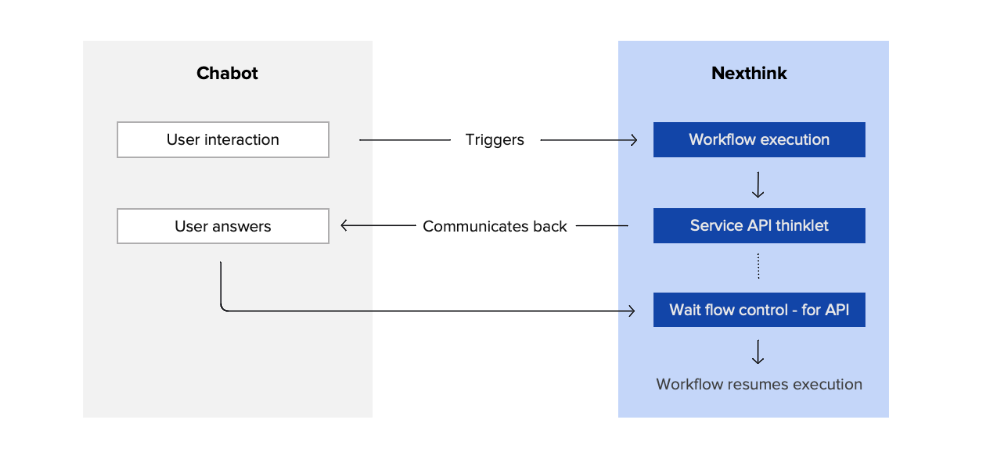
Refer to the [Integrating chatbots with Nexthink workflows](/platform/solutions/chatbots/integrating-chatbots-with-nexthink-workflows.md) documentation to understand the chatbot flow using Nexthink Workflows API flow.
The following table illustrates the designed interaction steps for this use case. This sequence keeps users in control—while Nexthink runs seamlessly in the background.
| Interaction stage | Workflow APIs & features |
| ----------------------------------------------- | ---------------------------------------------------------------------------------------------------------------------------------------------------------------------------------------------------------------------------- |
| 1. Authenticate communication | Workflow API credentials: token collection via Nexthink platform. |
| 2. Moveworks triggers workflow execution | Conversation inside the Moveworks chatbot calls the Workflow API (`/executions` endpoint). |
| 3. Workflow pauses/resumes logic based on input |
Moveworks provides user/device context as input variables to Nexthink using the /inject API endpoint.
Workflow uses API Listener to wait for chatbot/user input mid-conversation.
|
| 5. Workflow orchestrates issue remediation | Workflow handles branching, Connector and Service API thinklets, and triggers Remote Actions, campaign, notifications, or other logic based on the user's choice |
| 6. Worflow return results to chatbot |
Workflow outputs remediation results/status using a Service API thinklet.
Moveworks chatbot sends confirmation back to the employee.
|
***
## Step 2 - Configure the Moveworks chatbot to trigger Workflow APIs
In Moveworks Studio:
1. Create a bot flow triggered by a user question. For example: *I need help with my laptop*.
2. Add an **HTTP action**:
* Method: `POST`
* URL: `https://api..nexthink.cloud/platform/v1/workflows/execute`
* Headers: `Content-Type: application/json`, plus authorization using OAuth2 credentials from Nexthink
3. Store the API response, which includes:
* `workflowUuid`
* `executionUuid`
4. Create two slots for `workflowUuid` and `executionUuid`:
* Parse the API response from before and assign values to these slots.
* These values are used later to resume the same workflow instance.
## Step 3 - Create a Nexthink workflow to support Moveworks chatbot
In Nexthink workflow [Designer](/platform/user-guide/workflows/creating-workflows.md):
1. Create a new workflow.
2. Add a **Service/API** thinklet to query the user’s devices.
3. Insert a **Wait** flow control and set its **Type** to **API listener**.
* Ensure your **Wait** flow control is configured correctly, as the input structure should match what the chatbot sends. Example of an expected payload from Moveworks:
```json
jsonCopyEdit{
"input": {
"selectedDevice": "Laptop-2345"
}
}
```
{% hint style="info" %}
When this call is received, the workflow resumes, and the input is available as a parameter.
A `204 No Content` response indicates success.
{% endhint %}
4. Define a timeout (for example, 60 minutes) and output parameters like `selectedDevice`.
5. Add a **Condition** flow control to evaluate the `selectedDevice` parameter in the workflow.
6. Based on the input, define automated actions such as:
* Using a **Remote Action** thinklet to fix the issue.
* Sending a **Message** or **Campaign** to confirm resolution.
* Using a **Function** thinklet to parse, validate, or transform inputs.
These are the functional, actionable steps based on the user's choices.
***
## Step 4 – Validate the Moveworks-workflow integration
In Nexthink, from the target workflow overview dashboard, open the timeline execution history and verify:
* The workflow was triggered and paused.
* The **Wait** block resumed after input.
* Parameters were correctly populated.
In Moveworks:
* Check HTTP call logs:
* Was `/inject` called successfully?
* Was the authorization token valid?
* Were `workflowUuid` and `executionUuid` populated in slots?
{% hint style="info" %}
Refer to the [Troubleshooting workflows](/platform/user-guide/workflows/monitoring-workflows-dashboard/troubleshooting-workflows.md#troubleshootingworkflows-usingtheworkflowtimeline) to check and interpret the timeline execution history.
{% endhint %}
***
### Related resource
* [Integrating chatbots with Nexthink workflows](/platform/solutions/chatbots/integrating-chatbots-with-nexthink-workflows.md)
* [Creating workflows](/platform/user-guide/workflows/creating-workflows.md#optionally-make-the-workflow-available-in-nexthink-spark)
---
# Agent Instructions
This documentation is published with GitBook. GitBook is the documentation platform designed so that both humans and AI agents can read, navigate, and reason over technical content effectively. Learn more at gitbook.com.
## Querying This Documentation
If you need additional information that is not directly available in this page, you can query the documentation dynamically by asking a question.
Perform an HTTP GET request on the current page URL with the `ask` query parameter, and the optional `goal` query parameter:
```
GET https://docs.nexthink.com/platform/solutions/chatbots/integrating-chatbots-with-nexthink-workflows/use-case-moveworks-service-automation-with-nexthink-workflows.md?ask=&goal=
```
`ask` is the immediate question: it should be specific, self-contained, and written in natural language.
`goal` is optional and describes the broader end goal you are ultimately trying to accomplish on behalf of the user. GitBook uses it to tailor the answer towards what is most useful for that goal.
The response will contain a direct answer to the question and relevant excerpts and sources from the documentation.
Use this mechanism when the answer is not explicitly present in the current page, you need clarification or additional context, or you want to retrieve related documentation sections.