> For the complete documentation index, see [llms.txt](https://docs.nexthink.com/api/llms.txt). Markdown versions of documentation pages are available by appending `.md` to page URLs; this page is available as [Markdown](https://docs.nexthink.com/api/nql.md).
# NQL
The NQL API allows you to extract data from the Nexthink cloud platform, giving you the flexibility to create and visualize metrics using external applications.
### **Setting up API credentials**
To set up an integration using the Nexthink API, you must first create a set of dedicated credentials in your instance for your application or service. Refer to the documentation.
#### **Permissions**
To enable proper permissions for NQL API queries:
1. Select **Administration** from the main menu.
2. Click on **Profile** from the navigation panel.
3. Click on the **New Profile** button to create a new profile or edit an existing profile by hovering over it and clicking on the edit icon to change the profile configuration.
4. In the **Permissions** section, scroll down to the **Administration** section and select **Manage all NQL API queries** to enable appropriate permissions for the profile.
Refer to the [Profiles](https://docs.nexthink.com/platform/latest/creating-a-profile) documentation for a detailed description of the permission options.
### **Preparing queries**
The NQL API executes predefined queries using the Nexthink web interface. Each query gets a unique ID, a required parameter for every API call.
#### **Accessing NQL API queries**

1. Log in to the Nexthink web interface.
2. Select **Administration** from the main menu.
3. Click on **NQL API queries** in the navigation panel in the Content Management section.
#### **Managing NQL API queries**

1. Create a new NQL API query by clicking on the **New NQL API query** button in the top-right corner of the page.
2. Edit an existing query by hovering over it to reveal the action menu on the right side, click on it and select the **Edit** option.
3. Use the **Delete** option from the action menu to permanently delete a saved query.
#### **Configuring an NQL API query**

* **Name:** Enter the name as you would like it to appear on the list of queries.
* **Query ID:** Enter an identifier for the query. Once you have created the query, you can no longer change the Query ID.
* **Description (optional):** Enter a description to help others understand the meaning and purpose of the query.
* **NQL query:** Write the NQL query to execute. Refer to the [NQL](https://docs.nexthink.com/platform/latest/nexthink-query-language-nql) documentation for more information.
#### **Parameterized NQL queries**
Parameterized NQL queries allow you to place parameters on a query instead of including a constant value. The system uses placeholders for parameters and provides the parameter value during execution. This approach allows you to reuse the query with different values for different purposes. For example, use a parameterized query to get the number of hard resets on a device, with a different device each time. With this generalized approach, you don't need to write a separate query for each device.
Create a parameterized query:
1. Create a new NQL API query or edit an existing one.
2. Write an NQL query and explicitly name the parameters in the `where` clause. Parameters are allowed only in the `where` clause.
3. The parameter name must begin with a single `$` character and must be unique within the scope of the query.
4. The parameter datatype is inferred upon query execution.
```
execution.crashes during past 240h
| where device.collector.uid == $collector_uid
| summarize c1 = number_of_crashes.sum()
```
In the example above, `$collector_uid` is the placeholder for a Collector UID. Provide the UID value upon query execution.
### **Choosing the right endpoint**
The NQL API organizes its endpoints around two execution models:
* **execute** - runs a query and returns the results synchronously, in the response itself. Available as `api/v1/nql/execute` and `api/v2/nql/execute`—refer to [#differences-between-v1-and-v2-responses](#differences-between-v1-and-v2-responses "mention"). Use `execute` for relatively small requests at a high frequency, as both versions cap results at 1,000 rows per query.
* **export** - runs a query asynchronously and returns an identifier to track it. Available only as `api/v1/nql/export`. Use `export` for large queries at a low frequency; its limits scale with your account tier.
You can consult the status of the `export` identifier at the following endpoint:
* `api/v1/nql/status/{exportId}` - retrieves the status of an export and the URL link to a file containing the results once the execution is COMPLETE. For security, the URL link is only valid and accessible for 15 minutes after generation.
Find below suggested use case examples for each endpoint.
| Example | Endpoint |
| -------------------------------------------------- | ---------------- |
| Get a list of all devices, packages or executions. | `api/v1/export` |
| Get detailed information about an execution. | `api/v2/execute` |
| Integrate with a chatbot or self-service portal. | `api/v2/execute` |
| Create a daily dashboard with operation data. | `api/v1/export` |
Both `execute` and `export` support the execution of the same NQL queries. However, the limits that apply to each NQL API endpoint are different. See the [#limits](#limits "mention") section below.
{% hint style="info" %}
`api/v1/nql/execute` is primarily aimed at backward compatibility with integrations built before the `v2` version. New integrations should use `v2` version, meaning: `api/v2/nql/execute`.
{% endhint %}
#### **Differences between `v1` and `v2` responses**
The `execute` operation returns different response structures depending on the API version. These differences apply to JSON responses only; CSV responses are identical between versions.
`v1` and `v2` version differences:
Execution timestamp
`executionDateTime` uses a different format in each version.
In `v1`, it is an object with separate numeric fields:
```
"executionDateTime": {
"year": 2026,
"month": 6,
"day": 25,
"hour": 10,
"minute": 45,
"second": 29
}
```
In `v2`, it is an ISO 8601 string:
```
"executionDateTime": "2026-06-25T10:45:29"
```
Data structure
In `v1`, field names appear once, in a separate `headers` array, and `data` contains each row as an array of values:
```
"headers": [
"device.name",
"device.operating_system.name",
"device.hardware.memory"
],
"data": [
[
"server-f38bb512",
"Windows 2022 Server Datacenter 2009",
"17178841088"
]
]
```
In `v2`, there is no `headers` array. Each row in `data` is an object with the field names as keys:
```
"data": [
{
"device.name": "server-f38bb512",
"device.operating_system.name": "Windows 2022 Server Datacenter 2009",
"device.hardware.memory": "17178841088"
}
]
```
{% hint style="info" %}
Because `v2` repeats the field names in every row, its JSON payloads are larger than `v1` for the same result set. This makes `v2` more likely to reach the response size limit enforced by the API gateway.
Refer to the [Nexthink Infinity thresholds and limits overview](https://edocs.nexthink.com/nexthink-infinity/infinity-specifications/nexthink-infinity-default-thresholds-overview) for the current limit.
{% endhint %}
### **Output formats**
The `execute` operation supports both CSV and JSON formats.
The `status` endpoint associated with the `export` operation provides a URL to download a CSV file that contains the actual result of the NQL query.
CSV format specification
The CSV file returned by the `export` operation's `status` endpoint follows this format:
* **Encoding:** UTF-8
* **Delimiter:** comma (`,`)
**Quoting and escaping**
* Every field is quoted with double quotes (`"`), regardless of data type.
* A literal `"` inside a string value is escaped as `""`.
* `null` values are represented as an empty quoted string (`""`).
* `NaN` values are also converted to an empty quoted string (`""`).
**Data type representation**
Since every field is returned as a quoted string:
* Booleans are rendered as `"true"` / `"false"`.
* Numbers are rendered as strings, for example `4523` becomes `"4523"`.
**Character replacement**
The following characters are escaped or replaced in the output:
| Character | Replacement |
| --------- | ------------------- |
| `\n` | `\\n` |
| `\r` | `\\r` |
| `\uFFFF` | Empty string (`""`) |
### Custom tag for platform logs
Use the optional `x-platform-log-custom-tag header` to add a custom tag to a request. Add the `header` to `execute` and export requests. Nexthink stores the tag value in platform logs. The tag helps to categorize requests, and to filter and analyze them in logs and in dashboards. For example, use the tag to identify the team, integration, report, or query type that sends the most requests or uses the most quota.
The tag appears in the `details.custom_tag` field of the platform log entry. The tag value is free text with a maximum length of 255 characters. If the value is longer than 255 characters, the API returns the HTTP status code 400.
{% hint style="warning" %}
Do not include personal or sensitive data in the tag, because Nexthink stores the value in platform logs.
{% endhint %}
For more information about how to view the NQL API platform logs, refer to [NQL API queries](https://docs.nexthink.com/platform/user-guide/administration/content-management/nql-api-queries).
### **Limits**
Nexthink makes continuous improvements to NQL to ensure optimal performance of all requests. Refer to the [Nexthink Infinity thresholds and limits overview](https://edocs.nexthink.com/nexthink-infinity/infinity-specifications/nexthink-infinity-default-thresholds-overview) for the list of the most up-to-date limits.
Nexthink aims to maintain optimal service performance. In the case of excessive and rapid acceleration of API use, Nexthink may temporarily pause access to the NQL API on a per-tenant basis.
### **Supported compression algorithms**
NQL Analytical API exports now support file compression using the GZIP and ZSTD algorithms, enabling faster downloads and smaller file sizes.
When compression is enabled, the download URL returned by the `status` endpoint points to a compressed `.gz` or `.zst` file. The file is not delivered using HTTP `Content-Encoding`, therefore it must be decompressed after downloading.
The response for a compressed download includes `Content-Type: binary/octet-stream` .
### **Reduce throttling errors**
Consider the following best practices to avoid throttling:
#### **Targeted queries**
Use filters to target your query to only the data you need. For example, if you want information about a specific device, use the `where` clause to restrict the returned data to only that device.
#### **Catch errors caused by rate limiting**
When throttling occurs, the API returns the HTTP status code 429, and the requests fail. It is best practice to catch 429 responses in your code and retry the request after a suitable waiting period. Refer to the value specified in the *Retry-After* header from the response.
#### **Reducing the number of API requests**
Optimize your code to eliminate any unnecessary API calls and cache frequently used data.
#### **Regulate the request rate**
If you regularly approach or bump into the rate limit, consider including a process in your code that regulates the rate of your requests so that they are more evenly distributed over time.
### **Example**
A set of utilities for different programming languages is available to integrate with `execute` and `export` operations. Below is an example of how to use PowerShell scripts and Power BI queries.
#### **PowerShell**
A collection of scripts compatible with PowerShell 7.2 (LTS) is available. These scripts enable customization of authentication credentials, NQL queries, parameters, output directory, file name, and format, as outlined in the [output](#output-formats) formats section.
* Execute NQL queries: [PowerShell script for `execute` operation](https://download.nexthink.com/integrations/NQL+API+Utils/PowerShell/nql_api_interactive.ps1)
* Export NQL query results: [PowerShell script for `export` operation](https://download.nexthink.com/integrations/NQL+API+Utils/PowerShell/nql_api_analytics.ps1)
#### **Power BI**
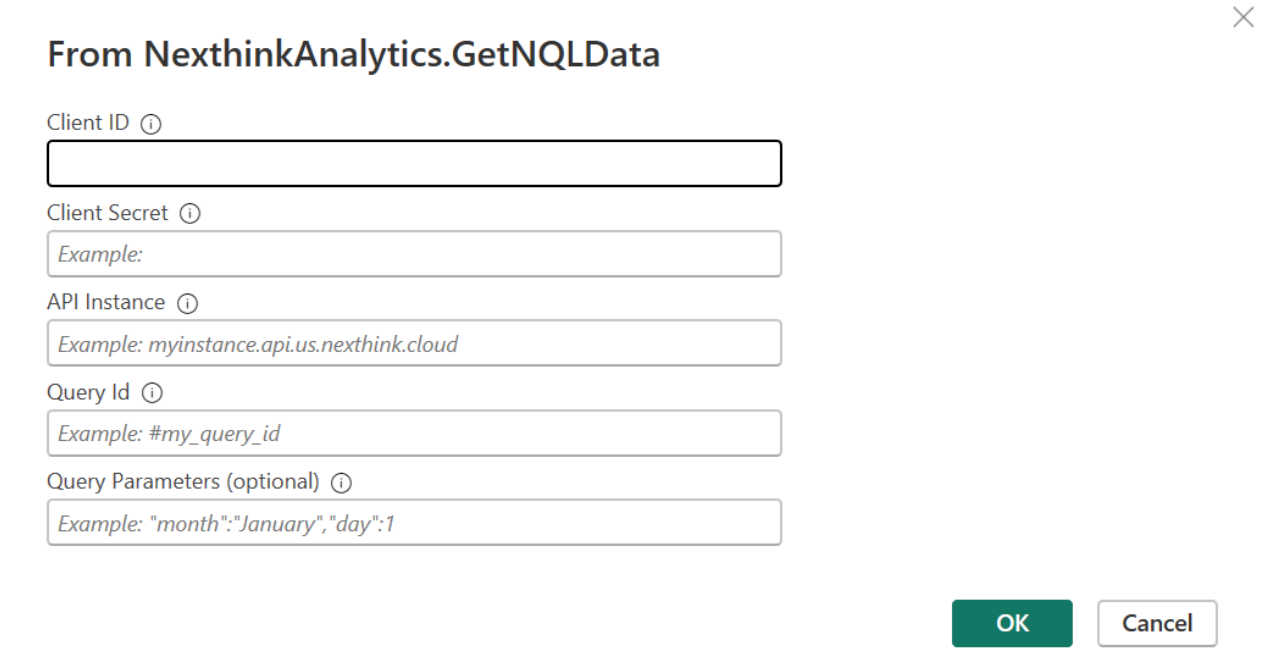
Nexthink offers two Power BI connectors as examples for connecting to the NQL API. These connectors allow the customization of authentication credentials, NQL queries, and parameters.
To start integration with NQL API, follow these steps:
* Install the custom connector from Power BI Desktop. Refer to the [Microsoft Power BI documentation](https://learn.microsoft.com/en-us/power-query/install-sdk#power-bi-desktop) for detailed installation instructions.
* Open Power BI Desktop and click on **Get Data** in the toolbar.

* Type **Nexthink** in the search field to select the desired custom connector from the results.
* Click the **Connect** button. The configuration tab appears.
* Enter the necessary data and then click the **OK** buttom.
Use custom connectors to:
* Execute NQL queries: [Power BI query custom connector for `execute` operation](https://download.nexthink.com/integrations/NQL+API+Utils/PowerBI/Nexthink-Interactive.mez)
* Export NQL results: [Power BI query custom connector for `export` operation](https://download.nexthink.com/integrations/NQL+API+Utils/PowerBI/Nexthink-Analytics.mez)