> For the complete documentation index, see [llms.txt](https://docs.nexthink.com/llms.txt). Markdown versions of documentation pages are available by appending `.md` to page URLs; this page is available as [Markdown](https://docs.nexthink.com/library-packs/collaboration-and-productivity-applications/workflow_-onedrive-compliance/usage-guide-onedrive-compliance.md).
# Usage guide: OneDrive Compliance
> **This page outlines various ways to use the pack, including use case examples. Administrators can refer to the** [**Configuration guide: OneDrive Compliance**](https://docs.nexthink.com/platform/~/revisions/9wozksdgFlDB2XPW9TSc/library-packs/collaboration-and-productivity-applications/workflow_-onedrive-compliance/configuration-guide-onedrive-compliance) **to set up and customize the installed content.**
Microsoft OneDrive is essential for productivity, yet sync failures and configuration issues often lead to disruptions and L1 tickets. This pack enables you to:
* Automatically detect and remediate common OneDrive sync and configuration issues.
* Proactively identify devices with missing or misconfigured OneDrive installations.
* Reduce ticket volume through self-healing workflows and user-aware campaigns.
* Escalate critical cases to ITSM when remediation fails, with relevant context.
In addition, this library pack includes preconfigured **remote actions**, **campaigns**, and a fully automated **workflow** to streamline and accelerate OneDrive issue resolution.
### Library pack uses
> **Jump to Use cases on this page to see relevant scenario applications.**
Use the library pack content for the following purposes.
#### Ensuring OneDrive installation and configuration compliance
Use the **Get OneDrive status** remote action to validate that OneDrive is installed and properly configured on user devices. The automated workflow checks:
* Whether OneDrive is installed.
* Whether the OneDrive client is running.
* Whether the expected folders and environment variables are correctly set.
If problems are detected (e.g. OneDrive is not installed, not running, or key folders are missing), the workflow either remediates the issue or creates an ITSM incident with details captured via **connector credentials**.
The workflow uses **campaigns** to notify users before starting or restarting OneDrive, giving them a chance to postpone actions.
#### Troubleshooting OneDrive sync errors
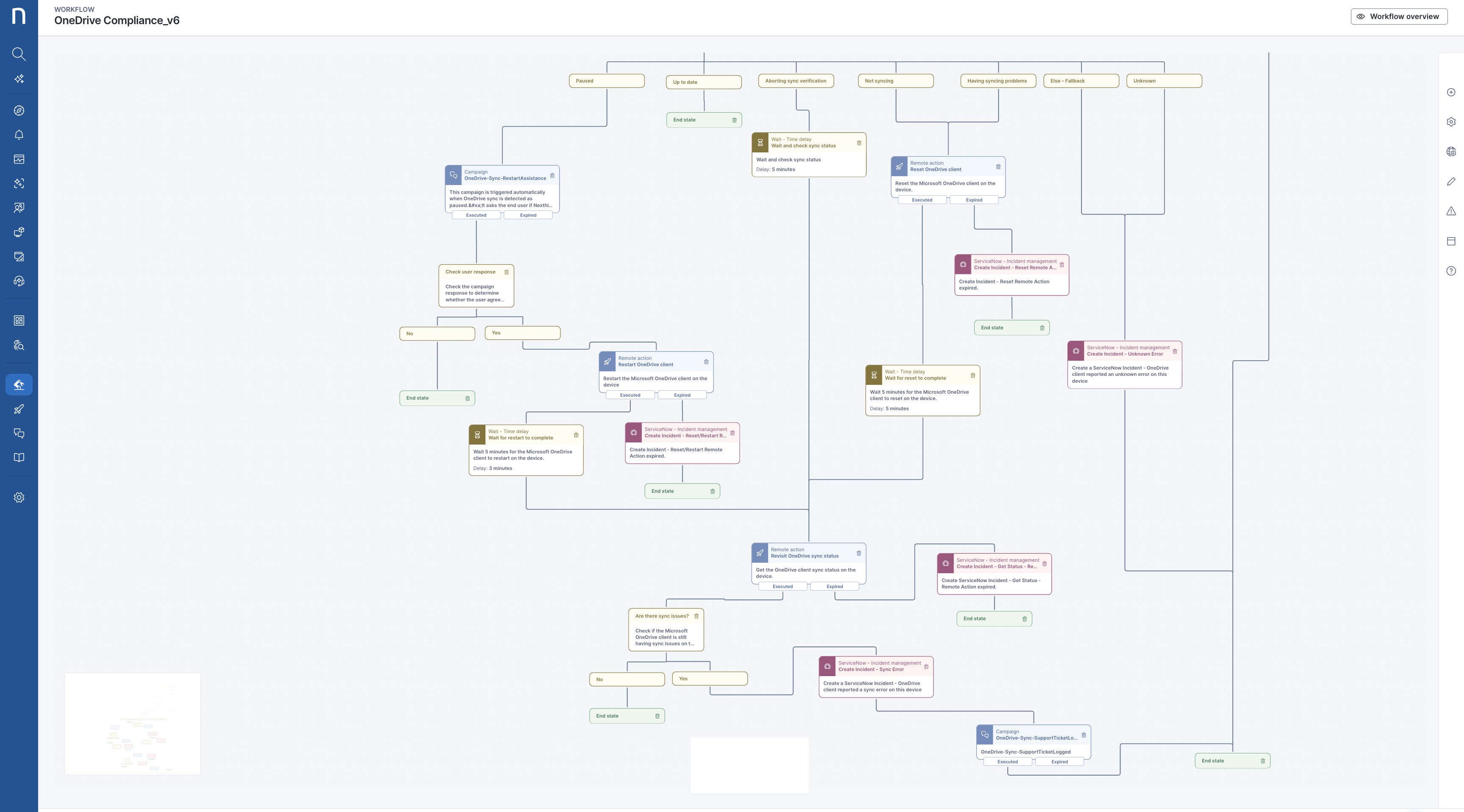
Sync issues are among the most common OneDrive problems. The **Get OneDrive sync status** remote action identifies the current sync state, such as:
* Up to date
* Paused
* Not syncing
* Having syncing problems
* Unknown or fallback states
Depending on the issue, the workflow attempts to fix it using one or more of the following:
* **Restart OneDrive**
* **Reset OneDrive**
* **Repair OneDrive**
After remediation, the workflow rechecks status and escalates to ITSM if problems persist.
#### Automating OneDrive remediation across the organization
The workflow is designed to run on a **scheduled trigger** targeting Windows devices, but can also be run manually for on-demand remediation. Recommended trigger setup:
* NQL:
```
devices during past 7d
| where operating_system.platform == Windows
and operating_system.name !in ["*server*"]
```
* Recurrence: Weekly (at least once a week)
This ensures timely detection and resolution of issues before users submit tickets.
### Use cases
In addition to the relevant use cases covered below, you may uncover other troubleshooting scenarios specific to your environment.
#### Validating OneDrive installation on Windows devices
From the **Workflows** module:
1. Use the **Get OneDrive status** remote action to check for missing installations or misconfigurations.
2. If OneDrive is not found or misconfigured, the workflow initiates **Repair OneDrive**, or creates an incident if repair is not possible.
3. A campaign notifies the user that remediation is underway or informs them if a support ticket was created.
#### Resolving paused or broken OneDrive sync
The workflow detects devices where sync is paused or has failed.
1. The **Get OneDrive sync status** remote action identifies the sync state.
2. If paused, a **campaign** asks the user for permission to restart sync.
3. Upon approval, the workflow uses **Restart OneDrive**, waits, and checks sync again.
4. For unresolved sync issues, the workflow runs **Reset OneDrive**.
5. If problems persist, it creates an incident and notifies the user using the **OneDrive-Sync-SupportTicketLogged** campaign.
#### Automating incident creation for OneDrive issues
The workflow automatically generates ITSM incidents when:
* OneDrive is not installed or cannot be repaired.
* Sync errors persist after all remediation steps.
* Any step expires or fails unexpectedly.
This uses **connector credentials**, which must be configured in line with your ITSM platform. The workflow includes conditional logic to determine which incident template to use.
### RELATED TOPICS
* [Manage live dashboards](https://nexthink.gitbook.io/opd/user-guide/live-dashboards/managing-live-dashboards)
* [Manage remote actions](https://nexthink.gitbook.io/opd/user-guide/remote-actions/managing-remote-actions)
* [Manage campaigns](https://nexthink.gitbook.io/opd/user-guide/campaigns/managing-campaigns)
* [Manage workflows](https://nexthink.gitbook.io/opd/user-guide/workflows/managing-workflows)
* [Manage custom fields](https://nexthink.gitbook.io/opd/user-guide/administration/content-management/custom-fields-management)
* [Manage ratings](https://nexthink.gitbook.io/opd/user-guide/administration/content-management/ratings-management)
* [Manage custom trends](https://nexthink.gitbook.io/opd/user-guide/administration/content-management/custom-trends-management)
* [Manage applications](https://nexthink.gitbook.io/opd/user-guide/applications/managing-applications)
* [Manage software metering rules](https://nexthink.gitbook.io/opd/user-guide/software-metering/managing-software-metering)
* [Configuration guide: OneDrive Compliance](broken://spaces/ZeA7tTt086G6thc9T1wB/pages/BeedtGgpIv9DmB1oWgW6)
---
# Agent Instructions
This documentation is published with GitBook. GitBook is the documentation platform designed so that both humans and AI agents can read, navigate, and reason over technical content effectively. Learn more at gitbook.com.
## Querying This Documentation
If you need additional information that is not directly available in this page, you can query the documentation by asking a question.
Perform an HTTP GET request on the following URL with the `ask` and `goal` query parameters:
```
GET https://docs.nexthink.com/library-packs/collaboration-and-productivity-applications/workflow_-onedrive-compliance/usage-guide-onedrive-compliance.md?ask=&goal=
```
`ask` is the immediate question: it should be specific, self-contained, and written in natural language.
`goal` is what the user is ultimately trying to achieve, the reason they need the answer. Sharing it helps GitBook give you a better, more relevant answer. A goal is most helpful when it describes the outcome the user wants rather than restating the question. For example, with `ask=how do I create an API token`, a goal like `automate deployments from our CI pipeline` lets GitBook tailor the answer to that use case.
The response will contain a direct answer to the question and relevant excerpts and sources from the documentation.
Use this mechanism when the answer is not explicitly present in the current page, you need clarification or additional context, or you want to retrieve related documentation sections.