> For the complete documentation index, see [llms.txt](https://docs.nexthink.com/llms.txt). Markdown versions of documentation pages are available by appending `.md` to page URLs; this page is available as [Markdown](https://docs.nexthink.com/user-guide/software-metering/working-with-software-metering.md).
# Working with Software Metering
Track access and usage of desktop and web applications across your organization and gain insights into your license optimization process. You can achieve this for an individual application or at a software suite level.
## Accessing the Software Metering dashboard
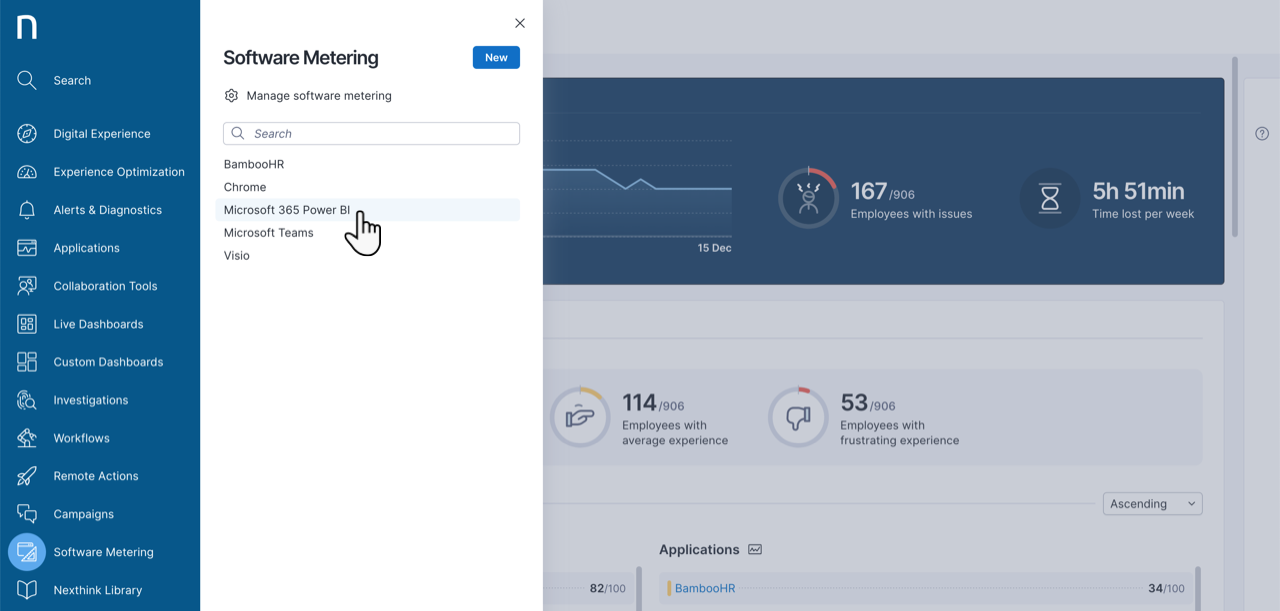
Select **Software Metering** from the main menu. Then, select an existing software meter from the navigation panel list to view detailed information about software usage.
## Exploring the Software Metering dashboards
On the software metering dashboard:
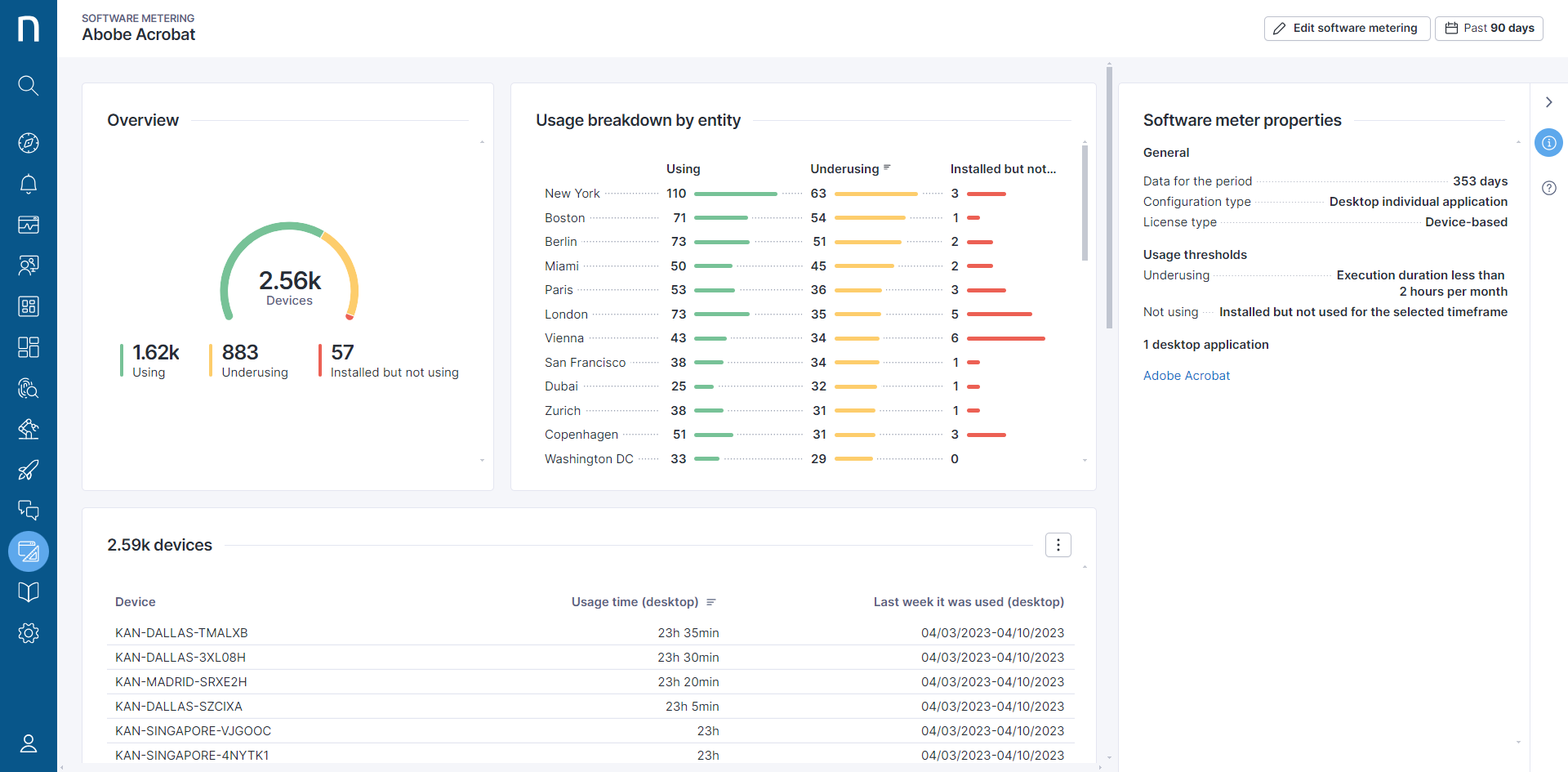
* The gauge chart shows the number of users or devices, depending on the type of software meter, and it is organized by: **Using**, **Underusing**, or **Installed but not using** the software.
* The sliding panel in the Software Metering dashboard consolidates all pertinent information regarding the configuration of the software meter. It includes details such as the amount of available data in the system, the monitored application type, license type, configured thresholds, and a list of configured applications.
{% hint style="info" %}
**Installed but not using** is only available if the software license model is device-based and at least one package is associated with it.
{% endhint %}
{% hint style="info" %}
Depending on the configuration of this dashboard, the system uses the following metrics to collect usage:
* Desktop application: [Focus time metric](/references/database-information-and-organization/focus-time-metric.md) or [Execution duration](/references/references-classic/glossary-classic/execution-classic.md)
* Web application: [Web usage time](/user-guide/applications/setting-up-and-managing-applications/managing-applications.md)
{% endhint %}
## Viewing usage breakdown
### **By entity or department**
View and filter data by department (user-based) or entity (device-based).
### **By application**
{% hint style="info" %}
This tab is only available if you add several applications to the software metering configuration.
{% endhint %}
This table shows:
* **Using application**: The number of users or devices with application usage that exceeds the configured threshold.
* **Underusing application**: The number of users or devices with application usage that is below the configured threshold.
* **Installed but not using application**: The number of users or devices that did not use the specific application but may have used other parts of the suite, or have at least one configured package installed (for device-based configuration only).
### **By desktop vs. web**
{% hint style="info" %}
This tab is only available if the software metering configuration contains, at a minimum, one web application and one desktop application, or at least one hybrid application.
{% endhint %}
For some software licenses, such as Microsoft 365, identifying users of web applications who do not use the desktop equivalent is a valuable insight, as you can optimize the license by changing its type.
This table shows the number of users for:
* **Using desktop only**: Users with desktop usage time, but without any web usage time.
* **Using web only**: Users with web usage time, but without any desktop usage time.
* **Using desktop**: Users with desktop usage time above the configured threshold.
* **Using web**: Users with web usage time above the configured threshold.
* **Underusing desktop**: Users with desktop usage time below the configured threshold.
* **Underusing web**: Users with web usage time below the configured threshold.
### By list of users or devices
You can view a list of users or devices for the software meter.
To do this:
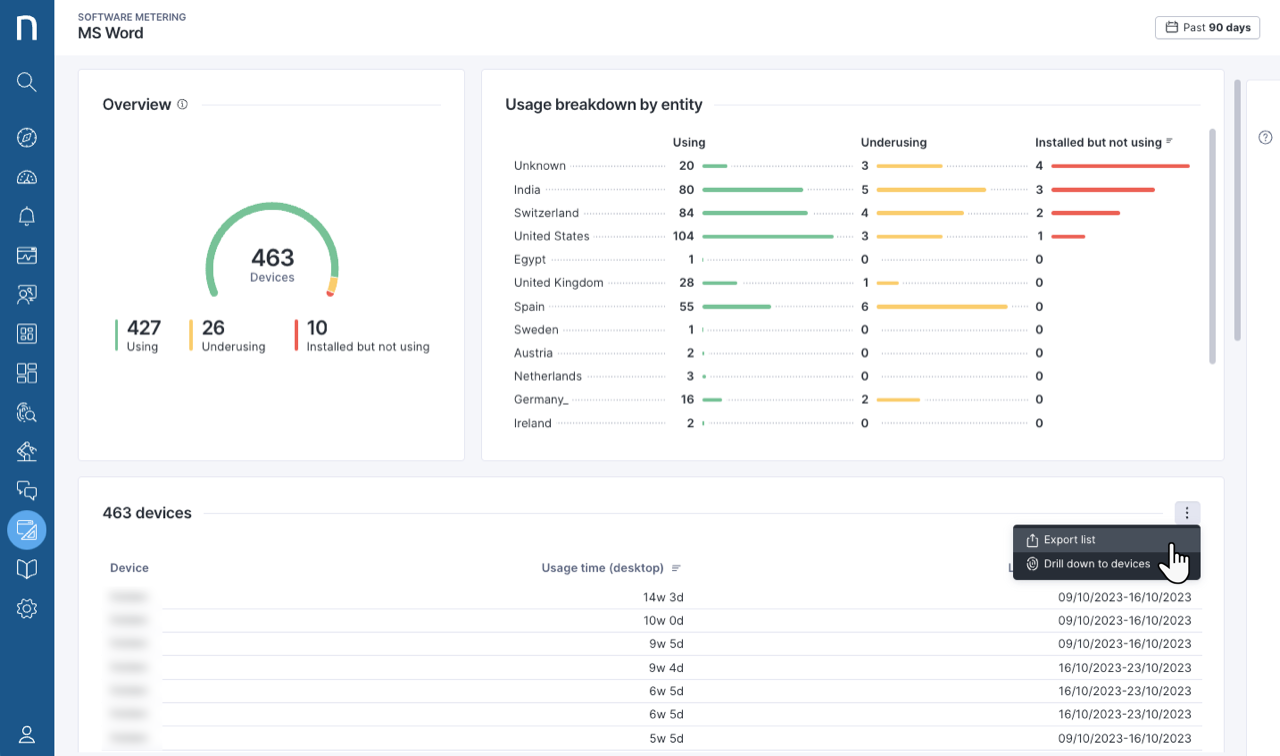
* Click on the action menu on the right side of the table and select:
* **Export list** to download a list of users or devices in a CSV document.
* **Drill down to devices** or **Drill down to users**, depending on the context**.** This action takes you to the Investigations page.
* Once on the Investigation page, view a list of devices or users and drill down for more information about the usage of the device.
* You can also send a campaign to selected employees asking them, for example, if the license can be reclaimed because they are not using the software.
### Filtering
* Click on the elements of the gauge charts, bar charts, or tables to apply filters to the page.
* Remove filters from the filtering bar at the top of the page individually or all at once.
### Timeframe picker
The time granularity of software metering data corresponds to the timeframe you have chosen. Click on the timeframe picker in the top-right corner of the page to select a new timeframe. You can retrieve data up to the **past 90 days**.
***
RELATED TOPICS
* [Managing Software Metering](/user-guide/software-metering/managing-software-metering.md)
* [Software Metering NQL examples](/user-guide/software-metering/software-metering-nql-examples.md)
***
---
# Agent Instructions
This documentation is published with GitBook. GitBook is the documentation platform designed so that both humans and AI agents can read, navigate, and reason over technical content effectively. Learn more at gitbook.com.
## Querying This Documentation
If you need additional information that is not directly available in this page, you can query the documentation by asking a question.
Perform an HTTP GET request on the following URL with the `ask` and `goal` query parameters:
```
GET https://docs.nexthink.com/user-guide/software-metering/working-with-software-metering.md?ask=&goal=
```
`ask` is the immediate question: it should be specific, self-contained, and written in natural language.
`goal` is what the user is ultimately trying to achieve, the reason they need the answer. Sharing it helps GitBook give you a better, more relevant answer. A goal is most helpful when it describes the outcome the user wants rather than restating the question. For example, with `ask=how do I create an API token`, a goal like `automate deployments from our CI pipeline` lets GitBook tailor the answer to that use case.
The response will contain a direct answer to the question and relevant excerpts and sources from the documentation.
Use this mechanism when the answer is not explicitly present in the current page, you need clarification or additional context, or you want to retrieve related documentation sections.