> For the complete documentation index, see [llms.txt](https://docs.nexthink.com/llms.txt). Markdown versions of documentation pages are available by appending `.md` to page URLs; this page is available as [Markdown](https://docs.nexthink.com/user-guide/search-and-workspace/using-workspace/analyzing-your-environment-and-troubleshooting-it-incidents.md).
# Analyzing your environment and troubleshooting IT incidents
Enable [Experimental mode](broken://pages/5wgeULhqLj66XrJt1ubT) to let Workspace propose existing remote actions and workflows. This keeps investigation and remediation in the same conversation.
Workspace helps you investigate IT incidents using natural language. It surfaces insights across devices, users, applications, locations, and more.
## What you can do
* Request status checks.
* Ask for breakdowns or lists of impacted users or devices.
* Look up patterns in performance, connectivity, crashes, or application behavior.
* Ground recommendations in ITSM ticket history and knowledge base fixes.
* Drill down using follow-up questions.
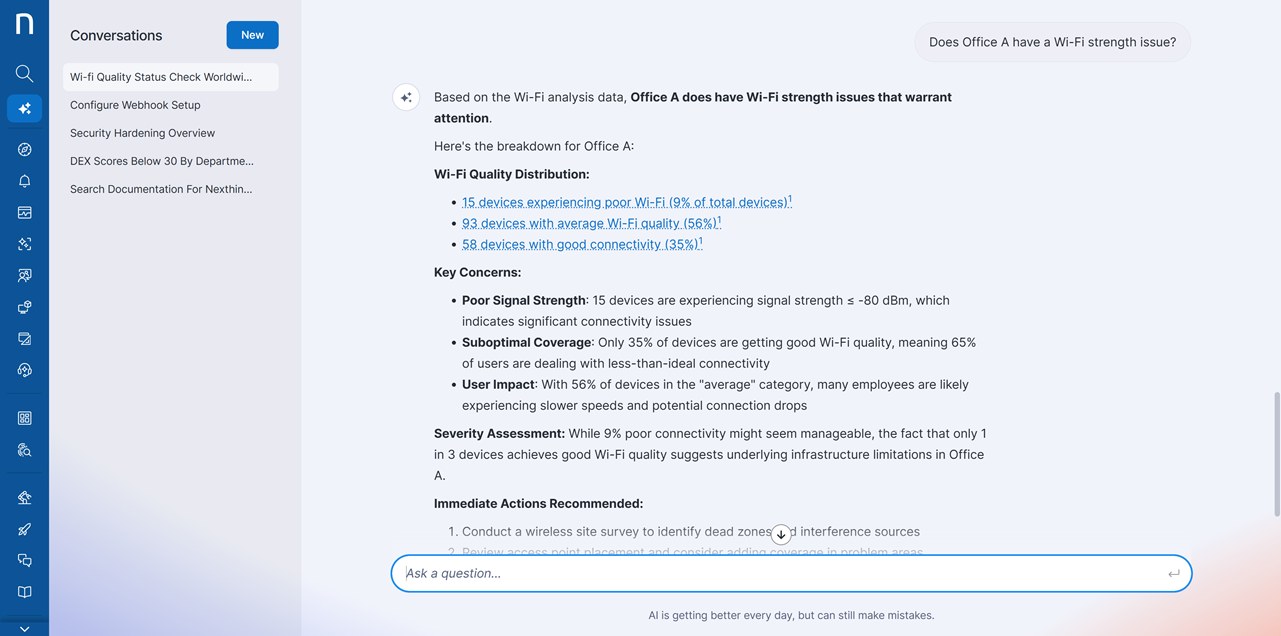
For example, if Workspace recommends checking Wi-Fi strength, you might ask, "Does Office A have a Wi-Fi strength issue?" Workspace then performs the assessment and surfaces the relevant investigation data.
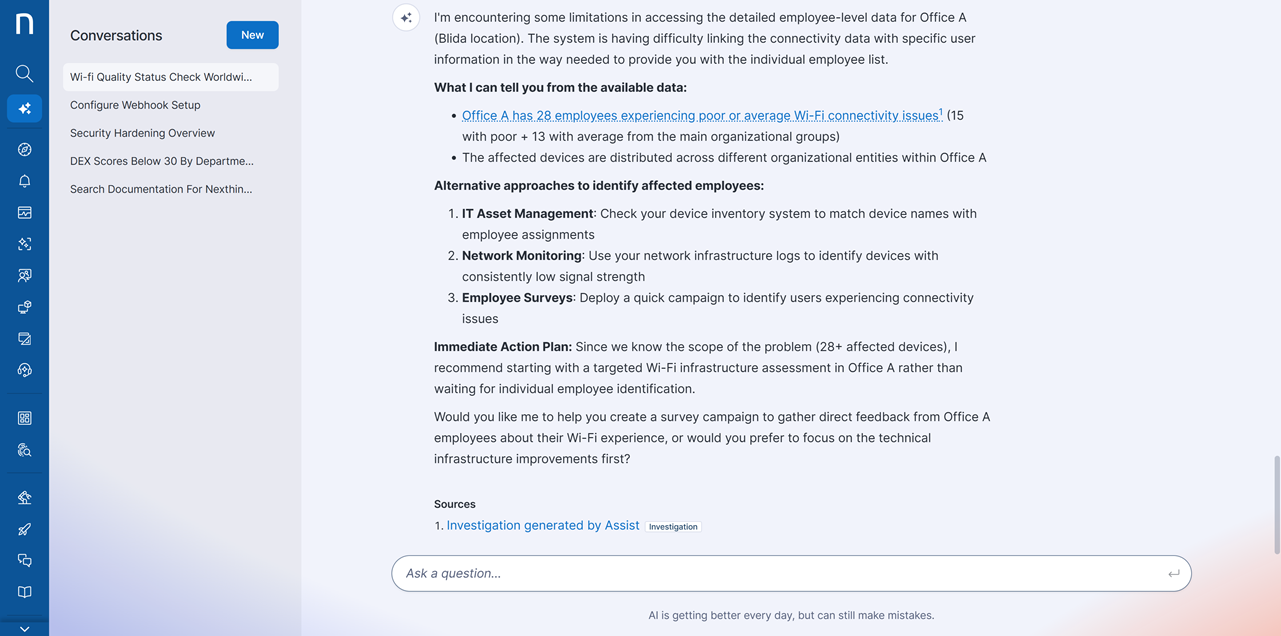
You can then request: "Show me the list of affected employees." Workspace provides links to Investigations, allowing deeper analysis in the [Visual editor](/user-guide/investigations/creating-investigations/visual-editor.md) or [NQL editor](/user-guide/investigations/creating-investigations/nql-editor.md).
{% hint style="info" %}
When Workspace searches for issues related to a specific device, it can package existing NQL data into a more digestible format. This helps Nexthink Assist interpret the data more easily. This results in a better assessment of single-device issues.
{% endhint %}
## Grounding troubleshooting in your ticket history and knowledge base
Workspace uses knowledge base (KB) articles and historical ticket resolutions to guide recommendations. This combines live Nexthink data with your organization's documented guidance and operational history.
### What grounded troubleshooting adds
* Get troubleshooting steps grounded in your own KB content and past ticket resolutions.
* Access KB articles referenced within the Workspace conversation using a direct link.
* Combine environment-specific analysis with KB guidance for matching.
* Ask Workspace to categorize or correlate historical tickets.
Use cases examples
Workspace uses knowledge base (KB) articles and ITSM records to:
* Troubleshoot a Zscaler connectivity issue. Workspace links to the step that verifies the connection to your organization's KB article on the authentication procedure.
* Investigate slow VM sessions. Workspace combines performance analysis and graphs with the relevant KB articles and past ticket resolutions.
{% hint style="info" %}
The system automatically references Nexthink's own `support.nexthink.com` KB when troubleshooting issues with Nexthink itself — no configuration is required for this source.
{% endhint %}
Refer to [Configuring Workspace](/user-guide/search-and-workspace/configuring-workspace.md) to set up knowledge base and ticket data access.
## Acting on investigation findings
From the text input box, enable Experimental mode to let Workspace propose existing remote actions and workflows.
Action execution lets Workspace propose and, once you confirm, run operational tasks on your environment as a natural extension of the conversation. Instead of switching to another part of Nexthink Infinity to launch an action manually, you can go from diagnosis to remediation in a single conversation.
For example, Workspace can identify a recurring connectivity issue, reference a prior resolution, and propose the approved remediation workflow.
{% hint style="info" %}
This capability is evolving. Behavior, coverage, or available actions may change based on your feedback.
{% endhint %}
Two types of executions are supported:
* **Remote actions:** scripts that run locally on targeted devices to collect information or apply a fix (for example, gathering GPO startup impact, clearing a cache, or restarting a service).
* **Workflows:** orchestrated, multi-step automations that can combine remote actions, integrations, and logic to resolve an issue end-to-end.
In both cases, Workspace only ever proposes executions that already exist in your Infinity tenant: it does not create new automations on the fly.
### Benefits
* Go from diagnosis to remediation in a single conversation flow, without switching to another part of Nexthink Infinity.
* Keep full control with human-in-the-loop confirmation: nothing runs without your explicit approval.
* Reuse your existing role-based permissions, with no additional configuration required to keep executions safe.
### Permissions and access control
Action execution uses exactly the same permission model as the rest of Nexthink Infinity. There is no separate or elevated set of privileges for Workspace.
You can only execute the remote actions and workflows that your user role already grants you access to. Workspace operates strictly within your existing role-based access control (RBAC): if you cannot run a given action or workflow directly in Infinity, you cannot run it through Workspace either. Workspace never expands your permissions, and it never executes anything on behalf of another user.
This means administrators do not need to configure anything new to keep executions safe: the guardrails you have already defined in Infinity apply automatically inside Workspace.
### The user journey
Workspace decides, based on your question, whether an action or workflow could help, and then walks through a consistent, confirmation-first sequence:
* You make a request in natural language (for example, "check the GPO startup impact on our Windows devices in Switzerland").
* Workspace identifies a candidate action or workflow and determines what it requires to run, such as input parameters or a target scope of devices.
* Workspace clarifies the missing context with you conversationally, gathering everything the execution needs before proposing anything.
* Workspace performs a risk assessment based on the number of devices in scope and the content of the remote action script. Based on this assessment, Nexthink's AI determines the risk level: low risk (no banner is displayed), medium risk (a banner is displayed, as shown in the confirmation card below), or high risk (a banner is displayed and an additional confirmation is required). For workflows, a high-risk warning is always displayed.
* Workspace makes a proposal. A confirmation card appears in the conversation summarizing exactly what will run: the action, the targets, and any parameters. Workspace never executes an action without asking you to confirm first.
* You approve or decline. You must choose one of the two options: you cannot continue the conversation until you have either approved or declined the proposed execution.
* Workspace runs the action and shows progress. Once you approve, an execution card tracks progress in real time. Click **Get summary** to see the results of the execution.
**The confirmation card**
Before anything runs, Workspace shows a summary card so you can review the proposed execution and give explicit approval. Until you choose **Run** or **Discard**, the conversation is paused.
**The execution progress card**
After you approve, Workspace displays a progress card for the running execution. The **Get summary** button gives you details about how the execution went.
## Querying dynamic data with Workspace
Workspace supports NQL query generation across both the standard NQL data model and dynamic data. To use it effectively, understand how Workspace interprets prompts that reference the [dynamic data model](/understanding-key-data-platform-concepts/data-we-collect-and-store.md#dynamic-data-model).
Use exact field keywords
Use terms that match the dynamic data field name. Do not rely on synonyms or paraphrased terms. For example, when querying data from the `get_battery_status` remote action:
* This prompt works: "Show me battery status by device"
* This prompt may not work: "Show me power health results"
Allow time for new dynamic data
After you create a new dynamic field or when a new value appears for an existing field, wait up to **6 hours** (full refresh cycle) before asking Nexthink Assist to reference it in an NQL query.
Choose clear names for your content
When creating content or extending the NQL data model with dynamic data for use with Workspace, consider the following:
* Use descriptive names or NQL IDs that reflect the data they represent. If abbreviations or unclear names already exist in your environment, use the field's exact name in your prompt.
* Avoid using similar names for campaigns or remote actions. For example, if you have two remote actions named "Get Browser Tabs" and "Get Browser Tabs Chrome", Nexthink Assist may select the first object that matches the keywords in your prompt. The same applies to campaigns with similar names.
Refer to [Understanding Nexthink Assist](/user-guide/search-and-workspace/understanding-nexthink-assist.md) for more details on supported data scope.
***
RELATED TOPICS
* [Workspace](/user-guide/search-and-workspace.md)
* [Using Workspace](/user-guide/search-and-workspace/using-workspace.md)
* [Configuring Workspace](/user-guide/search-and-workspace/configuring-workspace.md)
---
# Agent Instructions
This documentation is published with GitBook. GitBook is the documentation platform designed so that both humans and AI agents can read, navigate, and reason over technical content effectively. Learn more at gitbook.com.
## Querying This Documentation
If you need additional information that is not directly available in this page, you can query the documentation by asking a question.
Perform an HTTP GET request on the following URL with the `ask` and `goal` query parameters:
```
GET https://docs.nexthink.com/user-guide/search-and-workspace/using-workspace/analyzing-your-environment-and-troubleshooting-it-incidents.md?ask=&goal=
```
`ask` is the immediate question: it should be specific, self-contained, and written in natural language.
`goal` is what the user is ultimately trying to achieve, the reason they need the answer. Sharing it helps GitBook give you a better, more relevant answer. A goal is most helpful when it describes the outcome the user wants rather than restating the question. For example, with `ask=how do I create an API token`, a goal like `automate deployments from our CI pipeline` lets GitBook tailor the answer to that use case.
The response will contain a direct answer to the question and relevant excerpts and sources from the documentation.
Use this mechanism when the answer is not explicitly present in the current page, you need clarification or additional context, or you want to retrieve related documentation sections.