> For the complete documentation index, see [llms.txt](https://docs.nexthink.com/llms.txt). Markdown versions of documentation pages are available by appending `.md` to page URLs; this page is available as [Markdown](https://docs.nexthink.com/user-guide/remote-actions/setting-up-and-managing-remote-actions/creating-remote-actions.md). Agents can also search and read this documentation through its [MCP server](https://docs.nexthink.com/~gitbook/mcp).
# Creating and configuring remote actions
Create and configure remote actions to collect information or remediate issues on targeted devices or VDI sessions.
You can create remote actions in several ways, including installing and using remote actions directly from Nexthink Library, customizing a copy of an existing Library remote action, or creating a new remote action from scratch. Nexthink recommends using Library content as a starting point before creating custom remote actions.
## Installing a remote actions from Nexthink Library
Nexthink offers a set of preconfigured remote actions that you can manually install from Nexthink Library and further edit and customize them to your needs:
* Edit script, parameters and output (e.g. for signing)
* Configure trigger method, including adding a schedule or making the remote action available for Spark.
* Specify the target object (devices or VDI sessions)
Refer to the [Nexthink Library](https://docs.nexthink.com/user-guide/nexthink-library.md) documentation for more information on installing library remote actions.
You can update the previously installed library remote action if a newer version is available.
{% hint style="info" %}
Updating a remote action from a library pack does not overwrite existing configuration settings.
When Nexthink updates a remote action script and introduces new parameters, default values are automatically applied to ensure the script continues to function correctly. If parameters are removed in an update, they are no longer displayed in the remote action configuration.
{% endhint %}
## Creating a copy of a remote action from Nexthink Library
Unlike remote actions installed from Library, you can freely edit and customize remote actions copied from Library to better suit your needs without the need to create one from scratch. Nexthink recommends using Library content as a starting point before attempting to create any custom remote actions.
Refer to [Nexthink Library](https://docs.nexthink.com/platform/user-guide/nexthink-library) documentation for more information.
## Creating new custom remote actions
Creating a remote action from scratch allows you to define a variety of remote actions, from opening applications following certain campaign results to updating employee devices to remote troubleshooting.
To create a new custom remote action from scratch:
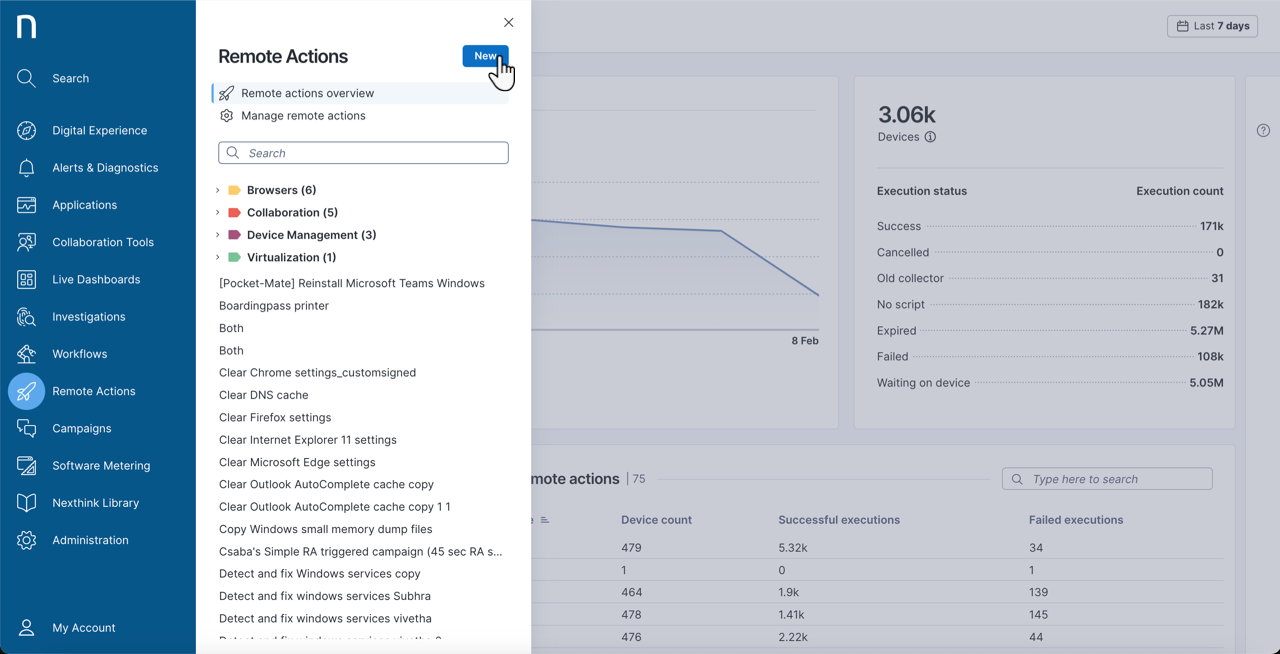
* From the **Remote actions** module on the main menu, click the **New** button in the top-right corner of the navigation panel to open the remote action configuration page.
* From the **Remote actions** > **Manage remote actions** page, click on the **New remote action** button in the top-right corner of the page to open the campaign configuration page.
{% hint style="info" %}
If you want to write your own remote action scripts, refer to [Writing scripts for remote actions on Windows](https://docs.nexthink.com/user-guide/remote-actions/setting-up-and-managing-remote-actions/creating-remote-actions/writing-scripts-for-remote-actions-on-windows.md) and [Writing scripts for remote actions on Mac](https://docs.nexthink.com/user-guide/remote-actions/setting-up-and-managing-remote-actions/creating-remote-actions/writing-scripts-for-remote-actions-on-mac.md) for more information.
{% endhint %}
## Accessing remote action Edit page
To access the custom and library remote action **Edit** page, you can:
* [Create a new remote action](#custom-remote-actions) from scratch.
* From the [Remote actions Administration](https://docs.nexthink.com/user-guide/remote-actions/setting-up-and-managing-remote-actions/managing-remote-actions.md) page, hover over a specific remote action to reveal the action menu. Then select:
* **Edit** – for custom remote actions or those copied from the Library.
* **Configure** – for remote actions installed from the Nexthink Library.
* From the [remote actions details](https://docs.nexthink.com/user-guide/remote-actions/using-remote-actions/monitoring-specific-remote-action-executions.md) page, select **Edit remote action**.
Select the Remote Actions module from the main menu.
* Select **Manage remote actions** to create, edit or manage remote actions. Refer to the [Manage Remote Actions](https://docs.nexthink.com/user-guide/remote-actions/setting-up-and-managing-remote-actions/managing-remote-actions.md) documentation for more information.
* Select an existing remote action from the list in the navigation panel to view its details.
* Click on the **New** button at the top of the navigation panel to directly create a new remote action. Refer to the [Manage Remote Actions](https://docs.nexthink.com/user-guide/remote-actions/setting-up-and-managing-remote-actions/managing-remote-actions.md) documentation for more information about creating remote actions.
## Configuring general remote action settings
Enter the name, NQL ID, description, triggering options, targeting options and purpose of the remote action.
#### **Triggering**
Select the triggering mechanisms for the remote action:
* **Manual**: Trigger the remote action manually from the web interface.
* **API**: Trigger the execution on selected devices via API.
* **Workflow:** Enable the listing and execution of remote actions using the Remote action Thinklet workflow.
* **Schedule**: Trigger the execution using an NQL query at the scheduled time.
* **Spark:** Make the remote action available for Spark. You should also grant Spark permission to run the designated remote action. Refer to [Enabling Spark permissions](https://docs.nexthink.com/user-guide/spark/setting-up-and-managing-spark/managing-agent-actions.md#enabling-spark-permissions) for more details.
{% hint style="warning" %}
When you execute a remote action on an on-demand basis (manually, through a workflow or API), the system prioritizes it over scheduled remote actions. This ensures concurrent scheduled remote actions do not delay on-demand remote action executions.
{% endhint %}
#### **Targeting**
Select which environments the remote action should target:
* **Devices**: Enable the remote action to target specific devices.
* **VDI session**: Enable the remote action to target VDI sessions.
* When targeting a session, choose whether to target:
* **VDI:** The remote action targets the VDI device for that session.
* **Client:** The remote action targets the client device from which the user connects to the VDI session. Note that this only works if Collector is installed on the client device.
* Optionally, allow the user to override the above selection.
#### **Purpose**
Select the purpose for the remote action:
* **Data collection**: The intent of the remote action is to collect data from the targeted device.
* **Remediation**: The intent of the remote action is to perform an action on the targeted device.
## Importing and configuring scripts
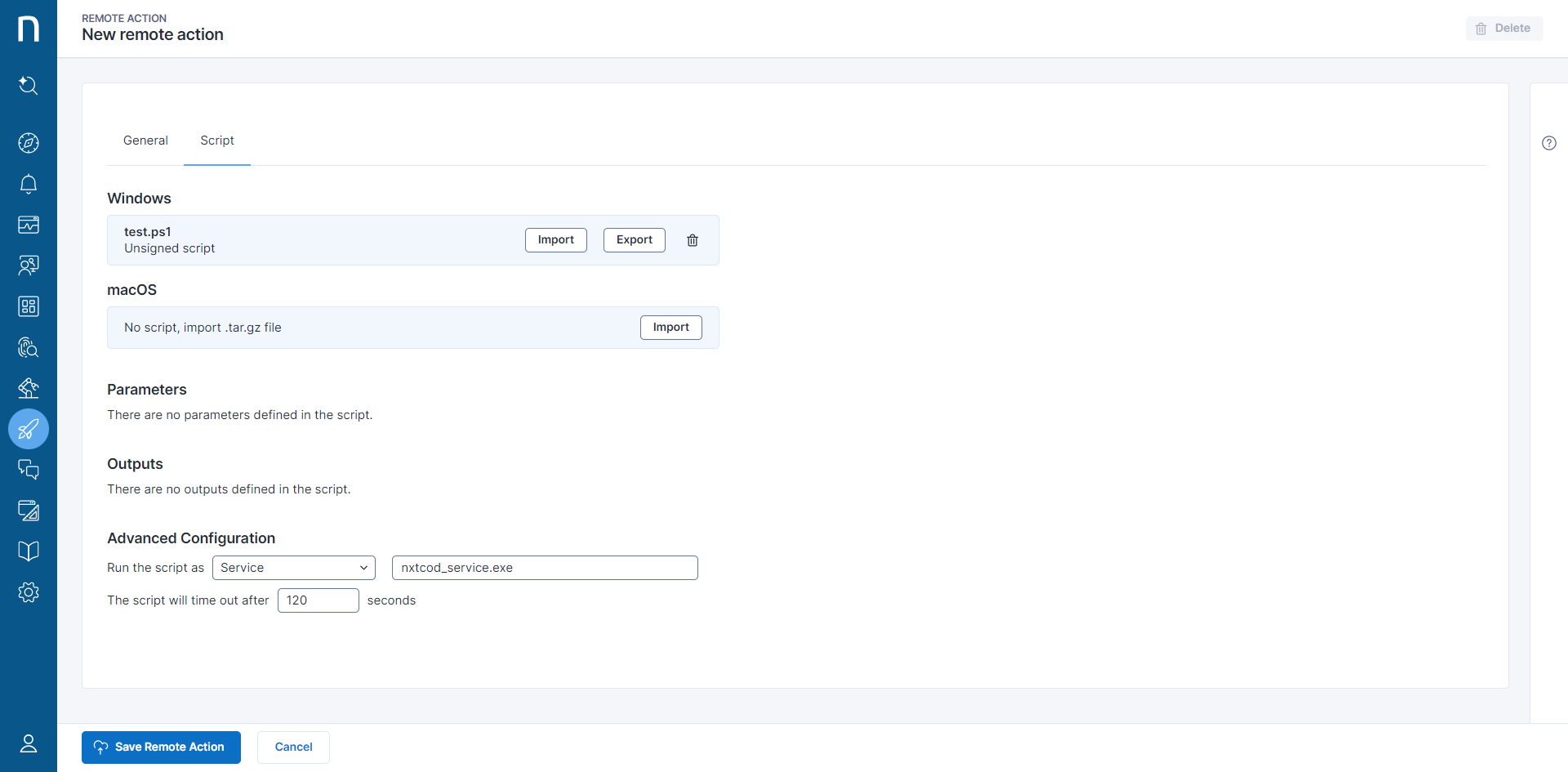
Import a remote action script for Windows and macOS platforms. Once imported, fill in the **Parameters** field, and the **Outputs** information appears.
Use the **Advanced Configuration** option to select the context for executing the script, and the options available include local system, interactive user or service.
To save the remote action, you must add a Windows PowerShell or macOS Bash script.
Library-pack updates overwrite existing scripts and all configurations of the remote action, requiring you to re-sign it after the update. Therefore, for remote actions installed from the library and system remote actions, Nexthink recommends against making any modifications other than re-signing the script.
Refer to the [Writing scripts for remote actions on Windows](https://docs.nexthink.com/platform/user-guide/remote-actions/managing-remote-actions/writing-scripts-for-remote-actions-on-windows#writingscriptsforremoteactionsonwindows-outputvariables) and [Writing scripts for remote actions on Mac](https://docs.nexthink.com/platform/user-guide/remote-actions/managing-remote-actions/writing-scripts-for-remote-actions-on-mac#creating-output-variables) documentation for more information.
{% hint style="info" %}
Remote action scripts have a 600 KB maximum size limit:
Up to 50 inputs with a maximum total of 30 KB characters.
Up to 50 outputs with value limits depending on the type.
{% endhint %}
#### **Parameters**
You can specify up to 50 inputs required for the script's execution. You have the option to define a list of permitted parameter values and enable users to provide a custom value during execution.
* **Name**: The name that appears to the user when the system asks for a parameter value.
* **Description**: A meaningful description of the parameter.
* **Value**: List of possible values for the parameter, one value per line. At least one value is required. The value on the first line is the default value option.
* **Allow the user to enter a custom value**: Allow users to specify a custom parameter value other than those included in the list.
#### **Outputs**
Define up to 50 outputs of the remote action.
* **Name**: The name that appears when the system displays remote action outputs in investigations and dashboards.
* **Description**: A meaningful description of the output parameter.
* **Type**: The data type of the parameter.
#### **Advanced Configuration**
Choose to run the script as a local system user (default), as an interactive user or as a service:
* **Local system user:** Use this for tasks that require system rights, for example to uninstall software, or get the value of system information like drivers or registry keys.
* **Interactive user:** Use this for actions executed for a specific user, like getting the size of their recycle bin, or closing an application using a campaign. If these were to be run as Local system user they would return the size of the system user recycle bin, or would try to close applications used by the system instead of the user logged into the device.
* Collector runs the script only once a user logs in to the device. Until then, the execution reports the `waiting_on_user` status instead of failing.
* The script runs in the context of the user logged in when the remote action reaches the device. If nobody is logged in, it runs for the first user to log in afterward.
* Collector reports the name of the user that ran the script, so you can identify the execution context in investigations and dashboards. The username appears only once the script runs.
* Executions waiting for a user expire one week after the request is created.
* **Service:** Use this to configure the remote action to run within a dedicated service. For example, remote action can run on a Windows server (proxy) using a service account that has the necessary permissions to update Active Directory. Running as a service is only supported on Windows devices and requires the use of a Windows script (PowerShell). To use this feature, follow [specific steps on the target device to create the service](https://docs.nexthink.com/user-guide/remote-actions/setting-up-and-managing-remote-actions/creating-remote-actions/running-remote-actions-as-a-service-on-server-devices-windows-only.md). In the service name field, you need to specify the value of the `--service-name` parameter used during service setup.
{% hint style="warning" %}
An interactive user execution runs for whichever user logs in first. On devices shared by multiple users, the executing user may differ from the intended one. Refer to [Executing remote actions](https://docs.nexthink.com/user-guide/remote-actions/using-remote-actions/executing-remote-actions.md#executing-remote-actions-in-the-context-of-the-interactive-user) for more information on tracking those executions.
{% endhint %}
Set the time-out for the script (in seconds). If the remote action cannot complete its action within the allotted time the system will terminate the script.
Refer to the in-product documentation for more information. You can find it in the side panel menu.
#### Handling credentials in remote actions
Scripts and parameter values are stored non-encrypted on the device and are visible to other Nexthink users with access to the remote action. Follow these practices when a script needs to authenticate to another system:
* **Do not hardcode credentials.** Never write passwords, API keys, tokens or connection strings in the script body.
* **Do not pass credentials as parameters.** Parameter values are stored on the device with the script and appear in the execution details.
* **Use the execution context instead of explicit credentials.** When a script needs elevated rights on the device, run it as the local system user. When it needs a domain or service account, for example to update Active Directory, run the remote action as a service under an account configured on the device. That way the credentials are stored by the operating system, not in the script.
* **Get secrets at runtime from a secure store.** If a script must use a secret, read it from the operating system's credential store or from your organization's secrets manager when the script runs. Do not write it to disk or to the script output.
* **Do not return secrets as outputs.** Output values are sent to Nexthink and are visible in investigations and dashboards.
* **Use short-lived, least-privilege credentials.** Give each account only the permissions the remote action needs, and rotate or expire the credentials regularly.
## Script storage on the device
On Windows, Collector stores remote action scripts on the device, to avoid downloading the same script again on every run. Each script is saved together with its configuration, including the input parameter values of the request.
Collector stores scripts in the following locations:
* `%ProgramData%\Nexthink\RemoteActions\Scripts\System` for scripts that run as the local system user
* `%ProgramData%\Nexthink\RemoteActions\Scripts\User` for scripts that run as the interactive user
* `%ProgramData%\Nexthink\RemoteActions\Scripts\Service` for scripts that run as a service
Only the local system account can change these folders. Administrators can read and delete their contents. All authenticated users on the device can read their contents.
Collector removes stored remote action data that is older than 90 days.
{% hint style="warning" %}
Any user who signs in to the device can read stored remote action scripts and their input parameter values, whatever the execution context. Do not include credentials or other sensitive data in scripts or parameter values.
{% endhint %}
---
# Agent Instructions
This documentation is published with GitBook. GitBook is the documentation platform designed so that both humans and AI agents can read, navigate, and reason over technical content effectively. Learn more at gitbook.com.
## Querying This Documentation
If you need additional information that is not directly available in this page, you can query the documentation by asking a question.
Perform an HTTP GET request on the following URL with the `ask` and `goal` query parameters:
```
GET https://docs.nexthink.com/user-guide/remote-actions/setting-up-and-managing-remote-actions/creating-remote-actions.md?ask=&goal=
```
`ask` is the immediate question: it should be specific, self-contained, and written in natural language.
`goal` is what the user is ultimately trying to achieve, the reason they need the answer. Sharing it helps GitBook give you a better, more relevant answer. A goal is most helpful when it describes the outcome the user wants rather than restating the question. For example, with `ask=how do I create an API token`, a goal like `automate deployments from our CI pipeline` lets GitBook tailor the answer to that use case.
The response will contain a direct answer to the question and relevant excerpts and sources from the documentation.
Use this mechanism when the answer is not explicitly present in the current page, you need clarification or additional context, or you want to retrieve related documentation sections.