> For the complete documentation index, see [llms.txt](https://docs.nexthink.com/llms.txt). Markdown versions of documentation pages are available by appending `.md` to page URLs; this page is available as [Markdown](https://docs.nexthink.com/user-guide/adopt/guide-content-development-from-in-app-adopt-editor/using-element-selector-in-adopt-editor.md).
# Using Element Selector in Guides Editor
{% hint style="warning" %}
Remember, to use any feature in the Adopt Editor, you must first create a guide in Nexthink Infinity and configure Adoption settings for the specific web application.
{% endhint %}
Attach [guide visual components](/user-guide/adopt/getting-started-with-adopt.md#what-type-of-guides-can-i-deploy-in-web-applications) across the target web applications using the Element Selector directly from Guides Editor on your browser.
## Using the Element Selector in Guides Editor
Regardless of the guide type, to open the Element Selector from Guides Editor:
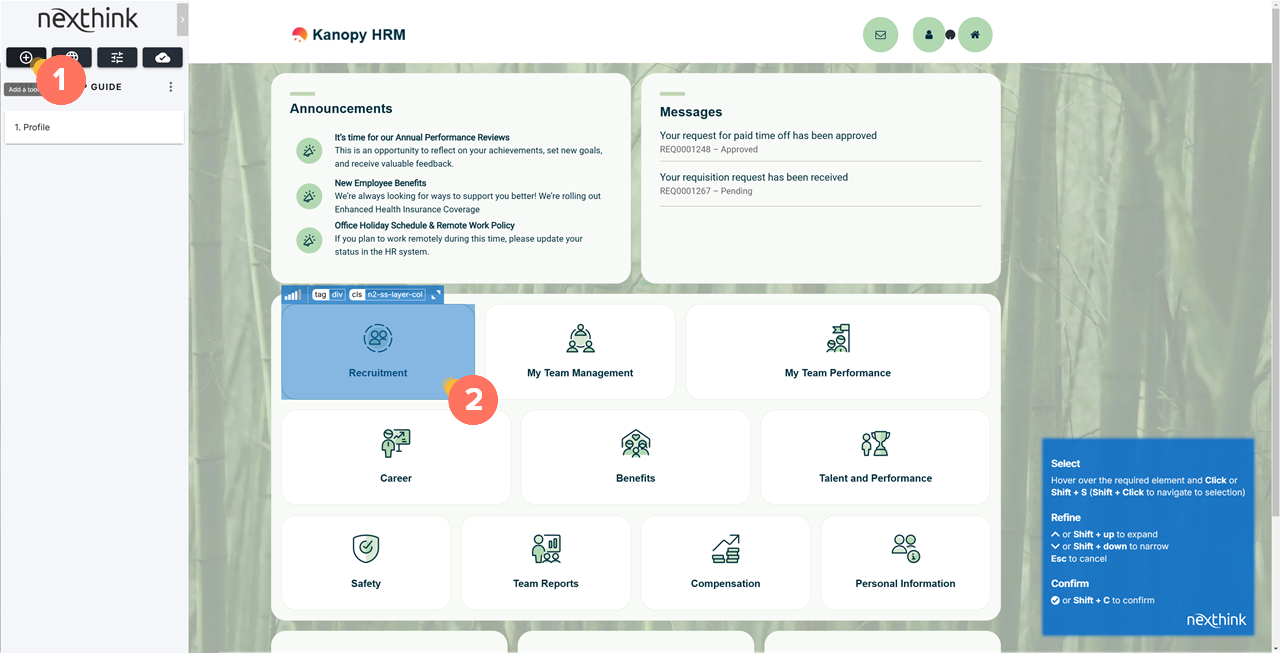
1. **Add a tooltip,** step, action, or piece of media, depending on the guide type—press **Shift + a** as hot key.
* After launching the Element Selector, hover the cursor over the web element to which you wish to assign the guide visual component.
* Alternatively, you may re-launch the Element Selector from the Position [property tab](/user-guide/adopt/guide-content-development-from-in-app-adopt-editor.md#item-properties) of a specific tooltip, step, action, or media piece—regardless of the guide type.
* Press **Shift + Click** to navigate within the application without selecting an element on the webpage.
2. Tick the **✓** icon or press **Shift + C** to confirm the selected element on the web application page.
1. Press **Esc**
{% hint style="info" %}
When selecting elements in the Adopt Editor, a blue box appears, highlighting possible actions and commands. Use the control panel to refine the element selection.
{% endhint %}
### **Refining element selection in Guides Editor**
{% hint style="info" %}
When [configuring Adoption settings](/user-guide/adopt/guide-creation-and-management-from-nexthink-applications/configuring-adoption-settings.md) in Nexthink Infinity and defining element selector defaults for all guides specific to an application, administrators can included or excluded certain element attributes.
{% endhint %}
After selecting an element on the web application page, the control panel provides several visual and functional options to sharpen the selection.
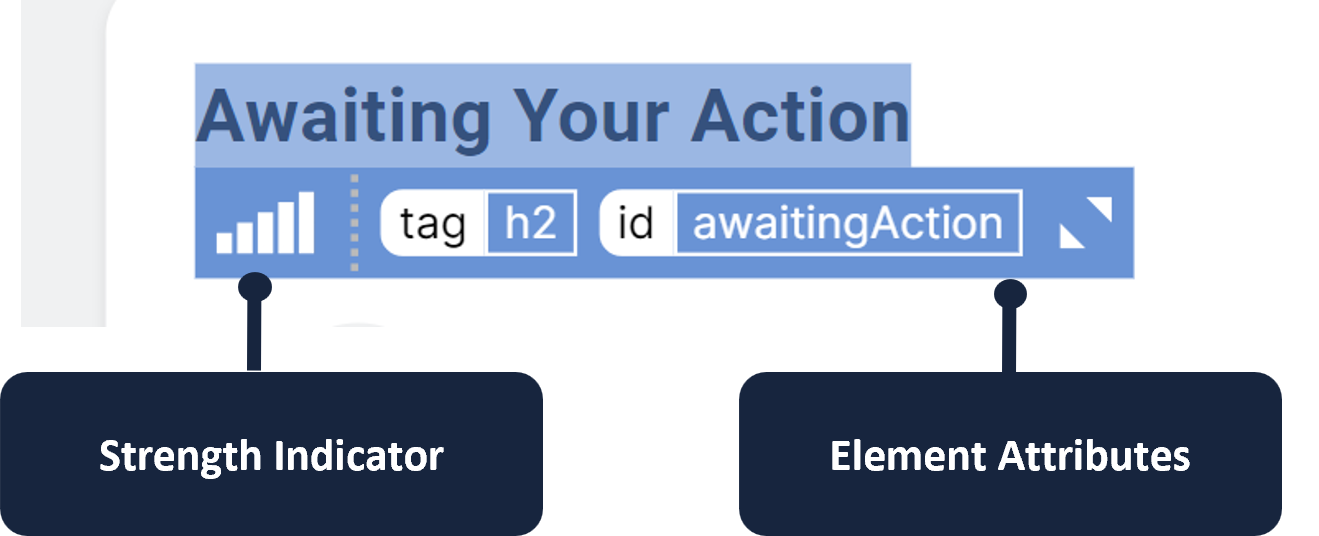
1. Use the up and down arrows within the control panel to adjust the captured element and impact the strength indicator.
2. Check the captured element attributes within the control panel to determine if any classes or **ids** may be dynamically created.
{% hint style="warning" %}
When selecting elements, it is possible that the entire page may be an iframe and become fully highlighted. Nexthink Adopt allows you to select individual elements within iframes by projecting an overlay over them.
{% endhint %}
When selecting elements, the entire page may be an iframe and become fully highlighted. Nexthink Adopt allows you to select individual elements within iframes by projecting an overlay over them.
{% hint style="info" %}
You can **Auto-fix** detected unstable selectors directly from Adopt Editor under the **Position** property tab of walkthrough steps. Refer to [Defining walkthrough Step](/user-guide/adopt/guide-content-development-from-in-app-adopt-editor/developing-walkthrough-guides/defining-walkthrough-step.md#selected-step-element-selectors-and-instability-auto-fix) for more information.
{% endhint %}
***
RELATED TOPICS
* [Developing Tooltip guides](/user-guide/adopt/guide-content-development-from-in-app-adopt-editor/developing-tooltip-guides.md)
* [Developing Walkthrough guides](/user-guide/adopt/guide-content-development-from-in-app-adopt-editor/developing-walkthrough-guides.md)
* [Developing Media guides](/user-guide/adopt/guide-content-development-from-in-app-adopt-editor/developing-media-guides.md)
---
# Agent Instructions
This documentation is published with GitBook. GitBook is the documentation platform designed so that both humans and AI agents can read, navigate, and reason over technical content effectively. Learn more at gitbook.com.
## Querying This Documentation
If you need additional information that is not directly available in this page, you can query the documentation by asking a question.
Perform an HTTP GET request on the following URL with the `ask` and `goal` query parameters:
```
GET https://docs.nexthink.com/user-guide/adopt/guide-content-development-from-in-app-adopt-editor/using-element-selector-in-adopt-editor.md?ask=&goal=
```
`ask` is the immediate question: it should be specific, self-contained, and written in natural language.
`goal` is what the user is ultimately trying to achieve, the reason they need the answer. Sharing it helps GitBook give you a better, more relevant answer. A goal is most helpful when it describes the outcome the user wants rather than restating the question. For example, with `ask=how do I create an API token`, a goal like `automate deployments from our CI pipeline` lets GitBook tailor the answer to that use case.
The response will contain a direct answer to the question and relevant excerpts and sources from the documentation.
Use this mechanism when the answer is not explicitly present in the current page, you need clarification or additional context, or you want to retrieve related documentation sections.