> For the complete documentation index, see [llms.txt](https://docs.nexthink.com/llms.txt). Markdown versions of documentation pages are available by appending `.md` to page URLs; this page is available as [Markdown](https://docs.nexthink.com/user-guide/adopt/guide-content-development-from-in-app-adopt-editor/developing-walkthrough-guides/defining-walkthrough-step/advanced-settings.md).
# Advanced settings
Some advanced settings are hidden by default in the Content, Appearance and Position tabs of the Step editor, to simplify the experience. These settings still exist and can be reactivated for your organization on request — contact your Nexthink representative.
### Content
#### Step sound
Add sounds to your guide step.
### Appearance
#### Step label
Enable the **Step label**, then specify the text that will appear before the step number in the **Step counter** at the bottom of the step. The **Step counter** must be enabled (see Controls and Indicators).
#### Prevent users from scrolling
You can prevent users from scrolling through the page while the step is visible.
#### Shadow animation
If you enable the **Shadow** option, you can apply a gradual transition **Animation** instead of an instant visual effect.
#### Arrow
Display **Arrow**, a tooltip pointer that visually connects the tooltip to its associated interface element.
#### Animation
* **Step**: Add a **Fade**, **Zoom** or no animation to the step as it appears or disappears.
* **Element**: When users reach or complete the step, add a **Fade**, **Zoom**, or no animation to the assigned element.
* If you enable a zoom animation on either of the options above, define the **Zoom strength**.
### Position
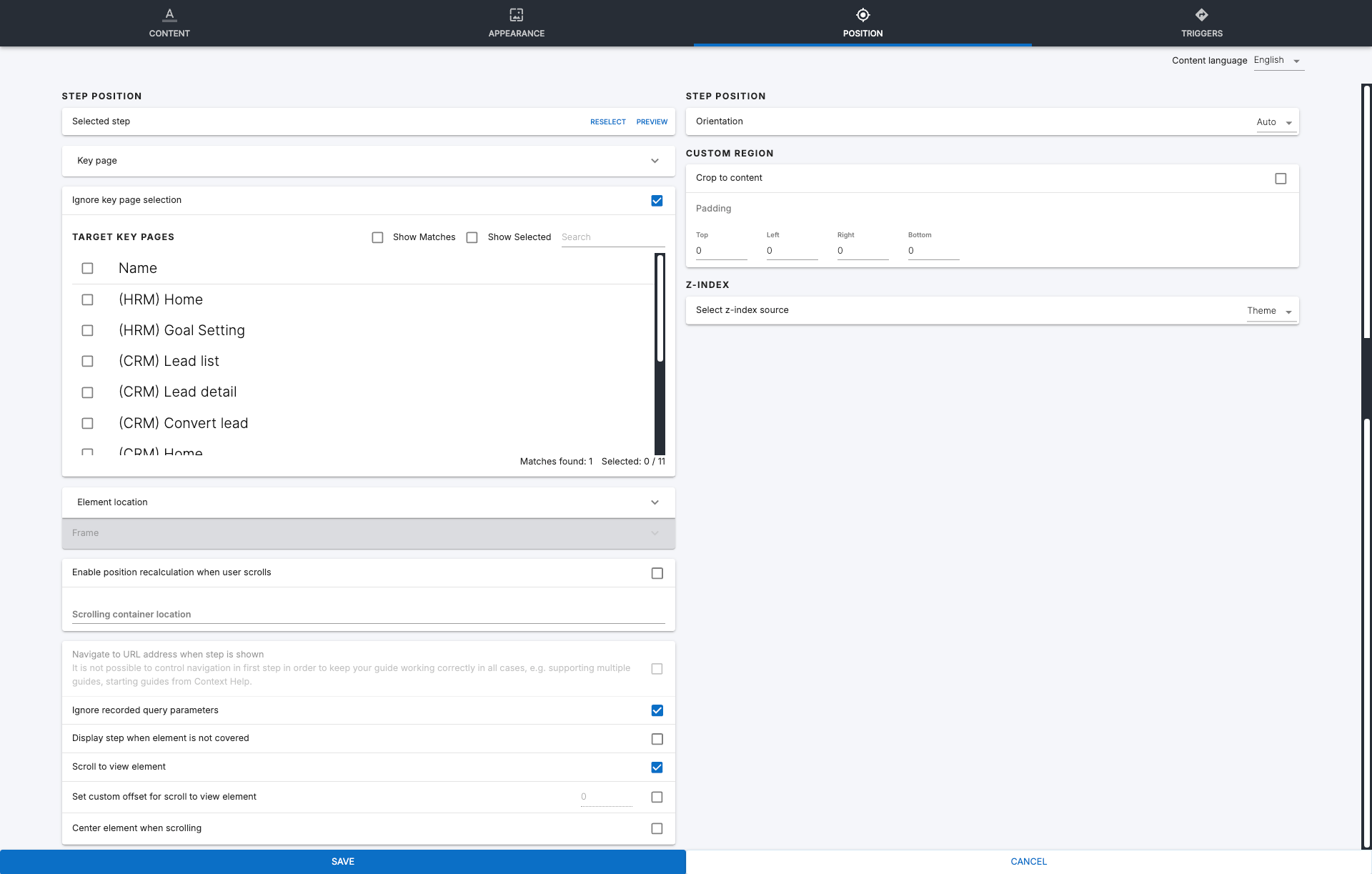
#### Enable position recalculation when the user scrolls
**Enable position recalculation when the user scrolls** in cases where you have multiple containers with scroll bars aside from the main page. Generally, Adopt attempts to scroll through the main page to reach a step's associated element. Enable this option and specify a container by its `element ID` to restrict the scrolling to that container.
#### Guide defaults
* **Ignore recorded query parameters:** When a step navigates to a specific URL that contains a query, for example `http://google.com/?query`, enable this setting to disregard the query, meaning everything after `/?`, and only use the base URL.
* **Display step when element is not covered:** Generally, Adopt displays steps even when the associated elements are being overlapped by a modal window or dialogue. Enable this setting to ensure the step only displays when the element is not being overlapped by other elements.
* **Scroll to view element:** Enable this setting to automatically scroll the page until the associated element is visible.
* **Center element when scrolling:** Generally, Adopt attempts to scroll to an element in a way that respects page spacing. Enable this setting to attempt to center it relative to the page.
* **Set custom offset for scroll to view element:** The nature of certain web pages can cause scrolling calculation errors. Enable this setting and add a value in pixels to add that much additional distance to the scrolling. This offset is added to the direction Adopt is scrolling towards during a given step.
#### Custom region
Defining a **Custom region** allows you to expand or reduce the highlighted area of an element when the relevant step is visible.
* **Crop to content** allows Adopt to attempt to define an area that contains only the relevant content of the element, such as a text label, rather than the entire element.
* This setting may not function due to improper page formatting.
* Define directional **Padding**, in pixels, to shape the custom region to suit your needs.
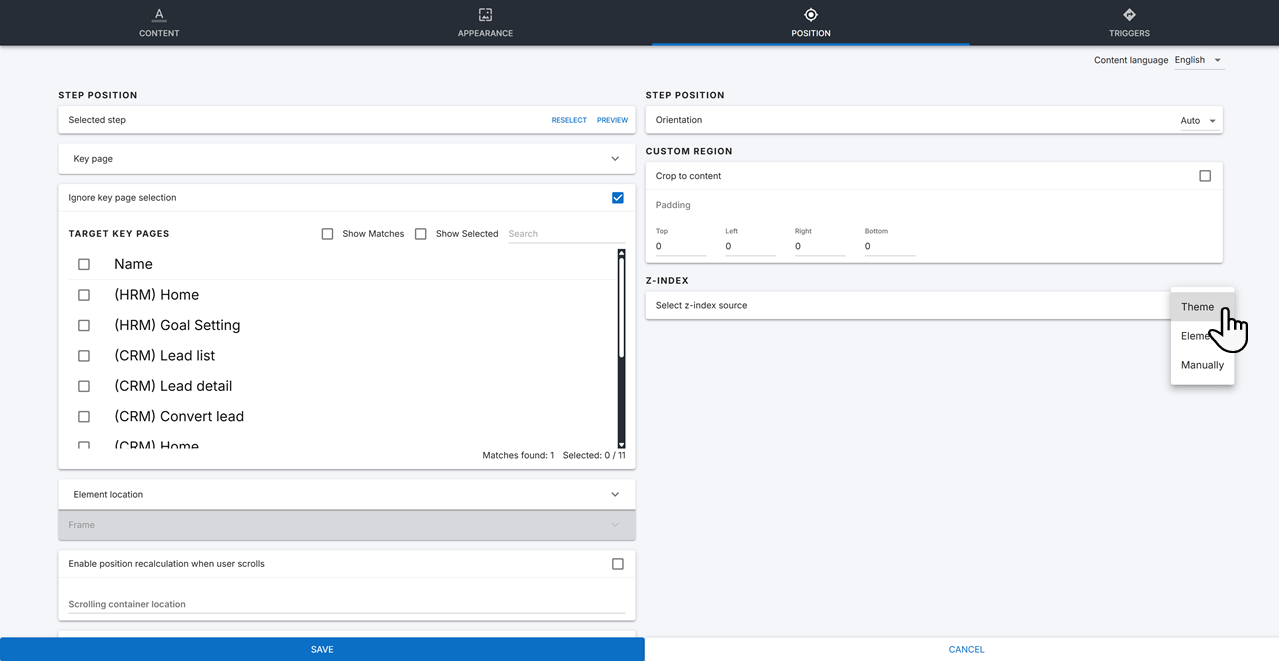
#### Z-index
Select a **Z-index source** to determine the z-index origin point from which the Nexthink extension renders the step.
* **Theme** uses the Nexthink default z-index value of `73999`.
* **Element** uses the associated element's z-index value, determined via page formatting.
* **Manual** allows you to define z-index values for the **shadow** and **step**. Ensure the step has at least an increment of `1` over the shadow for correct display.
---
# Agent Instructions
This documentation is published with GitBook. GitBook is the documentation platform designed so that both humans and AI agents can read, navigate, and reason over technical content effectively. Learn more at gitbook.com.
## Querying This Documentation
If you need additional information that is not directly available in this page, you can query the documentation by asking a question.
Perform an HTTP GET request on the following URL with the `ask` and `goal` query parameters:
```
GET https://docs.nexthink.com/user-guide/adopt/guide-content-development-from-in-app-adopt-editor/developing-walkthrough-guides/defining-walkthrough-step/advanced-settings.md?ask=&goal=
```
`ask` is the immediate question: it should be specific, self-contained, and written in natural language.
`goal` is what the user is ultimately trying to achieve, the reason they need the answer. Sharing it helps GitBook give you a better, more relevant answer. A goal is most helpful when it describes the outcome the user wants rather than restating the question. For example, with `ask=how do I create an API token`, a goal like `automate deployments from our CI pipeline` lets GitBook tailor the answer to that use case.
The response will contain a direct answer to the question and relevant excerpts and sources from the documentation.
Use this mechanism when the answer is not explicitly present in the current page, you need clarification or additional context, or you want to retrieve related documentation sections.