> For the complete documentation index, see [llms.txt](https://docs.nexthink.com/llms.txt). Markdown versions of documentation pages are available by appending `.md` to page URLs; this page is available as [Markdown](https://docs.nexthink.com/user-guide/adopt/guide-content-development-from-in-app-adopt-editor/developing-walkthrough-guides/defining-walkthrough-step.md).
# Defining walkthrough Step
After creating a Walkthrough-type guide in Nexthink Applications and accessing the guide in Adopt Editor:
{% stepper %}
{% step %}
### Create a **new Step**
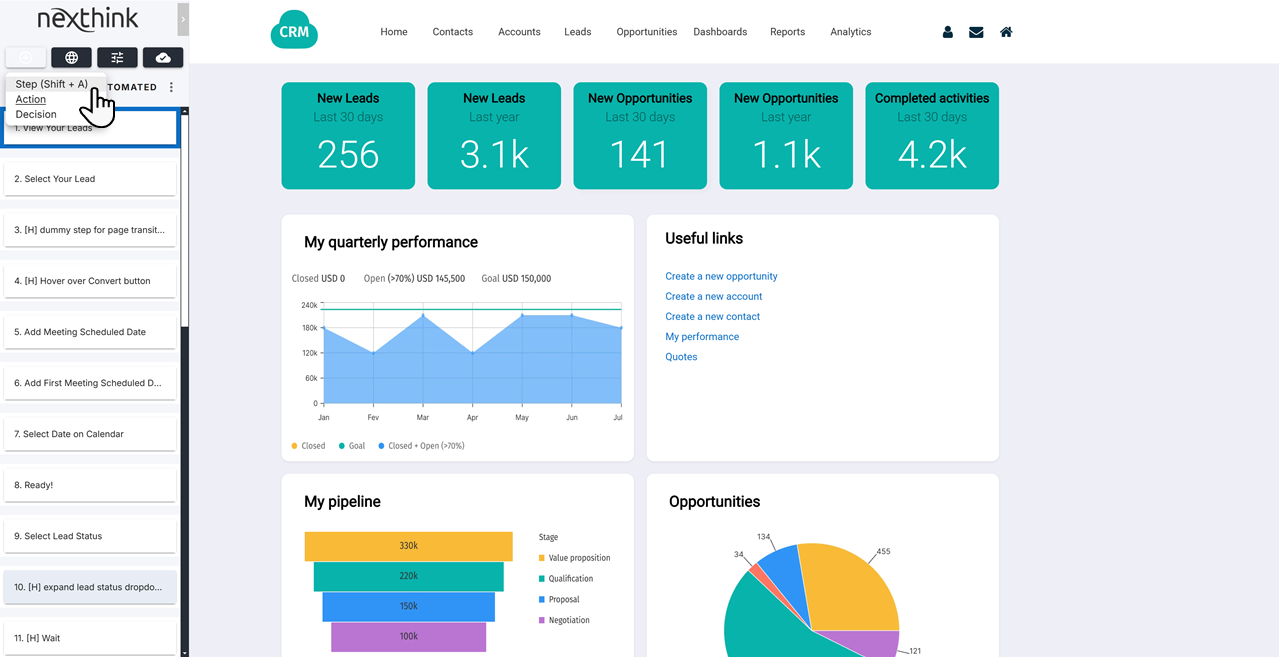
Select **Step** from the drop-down menu, or use the keyboard shortcut **Shift + A.** This activates the element picker, where you can choose an element on the page to associate with this step. Refer to Using Element Selector in Adopt Editor for more information.
Hover the cursor over your page and choose an element by clicking on it or using the **Shift + S** keyboard shortcut. This creates a step assigned to the chosen element.
{% hint style="info" %}
The **Shift + S** shortcut is useful when you cannot select an element with the cursor. For instance, when you select an element in a pop-up menu that is not visible when clicked.
{% endhint %}
{% endstep %}
{% step %}
### Set up the Step **Properties**
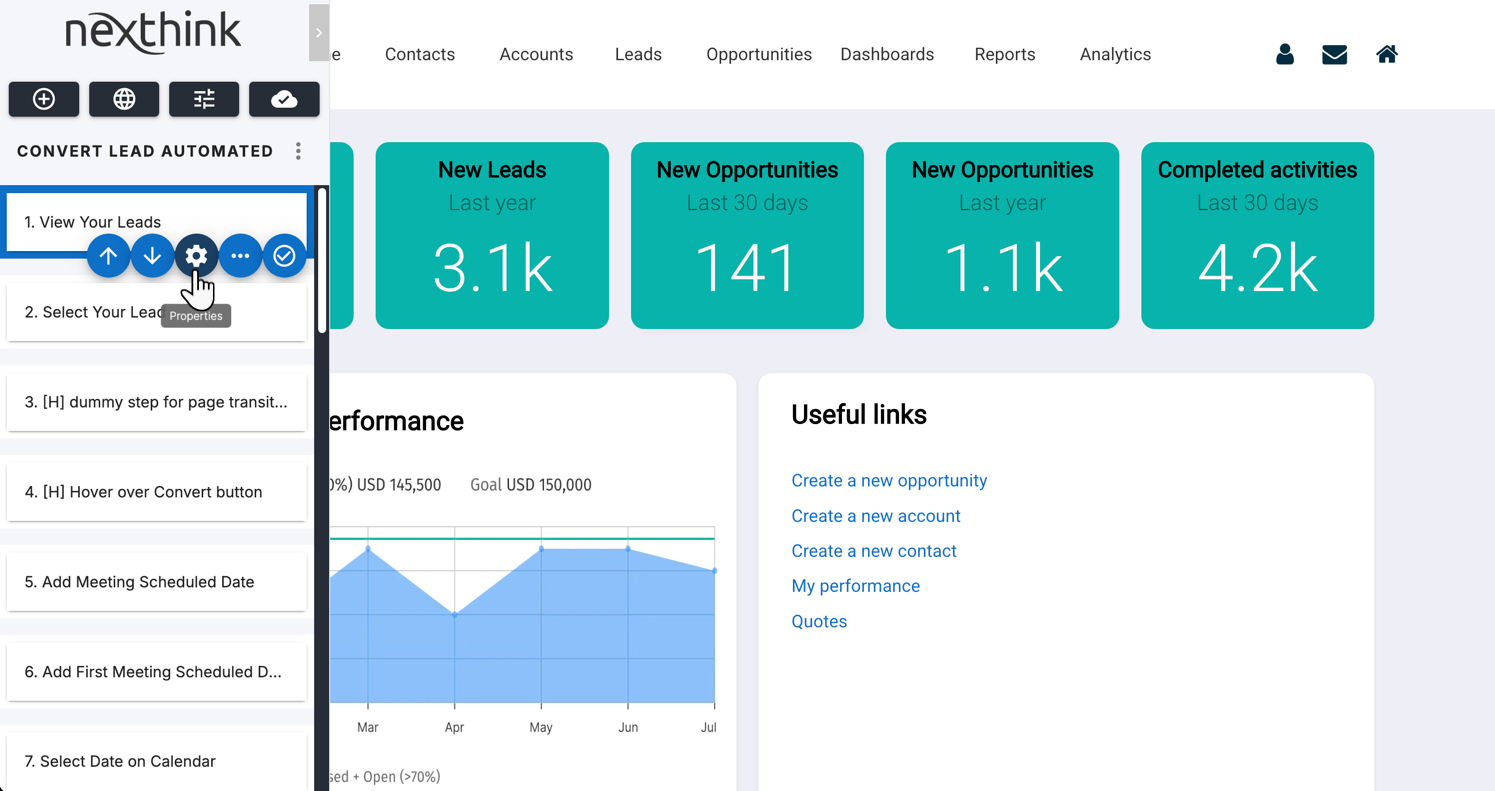
Open the step **Properties** to access the property tabs: **Content**, **Appearance**, **Positioning** and **Display.** Use these tabs to:
* Add text and **Content** to walkthrough step
* Define walkthrough step **Appearance**
* Define walkthrough step **Positioning** options
* Define walkthrough step **Trigger** options
Find further details about each tab in the following sections included on this page.
{% endstep %}
{% endstepper %}
***
{% hint style="info" %}
Some advanced settings are hidden by default across the Content, Appearance and Position tabs, to simplify the editor. These settings still exist and can be reactivated for your organization on request — contact your Nexthink representative. Refer to [Advanced settings](/user-guide/adopt/guide-content-development-from-in-app-adopt-editor/developing-walkthrough-guides/defining-walkthrough-step/advanced-settings.md) for the full list of hidden settings.
{% endhint %}
### Adding text and content to a walkthrough step
From the Adopt Editor left-side panel, access the **Properties** of a step and open the **Content** tab to add content visible to employees using the guide.
#### Step content
* Write and format the text using the **Tooltip content** editor.
* Optionally, add images, from an URL or the Asset library.
* Optionally, add links to relevant pages, images, audio or video.
***
### Defining walkthrough step appearance
From the Adopt Editor left-side panel, access the **Properties** of a guide step and open the **Appearance** tab:
Buttons and actions
You can enable or disable predefined and extra buttons, determining which ones appear on the step.
* Enable the **Next** and **Previous** button to allow for navigation directly on the step.
* Enable extra buttons, which can be used to set up **Action Buttons**.
* Enable the **close cross button**, allowing users to exit a step without completing it.
Step appearance
* Enable **Close label**, then specify the text for the close button. The Close action button must be enabled first (see [Controls and Indicators](#controls-and-indicators)).
Step interaction
* You can **prevent users from interacting** with page elements while the step is visible, using the dropdown to enable or disable this behavior. This option applies to page elements surrounding the step or the entire page.
Shadow
This option allows the darkening or blurring of the page, except for the required element for step completion.
* Select the **Type** of the shadow:
* Off (shadow turned off)
* Transparent
* Blurred background.
Border
* Add a **solid** or **gradient** border to the UI element linked to the step. Select **Off** to remove the border.
* If you enable the **Border** option, you can apply a gradual transition **Animation** instead of an instant visual effect.
Controls and indicators
Display the action button that allows advancing through a step.
* Display the **Close action button** to allow users to close the step.
* Display a **Step counter** indicating how many steps users have completed.
* Display a counter showing the **total number of steps** in the Walkthrough.
* Enable step encapsulation, which places the step inside its own iframe. This prevents interfering with the overall page structure during rendering.
Step Overlay
Define the overall appearance of your Step and how it renders on the page.
* **Tooltip** is the standard Step appearance, a box that displays relative to the assigned element.
* **Smart Page** is a larger box in the center of the screen, recommended for video content and large images.
* **Notice** is a broad box at the bottom of the page, similar to a notification.
* **Hidden** removes the Step from the user view. This option is recommended for transitions between Steps where users are navigated to the correct page. Refer to Defining Walkthrough positioning options for more information.
* **Sidebar** occupies the left side of the page, top to bottom. This option is recommended for `.pdf` files or large amounts of content.
***
### Defining walkthrough step positioning options
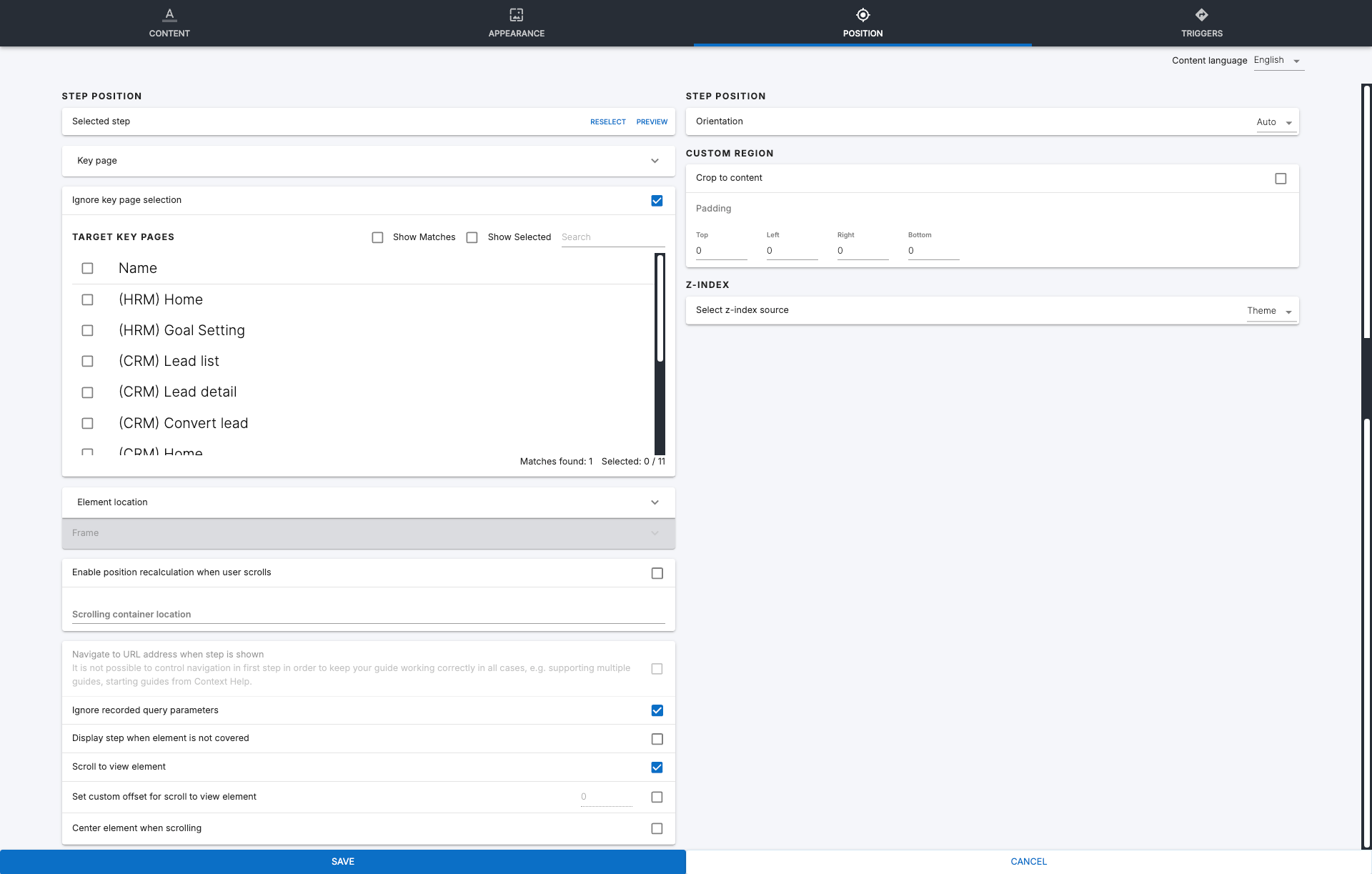
From the Adopt Editor left-side panel, access the **Properties** of a Step and open the **Position** tab:
#### **Step position**
Selected step — element selectors & instability Auto-fix
**Preview** the element associated with the Step on the web application page. If needed, **Reselect** the element or **Auto-fix** unstable selectors.
Adopt Editor enables the **Auto-fix selectors** button when 30% or more of the Step's selectors are unstable—that is, selectors relying on dynamically generated identifiers—but at least one selector still correctly identifies the target element. The system uses the working selector to regenerate the unstable selectors and reduce selector instability.
The **Auto-fix** feature does not require you to **Reselect** the element or re-record the Step, except when the element is removed or when multiple working selectors identify different elements, preventing you from implementing selector **Auto-fix**. In these cases, **Reselect** the element manually.
{% hint style="warning" %}
**Auto-fix** operates on a single Step and does not repair selectors across an entire guide.
{% endhint %}
**Be notified of guides with unstable selectors**
To proactively identify unstable Steps in deployed guides, install and use the **Adopt Unstable Selectors** predefined monitor from the Nexthink Library. The monitor generates alerts when Steps contain unstable selectors.
Refer to [Nexthink Library](/user-guide/nexthink-library.md#nexthinklibrary-accessingnexthinklibrary) for library content setup.
When the monitor alerts you about a guide with unstable selectors:
* Unpublish the guide in Nexthink.
* Open the guide in Adopt Editor and identify the step flagged by the system—see the screenshot below.
* Check the affected Step's **Position** tab for the **Auto-fix selectors** option.
Key pages
* **Navigation** lets you direct users to a specific page when they reach the Step. The **Location URL pattern** makes pages with dynamic addresses more stable for Guide purposes.
* **Target Key pages** by ticking **Show matches** and/or selecting a key page from the list**.** You may also use the **Search** bar to filter the results by name.
* Predefined key pages allow you to associate the step with a dynamic URL still recognizable by Nexthink Infinity, for example: `https://impl.workday.com/*/d/home.htmld`
* If you have no matching key pages, refer to the Key pages documentation for more information.
* **Ignore key page selection** and define a static URL under **Navigation** if needed.
Element location
Optionally, enable or disable **Element selectors**—configured by default in Nexthink Infinity Adoption settings—to make them specific to this step.
* The **Element XPath** selector override can be localized to a different language, given that it targets a specific block of text.
{% hint style="warning" %}
When using Adopt Editor within an application with iframes, the **Show matches** option cannot display the matching key page for the iframe in which the target element resides.
In these cases, **Reselect** the target element to display the matching key page.
{% endhint %}
* **Navigate to URL address when step is shown:** Enable this setting to automatically navigate to the configured URL address when this step is visible to the user. This setting cannot be enabled on the first step of a Walkthrough.
* Select an **Orientation** to determine the direction from which the step renders, based on the associated element's position.
* **Auto** is the default setting. Steps render from the top unless the element is at the top of the page, in which case they render from the bottom.
* Select **top**, **right**, **bottom** or **left** to specify a rendering direction.
{% hint style="info" %}
If the system cannot display your preferred position due to space constraints, Adopt places it in the most suitable position in a clockwise direction.
{% endhint %}
***
### Defining walkthrough step trigger options
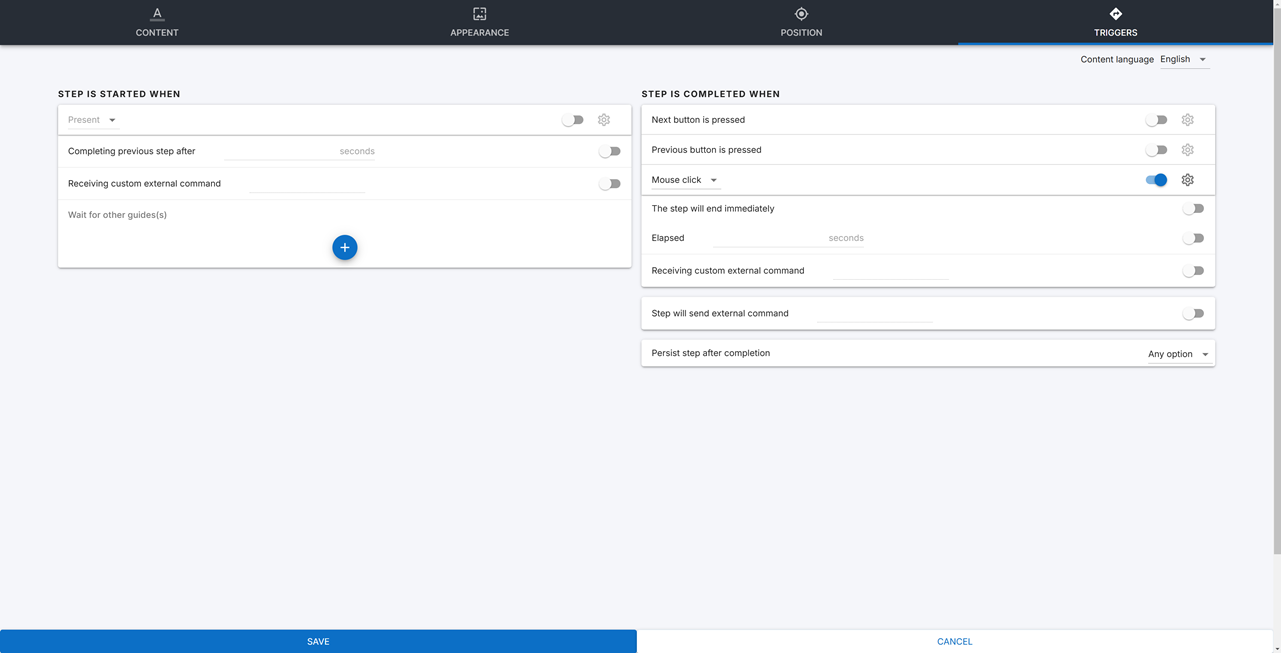
From the Adopt Editor left-side panel, access the **Properties** of a Step and open the **Triggers** tab:
#### Define **when a Step is started**
* Select a trigger from the dropdown to define when the Step starts:
* **Spot/Unspot** triggers work for elements visible on the page, while **Present/Unpresent** refer to elements that exist but may not be visible on the page—set as `hidden` in the CSS, for example.
* **Spot in viewport** triggers the Step when the element is visible on the employee screen.
* **Fill select/value and move on** triggers the Step for interactions with input fields on the page, such as typing a word in a search bar or selecting an option from a dropdown.
* **Element loses focus** triggers the Step when clicking away from a focused page element. For example, click away to disable typing from a search bar.
* Enable **Completing previous step after** and set a timer, in seconds, for the Step to appear once the previous Step completes.
* Define custom external commands to receive as a trigger for Step appearance.
* Define a list of other Guides in **Wait for other guide(s)**, so the Step appears only once those Guides are completed.
* Select **+** to add further start conditions.
{% hint style="info" %}
You must create custom external commands in the **Triggers** tab of the previous Step configuration.
{% endhint %}
#### Define **when a Step is completed**
* Select a trigger from the dropdown to define when the Step is completed:
* **Mouse click** triggers the Step when the user clicks anywhere.
* **Spot/Unspot** triggers work for elements visible on the page, while **Present/Unpresent** refer to elements that exist but may not be visible on the page—set as `hidden` in the CSS, for example.
* **Spot in viewport** triggers the Step when the element is visible on the employee screen.
* **Fill select/value and move on** triggers the Step for interactions with input fields on the page, such as typing a word in a search bar or selecting an option from a dropdown.
* Optionally, define **With specific pattern** using a regular expression the input value must match, for example `^((?!CEO).)*$`.
* Under **Selectors**, **Reselect** or **Preview** the **Trigger element selected in main window**—the element whose value is being filled or selected, which can differ from the Step's own associated element.
* Enable **Element XPath** to override the selector type for the trigger element.
* **Element loses focus** triggers the Step when clicking away from a focused page element. For example, click away to disable typing from a search bar.
* When the user presses the **Next** button.
* Optionally, add a **Next** or **Done** label.
* When the user presses the **Previous** button.
* Optionally, add a **Previous** label.
* Enable **The step will end immediately** to complete the Step without further interaction.
* Enable **Elapsed** and set a timer, in seconds, to complete the Step automatically.
* Define custom external commands to receive as a trigger for Step completion.
* Define whether the Step sends a custom external command on completion, and create the command.
* Define whether a Step persists after completion:
* **On URL address change** causes the Step to persist after the Guide navigates to another page.
* **On page reload** causes the Step to persist after users refresh the page.
* **Going back in history** causes the Step to persist after users return to a previous page.
* **Any option** causes the Step to persist when any of the above criteria is met.
---
# Agent Instructions
This documentation is published with GitBook. GitBook is the documentation platform designed so that both humans and AI agents can read, navigate, and reason over technical content effectively. Learn more at gitbook.com.
## Querying This Documentation
If you need additional information that is not directly available in this page, you can query the documentation by asking a question.
Perform an HTTP GET request on the following URL with the `ask` and `goal` query parameters:
```
GET https://docs.nexthink.com/user-guide/adopt/guide-content-development-from-in-app-adopt-editor/developing-walkthrough-guides/defining-walkthrough-step.md?ask=&goal=
```
`ask` is the immediate question: it should be specific, self-contained, and written in natural language.
`goal` is what the user is ultimately trying to achieve, the reason they need the answer. Sharing it helps GitBook give you a better, more relevant answer. A goal is most helpful when it describes the outcome the user wants rather than restating the question. For example, with `ask=how do I create an API token`, a goal like `automate deployments from our CI pipeline` lets GitBook tailor the answer to that use case.
The response will contain a direct answer to the question and relevant excerpts and sources from the documentation.
Use this mechanism when the answer is not explicitly present in the current page, you need clarification or additional context, or you want to retrieve related documentation sections.