> For the complete documentation index, see [llms.txt](https://docs.nexthink.com/platform/llms.txt). Markdown versions of documentation pages are available by appending `.md` to page URLs; this page is available as [Markdown](https://docs.nexthink.com/platform/user-guide/remote-actions/using-remote-actions/executing-remote-actions.md).
# Executing remote actions
Depending on the use case, remote actions administrators must set up different remote action triggers:
* **Manual**
* **Scheduled**
* **API**
* **Workflows**
* **Spark**
These settings determine how you can run a remote action on employee devices.
## Remote action execution methods
The following section outlines all methods for executing a remote action.
### Executing remote actions manually
Run remote actions on-demand from the Nexthink web interface on targeted devices or VDI sessions. Depending on the use case, remote actions can be executed for a single target or across multiple targets simultaneously. The following sections describe the Nexthink features and interfaces that you can use to trigger a remote action manually.
Executing remote actions from the Investigations module
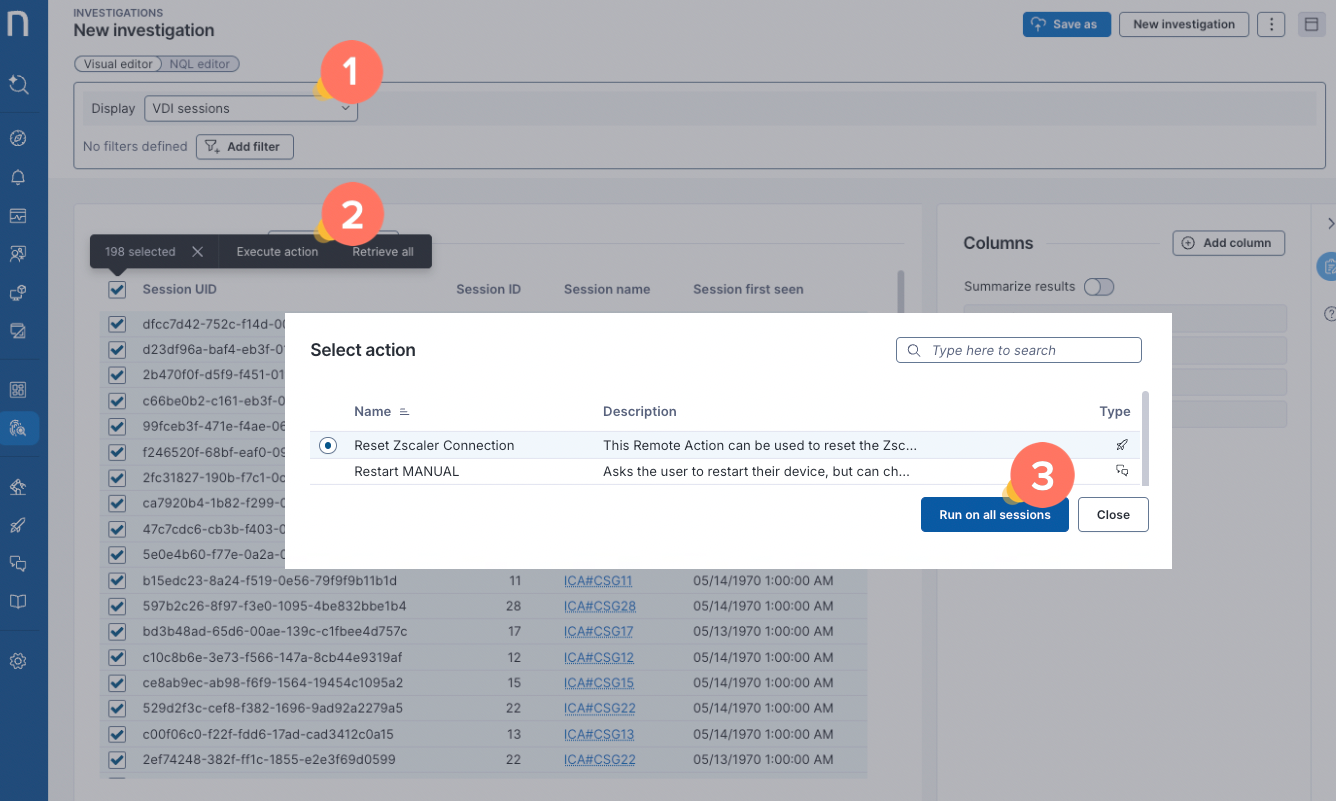
From [Investigations](/platform/user-guide/investigations.md):
1. Use the [NQL editor](/platform/user-guide/investigations/creating-investigations/nql-editor.md) or [Visual editor](/platform/user-guide/investigations/creating-investigations/visual-editor.md) to query a list of the **Devices** or **VDI sessions.**
2. Select one or multiple devices or VDI sessions from the investigation results table and click on **Execute actions** from the action bar. The **Select action** pop-up displays the list of available actions.
* Only [remote actions configured for VDI](#targeting) can run on sessions.
3. Select the remote action of interest, identifiable by a rocket icon, and run on the selected devices or sessions.
* If the remote action has parameters, you must provide a value for each parameter before confirming
* Select **Execute on...**
* A validation message confirms the system has triggered the remote action.
* Click on **View results** to access the remote action details dashboard.
To properly execute remote actions from investigation tables using NQL queries with summarized results, ensure you `summarize` by `device.collector.uid` as actions cannot be manually triggered from results summarized by device `name`.
Find below a working NQL query example with summarized output, suitable for manual remote action execution:
```
devices during past 7D
| where (device.operating_system.platform == windows)
| where (remote_action.get_configuration_manager_sccm_client_status.execution.status == success and remote_action.get_configuration_manager_sccm_client_status.execution.outputs.ClientInstalled == false)
| summarize devices_without_SCCM_client_ = count() by device.collector.uid
| list device.collector.uid
```
{% hint style="info" %}
When running remote actions on many devices, Nexthink recommends exporting the execution results, as the user interface limits the number of records displayed to 10,000.
{% endhint %}
Executing remote actions from Device View or Session View
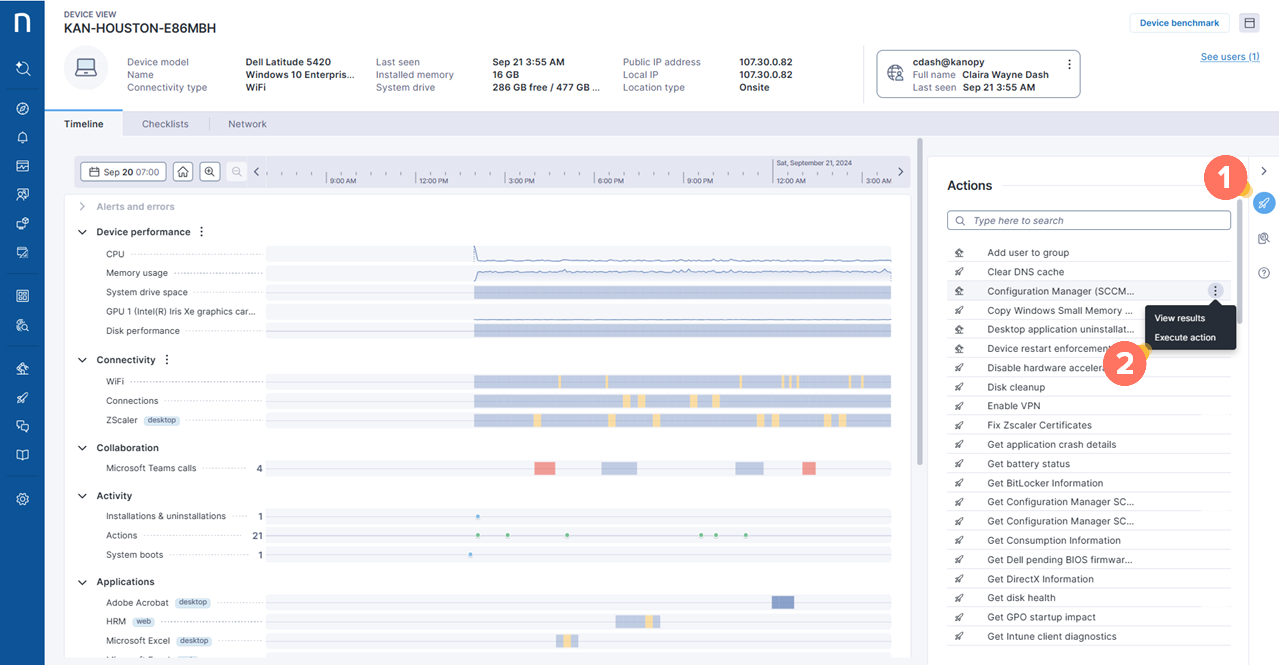
From the [Device View](/platform/user-guide/device-view.md) or [Session view](/platform/user-guide/vdi-experience/using-session-view.md):
1. Toggle the **Actions** panel from the right side of the page to view a list of all remote actions and workflows available for your user role.
2. Choose a remote action:
* Hover over a remote action to reveal the action menu and choose **Execute action** to run the remote action on the selected device or session.
* Confirm remote action execution by selecting **Yes**.
* A validation message confirms the system has triggered the remote action.
* Click on **View results** to access the remote action details dashboard.
Executing remote actions from Amplify
Execute remote actions directly from the [Amplify](/platform/user-guide/amplify.md) window, to target the device of an employee who raised the ticket.
* Open the **Actions** tab in Amplify for the device in question.
* You can also see and select any associated action listed in the **Checklist** tab.
* Expand the remote action details to view the last two execution statuses of a remote action, including the option to copy the execution details.
* Select **Run** to execute the remote action on the device.
* Confirm remote action execution by selecting **Yes**.
* A validation message confirms the system has triggered the remote action.
Executing remote actions from the Manage remote actions page
Trigger and test remote actions from the Remote action administration page. Refer to [Managing Remote Actions](/platform/user-guide/remote-actions/setting-up-and-managing-remote-actions/managing-remote-actions.md#executing-remote-actions-from-the-manage-remote-actions-page) documentation.
### Scheduling a remote action
Scheduled remote actions do not require manual triggering. After a schedule is configured, the remote action runs automatically according to the defined schedule.
The system evaluates the defined NQL query based on the selected schedule and sends the remote action to the resulting devices or sessions.
Refer to [Scheduling remote actions](/platform/user-guide/remote-actions/setting-up-and-managing-remote-actions/creating-remote-actions/scheduling-remote-actions.md) documentation for more information.
### Executing a remote action using the API
Trigger remote actions from external applications, using the Nexthink Remote Actions API.
Refer to [Remote Action API](https://docs.nexthink.com/api/remote-actions) documentation for more information.
### Executing a remote action within a workflow
A Workflow can trigger a remote action to collect additional diagnostic information or remediate issues on a targeted device. The returned output values can then be used in later workflow steps or conditions.
Refer to [Remote action thinklet](/platform/user-guide/workflows/creating-workflows/configuring-thinklets/remote-action-thinklet.md) for more information.
### Executing remote actions by Spark
Spark can execute remote actions to automate diagnostics and remediation directly from employee interactions. When enabled for Spark, remote actions become available as automated actions that Spark can run to help resolve issues, collect additional device information, or support self-service experiences.
Refer to [Managing Spark actions](/platform/user-guide/spark/setting-up-and-managing-spark/managing-agent-actions.md) for more information.
### Executing remote actions on interactive users
A remote action that runs as the interactive user needs a user to be logged in to the device. Collector waits for a user to log in and runs the script only then. Executions report the `waiting_on_user` status while they wait, and expire one week after the request is created.
The script runs in the context of the user logged in when the remote action reaches the device. If nobody is logged in, it runs for the first user to log in afterward. Therefore, on devices shared by multiple users, the executing user may differ from the intended one.
Refer to [Creating and configuring remote actions](/platform/user-guide/remote-actions/setting-up-and-managing-remote-actions/creating-remote-actions.md#advanced-configuration) for more information on execution contexts.
### Identifying the user that ran a remote action
Interactive user executions report the name of the user that ran the script, for both device-targeted and session-targeted remote actions. List the `user.name` field of the `remote_action.executions` table to identify that user:
```
remote_action.executions
| where remote_action.name == "Get OneDrive sync status"
| list device.name , user.name , status , remote_action.name
```
The username appears only once the script runs. Executions still waiting for a user, and executions that do not run at all, report no username.
## Providing remote action parameters
Remote actions can be parameterized. In such cases, users who trigger the remote action manually or systems that execute it via an API call must provide the required input values.
Refer to [Creating and configuring remote actions](/platform/user-guide/remote-actions/setting-up-and-managing-remote-actions/creating-remote-actions.md#parameters) for more information.
## Tracking remote action executions from Amplify
Track all remote actions triggered from Amplify and filter the fields in the `remote_action.executions` table. To access the triggered remote action data, include these fields in the NQL query.
* `trigger_method`: The trigger mode used to start the remote action execution.
* `internal_source`: The Nexthink module used to trigger the remote action.
* `external_reference`: The reference ID used to track the ticket.
* `external_source`: The identifier of the external web application record in relation to the remote action was executed.
The table is organized based on the results of the NQL query executed in `remote_action.executions`.
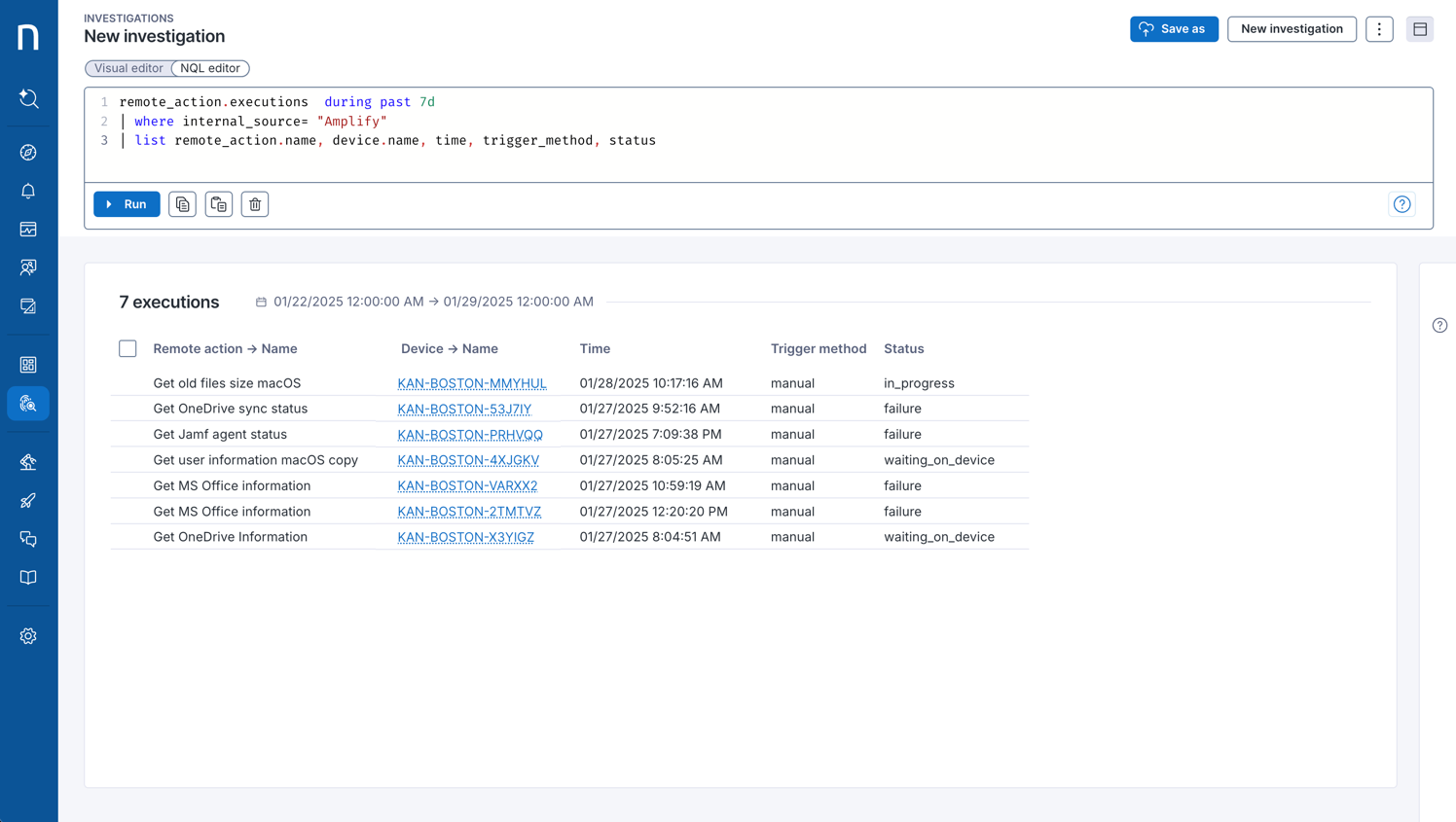
### Example 1 An NQL query that returns all triggered remote actions based on the internal_source
```
remote_action.executions during past 7d
| where internal_source == "Amplify"
| list remote_action.name , device.name , time , trigger_method , status
```
### Example 2 An NQL query that returns all triggered remote actions based on the trigger_method.
```
remote_action.executions during past 7d
| where trigger_method == manual
| list remote_action.name , device.name , time , trigger_method , status
```
{% hint style="warning" %}
When you execute remote actions from an NQL targeting query, ensure you summarize by `device UID`, as you cannot target devices by `name`.
{% endhint %}
---
# Agent Instructions
This documentation is published with GitBook. GitBook is the documentation platform designed so that both humans and AI agents can read, navigate, and reason over technical content effectively. Learn more at gitbook.com.
## Querying This Documentation
If you need additional information that is not directly available in this page, you can query the documentation dynamically by asking a question.
Perform an HTTP GET request on the current page URL with the `ask` query parameter, and the optional `goal` query parameter:
```
GET https://docs.nexthink.com/platform/user-guide/remote-actions/using-remote-actions/executing-remote-actions.md?ask=&goal=
```
`ask` is the immediate question: it should be specific, self-contained, and written in natural language.
`goal` is optional and describes the broader end goal you are ultimately trying to accomplish on behalf of the user. GitBook uses it to tailor the answer towards what is most useful for that goal.
The response will contain a direct answer to the question and relevant excerpts and sources from the documentation.
Use this mechanism when the answer is not explicitly present in the current page, you need clarification or additional context, or you want to retrieve related documentation sections.