> For the complete documentation index, see [llms.txt](https://docs.nexthink.com/platform/llms.txt). Markdown versions of documentation pages are available by appending `.md` to page URLs; this page is available as [Markdown](https://docs.nexthink.com/platform/user-guide/remote-actions/setting-up-and-managing-remote-actions/managing-remote-actions.md).
# Managing Remote Actions
The Remote Actions Administration page lets you view, create, and edit your remote actions.
## Accessing Remote Actions Administration page
To access the Remote Actions administration page:
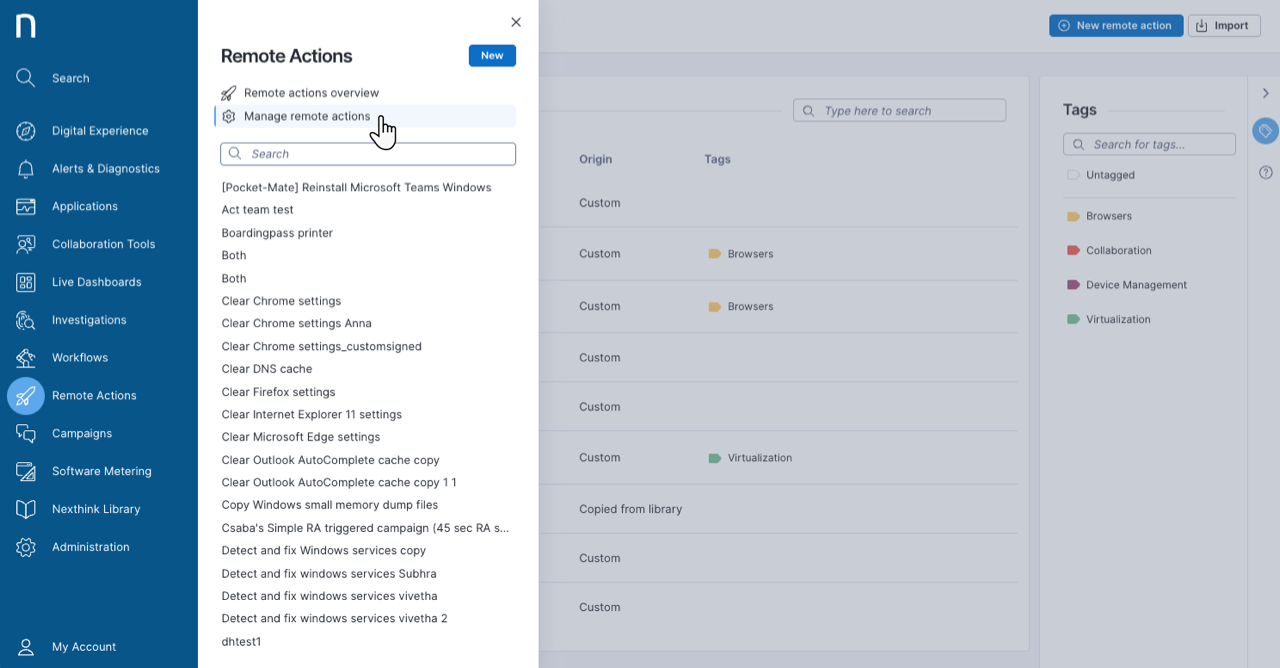
1. Select **Remote Actions** from the main menu.
2. Click on **Manage remote actions** in the navigation panel.
## Understanding the remote actions list
From the **Remote Actions Administration** page, view all available remote actions organized by:
* **Name**: The name of the remote action.
* **Origin**: An indication of where the remote action originates from:
* **Custom**: A remote action created within the Remote Actions module.
* **Installed from Library**: A remote action installed from the Nexthink Library module. You can configure the following fields:
* Description
* Triggering
* Input Parameter Description
* Input Parameter Value
* Output Parameter Description
* Custom Value
* All fields in the Schedule tab\
Refer to the [Nexthink Library](/platform/user-guide/nexthink-library.md) documentation for more information on how to install a remote action.
* **Copied from library**: A remote action copied from the Nexthink Library module. You can fully edit copied remote actions to fit your needs. Refer to the [Nexthink Library](/platform/user-guide/nexthink-library.md) documentation for more information on how to create a copy of a remote action.
* **Tags**: Displays the list of tags assigned to each remote action.
* **Platforms**: The platform for which a remote action was designed.
* **Triggers**: The trigger method used to configure a remote action with the following options:
* **Manual**: Trigger the remote action manually from the web interface, e.g., through Investigations or Device View.
* **API**: Trigger the execution on selected devices via API.
* **Workflow**: Trigger the execution from a workflow.
* **Schedule**: Trigger the execution using an NQL query on a recurring basis at a scheduled time.
* **Spark**: Allow Spark to run the remote action. Refer to the [Managing Spark actions](/platform/user-guide/spark/setting-up-and-managing-spark/managing-agent-actions.md) documentation for more information.
You can search for a specific remote action by name using the search box at the top right of the table.
Refer to the [Creating and configuring remote actions](/platform/user-guide/remote-actions/setting-up-and-managing-remote-actions/creating-remote-actions.md) documentation for more information about creating custom remote actions and configuring library remote actions.
## Filtering the remote actions list
Use the filters at the top of the list to narrow it to the remote actions you want to work on. Filter by:
* **Origin**: How the remote action was created.
* **Tags**: The tags assigned to the remote action.
* **Platforms**: The platform the remote action supports.
* **Triggers**: The trigger method used to configure the remote action.
Refer to [Filtering capabilities](/platform/getting-started/navigating-the-web-interface.md#navigatingthewebinterface-filteringcapabilities) for more information.
## Using the action menu for remote actions
Select a relevant remote action and click on the action menu on the right side of the table to see the following options:
* **Execute:** Trigger remote action.
* **Details**: Open the execution details page.
* **Configure**: Change the configuration of a library remote action.
* **Edit**: Edit a selected remote action.
* **Manage tags**: Create, assign, and edit [remote action tags](#managingremoteactions-creatingandassigningtags).
* **Share**: Grant permissions to other users to view or edit a remote action. Refer to the [Sharing a remote action](#managingremoteactions-sharingaremoteaction) section.
* **Copy NQL ID**: Copy the NQL ID of a remote action for use by the API.
* **Export:** Export a remote action to a JSON file.
* **Delete**: Remove a remote action from the system.
### Executing remote actions from the Manage remote actions page
To execute a remote action directly from the **Remote Actions** administration page:
1. From **Remote Actions** > **Manage remote actions**, hover over the remote action you want to run to reveal the action menu.
2. Select **Execute**. The **Execution action** window opens, displaying:
1. **Name:** The name of the remote action.
2. **Description:** A short description of the remote action.
3. **Platforms:** The platform(s) the remote action supports, for example, Windows and macOS.
4. **Device name:** A searchable drop-down field to select a target device.
3. In the **Device name** field, search for and select the target device.
4. Click **Execute** to trigger the remote action on the selected device.
{% hint style="info" %}
Only remote actions with a **Manual** trigger type can be executed from the **Manage remote actions** page.
{% endhint %}
After submitting the request, the **Execution request** window appears with a success message. From this window, you can navigate directly to the **Investigations** module to view results.
### Tagging remote actions
Tagging allows you to efficiently organize remote actions, facilitating quick and easy navigation through your data.
Open the **Tags** right-side panel to:
* Search for a specific tag at the top of the panel.
* Select one or more tags to filter the remote actions table.
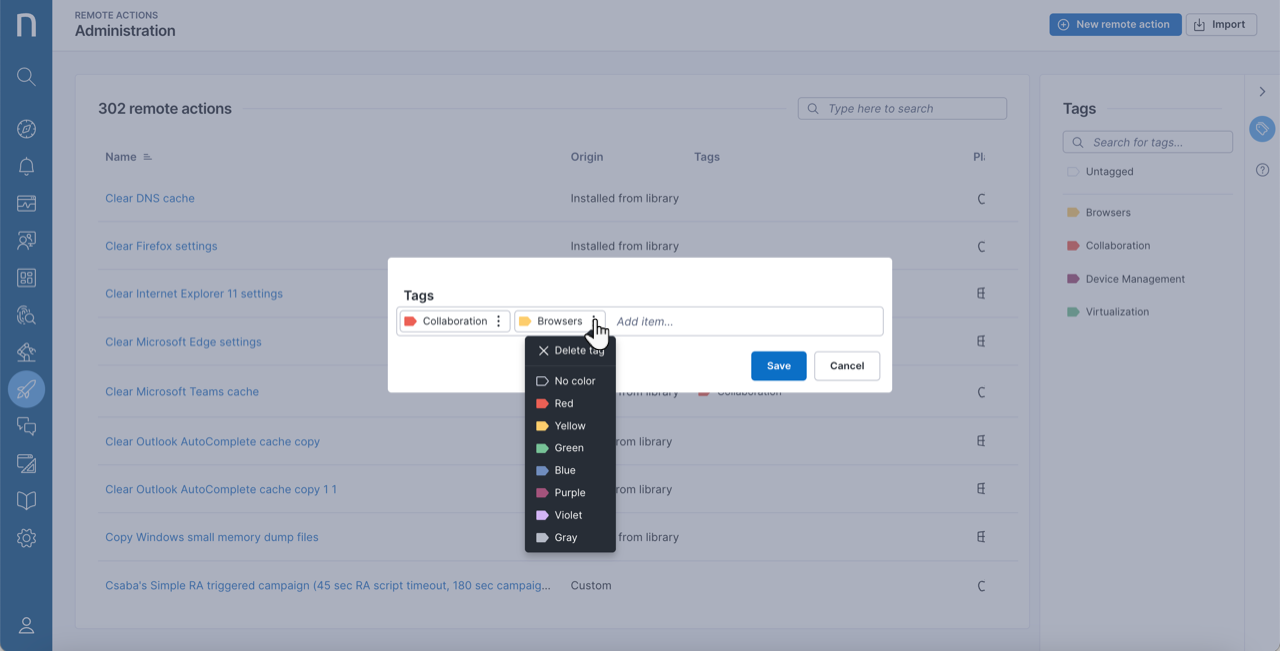
To add one or more tags to a monitor, from the **Remote actions > Manage remote actions** page:
1. Hover over a remote action to display the action menu and choose **Manage tags**.
2. From the **Manage tags** pop-up you can:
* Type in a new tag or choose an existing one to add it to the remote action.
* Open the action menu of a specific tag item to **Delete tag** or change the tag color.
* Deleting a tag only removes it from the remote action it is associated with.
3. Alternatively, select multiple remote actions to **Manage tags** in bulks.
{% hint style="info" %}
Remote action can have a maximum of **10** tags associated with it.
{% endhint %}
### Sharing a remote action
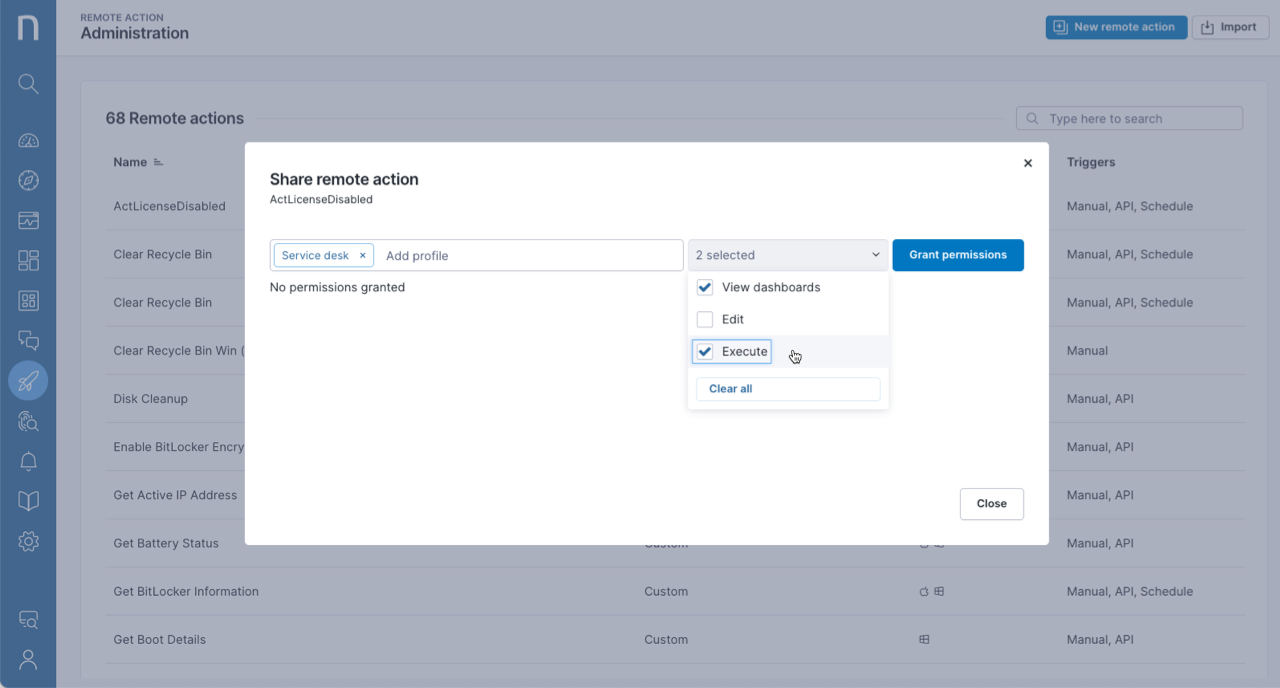
Share a remote action with profiles and grant them appropriate permissions to view dashboards, make edits or execute remote actions. For example, you can share the *Get Battery Status* remote action with the *Service desk* profile that contains permissions to execute and view the remote action dashboard. Only users with the **Manage All Remote Actions** feature permission enabled can see the **Share** option. Refer to the [Getting started with Remote Actions](/platform/user-guide/remote-actions/setting-up-and-managing-remote-actions.md) documentation for more information.
* Hover over a remote action to reveal the action menu and select **Share**. The Share remote action modal opens.
* In the **Add profile** text field, type in the user profiles you wish to share the remote action with.
* From the **Select permissions** drop-down menu, select the appropriate permissions for the profile. The choices are:
* **View dashboards**: Access the remote action dashboards from the navigation panel and the remote actions table on the Overview page.
* **Edit**: Edit a remote action.
* **Execute**: Execute a remote action.
* Click on **Clear all** to disable all permissions.
* Click on the **Grant permissions** button to share the remote action.
## Importing a remote action
To import remote actions—in JSON—from your local device:
1. Click the **Import** button in the top-right corner of the **Remote actions > Manage remote actions** page.
2. **Choose** or **drag** multiple JSON files from your hard drive to import them into the system.
* All imported items from local devices are listed as custom.
To import a remote action from [Nexthink Library](/platform/user-guide/nexthink-library.md):
* Click on the action menu located next to the **Import** button.
* Select **Nexthink library**. The system redirects you to the library page with remote actions to download.
* Import the downloaded file.
## Querying remote actions with NQL
Refer to [Remote Actions NQL capabilities](/platform/user-guide/remote-actions/remote-actions-nql-examples.md) for more information.
---
# Agent Instructions
This documentation is published with GitBook. GitBook is the documentation platform designed so that both humans and AI agents can read, navigate, and reason over technical content effectively. Learn more at gitbook.com.
## Querying This Documentation
If you need additional information that is not directly available in this page, you can query the documentation by asking a question.
Perform an HTTP GET request on the following URL with the `ask` and `goal` query parameters:
```
GET https://docs.nexthink.com/platform/user-guide/remote-actions/setting-up-and-managing-remote-actions/managing-remote-actions.md?ask=&goal=
```
`ask` is the immediate question: it should be specific, self-contained, and written in natural language.
`goal` is what the user is ultimately trying to achieve, the reason they need the answer. Sharing it helps GitBook give you a better, more relevant answer. A goal is most helpful when it describes the outcome the user wants rather than restating the question. For example, with `ask=how do I create an API token`, a goal like `automate deployments from our CI pipeline` lets GitBook tailor the answer to that use case.
The response will contain a direct answer to the question and relevant excerpts and sources from the documentation.
Use this mechanism when the answer is not explicitly present in the current page, you need clarification or additional context, or you want to retrieve related documentation sections.
zgiM.png?alt=media&token=d8f4356d-b726-4a92-ac52-be296b0ac3af)