> For the complete documentation index, see [llms.txt](https://docs.nexthink.com/platform/llms.txt). Markdown versions of documentation pages are available by appending `.md` to page URLs; this page is available as [Markdown](https://docs.nexthink.com/platform/user-guide/collaboration-experience/getting-started-with-collaboration-experience/using-the-call-view-dashboard.md).
# Analyzing individual session quality with Call View
The **Call View** dashboard is an essential tool for assessing call quality. It allows you to analyze and identify potential issues that affect the employee experience during collaboration sessions. The **Call View** dashboard provides detailed insights into the call quality experienced by each participant.
## Accessing Call View dashboard
You can access the Call View dashboard from Investigations or Device View, depending on your troubleshooting scenario.
### Accessing Call View dashboard through Investigations
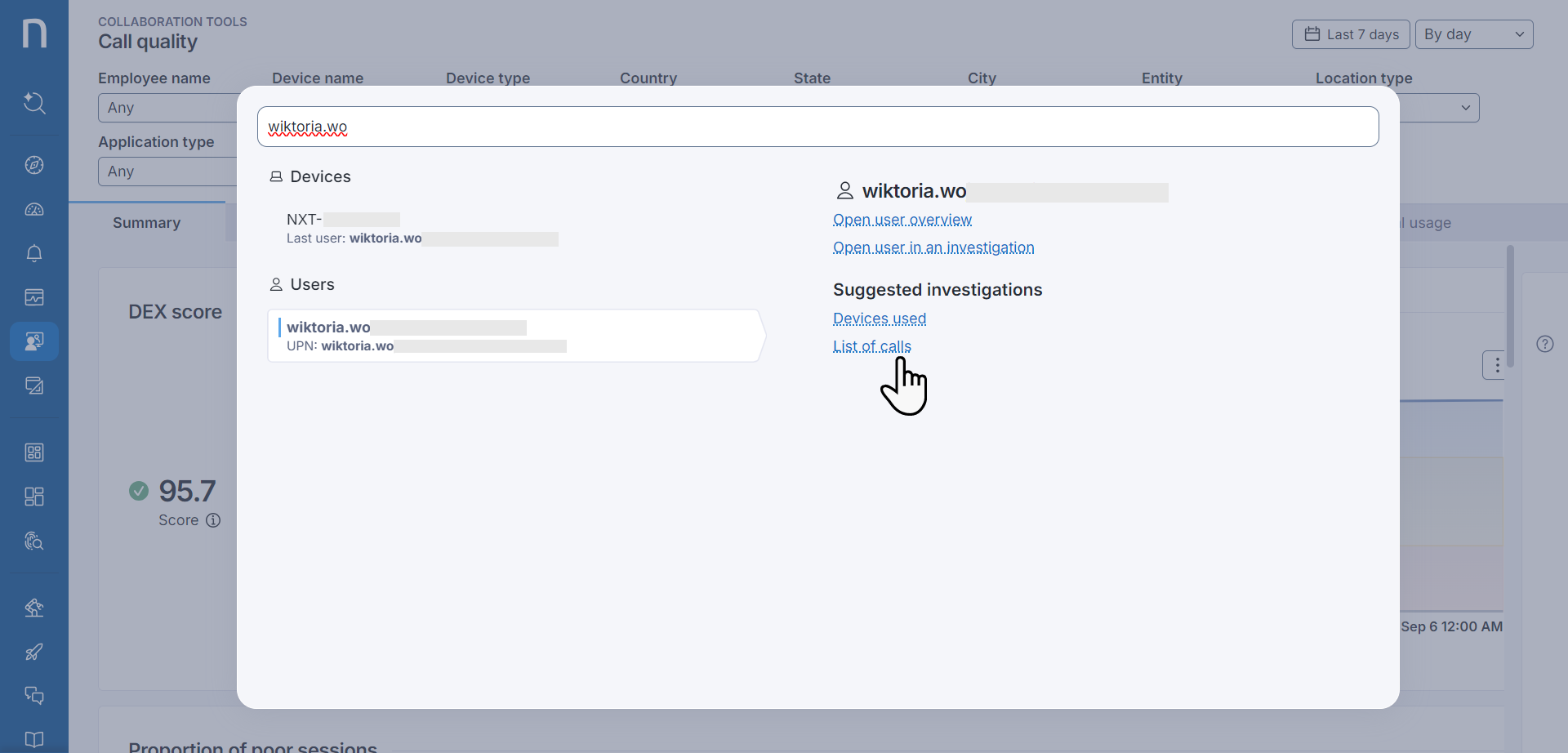
1. Select [Search](broken://pages/afqIbIeUJGVg7wfn2aNS) from the main menu and type the user name.
2. Select the relevant user from the **Users** list.
3. Click on the **List of calls** link under the Suggested investigations to access the investigation that displays the list of calls from the past 24 hours.
4. Locate the specific call in the list and click on the specific **Call ID** or open the action menu and select **Open call view.**
{% hint style="info" %}
Launch the Call View from the actions menu on dashboards with table widgets that include the Call ID field.
{% endhint %}
### Accessing Call View dashboard through Device View
* Select [Search](broken://pages/afqIbIeUJGVg7wfn2aNS) from the main menu and type the user name.
* Select user's related device or navigate to the investigations section to locate it.
* Click on the **Open device view** option under the device name.
* Identify the call on the device timeline and click on it to open the side panel.
* Click the **Troubleshoot this call quality for all participants** option in the side panel to access the Call View dashboard.
Refer to the [Correlating device metrics with call quality in Device View](/platform/user-guide/collaboration-experience/getting-started-with-collaboration-experience/using-device-view-for-call-quality-issues.md) and [Device View](/platform/user-guide/device-view.md) documentation for more information.
## Performing a detailed analysis
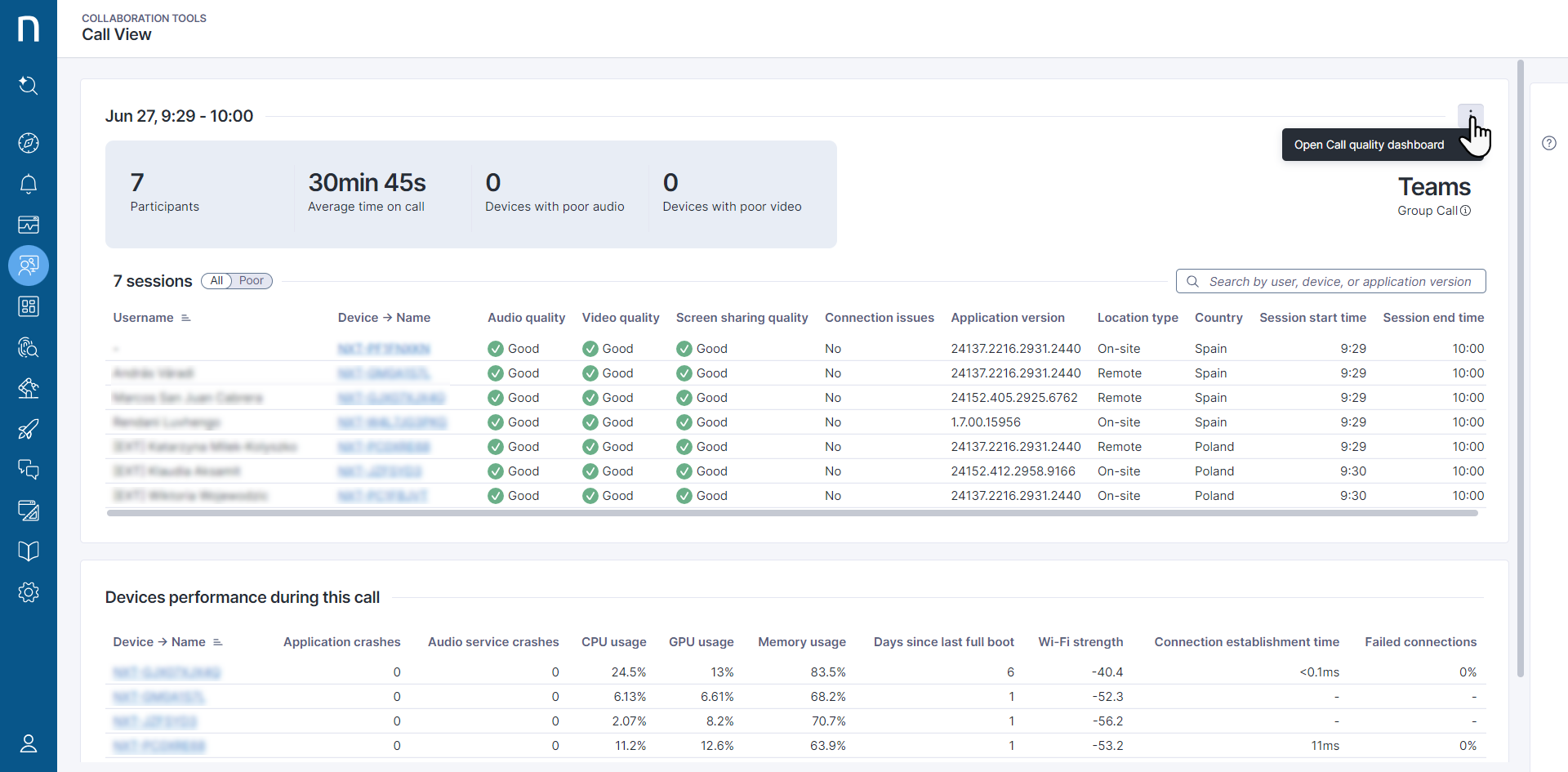
* **Call type:** Identify the type of the call with the call type information displayed below the application name for Microsoft Teams calls.
* **Toggle view:** Switch from viewing all participants to only those with poor call quality.
* **Search function:** Locate a specific user or device quickly using the search bar.
* **Action menu:** Hover over a device name to access the **Action menu**. Drill down into specific issues using **Investigations** or open the **Device view** for more detailed information.
Use the **Action menu** in the top-right corner of the page to open the **Call quality** dashboard. Assess the issues for all collaboration calls performed in your organization to troubleshoot at scale.
### Correlating device issues with call quality
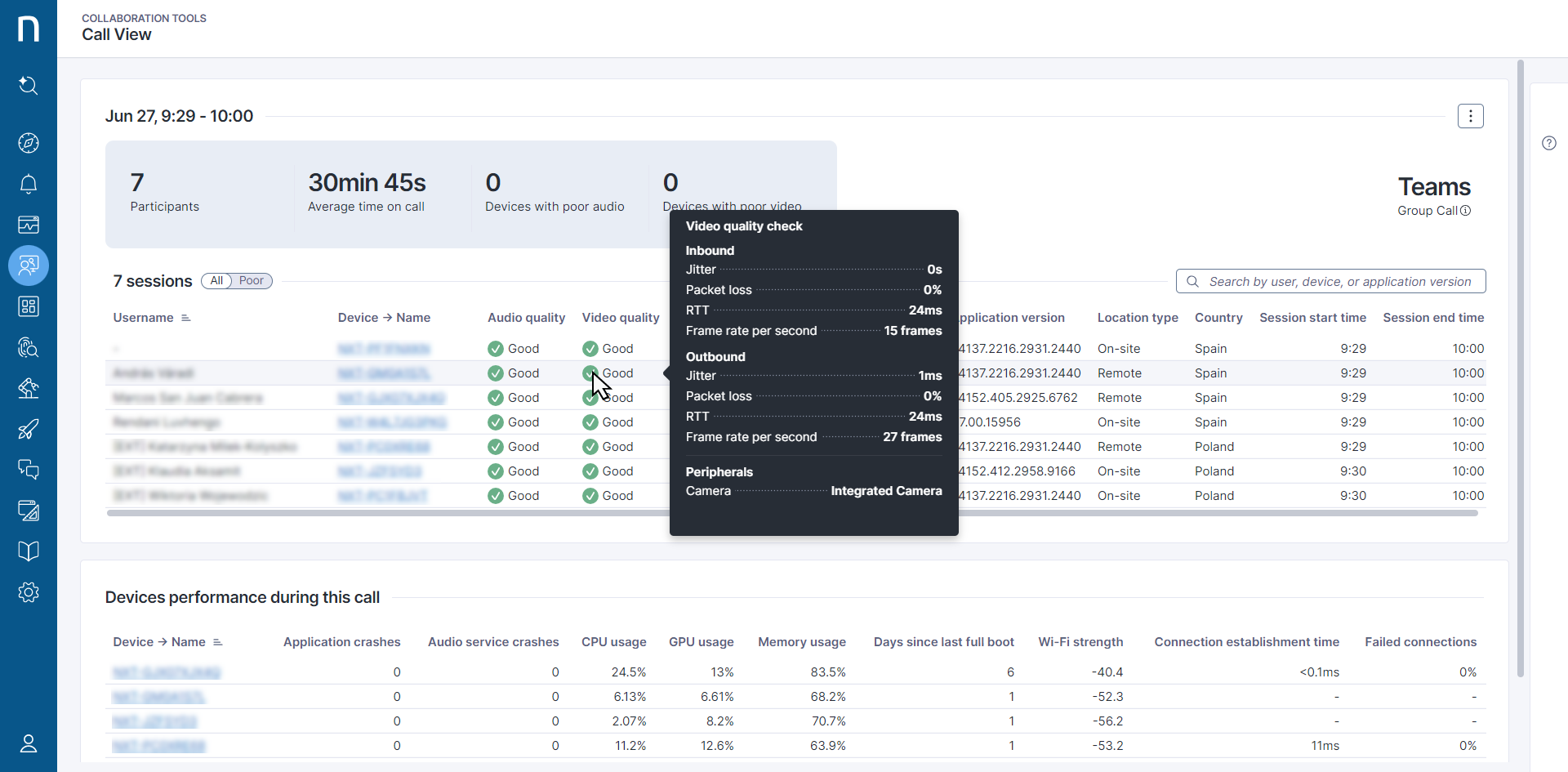
To assess how device performance impacts call quality, hover over the indicators for **Audio quality**, **Video quality**, and **Screen sharing quality**. This displays the parameters that influence the field's value.
### Parameters for Zoom calls
* **Audio quality:** Considered poor if inbound or outbound jitter > 30ms, latency > 250ms, or packet loss > 10%.
* **Video quality:** Considered poor if inbound or outbound jitter > 30ms, latency > 250ms, packet loss > 10%, or frame rate per second < 7.
* **Screen sharing quality:** Considered poor if inbound frame loss % > 50 or frame rate per second < 1.
### Parameters for Microsoft Teams calls
* **Audio quality:** Considered poor if inbound or outbound jitter > 30ms, RTT > 500ms, or packet loss > 10%.
* **Video quality:** Considered poor if inbound or outbound jitter > 30ms, RTT > 500ms, packet loss > 10%, or frame rate per second < 7.
* **Screen sharing quality:** Considered poor if inbound frame loss % > 50 or frame rate per second < 1.
* **Failed to connect:** The participant had an issue joining the call.
* **Got disconnected:** The participant was dropped from the ongoing call.
***
RELATED TOPICS:
* [Correlating device metrics with call quality in Device View](/platform/user-guide/collaboration-experience/getting-started-with-collaboration-experience/using-device-view-for-call-quality-issues.md)
* [Analyzing collaboration experience](/platform/user-guide/collaboration-experience/getting-started-with-collaboration-experience.md)
---
# Agent Instructions
This documentation is published with GitBook. GitBook is the documentation platform designed so that both humans and AI agents can read, navigate, and reason over technical content effectively. Learn more at gitbook.com.
## Querying This Documentation
If you need additional information that is not directly available in this page, you can query the documentation dynamically by asking a question.
Perform an HTTP GET request on the current page URL with the `ask` query parameter, and the optional `goal` query parameter:
```
GET https://docs.nexthink.com/platform/user-guide/collaboration-experience/getting-started-with-collaboration-experience/using-the-call-view-dashboard.md?ask=&goal=
```
`ask` is the immediate question: it should be specific, self-contained, and written in natural language.
`goal` is optional and describes the broader end goal you are ultimately trying to accomplish on behalf of the user. GitBook uses it to tailor the answer towards what is most useful for that goal.
The response will contain a direct answer to the question and relevant excerpts and sources from the documentation.
Use this mechanism when the answer is not explicitly present in the current page, you need clarification or additional context, or you want to retrieve related documentation sections.