> For the complete documentation index, see [llms.txt](https://docs.nexthink.com/llms.txt). Markdown versions of documentation pages are available by appending `.md` to page URLs; this page is available as [Markdown](https://docs.nexthink.com/user-guide/campaigns/managing-campaigns/creating-campaigns/types-of-campaigns.md).
# Understanding campaign targeting models
{% hint style="info" %}
Refer to the [Launching campaign programs](/user-guide/campaigns/managing-campaigns/launching-campaign-programs.md#step-3-plan-and-develop-an-engaging-campaign) documentation for guidelines on planning, gaining approval, testing and launching your campaign within your organization.
{% endhint %}
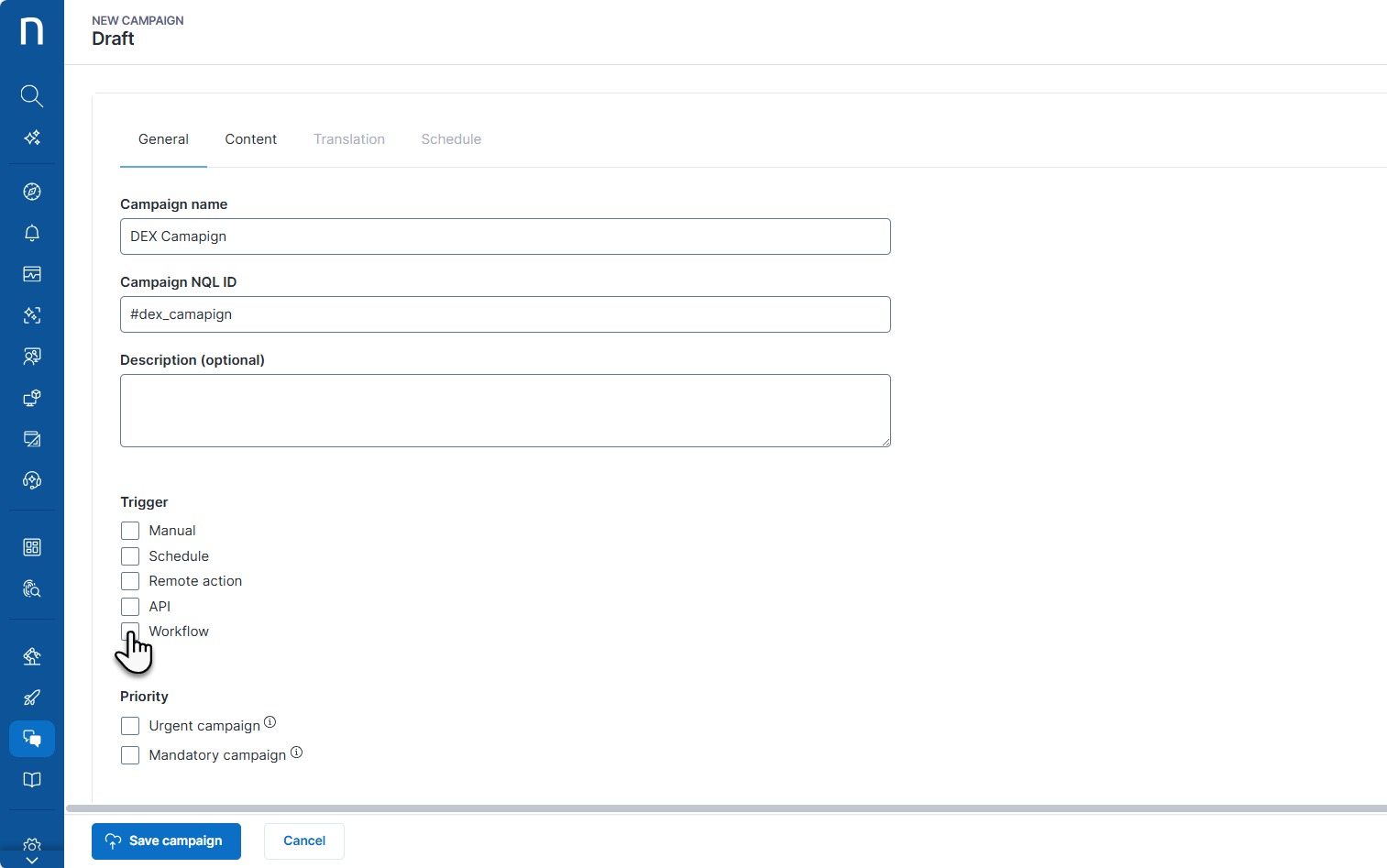
Five different models of campaign targeting allow you to adapt the measurement of employee experience to campaign usage patterns:
* **Manual campaigns**
* **Scheduled campaigns**
* **Remote action campaigns**
* **API campaigns**
* **Workflow campaigns**
{% hint style="info" %}
Manual, API, and workflow campaigns can be parameterized. In such cases, users who trigger the campaign manually or systems that execute it via an API call must provide the required input values.
Refer to [Configuring campaign parameters](/user-guide/campaigns/managing-campaigns/creating-campaigns/configuring-campaign-parameters.md)for more information.
{% endhint %}
When the campaign is retired, you can freely change the triggers among **Manual**, **Schedule** and **API**. However, you cannot change **Remote action** trigger to another value to ensure that you retain access to the built-in dashboard. If you change a campaign trigger to **Schedule**, note that request history is preserved and not reset. For example, a one-off campaign will not retarget employees who have already responded or declined it, even after republishing it.
## Configuring campaign trigger method
### Manual campaign configuration
Select the **Manual** trigger to request feedback from employees through a manual action. After the campaign is published, you can send it directly to selected users or VDI sessions from the **Investigations** page.
{% hint style="info" %}
Users with a limited view domain can manage campaigns only when the campaign uses a manual trigger.
Refer to [View domain](/user-guide/administration/account-management/roles/view-domain.md) for more information.
{% endhint %}
Refer to [Sending campaigns](/user-guide/campaigns/working-with-campaigns/triggering-campaigns.md#triggeringcampaigns-triggeringacampaignmanually) documentation.
### Campaign scheduling
Select the **Schedule** trigger to ask employees for feedback based on a regularly evaluated investigation.
After selecting the **Schedule** trigger on the **General** tab of the campaign *Edit page*, navigate to the **Schedule** tab. Define the campaign recipients using **NQL**, and choose the campaign retargeting rule.
#### **Targeting query**
Write an NQL query to define who receives a campaign. You can use queries that return users in the following forms:
* Query that starts with `users`. These queries allow the employee to see the campaign on **any of their devices**.
* Query that starts with `devices` and return a column `user_sid` in its list statement (query must include`| list ..., user_sid, ...`). These queries target users with device issues, showing the campaign **only on the corresponding device**.\
For example, the last users of devices that experienced system crashes in the last week:
```
devices past 7d
| with device_performance.system_crashes past 7d
| with session.events past 7d
| compute user_sid = user.sid.last()
| list user_sid
```
To target a specific **VDI session** instead of a device, you must run a query for VDI sessions.
{% hint style="info" %}
Targeting a campaign at a specific user deploys it to all devices assigned to that user.
Targeting a campaign at a specific VDI session deploys it to the virtual device corresponding to that session.
{% endhint %}
The system evaluates the query after the campaign is published and sends it based on the option that you selected in the [Target employees will receive the campaign](#target-employees-will-receive-the-campaign) section. Refer to the [Campaigns NQL examples](/user-guide/campaigns/campaigns-nql-capabilities/campaigns-nql-examples.md) for query examples.
#### **Target employees will receive the campaign**
Choose one of the following options to define how the system sends the campaign.
{% hint style="warning" %}
Once you publish the campaign, you cannot change this setting. To change the schedule, you need to retire the campaign.
The **Remote Action** trigger type cannot be selected or deselected once the campaign is published. All other trigger types can be changed if the campaign is briefly retired and republished for reconfiguration.
{% endhint %}
**Only once:** The campaign will only be sent once to the employee, and will never recur. Use this option, for example, for employee onboarding campaigns, one-time surveys or notifications, and other one-time communications. With this option, the system evaluates the NQL query **every 24 hours** after the campaign is published to identify new employees to target. Employees who answered or declined the campaign will no longer see it.
**Again after**: Select this option to enable recurring campaigns. Use it, for example, for proactive fixes, a reminder to restart computers regularly, or for surveys that need to be sent at specific intervals. To provide more immediate feedback, the system evaluates the campaign **every hour**. To protect employees from unnecessary interruption, they will not receive the campaign if they have already answered it or declined it within the selected timeframe.
For example, if you choose the campaign to be resent again after one week, the system will resend it seven days after the employee has either answered or declined the campaign. If you choose one month, the system will resend it 30 days after the employee has either answered or declined the campaign.
#### Set up continuous employee sampling using NQL
You can set up the query to randomly select a different sample of employees and continuously collect sentiment data. Replace `#dex_campaign_name` with the campaign **NQL ID** and adjust the limit to specify the number of new users the campaign targets each hour.
Note that you need to:
* Define the **Schedule** trigger method on the [General tab](#creatingcampaigns-general).
* Select **Again after** from the [Target employees will receive the campaign](#target-employees-will-receive-the-campaign) section and provide the minimum number of days you want between responses for each employee.
* Save the campaign at least once before using the NQL query below. This ensures the system recognizes your campaign and avoids a *Table does not exist* error during NQL query validation.
Refer to [Scheduling recurring campaign](/user-guide/campaigns/managing-campaigns/creating-campaigns/scheduling-recurring-campaign.md) for more information.
### Remote action campaign configuration
Select the **Remote action** trigger method on the **General** tab of the campaign *Edit page* to ask questions and inform employees during the execution of a remote action script.
Unlike other types, remote action campaigns do not have campaign dashboards, and their responses are not reported to the platform. Instead, the results are only available locally to the remote action script.
After publishing the campaign, add its NQL ID to the remote action's scripts to trigger the campaign.
{% hint style="warning" %}
If a campaign is published as a remote action trigger, the trigger cannot be changed afterwards.
{% endhint %}
#### Retrieving campaign NQL ID
* Select **Campaigns** from the main menu.
* Click on **Manage campaigns** in the navigation panel.
* Click on the title of the campaign you wish to connect to.
* Copy the NQL ID value from the NQL ID field in the **General** tab of the configuration page.
* Paste the value into your remote action script. Refer to the following documentation for details:
* [Writing scripts for remote actions on Windows](/user-guide/remote-actions/setting-up-and-managing-remote-actions/creating-remote-actions/writing-scripts-for-remote-actions-on-windows.md)
* [Writing scripts for remote actions on Mac](/user-guide/remote-actions/setting-up-and-managing-remote-actions/creating-remote-actions/writing-scripts-for-remote-actions-on-mac.md)
Nexthink recommends using NQL ID as a campaign identifier if you use Collectors version 23.5 or higher. You can still use campaign UID for compatibility reasons.
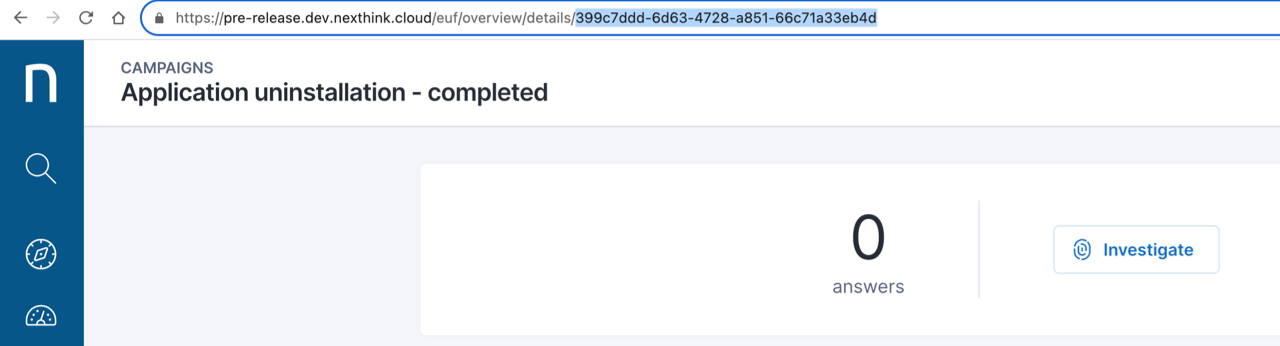
#### Retrieving campaign UID
* Select **Campaigns** from the main menu.
* Choose the campaign you wish to connect to from the navigation menu.
* Locate the UID of the campaign as part of the URL and copy it for the remote action.
### API campaign configuration
Select the **API** trigger to ask employees for feedback based on an API call.
Trigger campaigns using the Nexthink Campaigns API, which enables integrations with external applications. For parametric campaigns, specify the values of each parameter. Visit the [developer.nexthink.com](https://developer.nexthink.com) website to learn more.
### Workflow campaign configuration
Select the **Workflow** trigger method on the **General** tab of the campaign *Edit page* to ask questions and notify employees during the execution of a workflow.
Trigger campaigns using the Nexthink Workflow API to notify employees about remediations that are taking place, or to prompt for permission or additional information that a workflow needs to continue running an automated remediation.
To use a campaign in a workflow, ensure that:
* The workflow trigger is set.
* The campaign contains only single answer questions.
* The campaign is published.
## Target evaluation and reevaluation
Depending on the selected targeting method, the system evaluates and, where applicable, reevaluates campaign targets differently.
{% hint style="info" %}
When targeted **manually**, **via API, with a workflow, or a remote action,** a campaign can repeatedly retarget the same users.
{% endhint %}
#### **Manual campaigns**
In campaigns that target employees manually, the system selects one or multiple employees from a query result on the **Investigations** page. There is no automatic reevaluation of targets. To manually trigger a campaign, you must first publish the campaign. If a user already has a pending response—not answered or not declined yet— for the same campaign, the system automatically discards any new attempt to target the same user to avoid double notifications.
#### **Scheduled campaigns**
In campaigns targeted with NQL queries, the evaluation of targets starts at the moment of publishing the campaign. When you publish a campaign, the campaign executes its associated investigation to retrieve targeted employees for the first time.
After publication, the targeted employees are periodically reevaluated by repeatedly executing the NQL query.
{% hint style="warning" %}
**Updating an NQL query does not withdraw pending campaign deliveries.** Employees targeted before the query change remain eligible to receive the campaign until they respond, exit, or the campaign is retired, even if they no longer match the updated query. The campaign targets employees who match the updated query in the next hourly run.
{% endhint %}
#### **API campaigns**
In campaigns that target employees via API, the system targets employees from a list of SIDs specified in the API call. To trigger a campaign via API, you must first publish the campaign. Like manual targeting, if the user already has a pending response—not answered or not declined yet—for the same campaign, the system automatically discards any new attempt to target the same user to avoid double notifications.
#### **Workflow campaigns**
In campaigns that target employees via workflows, the system targets the employee when the Campaign Thinklet is executed as part of a workflow. To use and trigger a campaign via workflows, you must first publish the campaign. Like manual targeting, if a user already has a pending response—not answered or not declined yet—for the same campaign, the system automatically discards any new attempt to target the same user to avoid double notifications.
#### **Remote action campaigns**
In campaigns targeted with remote actions, the remote action determines the targets. Those employees who interact with the devices targeted by the remote action receive the campaign. You must first publish the campaign.
***
RELATED TOPICS
* [Getting started with Campaigns](https://docs.nexthink.com/platform/latest/getting-started-with-campaigns)
* [Manage campaigns](https://docs.nexthink.com/platform/user-guide/campaigns/managing-campaigns)
* [Investigations](/user-guide/investigations.md)
* [Developer Portal](https://developer.nexthink.com/)
---
# Agent Instructions
This documentation is published with GitBook. GitBook is the documentation platform designed so that both humans and AI agents can read, navigate, and reason over technical content effectively. Learn more at gitbook.com.
## Querying This Documentation
If you need additional information that is not directly available in this page, you can query the documentation by asking a question.
Perform an HTTP GET request on the following URL with the `ask` and `goal` query parameters:
```
GET https://docs.nexthink.com/user-guide/campaigns/managing-campaigns/creating-campaigns/types-of-campaigns.md?ask=&goal=
```
`ask` is the immediate question: it should be specific, self-contained, and written in natural language.
`goal` is what the user is ultimately trying to achieve, the reason they need the answer. Sharing it helps GitBook give you a better, more relevant answer. A goal is most helpful when it describes the outcome the user wants rather than restating the question. For example, with `ask=how do I create an API token`, a goal like `automate deployments from our CI pipeline` lets GitBook tailor the answer to that use case.
The response will contain a direct answer to the question and relevant excerpts and sources from the documentation.
Use this mechanism when the answer is not explicitly present in the current page, you need clarification or additional context, or you want to retrieve related documentation sections.