> For the complete documentation index, see [llms.txt](https://docs.nexthink.com/llms.txt). Markdown versions of documentation pages are available by appending `.md` to page URLs; this page is available as [Markdown](https://docs.nexthink.com/user-guide/campaigns/managing-campaigns/creating-campaigns/scheduling-recurring-campaign.md).
# Scheduling recurring campaign
One of the critical aspects of any recurring sentiment campaign configuration is targeting employees with optimized frequency, which ensures balanced and consistent data sampling, without overusing employee willingness to respond.
A **recurring campaign** is a scheduled campaign configured with the **Again after** option in the **Schedule** tab of the [Edit campaign](/user-guide/campaigns/managing-campaigns/creating-campaigns.md#accessing-campaign-edit-page) page. Once published, the campaign automatically re-evaluates its NQL query every hour and targets employees accordingly each time the query is executed.
{% hint style="warning" %}
When a campaign is set to **Only once**, the NQL query evaluates only every 24 hours, which invalidates the targeting formulas and limit calculations in this guide. For testing purposes, configure an **Again after** period rather than **Only once** to see realistic targeting behavior.
{% endhint %}
This page guides you through the process of building the correct NQL query and setting appropriate campaign properties, to:
* Target the right users
* Maintain a balanced sample size
* Optimize when employees are surveyed
## Setting up a campaign
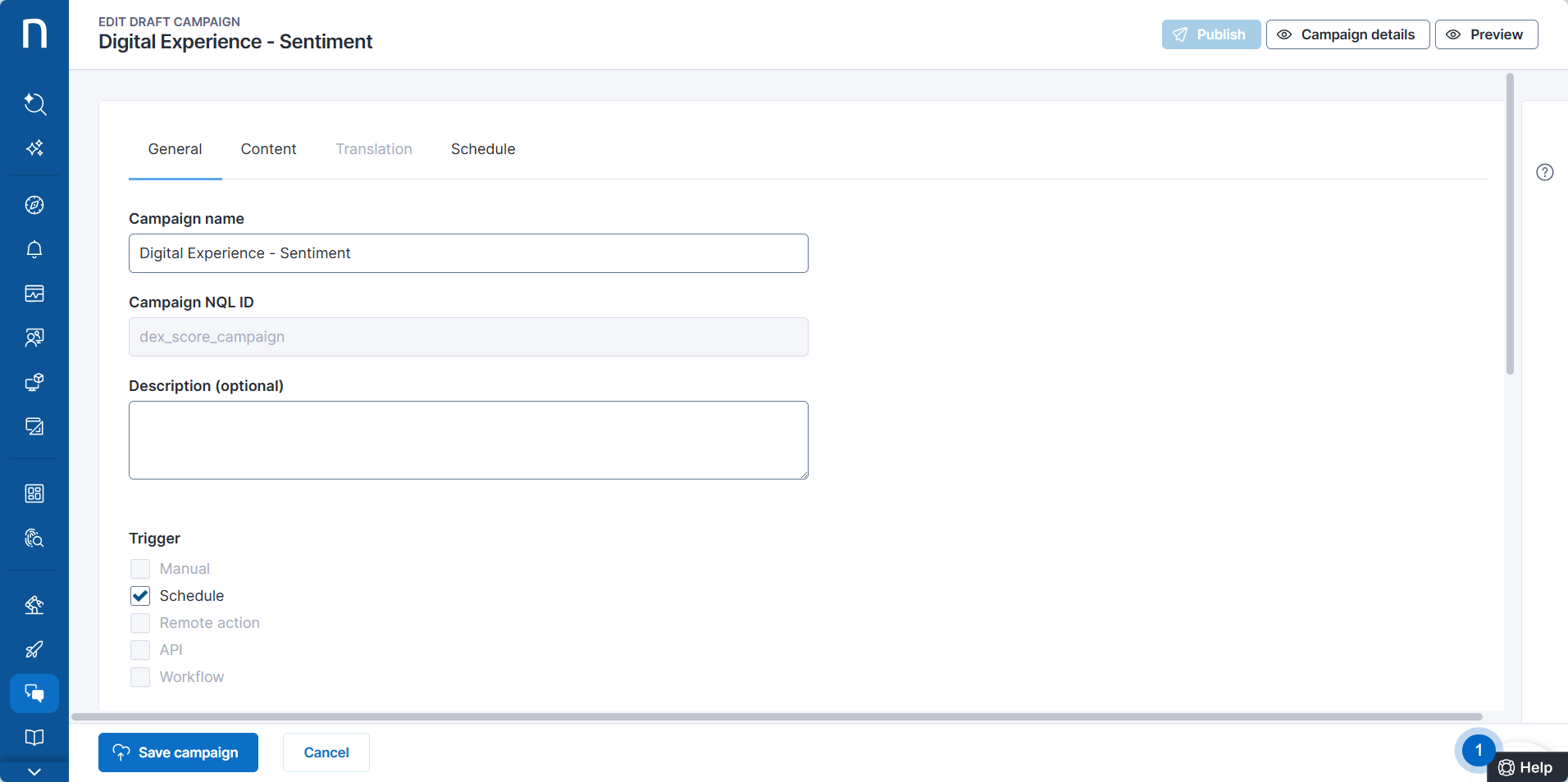
[Create a campaign](/user-guide/campaigns/managing-campaigns/creating-campaigns.md) and set the **Trigger** method to **Schedule**.
## Entering an NQL query for targeting users
Before you enter the **Targeting query** on the **Schedule** tab of the campaign configuration page, save the campaign at least once. This ensures the system recognizes your campaign and avoids a Table does not exist error during NQL query validation.
The following steps guide you through building a query to identify the target users for your campaign.
{% stepper %}
{% step %}
**Target active employees**
* Start your query with a `users` table.
* Add `session.events` to remove inactive user accounts and to allow for applying additional filters based on fields not available in the `users` namespace, such as device type or specific event attributes.
{% code overflow="wrap" lineNumbers="true" %}
```
users
| with session.events during past 30d
| where device.hardware.type in [laptop, desktop, virtual]
...
```
{% endcode %}
{% endstep %}
{% step %}
**Exclude certain users**
The best criteria depend on your environment and Entra-ID integration.
**Exclude non-human users**
Exclude any non-human users from your query. The optimal method for identifying and excluding non-human users varies by environment.
{% code overflow="wrap" lineNumbers="true" %}
```
...
| where user.name !in ["*localadmin*"]
| where user.name !in ["*datadog*", "*newrelic*"]
| where user.name !in ["*testing*"]
| where user.upn != null
| where user.upn in ["*@mycompany.com", "*@ext.mycompany.com"]
| where user.ad.email_address != null
...
```
{% endcode %}
**Exclude users you don't want to survey**
Exclude users who should not be surveyed, such as VIPs, users from specific countries, or those with certain roles.
Consider the following examples:
{% code overflow="wrap" lineNumbers="true" %}
```
...
| where user.name !in ["*datadog*", "*newrelic*"]
| where user.ad.distinguished_name !in ["*any_substring*", "*any_substring*"]
| where user.ad.country_code !in ["DE", "FR"]
| where user.ad.department !in ["Facility Management", "Legal"]
| where user.ad.job_title !in ["C?O", "*Director*", "VP"]
| where #custom_field_isVIP != "yes"
...
```
{% endcode %}
{% endstep %}
{% step %}
**Determine the size of your population**
Run your query to determine the total number of employees you can target, your *population size*.
{% hint style="success" %}
The number of users the query returns indicates your population size and is essential for computing the right campaign sampling and frequency.
{% endhint %}
{% endstep %}
{% step %}
**Adjust the timeframe**
When determining the population size, you have used a longer timeframe to include more employees (e.g., those on holiday or sick leave). For actual targeting, use a shorter timespan to focus on employees who are active and able to respond in a timely manner.
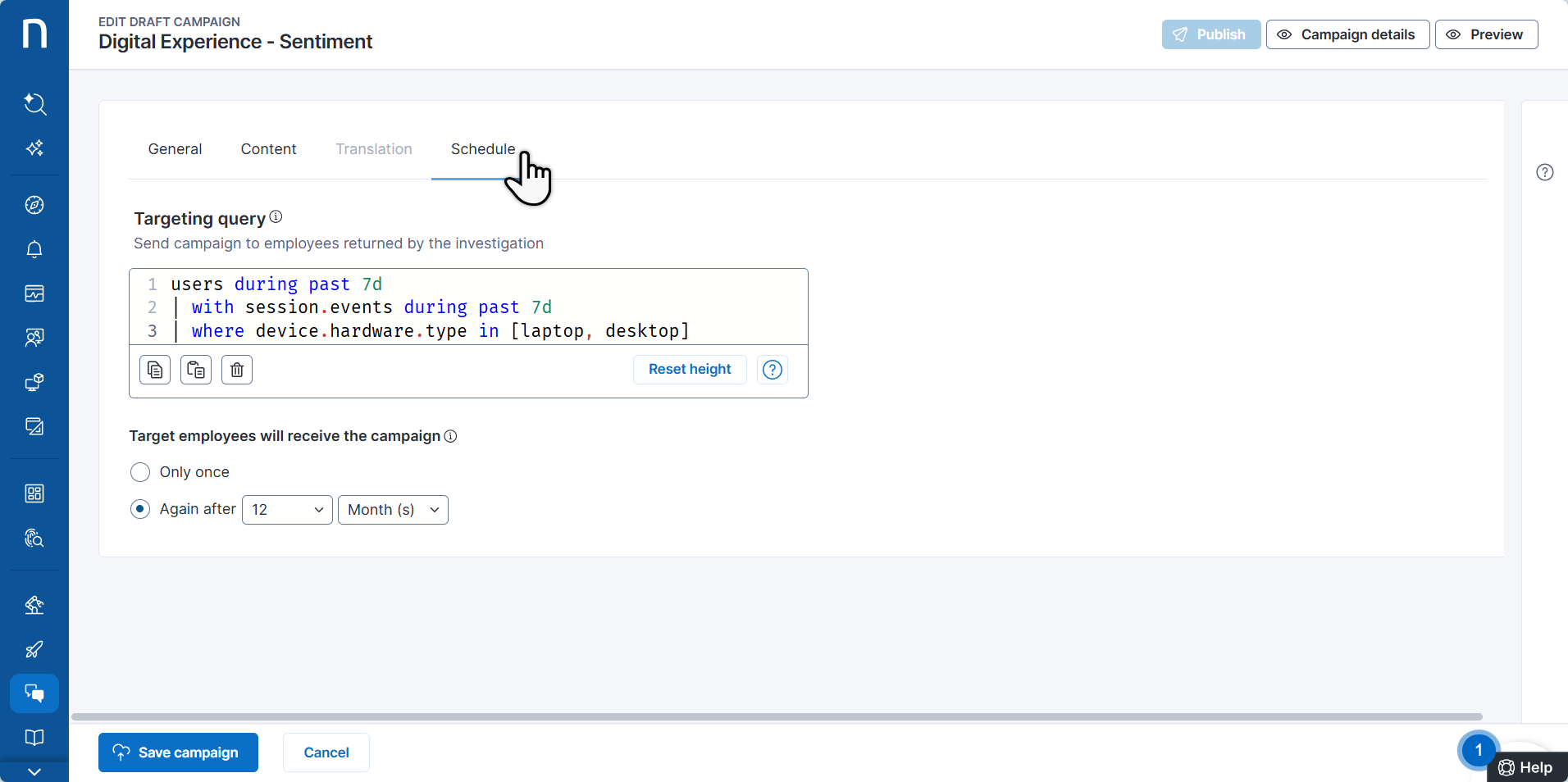
Narrow the dataset to those who have performed at least one action on a device in the past 7 days.
users during past 7d
| with session.events past 7d
...
{% endstep %}
{% step %}
**Compute how often users have already responded**
Join the `campaign.responses` table and compute the number of times each user has already received the campaign this year. Adjust the `campaign.nql_id` to the NQL ID in the **General** tab of the **Edit** campaign page.
```
| include campaign.responses during past 365d
| where campaign.nql_id == "YOUR_CAMPAIGN_ID"
| where campaign.response.state in [planned, targeted, answered, declined]
| compute times_targeted_past_365d = count()
```
{% endstep %}
{% step %}
**List fields for visibility**
Optionally, output some information about the users, in case you want to run this query as an investigation to inspect the results.
{% hint style="warning" %}
If you include the `list` clause in your query, the `SID` field is mandatory.
{% endhint %}
{% code overflow="wrap" lineNumbers="true" %}
```
| list times_targeted_past_365d, sid, uid, name, type, upn, user.ad.full_name, user.ad.email_address, user.ad.job_title, ad.office, user.ad.department, ad.city, ad.country_code, ad.organizational_unit, first_seen, ad.distinguished_name
```
{% endcode %}
{% endstep %}
{% step %}
**Sort by number of campaign responses**
Sort your results by the number of times each employee responded to the campaign, to bubble up the people with the fewest responses. This ensures that they get the survey before someone else gets it a second time.
```
| sort times_targeted_past_365d asc
```
{% endstep %}
{% step %}
**Randomize results**
Pseudo-randomize the resulting list by sorting by UID.
{% hint style="warning" %}
The sort by UID has to be in last place, after sorting by the number of campaign responses.
{% endhint %}
```
| sort uid asc
```
{% endstep %}
{% step %}
**Limit to the number of users that you can target each hour**
Determine the number of users that you can target each hour and include this value in the `| limit` clause at the end of your query.
```
| limit
```
The number of users to target upon each query execution depends on:
* Your population size, which you have computed in [Step 3](#determine-the-size-of-your-population).
* The number of times you can target each user per year. The latter is explained in more detail in the [Set the period after which users may be targeted again](#set-the-period-after-which-users-may-be-targeted-again) section on this page.
It also results from the number of times the query is executed throughout a year. By design, a recurring campaign executes the NQL query and targets the returned users every hour, that is 8760 times per year:
$$
365 ,\text{days} \times 24 ,\text{hours} = 8760
$$
**Population size of greater or equal to 10 000 employees**
If your population exceeds 10 000 employees, use the following formula to determine the number of users to target upon each query execution.
$$
\text{Number of users to target each hour} = \frac{\text{Population size}\times \text{Times targeted per year}}{8760}
$$
To reserve a margin and avoid running out of targetable users before the end of the 365-day period, round the result down to the next smaller integer and use this number as the value in the `| limit` clause at the end of your campaign NQL query.
**Example**
Consider an organization with a population of 20 000 employees available for DEX campaigns, where each employee may be targeted no more than once every 365 days.
$$
\frac{20000}{8760} = 2.28
$$
Based on the results, you should target 2 users per hour, by limiting the number of results returned by your targeting query to `| limit 2`.
**Population size of less than 10 000 employees**
If your population is fewer than 10 000, Nexthink recommends targeting one user per hour. This approach helps optimize the frequency at which employees receive the campaign while preventing the pool of eligible respondents from being exhausted.
Make sure you further adjust the frequency of the campaign being sent to a single employee. See the [#set-the-period-after-which-users-may-be-targeted-again](#set-the-period-after-which-users-may-be-targeted-again "mention") section on this page.
{% endstep %}
{% endstepper %}
The final query should look like the example below. Copy it, replace the placeholders with your data, and insert in the sentiment campaign definition.
{% code overflow="wrap" lineNumbers="true" %}
```
users during past 7d
| with session.events during past 7d
| where device.hardware.type in [laptop, desktop]
| where
| where
| include campaign.responses during past 365d
| where campaign.nql_id == " "
| where campaign.response.state in [planned, targeted, answered, declined]
| compute times_targeted_past_365d = count()
| list times_targeted_past_365d, sid, uid, name, type, upn, user.ad.full_name, user.ad.email_address, user.ad.job_title, ad.office, user.ad.department, ad.city, ad.country_code, ad.organizational_unit, first_seen, ad.distinguished_name
| sort times_targeted_past_365d asc
| sort uid asc
| limit
```
{% endcode %}
## Setting the period after which users may be targeted again
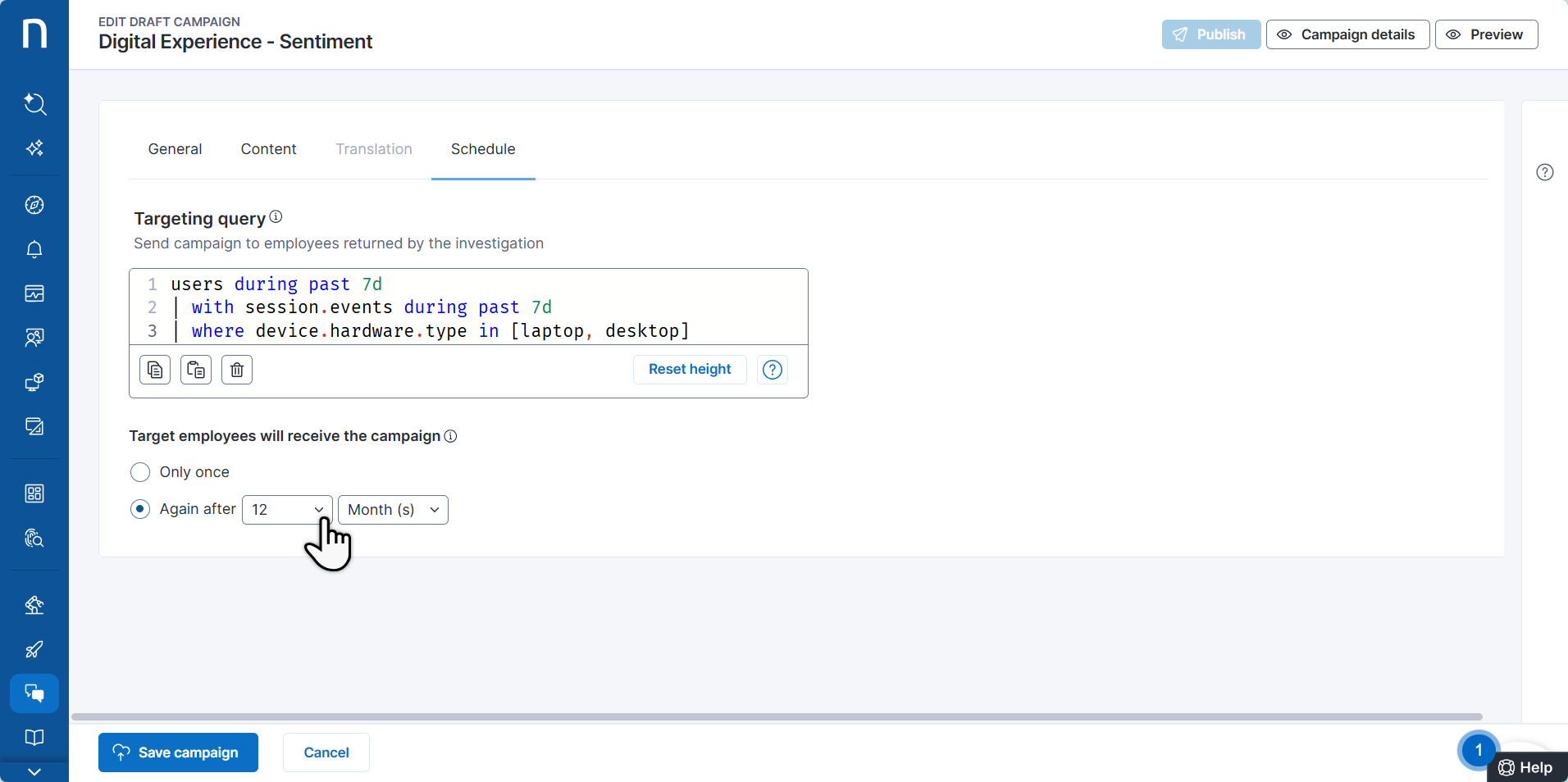
To make the campaign recurring, go to the **Schedule** tab and set **Target employees will receive the campaign** to **Again after**, then specify the desired interval.
The frequency of sending sentiment campaigns to employees depends on your population size.
#### Population size of greater or equal to **10 000 employees**
For larger organizations, Nexthink recommends targeting every user not more than once per year, as a starting point. Set the **Again after** interval to 12 months to ensure each user is targeted not more frequently than once a year.
{% hint style="info" %}
More frequent data collection doesn't significantly improve precision or consistency on its own. According to probability theory, the key factor is the sample size—the number of employees surveyed—rather than its proportion to the overall population. However, increasing the frequency is recommended when you need to segment results further, such as by country or department, to ensure sufficient sample size within each subgroup.
To maximize the value of user feedback, leverage employees' willingness to respond to occasional surveys to explore new areas or gain deeper insights into identified topics.
{% endhint %}
#### Population size of less than 10 000 employees
Smaller organizations with fewer than 10 000 employees usually need to allow for more frequent targeting of users to ensure continuous data collection. In such a case, you must compute the period after which you can target the same user. This ensures:
* You do not run out of respondents.
* Employees do not receive the campaign too often.
Assuming your query targets one user per hour (as explained in [*Step 9: Limit to the number of users that you can target each hour*](#limit-to-the-number-of-users-that-you-can-target-each-hour)), use the following formula to get the number in months:
* Divide the **Population size** by the total number of hours in an average month (24 hours × 30 days.)
$$
\frac{\text{Population size}}{24 ,\text{h} \times 30 ,\text{days}}
$$
Set the **Again after** interval to the number of months, which is lower than the number you obtain from the formula.
**Example:**
Consider the example introduced earlier, where an organization with 6000 employees targets one employee per hour.
$$
\frac{6000}{24 ,\text{h} \times 30 ,\text{days}} \approx 8.3
$$
After 8.3 months, all employees will have been targeted. To avoid gaps in the collected data, the **Again after** interval should be set to 8 months or less.
{% hint style="danger" %}
Ensure that you are not asking the system to target more users with the NQL query than you allow to be targeted based on the **Again after** value:
$$\text{Population size} \times \text{Times targeted per year} ;>; \text{Number of users targeted each hour} \times 8760$$
If this condition is not met, the system may run out of eligible respondents before the end of the year, resulting in periods during which virtually no sentiment data are collected.
To prevent data interruptions, consider the following options:
* Reduce the number of users targeted each hour.
* Increase the number of times each user may be contacted per year.
{% endhint %}
***
After completing all the settings in the **Schedule** tab, save and publish your campaign to activate hourly user targeting.
---
# Agent Instructions
This documentation is published with GitBook. GitBook is the documentation platform designed so that both humans and AI agents can read, navigate, and reason over technical content effectively. Learn more at gitbook.com.
## Querying This Documentation
If you need additional information that is not directly available in this page, you can query the documentation by asking a question.
Perform an HTTP GET request on the following URL with the `ask` and `goal` query parameters:
```
GET https://docs.nexthink.com/user-guide/campaigns/managing-campaigns/creating-campaigns/scheduling-recurring-campaign.md?ask=&goal=
```
`ask` is the immediate question: it should be specific, self-contained, and written in natural language.
`goal` is what the user is ultimately trying to achieve, the reason they need the answer. Sharing it helps GitBook give you a better, more relevant answer. A goal is most helpful when it describes the outcome the user wants rather than restating the question. For example, with `ask=how do I create an API token`, a goal like `automate deployments from our CI pipeline` lets GitBook tailor the answer to that use case.
The response will contain a direct answer to the question and relevant excerpts and sources from the documentation.
Use this mechanism when the answer is not explicitly present in the current page, you need clarification or additional context, or you want to retrieve related documentation sections.