> For the complete documentation index, see [llms.txt](https://docs.nexthink.com/llms.txt). Markdown versions of documentation pages are available by appending `.md` to page URLs; this page is available as [Markdown](https://docs.nexthink.com/user-guide/campaigns/managing-campaigns/creating-campaigns/publishing-and-retiring-campaign.md).
# Publishing and retiring campaign
## Publishing a campaign
Click on the **Publish** button in the top-right corner of the page to turn a campaign draft into a published campaign. The system sends the published campaign to employees according to the campaign's schedule.
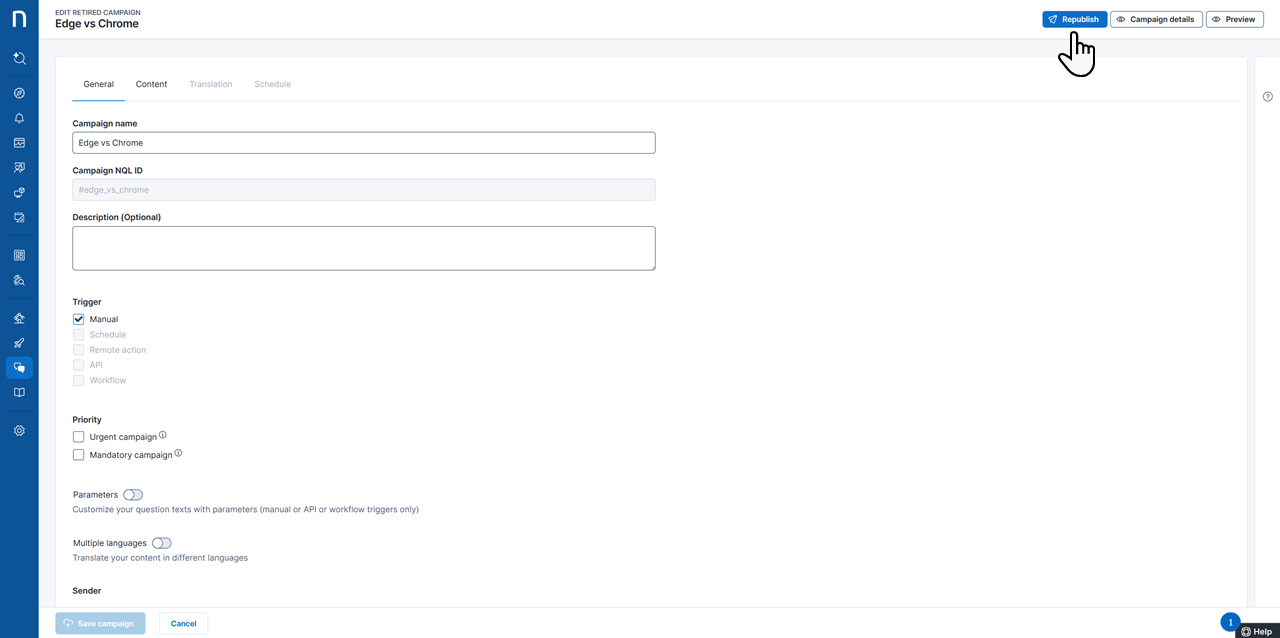
For retired campaigns, click on the **Republish** button in the top-right corner of the page to reactivate the campaign.
{% hint style="info" %}
You can publish and republish campaigns if the **Manage all campaigns** permissions are assigned to your role. Refer to the [Roles](/user-guide/administration/account-management/roles.md) documentation for more information.
{% endhint %}
Republished campaigns reevaluate campaign recipients as defined by the NQL query:
* A scheduled one-time campaign does not retarget employees who answered or declined the campaign while it was active.
* A scheduled recurring campaign does not retarget employees who answered or declined the campaign within the selected time period while it was active.
{% hint style="info" %}
Newly created campaigns may take up to 5 minutes to appear on the Campaign overview page.
{% endhint %}
## Retiring a campaign
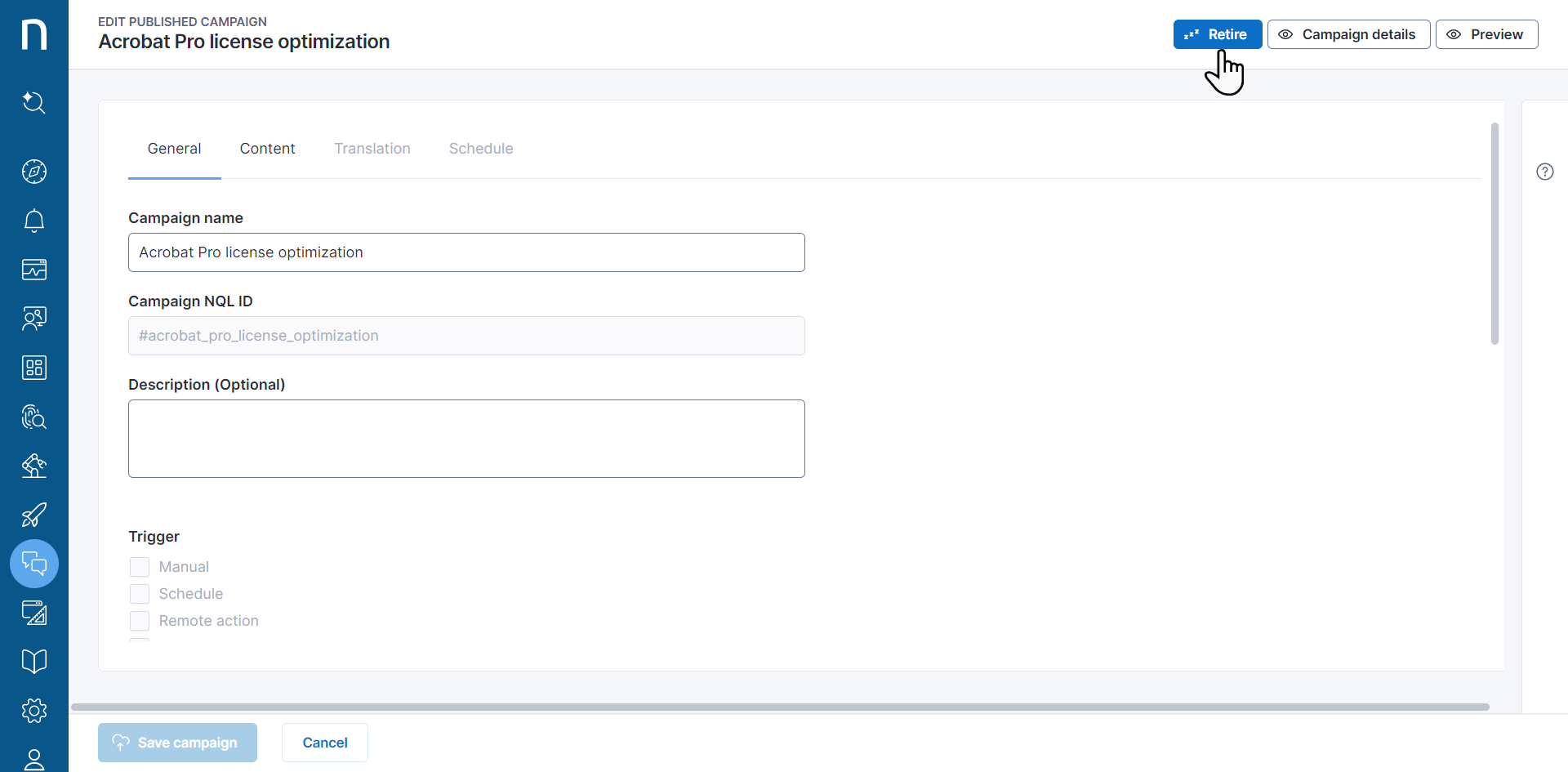
On the campaign details page, click on the **Retire** button located in the top-right corner of the page to retire a published campaign. Once retired, the system updates the state of campaign responses that are still in a non-final state (planned, targeted) to retired. Campaign responses in the canceled, answered, or declined state remain unchanged.
After retiring, the system removes the campaign from endpoints. Note that if a campaign is displayed on the endpoint at the time of retirement, the system does not forcibly close it, allowing users to finish interacting with it. If a user responds to a campaign already on their endpoint’s screen, the system still records their answers and updates their response state to **answered** accordingly.
When the campaign is retired, you can adjust its content, including its structure and triggers. Consider the following aspects if your campaign already has responses from employees:
* When you add a question, it appears on the campaign dashboard with 0 responses.
* When you remove a question, it disappears from the campaign dashboard, the CSV export, and the NQL in the campaign-specific response table. For example, `campaign.#nql_id.responses` will not include fields starting with `answers.question_nql_id` anymore.
* When you add a choice to a question, it appears on the campaign dashboard with 0 answers.
* When you remove a choice to a question, it disappears from the bar chart of the campaign dashboard. Its value remains accessible in the CSV export and from NQL.
* When you add or remove parameters, make sure to adjust any workflow or third-party system triggering the parametric campaign accordingly. When you remove a parameter, its value is not available anymore in the campaign-specific response table. For example, `campaign.#nql_id.responses` will not include the field `parameters.parameter_nql_id` anymore.
* You can freely change the triggers among **Manual**, **Schedule** and **API**. However, once a campaign uses **Remote action** as its trigger, you cannot change it to another value. You also cannot change a campaign with another trigger to use **Remote action**. Remote action campaign responses are only available locally to the remote action script and are not reported to the platform.
* In case you change a campaign trigger to **Schedule**, note that the history of requests is taken into account and is not reset. For example, a one-off campaign will not retarget employees that have already answered or declined the campaign, even after republishing it.
A warning message appears if you remove questions or answer choices or if you add or remove parameters.
Data about deleted questions or parameters remains available in the columns `answers` and `parameters` of the `campaign.responses` table, in JSON format, suitable for export purposes.
---
# Agent Instructions
This documentation is published with GitBook. GitBook is the documentation platform designed so that both humans and AI agents can read, navigate, and reason over technical content effectively. Learn more at gitbook.com.
## Querying This Documentation
If you need additional information that is not directly available in this page, you can query the documentation by asking a question.
Perform an HTTP GET request on the following URL with the `ask` and `goal` query parameters:
```
GET https://docs.nexthink.com/user-guide/campaigns/managing-campaigns/creating-campaigns/publishing-and-retiring-campaign.md?ask=&goal=
```
`ask` is the immediate question: it should be specific, self-contained, and written in natural language.
`goal` is what the user is ultimately trying to achieve, the reason they need the answer. Sharing it helps GitBook give you a better, more relevant answer. A goal is most helpful when it describes the outcome the user wants rather than restating the question. For example, with `ask=how do I create an API token`, a goal like `automate deployments from our CI pipeline` lets GitBook tailor the answer to that use case.
The response will contain a direct answer to the question and relevant excerpts and sources from the documentation.
Use this mechanism when the answer is not explicitly present in the current page, you need clarification or additional context, or you want to retrieve related documentation sections.