> For the complete documentation index, see [llms.txt](https://docs.nexthink.com/llms.txt). Markdown versions of documentation pages are available by appending `.md` to page URLs; this page is available as [Markdown](https://docs.nexthink.com/user-guide/campaigns/managing-campaigns/creating-campaigns/configuring-campaign-parameters.md).
# Configuring campaign parameters
Parameters are placeholders in campaign questions requiring input by a user sending a manual campaign, by a third-party system via Nexthink API or with data available inside a workflow. The system saves parameter values along campaign responses, linking answers back to these parameters.
{% hint style="info" %}
Parameters are available for Manual, API and Workflow campaigns.
{% endhint %}
{% hint style="info" %}
For each campaign, use up to 30 parameters.
{% endhint %}
### Parameters use cases
Below are examples of use cases related to parameters.
Measuring the satisfaction of a service desk ticket after its closure
Trigger a campaign via API from your ITSM tool and use parameters for the ticket number and description.
Creating customizable outage notification templates
Trigger a manual campaign through an investigation of impacted users or via API, and use parameters for the outage impact and affected service.
Sending personalized notifications for asset returns upon renewal or employee departure
Trigger an API campaign from your asset management solution and use parameters for the asset number, the asset name and the expected return date.
### Creating parameters
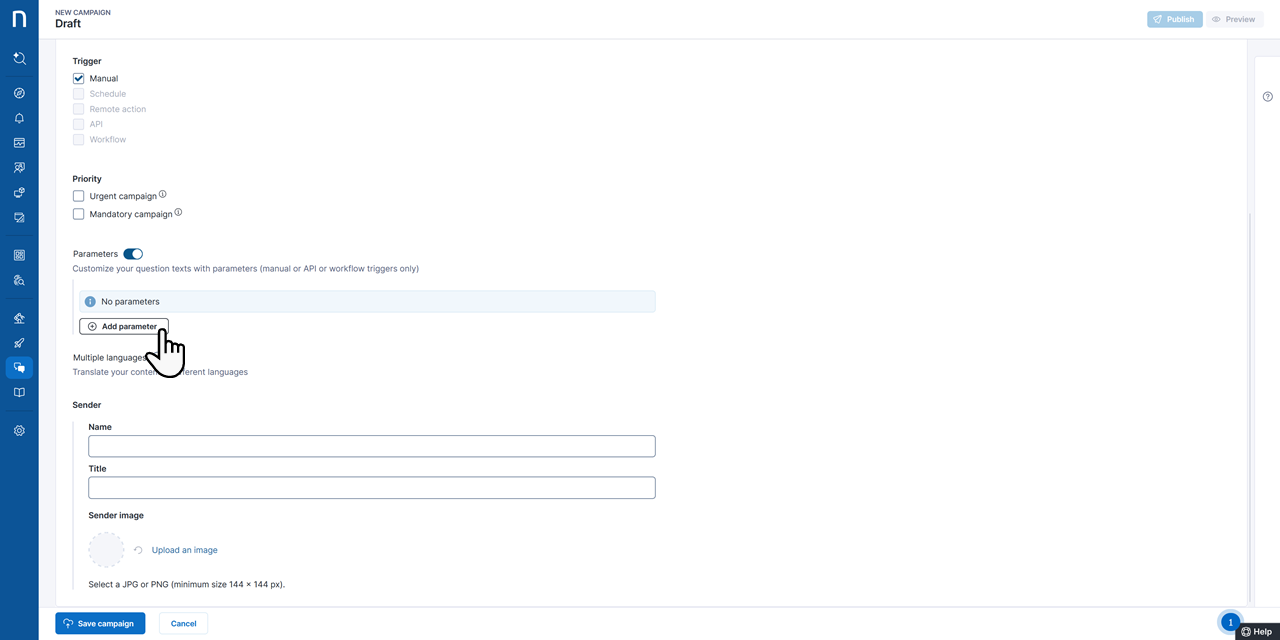
From the **New Campaign** **Draft** page, under the **Genera**l tab:
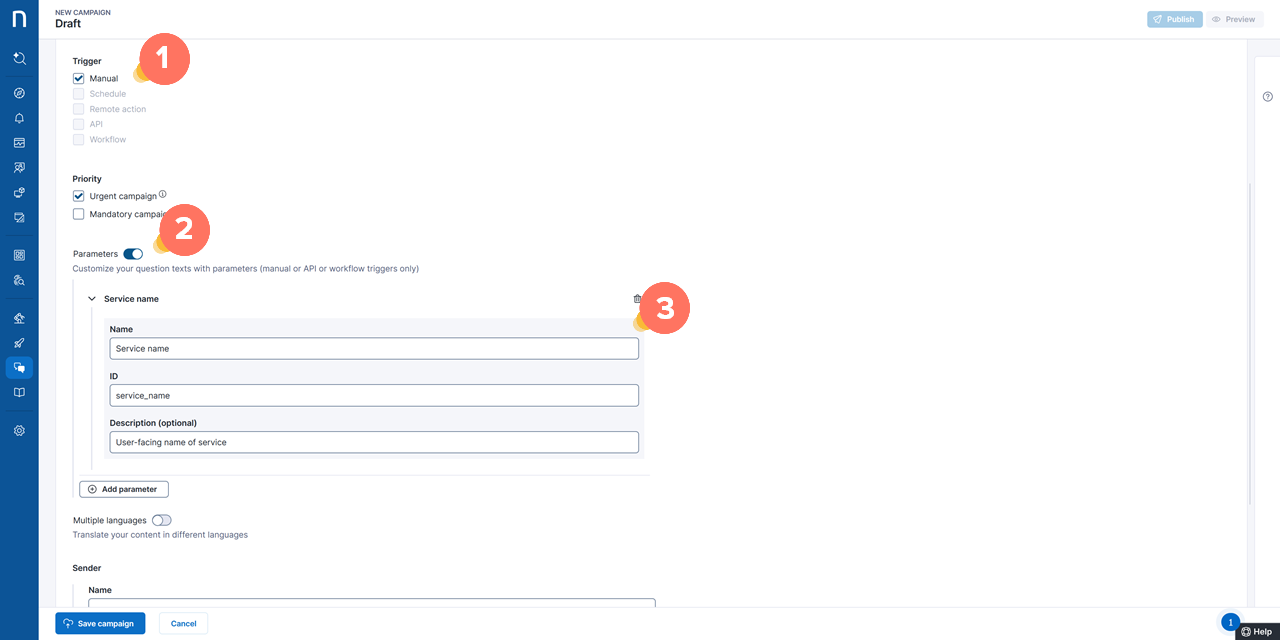
1. Select **Manual**, **Workflow** or **API** under **Trigger**.
2. Click on the **Parameters** toggle button.
3. Add a new parameter and fill in the fields:
* **Name**: Enter a unique name for the parameter.
* **ID**: Enter a unique ID for the parameter to use in NQL queries and when sending API campaigns.
* **Description**: Enter a description to help identify the parameter when sending a campaign from an investigation.
Change the number of parameters and associated IDs for campaigns in a Draft state. For published or retired campaigns, you can only edit the name and description of the parameters.
{% hint style="info" %}
In API campaigns, parameter IDs must match those of the third-party system.
{% endhint %}
### Using parameters in Campaign questions
After setting up parameters, from the **New Campaign Draft** page or **Edit Campaign** page:
1. Go to the **Content** tab.
2. Insert parameters inside **Text** questions, and their translated versions, using the **{x}** icon in the **Text** toolbar.
3. Follow the parameter `{{parameter_id}}` syntax.
#### Use case: Passing URLs as parameters
When passing a URL as a parameter:
* **If you intend the URL to be written out and visible in the campaign:** Include `https://` in the parameter.
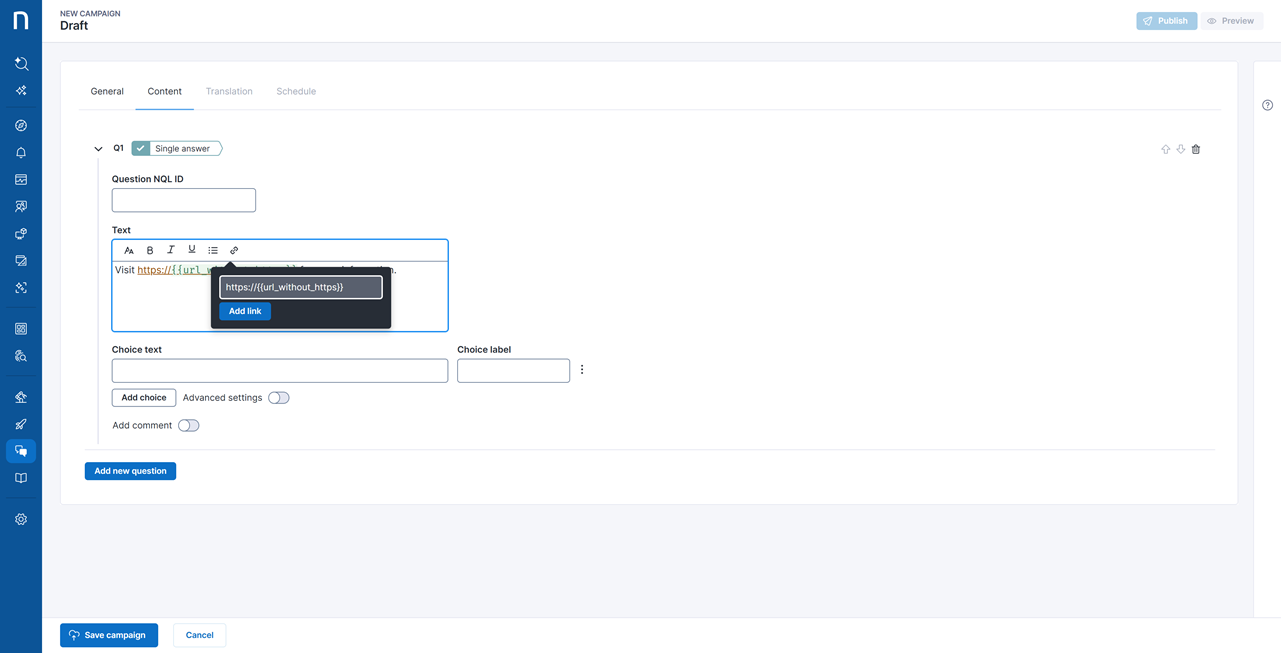
* I**f you intend to use a hyperlink and want the omitted destination URL to be parametrized:** Ensure you use the **Add** **link** button in the text editor and omit `https://` from the parameter, as the system prepends it by default.
* **If you intend to use a parameter in the visible destination URL:**
1. Omit `https://` from the parameter, as the system prepends it by default.
2. In the campaign text, add `https://` before the parameter. Example: `https://{{parameter_without_https}}`
3. Select the text, including `https://`.
4. Use the **Insert Link** option in the rich text editor.
5. Continue as if you intended to use a hyperlink and want the omitted destination URL to be parametrized.
Below are examples of using parameters in [manual](#example-of-using-parameters-in-manual-campaigns) and [API-triggered](#example-of-using-parameters-in-api-campaigns) campaigns.
### **Example of using parameters in Manual campaigns**
The following example displays the use of parameters `{{service_name}}`, `{{impact}}`, `{{timeframe}}` and `({{incident_id}})` for a manually triggered campaign.
When you launch and send out a manual campaign to **users** from the [Investigations](/user-guide/investigations.md) page, you must input the values of the campaign parameters by filling in the **Send campaign** pop-up window.
### **Example of using parameters in API campaigns**
The following example displays the use of parameters `{{ticket_description}}` and `{{ticket_number}}` for an API-triggered campaign.
{% hint style="info" %}
Remember, parameter IDs must match those of the third-party system calling the Nexthink API.
{% endhint %}
***
RELATED TOPICS
* [Investigations](/user-guide/investigations.md)
* [Developer Portal](https://developer.nexthink.com/)
---
# Agent Instructions
This documentation is published with GitBook. GitBook is the documentation platform designed so that both humans and AI agents can read, navigate, and reason over technical content effectively. Learn more at gitbook.com.
## Querying This Documentation
If you need additional information that is not directly available in this page, you can query the documentation by asking a question.
Perform an HTTP GET request on the following URL with the `ask` and `goal` query parameters:
```
GET https://docs.nexthink.com/user-guide/campaigns/managing-campaigns/creating-campaigns/configuring-campaign-parameters.md?ask=&goal=
```
`ask` is the immediate question: it should be specific, self-contained, and written in natural language.
`goal` is what the user is ultimately trying to achieve, the reason they need the answer. Sharing it helps GitBook give you a better, more relevant answer. A goal is most helpful when it describes the outcome the user wants rather than restating the question. For example, with `ask=how do I create an API token`, a goal like `automate deployments from our CI pipeline` lets GitBook tailor the answer to that use case.
The response will contain a direct answer to the question and relevant excerpts and sources from the documentation.
Use this mechanism when the answer is not explicitly present in the current page, you need clarification or additional context, or you want to retrieve related documentation sections.