> For the complete documentation index, see [llms.txt](https://docs.nexthink.com/llms.txt). Markdown versions of documentation pages are available by appending `.md` to page URLs; this page is available as [Markdown](https://docs.nexthink.com/user-guide/campaigns/managing-campaigns/creating-campaigns.md).
# Creating and configuring campaigns
Create and schedule attention-grabbing campaigns that target one or multiple employees using a variety of campaign formats to conduct surveys and request user feedback on IT-relevant issues.
{% hint style="info" %}
Refer to the [Launching campaign programs](/user-guide/campaigns/managing-campaigns/launching-campaign-programs.md#step-3-plan-and-develop-an-engaging-campaign) documentation for guidelines on planning, gaining approval, testing and launching your campaign within your organization.
{% endhint %}
There are several ways to create your campaign, including installing a campaign from Nexthink Library and triggering it without any customization. You can also create a copy of a campaign from Nexthink Library or create a custom campaign from scratch or with the support of [Nexthink Assist](/user-guide/search-and-workspace/using-workspace.md#create-campaigns-with-assist).
Nexthink recommends using Library content as a starting point before creating any custom campaigns.
## Installing a campaign from Nexthink Library
Install campaigns from the Nexthink Library and edit and customize them to your needs:
* Customize the sender name and image.
* Review and adjust questions.
* Publish the campaign when you are ready to use it.
Refer to the [Nexthink Library](/user-guide/nexthink-library.md) documentation for more information on installing library campaigns.
You can update the previously installed library campaigns if a newer version is available.
{% hint style="warning" %}
All configurations will be lost after you update a library campaign from the Nexthink Library module. Only campaigns in a Draft state retain the data structure of ongoing and past campaigns.
{% endhint %}
## Creating a copy of a campaign from Nexthink Library
Use a copy of a library campaign as a starting point for a custom campaign. This approach allows you to jump-start the campaign creation process while retaining flexibility in content customization.
Creating a copy of a campaign lets you quickly create multiple, similar campaigns. Let’s say you wanted to create multiple sentiment campaigns for employees in different regions. Search for the **Digital Experience - Sentiment** campaign in the Nexthink Library module and create multiple copies of it, one for each region. Then, adjust each campaign for each region as you see fit.
Copied campaigns are fully customizable.
Refer to the [Nexthink Library](/user-guide/nexthink-library.md) documentation for more information on copying library campaigns.
## Creating new custom campaigns
To create a new custom campaign with the support of Nexthink Assist, refer to the [Using Workspace](/user-guide/search-and-workspace/using-workspace.md#creating-campaigns-with-workspace) documentation. To create a new custom campaign from scratch:
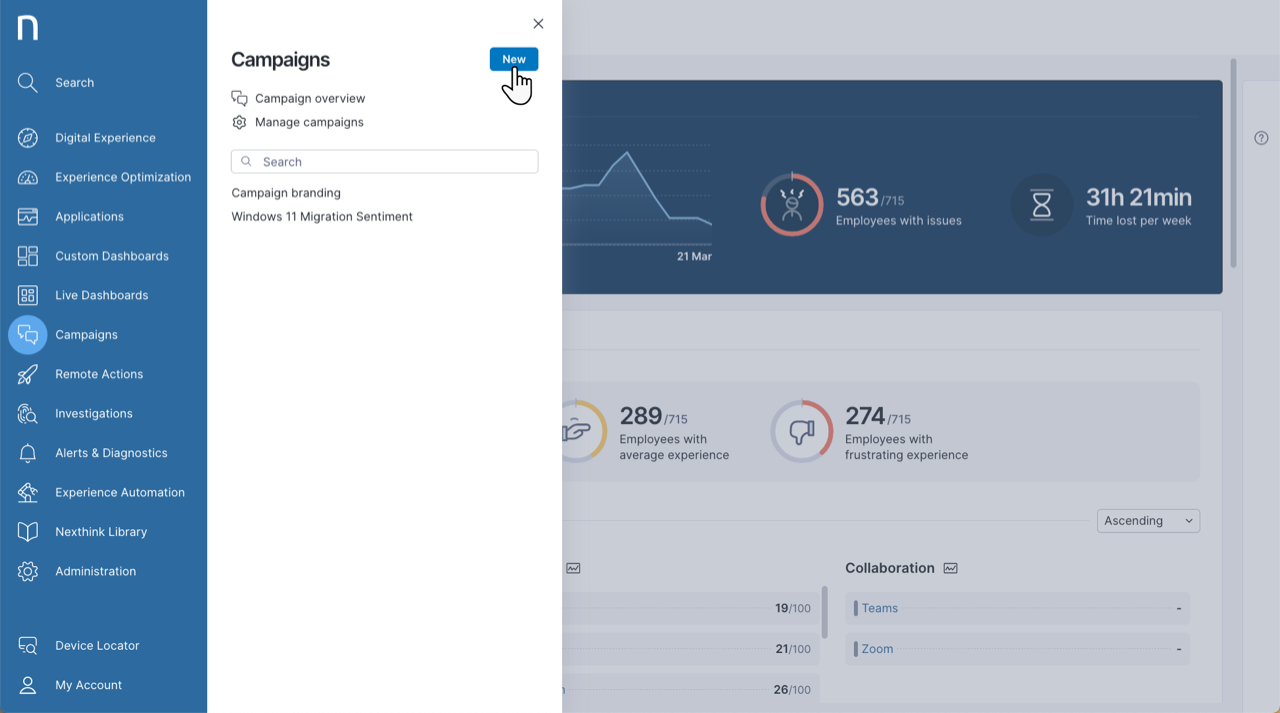
* From the **Campaigns** module on the main menu, click the **New** button in the top-right corner of the navigation panel to open the campaign configuration page.
* From the **Campaigns** > **Manage campaigns** page, click on the **New campaign** button in the top-right corner of the page to open the campaign configuration page.
After creating a new campaign, you will land on the campaign **Edit** page.
## Accessing campaign edit page
To access the custom and library campaign **Edit** page, you can:
* [Create a new campaign](#creating-new-custom-campaigns) from scratch.
* From the [Campaigns Administration](/user-guide/campaigns/managing-campaigns/managing-campaigns.md) page, hover over a specific campaign to reveal the action menu. Then select:
* **Edit** – for custom campaigns or those copied from the Library.
* **Configure** – for campaigns installed from the Nexthink Library.
* From the [campaign details page](/user-guide/campaigns/working-with-campaigns/monitoring-specific-campaign-responses.md), select **Edit campaign**.
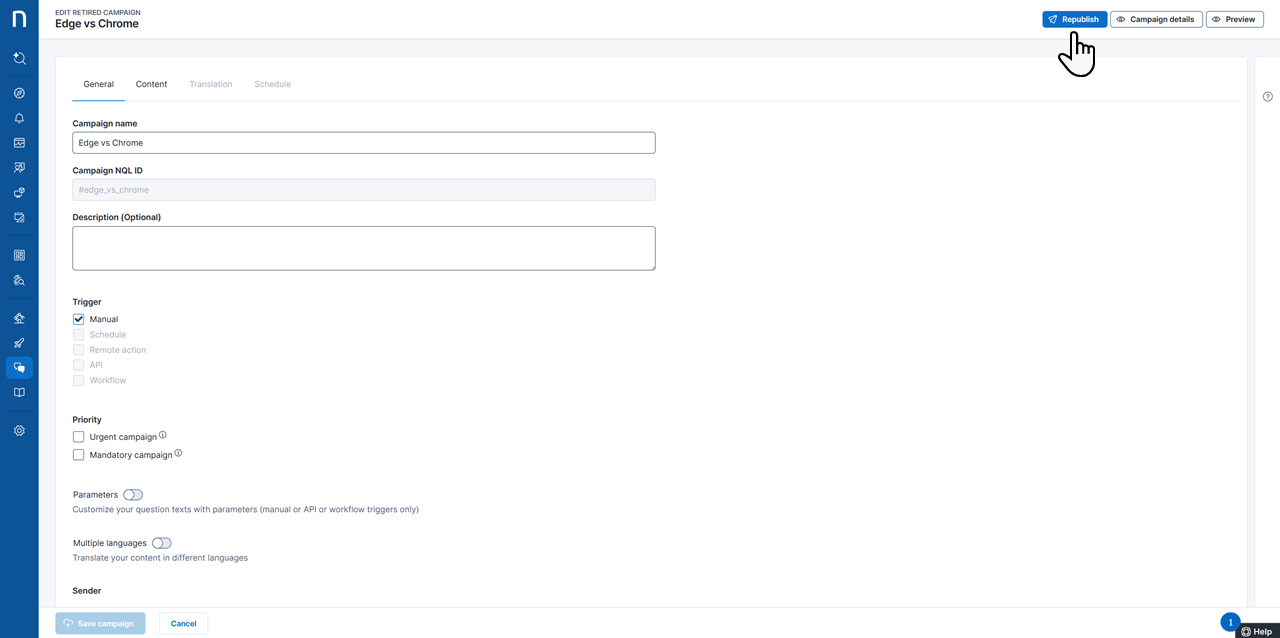
Depending on the Campaign state (draft, published or retired), from the top-right corner of the campaign **Edit** page, you can:
* **Preview** a campaign: Click the **Preview** button located in the top-right corner of the page before saving your campaign. This allows you to inspect how employees will see the campaign on their own devices. In the preview, the campaign does not record any answers, choices or comments.
* **Publish** a campaign: Turn a campaign draft into a published campaign. The system sends the published campaign to employees according to the campaign's schedule.
* Refer to [Publishing and retiring campaign](/user-guide/campaigns/managing-campaigns/creating-campaigns/publishing-and-retiring-campaign.md) for more information.
* **Retire** a campaign: Retire a published campaign so it is no longer available for employees. Once retired, the system updates the state of campaign responses that are still in a non-final state (planned, targeted) to retired. Campaign responses in the canceled, answered, or declined state remain unchanged.
* Refer to [Publishing and retiring campaign](/user-guide/campaigns/managing-campaigns/creating-campaigns/publishing-and-retiring-campaign.md) for more information.
* View **Campaign details**: Access the campaign details dashboard to analyze employee responses.
* **Save** a campaign: Click **Save campaign** to save any changes without publishing your new campaign. The campaign status turns to Draft, which means that you can return to editing it at a later time. You cannot change the Campaign NQL ID after you save a campaign to support consistent and accurate results when queried via NQL.
## Configuring general campaign settings
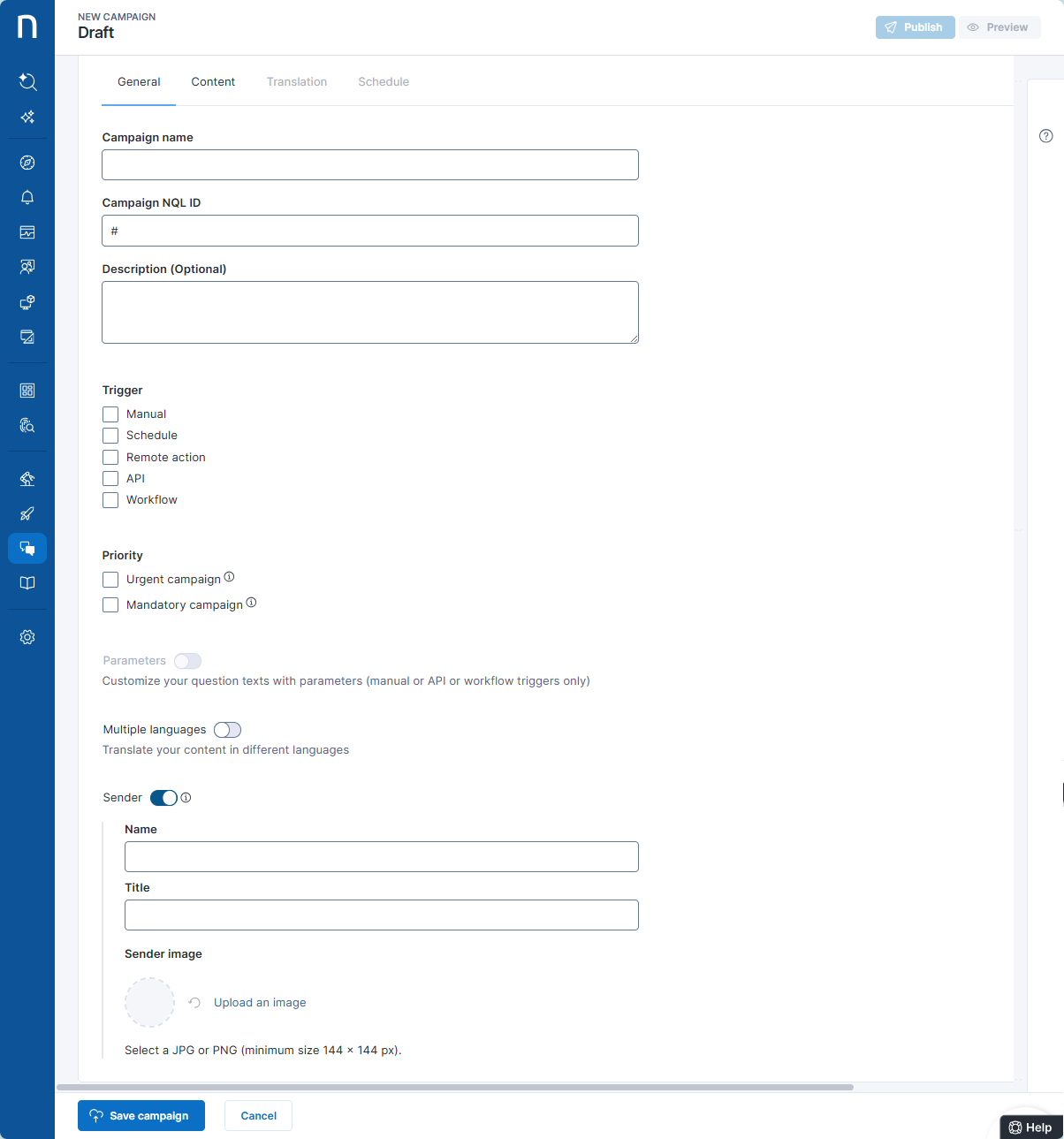
Configure the **General** tab of a campaign:
* Enter the campaign **name**, **NQL ID** and **description**.
* Once you have saved the campaign you cannot edit its **NQL ID**.
{% hint style="warning" %}
Once published, a campaign must be retired and republished to add or remove questions, change response options, or update the trigger type. You can still edit the text of existing questions and responses on published campaigns.
{% endhint %}
* Select the **Trigger** option. Refer to [Understanding campaign targeting models](/user-guide/campaigns/managing-campaigns/creating-campaigns/types-of-campaigns.md) for more information.
{% hint style="info" %}
Users with a limited view domain can manage campaigns only when the campaign uses a manual trigger.
Refer to [View domain](/user-guide/administration/account-management/roles/view-domain.md) for more information.
{% endhint %}
* Set campaign **Priority**:
* **Urgent campaigns** are delivered to users as soon as they are published, while still respecting the 20-minute protection period to avoid sending multiple campaigns too frequently. Refer to [Urgency of campaigns](/user-guide/campaigns/managing-campaigns/creating-campaigns/limiting-the-reception-rate-of-campaigns.md#limitingthereceptionrateofcampaigns-urgencyofcampaigns) for more information.
* **Mandatory campaigns** cannot be declined, postponed or minimized.
* Configure campaign **Parameters**, which you can use as variables or placeholders to personalize the text of the questions. Refer to [Configuring campaign parameters](/user-guide/campaigns/managing-campaigns/creating-campaigns/configuring-campaign-parameters.md) for more information.
* Enable **Multiple languages** and select the languages into which you want to translate your campaign.
* **Content language:** Select the main language in which you are writing your campaign.
* **Translations:** Select all the languages you want to translate the campaign into. A colored icon appears for a given language to help you keep track of your translation progress. You provide the translation texts in the [Translations tab](#creatingcampaigns-translation) for all questions and answers.
* **Default language:** Select a fallback language in case there is no translation available for the language of the employee’s operating system (OS) or if the OS language cannot be detected.
* Use the **Sender** toggle to show or hide sender information (name, title, and image) on the campaign pop-up. This option is enabled by default. Disable this option to omit sender details.
* Disabling the sender may be appropriate for follow-up campaigns in a workflow, or when the message does not require personalization.
{% hint style="warning" %}
On endpoints running Collector version 2025.6 or later, the entire footer with sender information can be hidden. On older collectors, the footer remains visible but empty.
{% endhint %}
## Creating campaign content
Create questions for the employees. Click on the **Add new question** button to start. The campaign must include at least one question other than the final message before you can publish it. Choose from different types of questions: single answer, multiple choice, option scale, net promoter score (NPS) and a final message from the modal.
Refer to [Creating campaign content](/user-guide/campaigns/managing-campaigns/creating-campaigns/types-of-questions.md) documentation for more information.
## Translating a campaign
Translate the campaign's content into multiple languages to ensure your employees understand the message you wish to convey.
After selecting multiple languages on the [General tab](#creatingcampaigns-general), navigate to the **Translations** tab:
* From the **Translate English to** drop-down list, select the target language for translation of the content.
* The system displays the original content language as read-only text for reference in translations.
* Enter the translation for all questions and answers for the selected language. Use consistent formatting and tone across all translations to provide a similar employee experience in all languages.
* A yellow exclamation mark indicates questions for which at least one translation is missing.
* A green checkbox indicates that you have provided a translation for the question and all possible answers.
{% hint style="warning" %}
The system will not show a campaign in a given translation language until you translate all of its content.
{% endhint %}
{% hint style="info" %}
If the campaign has multiple languages enabled, it displays fixed UI elements in the OS language.
{% endhint %}
Languages supported for campaign translation
```
Afrikaans
Arabic
Bulgarian
Chinese (simplified and traditional)
Croatian
Czech
Danish
Dutch
English
Filipino
Finnish
French
German
Greek
Hindi
Hungarian
Indonesian
Irish
Italian
Japanese
Kashmiri
Korean
Norwegian
Persian
Polish
Portuguese
Romanian
Russian
Serbian
Slovak
Spanish
Swedish
Thai
Turkish
Ukrainian
Vietnamese
```
## Scheduling a campaign
Select the **Schedule** checkbox in the General tab to enable the scheduling of campaigns. Next, navigate to **Schedule** tab to define the campaign recipients using **NQL**, and specify whether the campaign will be sent once or on a recurring schedule.
Refer to [Understanding campaign targeting models](/user-guide/campaigns/managing-campaigns/creating-campaigns/types-of-campaigns.md#scheduling-a-campaign) for more information.
---
# Agent Instructions
This documentation is published with GitBook. GitBook is the documentation platform designed so that both humans and AI agents can read, navigate, and reason over technical content effectively. Learn more at gitbook.com.
## Querying This Documentation
If you need additional information that is not directly available in this page, you can query the documentation by asking a question.
Perform an HTTP GET request on the following URL with the `ask` and `goal` query parameters:
```
GET https://docs.nexthink.com/user-guide/campaigns/managing-campaigns/creating-campaigns.md?ask=&goal=
```
`ask` is the immediate question: it should be specific, self-contained, and written in natural language.
`goal` is what the user is ultimately trying to achieve, the reason they need the answer. Sharing it helps GitBook give you a better, more relevant answer. A goal is most helpful when it describes the outcome the user wants rather than restating the question. For example, with `ask=how do I create an API token`, a goal like `automate deployments from our CI pipeline` lets GitBook tailor the answer to that use case.
The response will contain a direct answer to the question and relevant excerpts and sources from the documentation.
Use this mechanism when the answer is not explicitly present in the current page, you need clarification or additional context, or you want to retrieve related documentation sections.