> For the complete documentation index, see [llms.txt](https://docs.nexthink.com/llms.txt). Markdown versions of documentation pages are available by appending `.md` to page URLs; this page is available as [Markdown](https://docs.nexthink.com/user-guide/amplify/using-amplify.md).
# Using Amplify
## Searching webpage field values in Amplify
Use the Amplify extension to find information about fields of interest—such as device or username—on configured web application pages.
Open the Amplify pop-up and choose one of the following options:
### Right-click on the selected field values
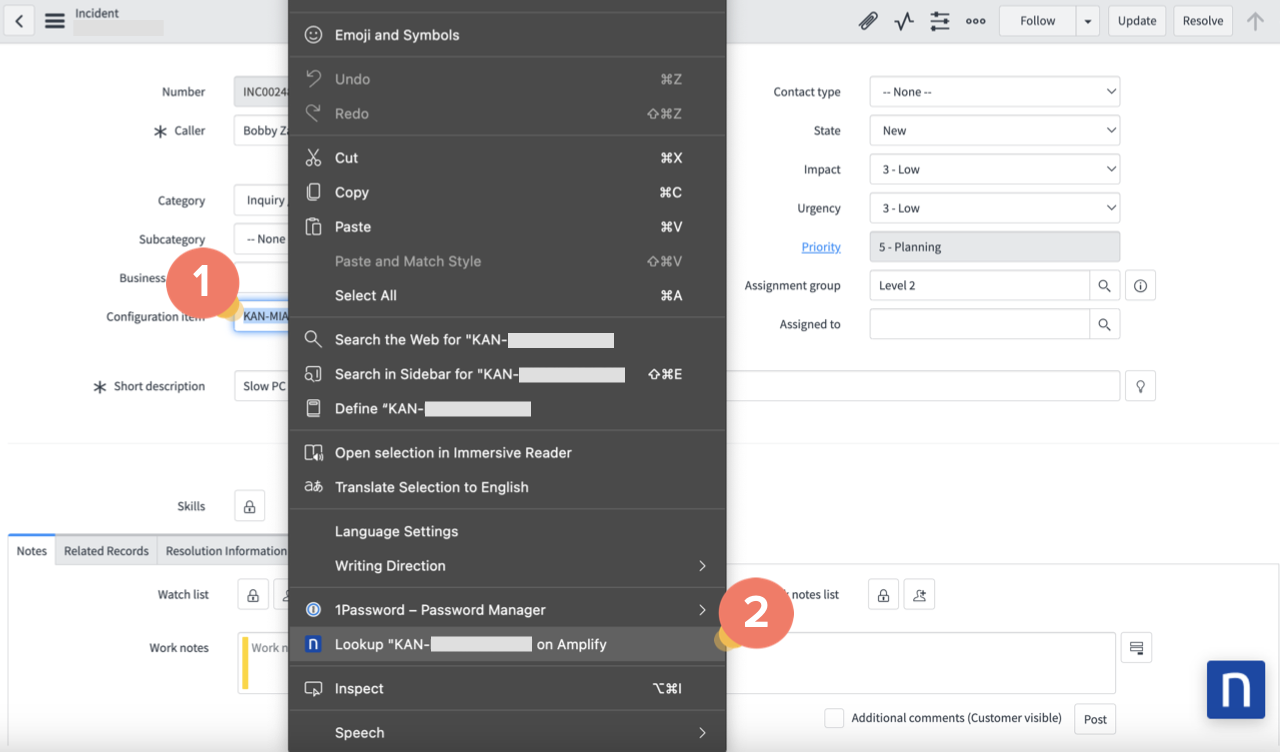
1. Highlight and right-click the device or username field from the configured web application page.
2. Select **Lookup … on Amplify** to launch the Amplify extension.
### Use keyboard shortcuts to look up selected field values
Configure the Amplify browser extension to look up selected text using keyboard shortcuts on a webpage.
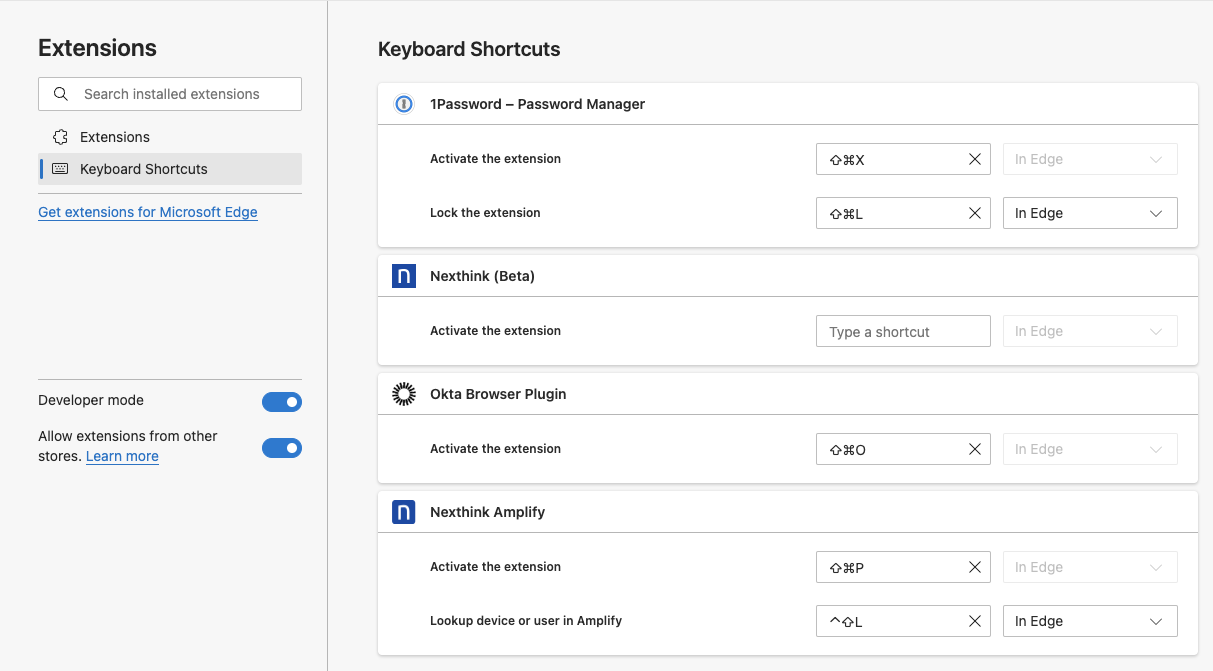
1. Right-click on the extension icon on your browser and select the **Manage Extension** option.
2. Once on the extensions management page, select the keyboard shortcuts option.
3. Find the **Nexthink Amplify** extension shortcut option.
4. Set or update the shortcut key combination for the **Look up device or user in Amplify** option.
5. From the configured webpage, select the desired user or device name and press the shortcut key to launch Amplify.
### Look up users or devices with the Amplify extension search bar
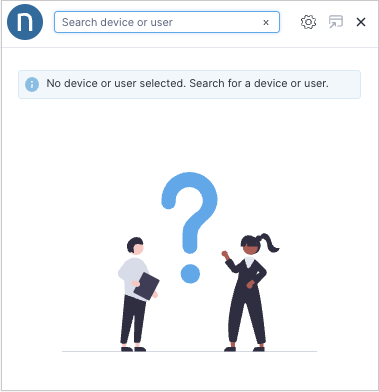
1. [Launch](#amplify-accessingamplifylaunch) the Amplify extension pop-up.
2. Enter the device or user field value in the search bar for more details.
When performing a search, Amplify looks for users or devices where any of the following attributes contain the search text:
* User attributes:
* Username
* AD username
* AD full name
* Email address
* UPN
* Device attributes:
* Device name
* Chassis serial number
* BIOS serial number
## Understanding Amplify tabs
Use the Amplify extension tabs for quick and effective troubleshooting.
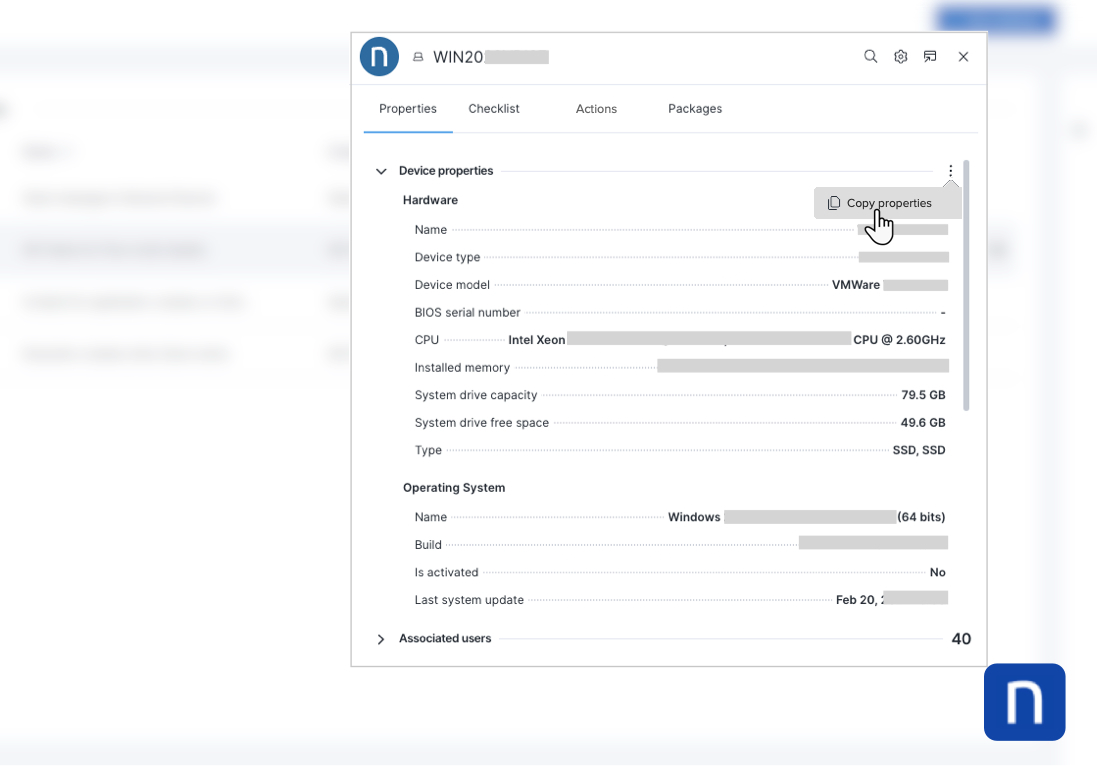
* The **Properties** tab provides information about device hardware, operating system and other key device attributes that help support agents save significant time.
* The **Checklist** tab allows support agents to view custom checklists created by administrators in the Nexthink web interface. These checklists facilitate the identification of issues in the target device and the execution of a list of **Associated actions**.
* Use the drop-down to choose any of the checklists available to your [user role](#amplify-requiredpermissionsforamplifypermissions).
* Refer to the [Checklists management](/user-guide/administration/content-management/checklists-management.md) documentation to create and edit checklists.
* The **Actions** tab allows support agents to view and execute [remote actions](/user-guide/remote-actions.md) and [workflows](/user-guide/workflows.md), mapped to their user role, on the target device.
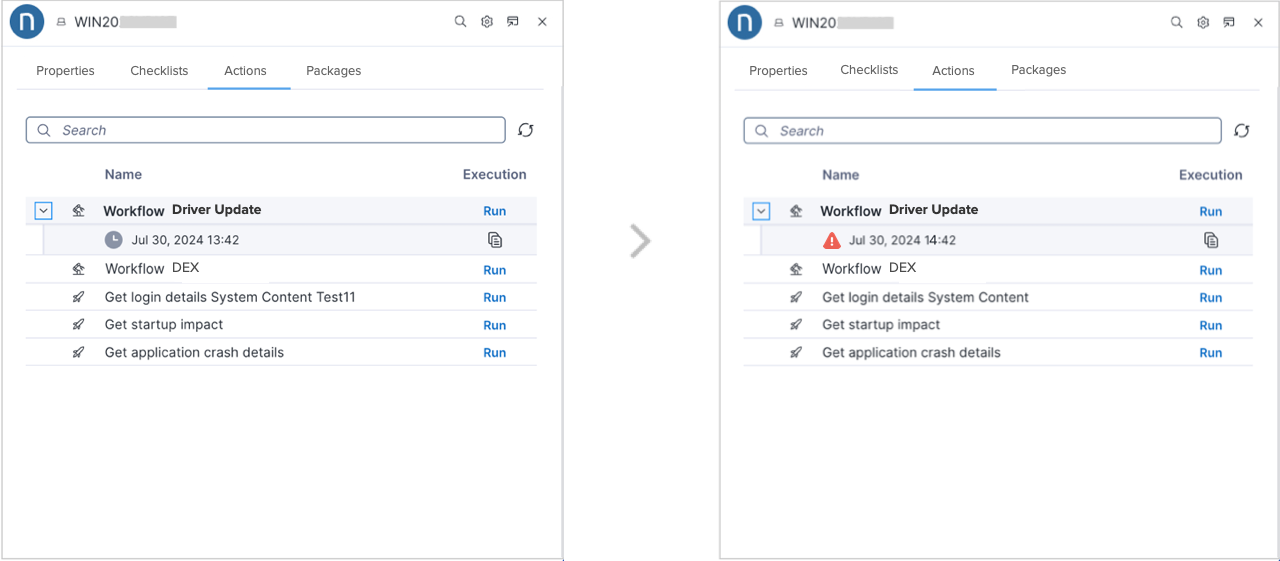
* The **Actions** tab displays the last two execution statuses of a workflow or remote action, including the option to copy the execution details.
* Refer to the [Recording remote actions in the third-party IT support tool: ServiceNow](#amplify-recordingremoteactionsinathird-partyitsupporttool-servicenowamplifyservicenow) section for an **Actions** tab use case.
* The **Packages** tab displays a list of installed applications and updates for the target device with an option to filter the package type: **Updates** or **Programs**.
The image below shows an example of a workflow status update after running the workflow from the **Actions** tab. This means support agents can check the outcome of a workflow or remote action in real-time from Amplify.
### Manually copying content from Amplify tabs
To copy device properties, user properties and checklist details from the Amplify pop-up:
* Click the action menu on the top of the desired section within the open Amplify tab.
## Recording remote actions and workflows in a third-party IT support tool: ServiceNow
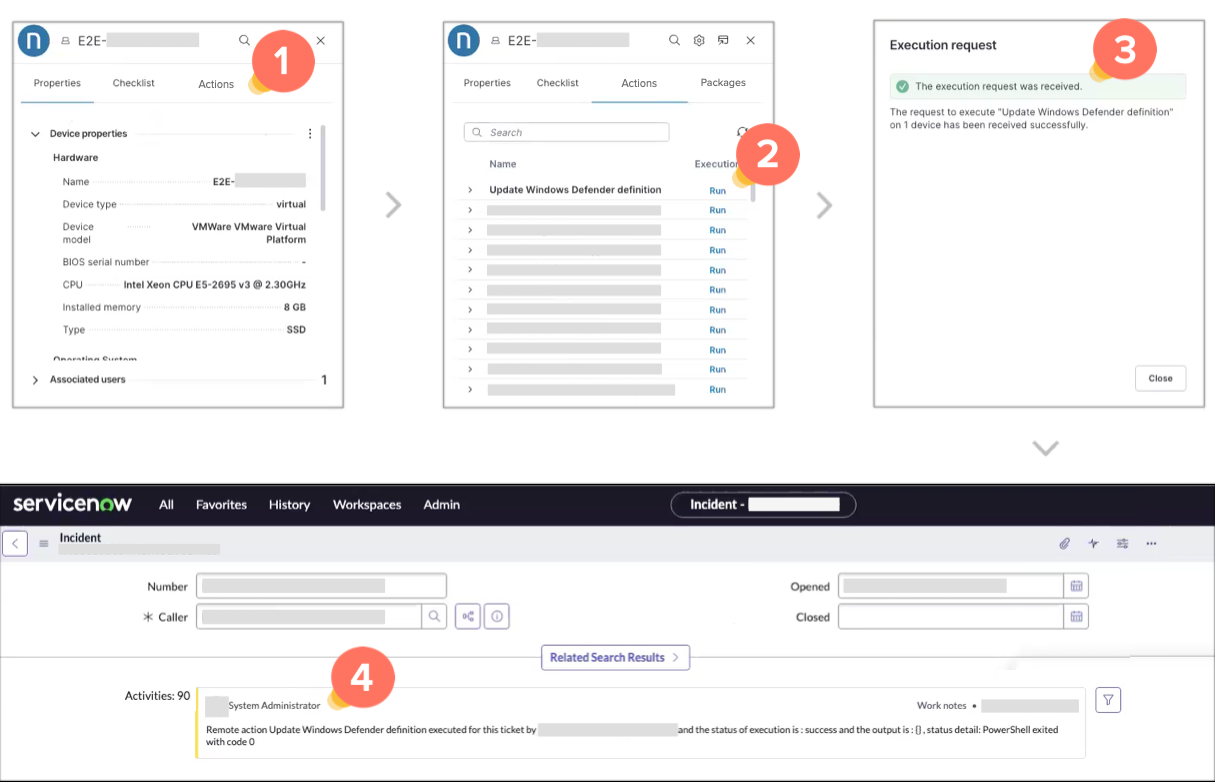
After using the Nexthink web interface to set up a [connector credential](/configuring_nexthink/bringing-data-into-your-nexthink-instance/integrating-nexthink-with-third-party-tools/outbound-connectors/connector-credentials.md) and a [webhook ](/configuring_nexthink/bringing-data-into-your-nexthink-instance/integrating-nexthink-with-third-party-tools/outbound-connectors/webhooks/webhook-use-cases-setup/updating-servicenow-from-amplify.md)for a third-party IT support tool, Amplify can automatically update the history of executed remote actions and workflows directly in the ServiceNow web interface. This includes ITSM ticket incidents and interactions.
The image below displays the sequence for executing and recording remote actions using Amplify in ServiceNow. The same steps apply to workflows.
1. Open the **Actions** tab in Amplify for the device in question.
* You can also see and select any associated action listed in the **Checklist** tab.
2. **Run** a remote action or workflow from Amplify.
3. Check that the remote action or workflow was **received**.
4. Verify if ServiceNow lists the executed remote action or workflows under **Activities**.
Refer to the [Updating ServiceNow from Amplify](/configuring_nexthink/bringing-data-into-your-nexthink-instance/integrating-nexthink-with-third-party-tools/outbound-connectors/webhooks/webhook-use-cases-setup/updating-servicenow-from-amplify.md) documentation to learn how to set up a ServiceNow case-specific webhook in the Nexthink web interface.
In addition, refer to the [Amplify installation and configuration guide](/configuring_nexthink/bringing-data-into-your-nexthink-instance/deploying-nexthink-in-non-vdi-environment/configure-amplify/installation-and-configuration.md) to set up Amplify for ServiceNow Agent Workspace and ServiceNow Operations Workspace.
## Customizing Amplify display settings
Modify the Amplify display settings that best adapt to your preferences.
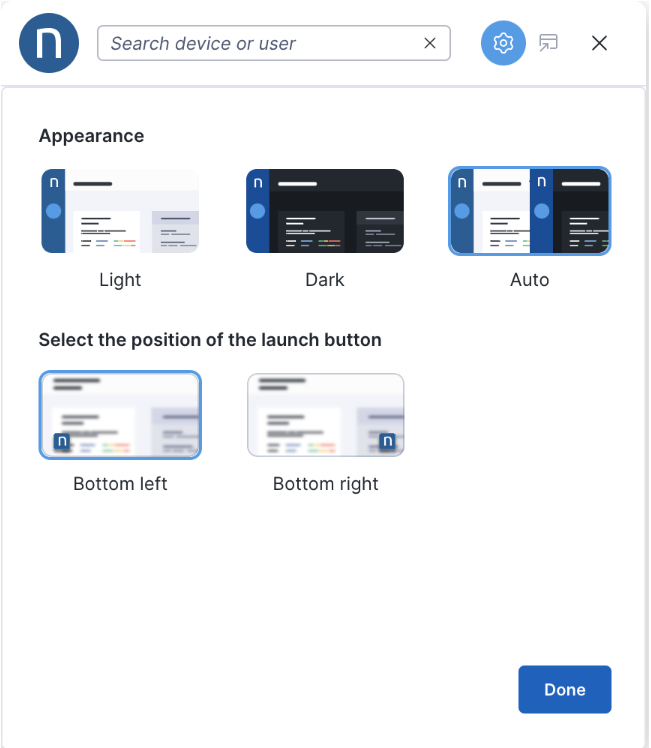
On the configured webpage, open the Amplify pop-up:
1. Click the settings icon.
2. Select the **Light**, **Dark** or **Auto** option under **Appearance** settings.
3. Select **Bottom left** or **Bottom right** for the position of the Amplify launch button.
4. Click **Done**.
Hover over the Amplify launch button on the configure webpage until the reposition cursor appears. Drag the Amplify button to a custom location.
---
# Agent Instructions
This documentation is published with GitBook. GitBook is the documentation platform designed so that both humans and AI agents can read, navigate, and reason over technical content effectively. Learn more at gitbook.com.
## Querying This Documentation
If you need additional information that is not directly available in this page, you can query the documentation by asking a question.
Perform an HTTP GET request on the following URL with the `ask` and `goal` query parameters:
```
GET https://docs.nexthink.com/user-guide/amplify/using-amplify.md?ask=&goal=
```
`ask` is the immediate question: it should be specific, self-contained, and written in natural language.
`goal` is what the user is ultimately trying to achieve, the reason they need the answer. Sharing it helps GitBook give you a better, more relevant answer. A goal is most helpful when it describes the outcome the user wants rather than restating the question. For example, with `ask=how do I create an API token`, a goal like `automate deployments from our CI pipeline` lets GitBook tailor the answer to that use case.
The response will contain a direct answer to the question and relevant excerpts and sources from the documentation.
Use this mechanism when the answer is not explicitly present in the current page, you need clarification or additional context, or you want to retrieve related documentation sections.