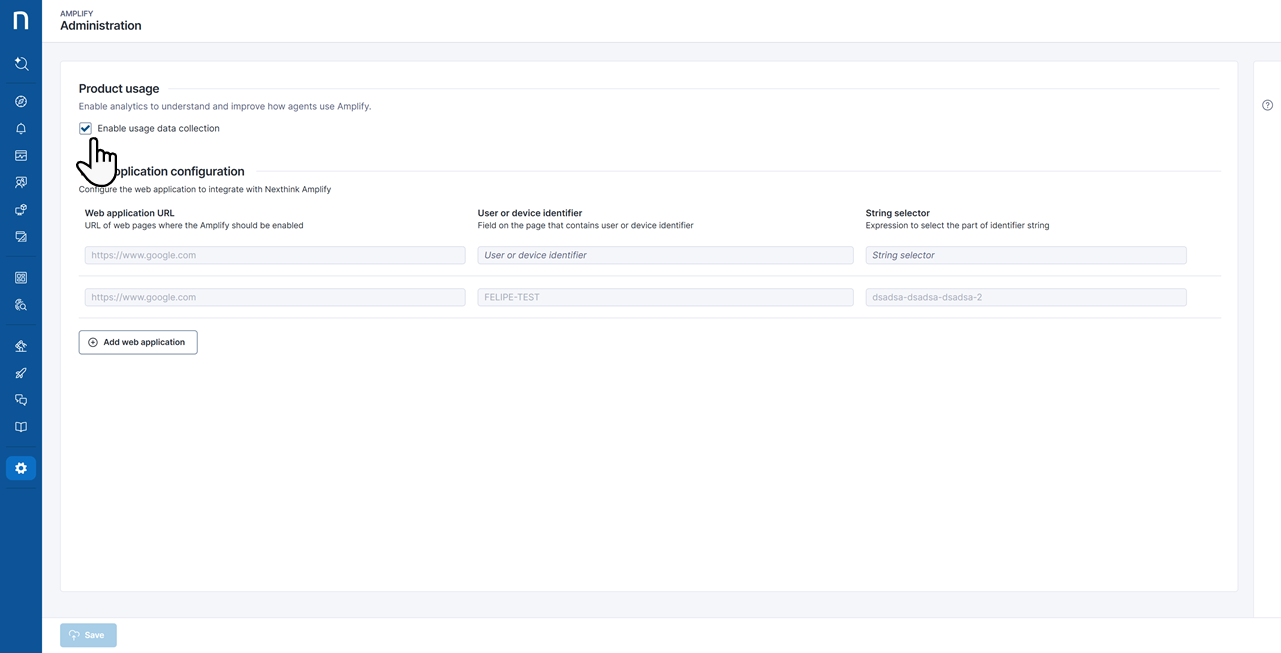
| search | search | - | A search was triggered in Amplify |
| search | open_device_view | - | Device view is opened from Amplify |
| properties | view_user | - | Properties of a user are opened after a search |
| properties | copy_user_properties | - | Properties of the user were copied |
| properties | open_device_of_user | - | Open the device from the user properties |
| properties | view_device | - | Properties of a device are opened after a search |
| properties | copy_device_properties | - | Properties of the device were copied |
| properties | open_user_of_device | - | Open the user from the device properties |
| checklists | open_tab | Checklist name | Go to the checklist tab |
| checklist | copy_properties | Checklist name | Copy properties from a checklist |
| checklists | open_checklist | Checklist name | Switch to a checklist from the checklist tab |
| checklists | trigger_remote_action | Remote action name | Trigger a remote action from the checklists tab |
| checklists | trigger_workflow | Workflow name | Trigger a workflow from the checklists tab |
| checklists | copy_remote_action_results | Remote action name | Copy remote action results from the checklists tab |
| checklists | copy_workflow_results | Workflow name | Copy workflow results from the checklists tab |
| actions | open_tab | - | Open the actions tab |
| actions | trigger_remote_action | Remote action name | Trigger a remote action from the actions tab |
| actions | trigger_workflow | Workflow name | Trigger a workflow from the actions tab |
| actions | copy_remote_actions_results | Remote action name | Copy remote action results from the actions tab |
| actions | copy_workflow_results | Workflow name | Copy workflow results from the actions tab |
| packages | open_tab | - | Open the packages tab |