> For the complete documentation index, see [llms.txt](https://docs.nexthink.com/llms.txt). Markdown versions of documentation pages are available by appending `.md` to page URLs; this page is available as [Markdown](https://docs.nexthink.com/user-guide/amplify/getting-started-with-amplify.md).
# Getting started with Amplify
Amplify assists support agents in two ways:
[Searching field values](/user-guide/amplify/using-amplify.md#amplify-searchingwebpagefieldvaluesinamplifysearchfields) of interest on the configured web application page, such as an ITSM web-based tool.
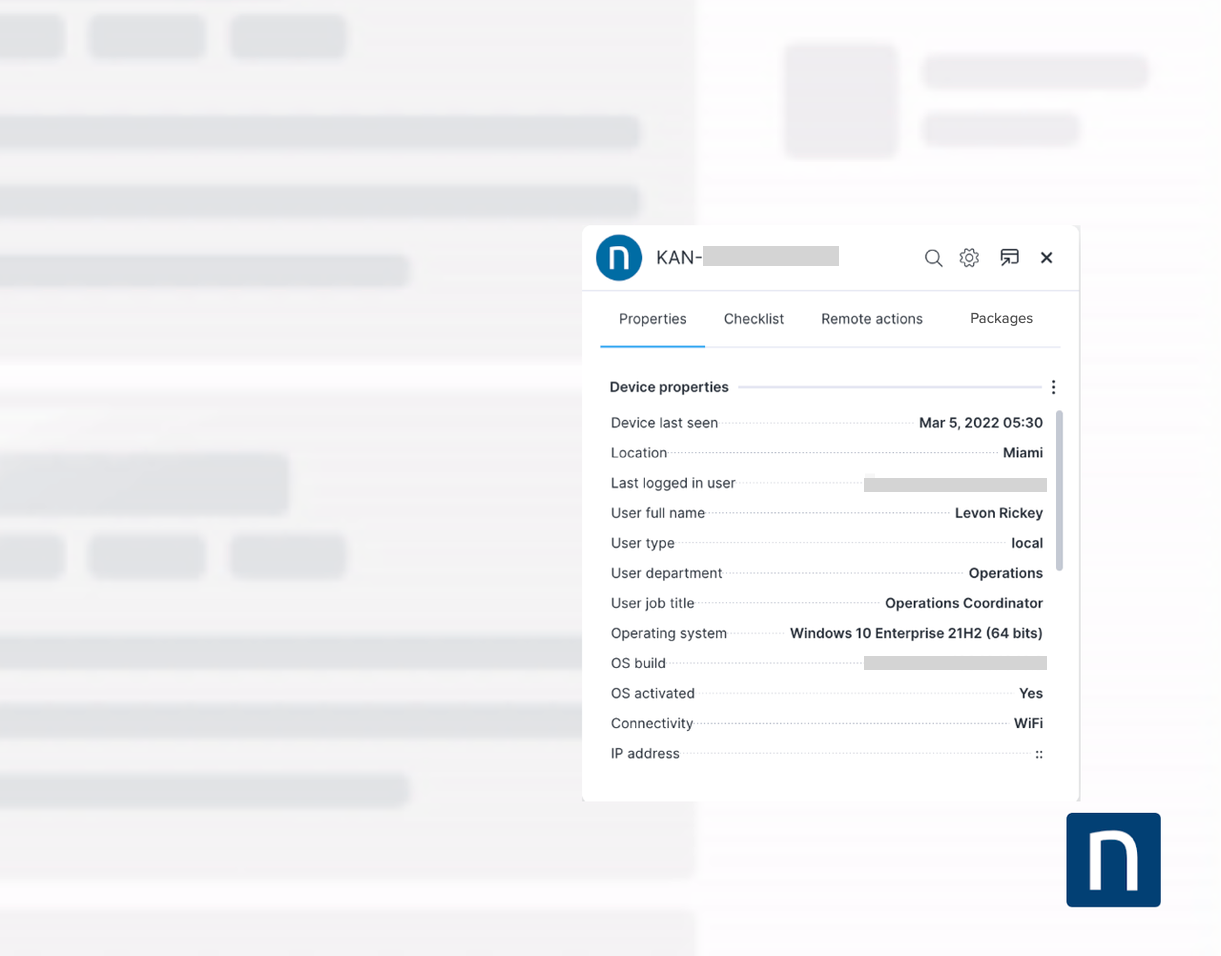
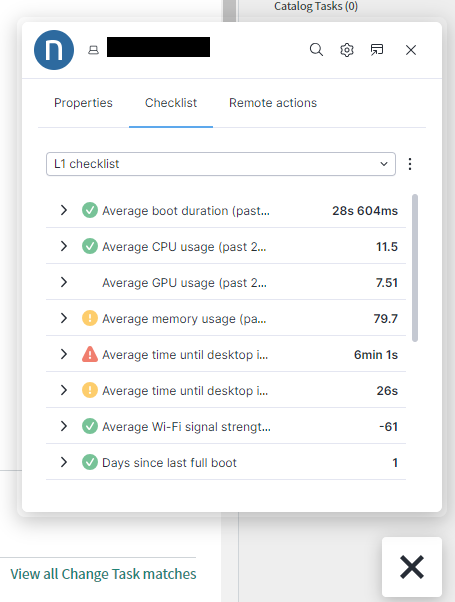
Troubleshooting using [Amplify tabs](/user-guide/amplify/using-amplify.md#amplify-amplifytabsamplifytabs) — checking the information and status of a target device, following checklists depending on the case, or executing remote actions directly from the Amplify extension. In the latter case, system administrators can configure Amplify to register executed actions automatically. Any valuable information displayed in Amplify tabs can also be copied for convenience.
Following a quick web application integration, the Amplify extension connects to your Nexthink instance and provides insights through a pop-up window within the configured web application.
## Granting permissions for Amplify
From the Nexthink web interface, go to **Administration >** [Roles](/user-guide/administration/account-management/roles.md) in the main menu:
1. Select the following permissions under the **Diagnostics** drop-down:
* **View Amplify**: Access the Amplify browser extension.
* **Manage Amplify**: Configure Amplify integrations in the Nexthink web interface, or locally in the browser extension. This permission should only be granted to administrators.
* **View all checklists**: See existing checklists in the Amplify extension.
* Even with proper permissions, administrators can limit the number of checklists users see in the Amplify extension—and in [Device View](/user-guide/device-view.md)—depending on the OS of the target device.
* Select **Specific checklists added to this role** to granularly manage or revoke permissions for specific custom checklists.
* Refer to the [Checklists management](/user-guide/administration/content-management/checklists-management.md) documentation to create and edit checklists.
* **View Device View**: Access the Device View timeline and checklists in the Nexthink web interface for detailed troubleshooting and analysis of the target device.
* **View installed packages in Amplify**: See the installed packages of the target device in the Amplify extension.
2. Select the following permissions under the **Remote actions** drop-down:
* **Execute all remote actions** or **specific remote actions to their role** using the granular permission option.
### View domain impact on Amplify-related permissions
The table below shows what users with full and limited View domain access can do, assuming the necessary permissions are enabled.
| Permission | Full access | Limited access |
| ---------------------------------- | -------------------------------------------------------------------------------------------------------------------------------------------------------------------------------------------------------------------------------------- | -------------------------------------------------------------------------------------------------------------------------------------------------------------------------------------------------------------------------------------- |
| Manage Amplify | | |
| View Amplify | | |
| View installed packages in Amplify | | |
| View checklists | | |
| Execute workflows | | |
| Execute remote actions | | |
### Data privacy settings for Amplify
From the Nexthink web interface:
1. Go to **Administration >** [Roles](/user-guide/administration/account-management/roles.md) in the main menu.
2. Tick **Device** and **User** under **Data privacy** to make them visible to the user role.
{% hint style="info" %}
Limiting user roles to only have **Device** visibility under the **Data privacy** configuration allows them to search data based on the device identifier and not user attributes.
{% endhint %}
## Installing and configuring Amplify
Refer to the [Installation and configuration guide](/configuring_nexthink/bringing-data-into-your-nexthink-instance/deploying-nexthink-in-non-vdi-environment/configure-amplify.md) to install Amplify in one of the following supported browsers:
* Google Chrome
* Microsoft Edge
## Accessing Amplify
Once installed and configured, first-time users need to log in to Amplify:
1. Open the web application URL configured to integrate with Amplify. For example, the ITSM tool.
2. If not pinned yet, open the drop-down in your browser extension bar and select **Nexthink Amplify**.
3. **Log in** following a successful authentication.
After logging in, access the Amplify extension by choosing one of these options:
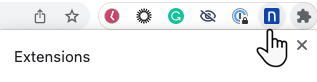
Click the Amplify extension icon on the browser extension bar
1. Pin the Amplify extension to your browser extension manager.
2. From the configured web page, click the Amplify extension icon to launch the Amplify pop-up.
Click the Amplify button from the configured web application page
Click the Amplify extension icon located in the bottom-right corner of the configured ITSM page.
You can also launch Amplify by right-clicking selected fields or items on the web application page, see the section [Searching webpage field values in Amplify](/user-guide/amplify/using-amplify.md#amplify-searchingwebpagefieldvaluesinamplifysearchfields) on this page.
### Accessing multiple Amplify instances
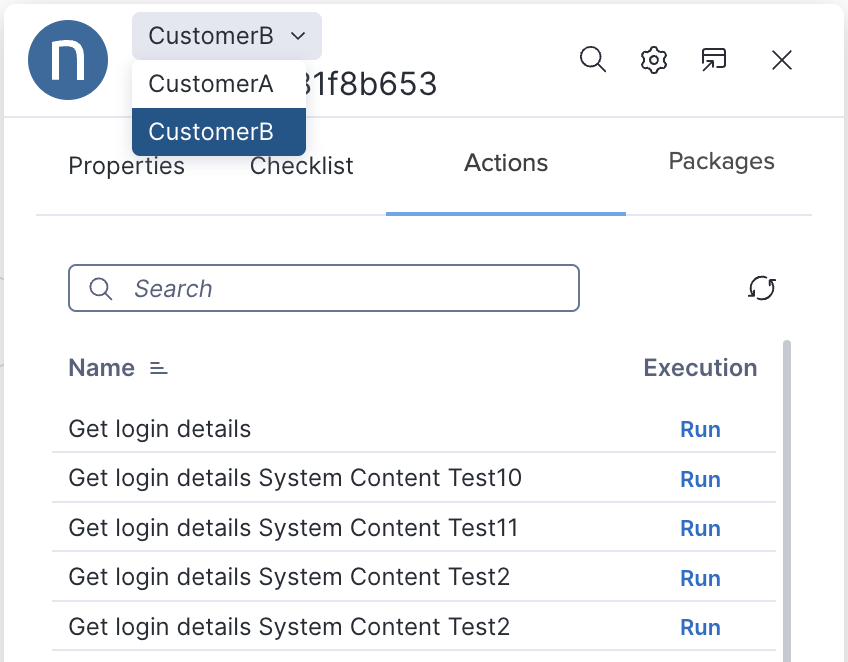
If Nexthink administrator configured Amplify to work in multi-instance mode, you can see a customer instance drop-down at the top of the Amplify pop-up window when launching the Amplify extension.
{% hint style="info" %}
Refer to the [Installation and configuration guide](/configuring_nexthink/bringing-data-into-your-nexthink-instance/deploying-nexthink-in-non-vdi-environment/configure-amplify/installation-and-configuration.md) to learn how to integrate multiple Nexthink instances with one or multiple web applications.
{% endhint %}
## Tracking Amplify usage
Nexthink provides data on Amplify through the [NQL data model](/understanding-key-data-platform-concepts/nql-data-model.md), enabling you to track every aspect of its usage. Refer to the [Tracking Amplify usage](/user-guide/amplify/tracking-amplify-usage.md) documentation for more information on accessing this feature.
***
RELATED TASKS
* [Installing Amplify browser extension](/configuring_nexthink/bringing-data-into-your-nexthink-instance/deploying-nexthink-in-non-vdi-environment/configure-amplify.md)
* [Updating ServiceNow from Amplify](/configuring_nexthink/bringing-data-into-your-nexthink-instance/integrating-nexthink-with-third-party-tools/outbound-connectors/webhooks/webhook-use-cases-setup/updating-servicenow-from-amplify.md)
---
# Agent Instructions
This documentation is published with GitBook. GitBook is the documentation platform designed so that both humans and AI agents can read, navigate, and reason over technical content effectively. Learn more at gitbook.com.
## Querying This Documentation
If you need additional information that is not directly available in this page, you can query the documentation by asking a question.
Perform an HTTP GET request on the following URL with the `ask` and `goal` query parameters:
```
GET https://docs.nexthink.com/user-guide/amplify/getting-started-with-amplify.md?ask=&goal=
```
`ask` is the immediate question: it should be specific, self-contained, and written in natural language.
`goal` is what the user is ultimately trying to achieve, the reason they need the answer. Sharing it helps GitBook give you a better, more relevant answer. A goal is most helpful when it describes the outcome the user wants rather than restating the question. For example, with `ask=how do I create an API token`, a goal like `automate deployments from our CI pipeline` lets GitBook tailor the answer to that use case.
The response will contain a direct answer to the question and relevant excerpts and sources from the documentation.
Use this mechanism when the answer is not explicitly present in the current page, you need clarification or additional context, or you want to retrieve related documentation sections.
 | |
| View Amplify |
| |
| View Amplify |