> For the complete documentation index, see [llms.txt](https://docs.nexthink.com/platform/llms.txt). Markdown versions of documentation pages are available by appending `.md` to page URLs; this page is available as [Markdown](https://docs.nexthink.com/platform/user-guide/ai-tools/setting-up-and-managing-ai-tools/modifying-campaign-setups-for-ai-tools.md).
# Modifying campaign setups for AI tools
{% hint style="info" %}
For the interpretation of AI Tools campaign data, refer to [Monitoring AI adoption](/platform/user-guide/ai-tools/working-with-ai-tools/monitoring-ai-adoption.md#monitoring-employee-experience-with-ai-tools)
{% endhint %}
When enabled from the specific AI tool configuration, built-in campaigns collect employee feedback on AI usage using uneditable content, deployed under specific conditions. However, you can modify AI-tool campaign settings to exclude specific users from campaigns.
To modify built-in campaign targets for configured AI tools:
1. Navigate to **AI Tools** > **Manage AI tools** from the navigation menu and open the **Settings** tab.
2. Under the Employee experience campaign, verify current **campaign-enabled** AI tools and **Target users**.
3. If needed, **Set up exclusions** to prevent certain users from receiving AI-tool campaigns.
* Write an **NQL query** to list users who should be excluded from campaigns.
* Alternatively, **Ask Assist to create the query** based on your described needs.
When setting up user exclusions, you should first **Run** a valid NQL query before saving changes.
Verify the number of query-matching users, displayed in the web user interface, or **Show results in Investigations** for further user inspection.
{% hint style="warning" %}
If you **disable** a campaign from the specific [AI tool configuration](/platform/user-guide/ai-tools/setting-up-and-managing-ai-tools/configuring-ai-tools.md#configuring-ai-tools-for-nexthink-monitoring), no new employees are targeted. However, employees who had already been targeted continue to receive the campaign until they respond, cancel, or the campaign expires.
{% endhint %}
{% hint style="info" %}
The system displays the ✦ sparkles icon to indicate AI-generated content or insights. AI is evolving rapidly and delivering great insights, but it can still make mistakes. Nexthink recommends validating your results to ensure accuracy and support informed decision-making.
Refer to the [Nexthink Assist - AI Model Card](https://docs.nexthink.com/legal/global-ai-hub/nexthink-assist-ai-model-card) documentation for more information.
{% endhint %}
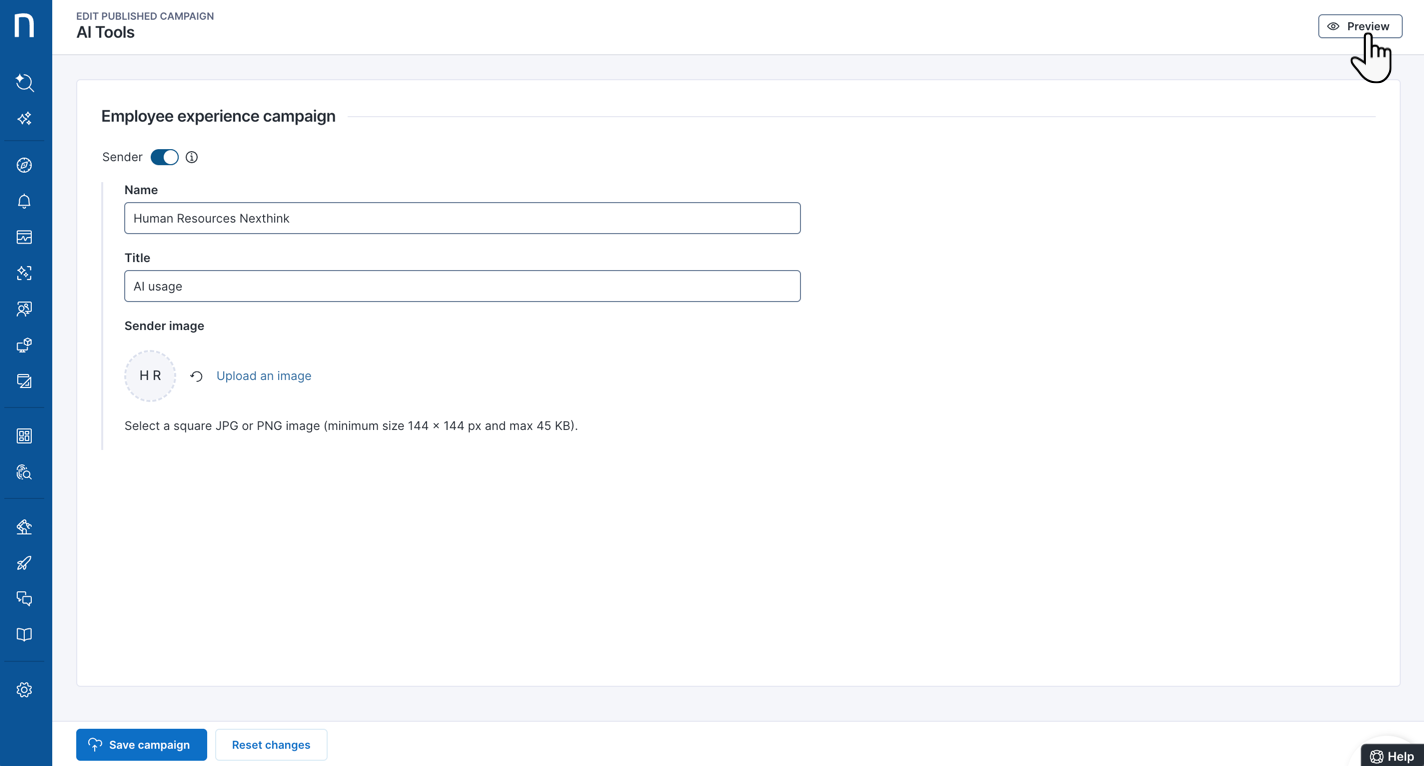
4. Optionally, **Edit sender** to enable and modify the campaign sender information, from a new browser tab—by default, the system hides the campaign **Sender** information.
* From the top-right corner of the open browser tab, with the **Edit published campaign** page, **Preview** the campaign from the user perspective.
* After previewing the campaign, you should go back to the **Edit published campaign** page and **Save campaign** changes.
Return to the **Manage AI tools** page > **Settings** tab after saving campaign changes—as there is no automatic redirection from the open browser tab with the **Edit published campaign** page.
You can preview active campaigns directly from the AI adoption dashboard of the specific AI tool—no administrator rights required. Refer to [Monitoring AI adoption](/platform/user-guide/ai-tools/working-with-ai-tools/monitoring-ai-adoption.md#monitoring-employee-experience-with-ai-tools)
{% hint style="warning" %}
Previewed but unsaved campaign changes are lost if you close the browser tab—with the **Edit published campaign** page—and navigate away.
Built-in campaign questions are uneditable. Refer to [Monitoring AI Tools](/platform/user-guide/ai-tools/working-with-ai-tools.md#built-in-campaign-content-for-sentiment-tracking)
{% endhint %}
---
# Agent Instructions
This documentation is published with GitBook. GitBook is the documentation platform designed so that both humans and AI agents can read, navigate, and reason over technical content effectively. Learn more at gitbook.com.
## Querying This Documentation
If you need additional information that is not directly available in this page, you can query the documentation dynamically by asking a question.
Perform an HTTP GET request on the current page URL with the `ask` query parameter, and the optional `goal` query parameter:
```
GET https://docs.nexthink.com/platform/user-guide/ai-tools/setting-up-and-managing-ai-tools/modifying-campaign-setups-for-ai-tools.md?ask=&goal=
```
`ask` is the immediate question: it should be specific, self-contained, and written in natural language.
`goal` is optional and describes the broader end goal you are ultimately trying to accomplish on behalf of the user. GitBook uses it to tailor the answer towards what is most useful for that goal.
The response will contain a direct answer to the question and relevant excerpts and sources from the documentation.
Use this mechanism when the answer is not explicitly present in the current page, you need clarification or additional context, or you want to retrieve related documentation sections.